Preliminary Fixes
- Check network connection: Ensure your device has a stable network connection. Visit Speedtest to confirm high internet speeds. Read our guide if your Windows or Mac is connected to Wi-Fi without a network connection.
- Check TikTok servers: If the TikTok servers are down, you can’t access TikTok on your device. You can confirm the issue on social media handles or visit Downdetector.
- Disable extension: If TikTok works fine in private or incognito mode, one of the installed extensions can be the main culprit. Uninstall the extension that is causing the issue.
- Check VPN: If you are accessing TikTok using a VPN network, ensure that your VPN server is located where TikTok is accessible.
Fix 1: Clear TikTok Cache in Browser
TikTok collects cache in the background to save your account details, search history, and more. When it collects a corrupt cache, you may face issues loading TikTok on the web.
Step 1: Visit TikTok on the web and click the lock icon in the address bar.
Step 2: Click on Site settings.
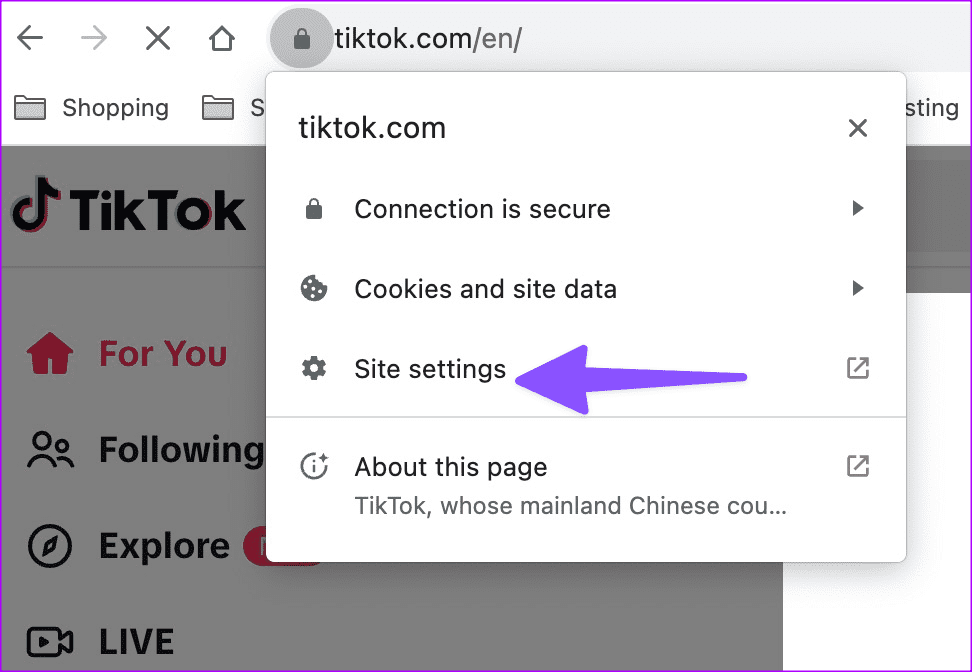
Step 3: Click Delete data to clear TikTok data.

Fix 2: Disable Battery Saver Mode
If your Windows or Mac is in active battery saver mode, you may have problems streaming TikTok videos. Here’s how to fix it.
On Windows
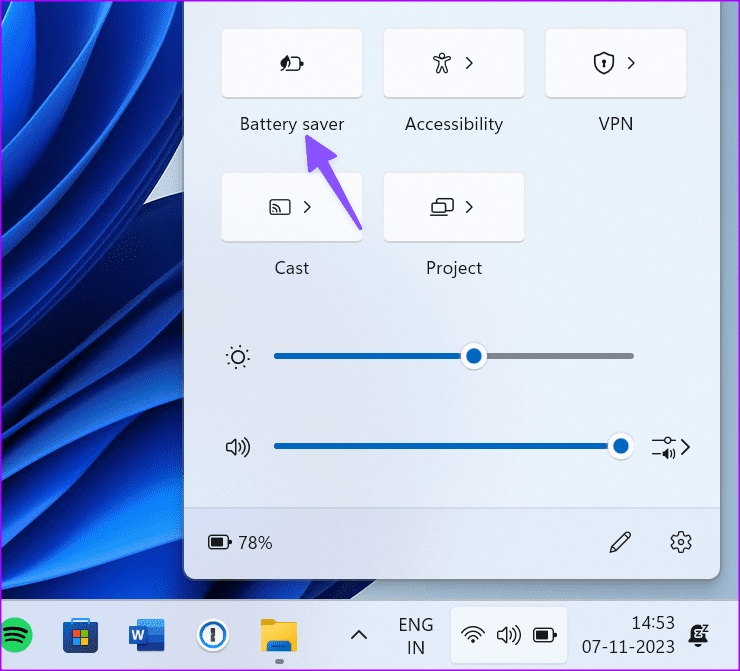
Step 1: Click the quick toggles menu on the Taskbar.
Step 2: Disable Battery Saver. Refresh TikTok on the web and try again.
On Mac
Step 1: Click the battery icon on the menu bar > choose Battery Settings.
Step 3: Expand the drop-down menu > choose Never next to the Low Power Mode.

Once done, go back to the browser and refresh TikTok on the web. If this method didn’t help, check out the next fix.
Fix 3: Change DNS Settings
Step 1: Press the Windows + I keys to launch Settings.
Step 2: Select Network & internet from the left sidebar > choose WiFi from the right pane.

Step 3: Click on Hardware properties.

Step 4: Click on Edit next to DND server assignments.

Step 5: Select Manual from the drop-down > enable IPv4 and IPv6 toggles.
Note: For the demonstration, we will use Google’s DNS servers.
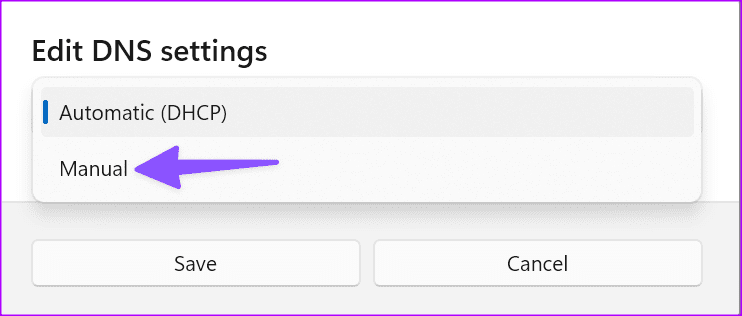
Step 6: Add 8.8.8.8 as the Preferred DNS and 8.8.4.4 as the Alternate DNS > click OK.
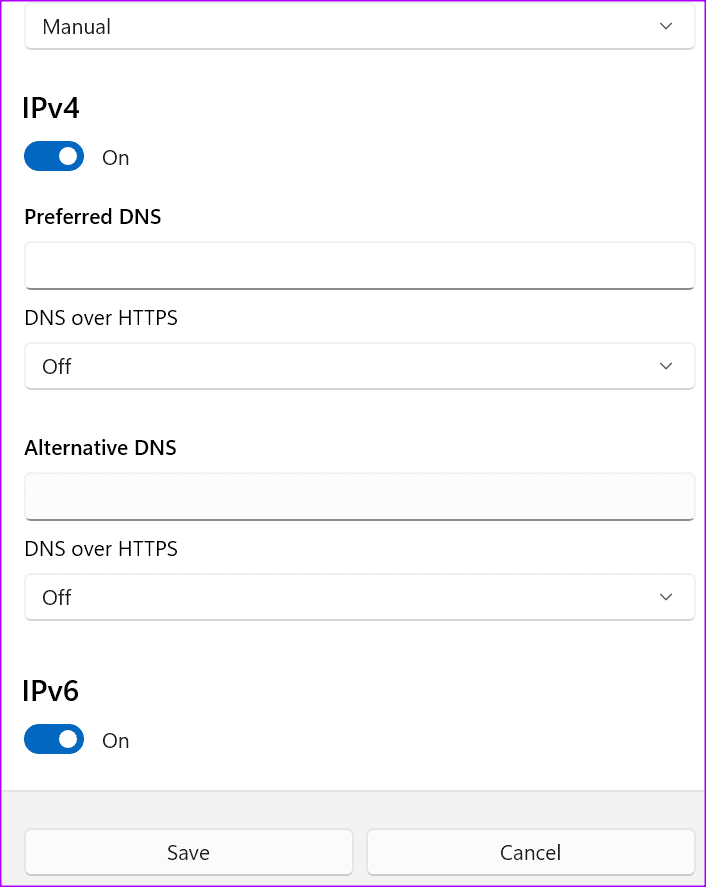
Restart your preferred browser, and you should be able to re-access TikTok.
The above-mentioned fixes will help you resolve the issue and regain access to TikTok without hindrance.
Was this helpful?
Last updated on 30 May, 2024
Read Next
 TikTok vs TikTok Lite: What’s Best for You?
TikTok (previously known as Musical.ly) is one of the massively growing social media apps out there, and it's easy to see why.
TikTok vs TikTok Lite: What’s Best for You?
TikTok (previously known as Musical.ly) is one of the massively growing social media apps out there, and it's easy to see why.
 How to Clear Cache on TikTok on Android, iOS, or Web
TikTok has quickly become one of the most popular social media platforms with millions of users worldwide.
How to Clear Cache on TikTok on Android, iOS, or Web
TikTok has quickly become one of the most popular social media platforms with millions of users worldwide.
 How to Delete All Reddit Comments and Posts on Web Browser
How to Permanently Delete Reddit Comments and Posts Individually We'll show you how to delete a Reddit post or a comment individually, then proceed to delete all Reddit posts at
How to Delete All Reddit Comments and Posts on Web Browser
How to Permanently Delete Reddit Comments and Posts Individually We'll show you how to delete a Reddit post or a comment individually, then proceed to delete all Reddit posts at
 How to Recall an Email in Gmail Using App or Web Browser
While proofreading an email is a must, there are always times when you end up missing things.
How to Recall an Email in Gmail Using App or Web Browser
While proofreading an email is a must, there are always times when you end up missing things.
 3 Ways to Fix TikTok App Not Loading on Your Phone
Basic Fixes Check your network connection: Ensure your smartphone has a robust internet connection.
3 Ways to Fix TikTok App Not Loading on Your Phone
Basic Fixes Check your network connection: Ensure your smartphone has a robust internet connection.
 4 Ways to Fix TikTok Notifications Not Working on iPhone and Android
Preliminary Fixes Disable Do Not Disturb: If your phone is on DND, you don’t receive notifications from TikTok and other apps.
4 Ways to Fix TikTok Notifications Not Working on iPhone and Android
Preliminary Fixes Disable Do Not Disturb: If your phone is on DND, you don’t receive notifications from TikTok and other apps.
 3 Ways to Fix TikTok Effects Not Working
Basic Fixes: Ensure you're in the correct region: Due to region restrictions, some TikTok filters may not be available in your country.
3 Ways to Fix TikTok Effects Not Working
Basic Fixes: Ensure you're in the correct region: Due to region restrictions, some TikTok filters may not be available in your country.
 4 Ways to Fix TikTok Search Not Working
Quick Fixes Check TikTok Servers: If TikTok servers are down, you may run into glitches with the search function.
4 Ways to Fix TikTok Search Not Working
Quick Fixes Check TikTok Servers: If TikTok servers are down, you may run into glitches with the search function.
The article above may contain affiliate links which help support Guiding Tech. The content remains unbiased and authentic and will never affect our editorial integrity.