

Try Basic Fixes
- Update the app: Using an outdated version of the Spotify app can also trigger the “Something went wrong” error. Head over to the Play Store or App Store to update the Spotify app and try using it again.
- Temporarily disable VPN: Spotify may display the “Something went wrong” or “No internet connection available” error if there is a problem with your VPN. To check for this possibility, temporarily disable your VPN connection.
- Check if Spotify is down: Spotify, like any other service, can experience server outages at times. You can check Spotify’s server status on a website like Downdetector to see if it’s a widespread issue.
Fix 1: Sign Out and Sign Back In
Signing out of the Spotify app and back in can help fix any account-related issues that may be triggering the “Something went wrong” error in Spotify. To sign out of the Spotify app, tap the gear-shaped icon in the top right corner and scroll down to tap on Log out.


After you log out, sign back into your Spotify account and check if the error still occurs.
Fix 2: Clear Spotify App Cache
Spotify collects cache data on your phone to reduce loading times and improve the user experience. Over time, this data could pile up and conflict with the app processes. When this happens, the Spotify app may display errors or even crash on your Android or iPhone.
For such instances, Spotify allows you to clear cache data from its settings menu. The following steps will work for Android and iPhone.
Step 1: Open the Spotify app on your phone and tap the gear-shaped icon at the top right corner.
Step 2: Scroll down to tap the Clear cache option. Select Clear cache again when the confirmation prompt appears.


Fix 3: Correct the Date and Time on Your Phone
If your phone clock is set to an incorrect date or time, apps like Spotify may struggle to fetch data from the server and fail to function. This usually happens when you disable your phone’s automatic date and time feature. Hence, it’s best to enable it.
Android
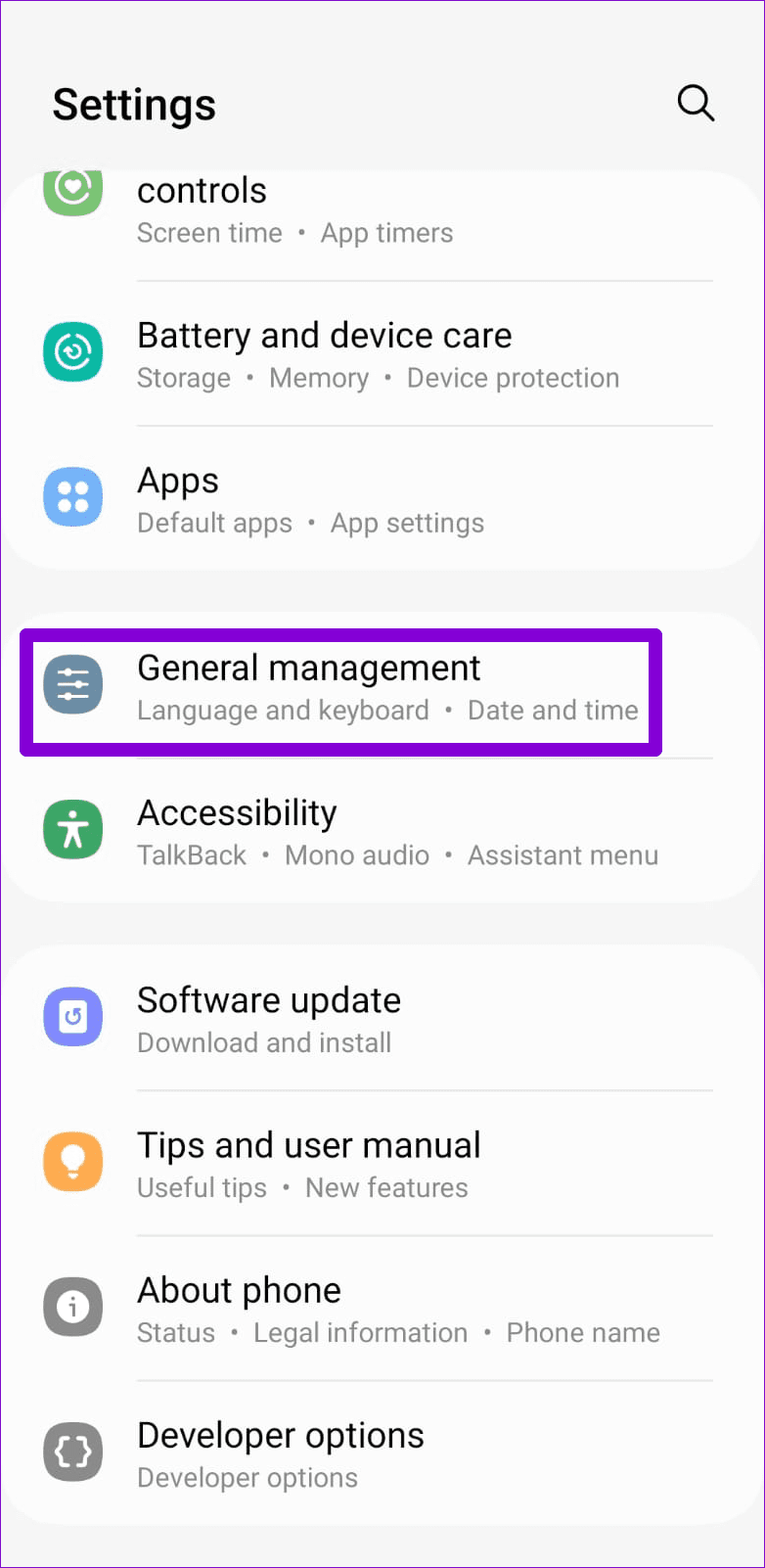
Step 1: Open the Settings app on your phone and go to General management.
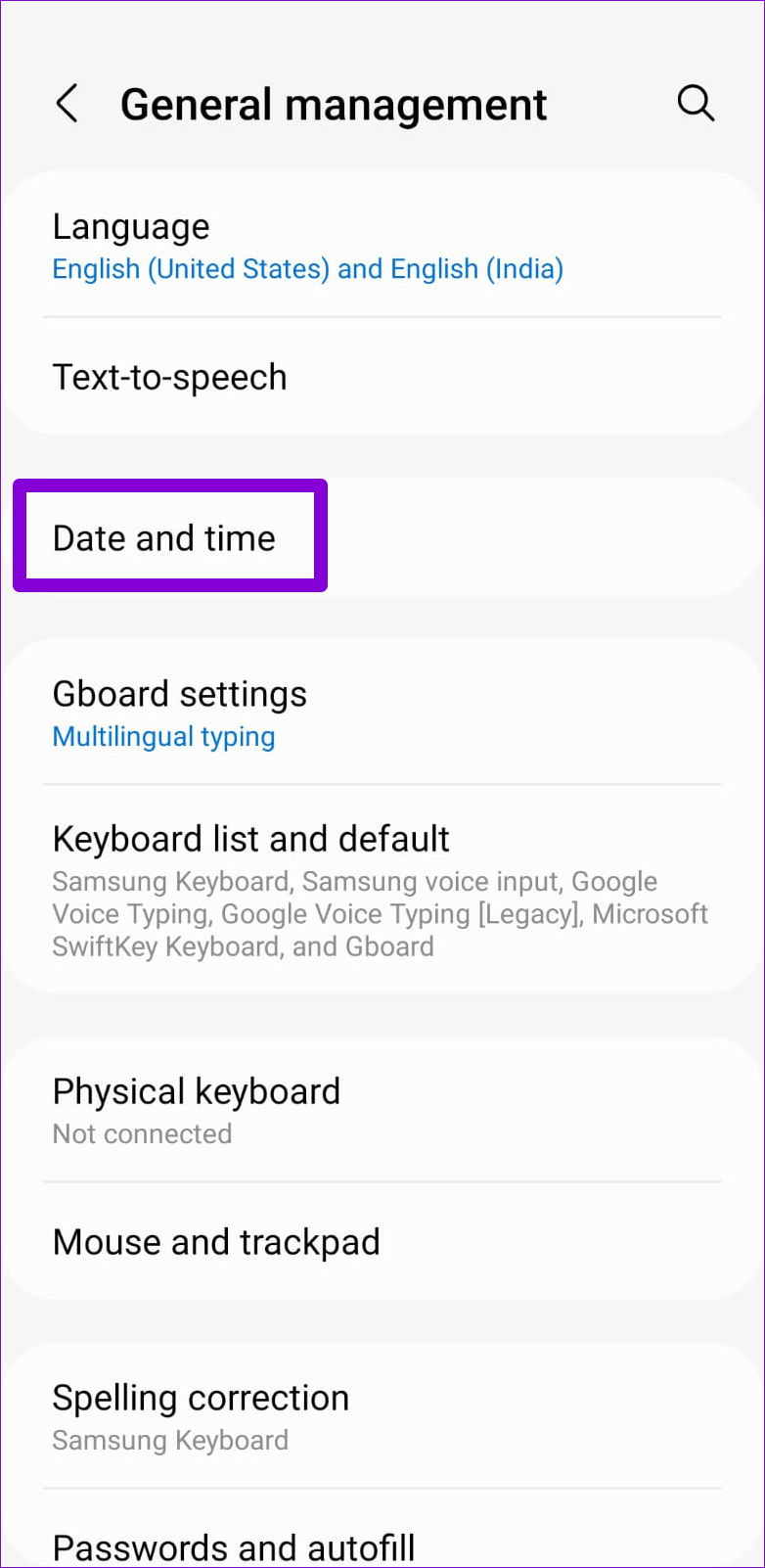
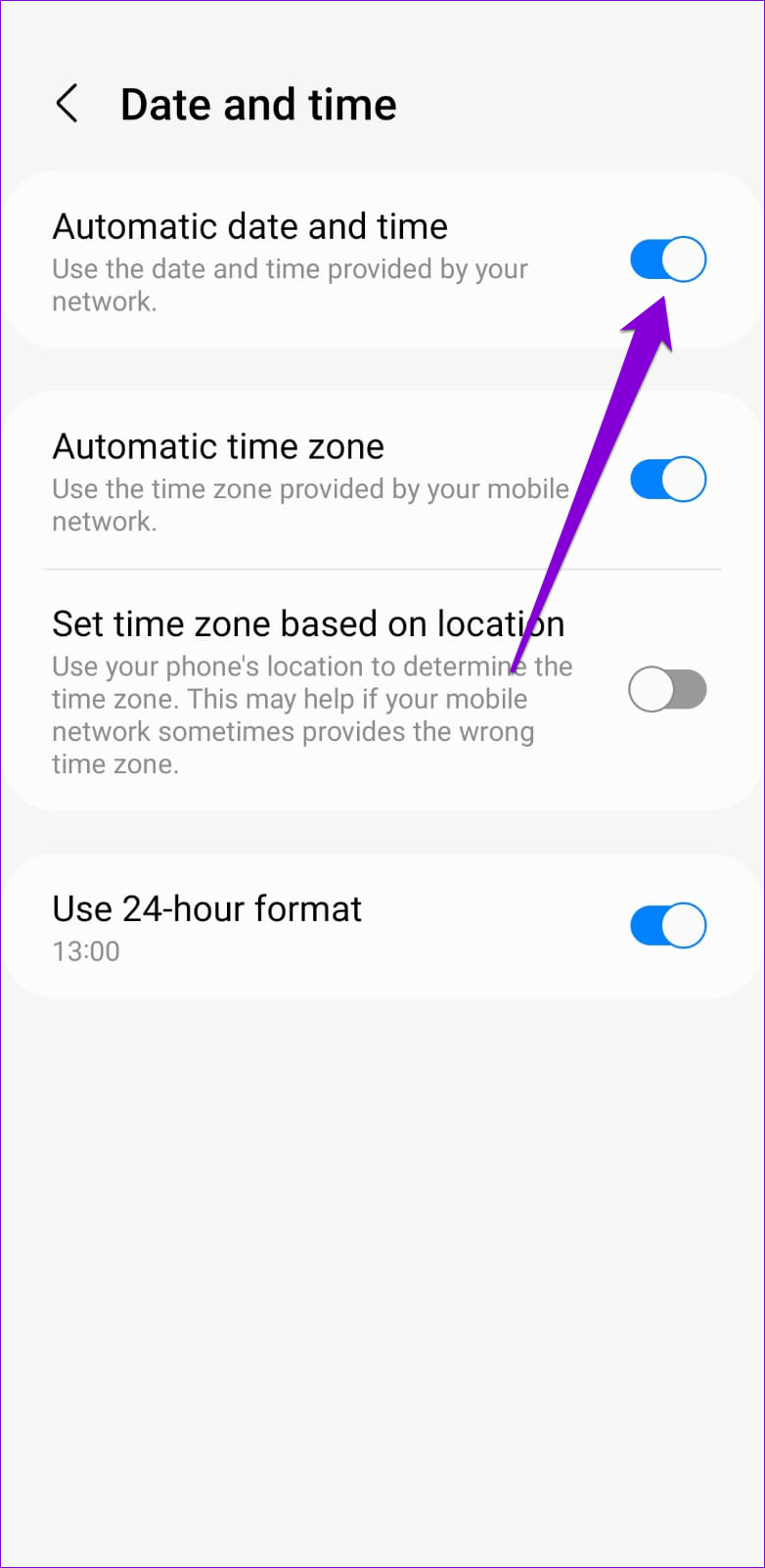
Step 2: Tap on Date and time and enable the toggle for Automatic date and time.
iPhone
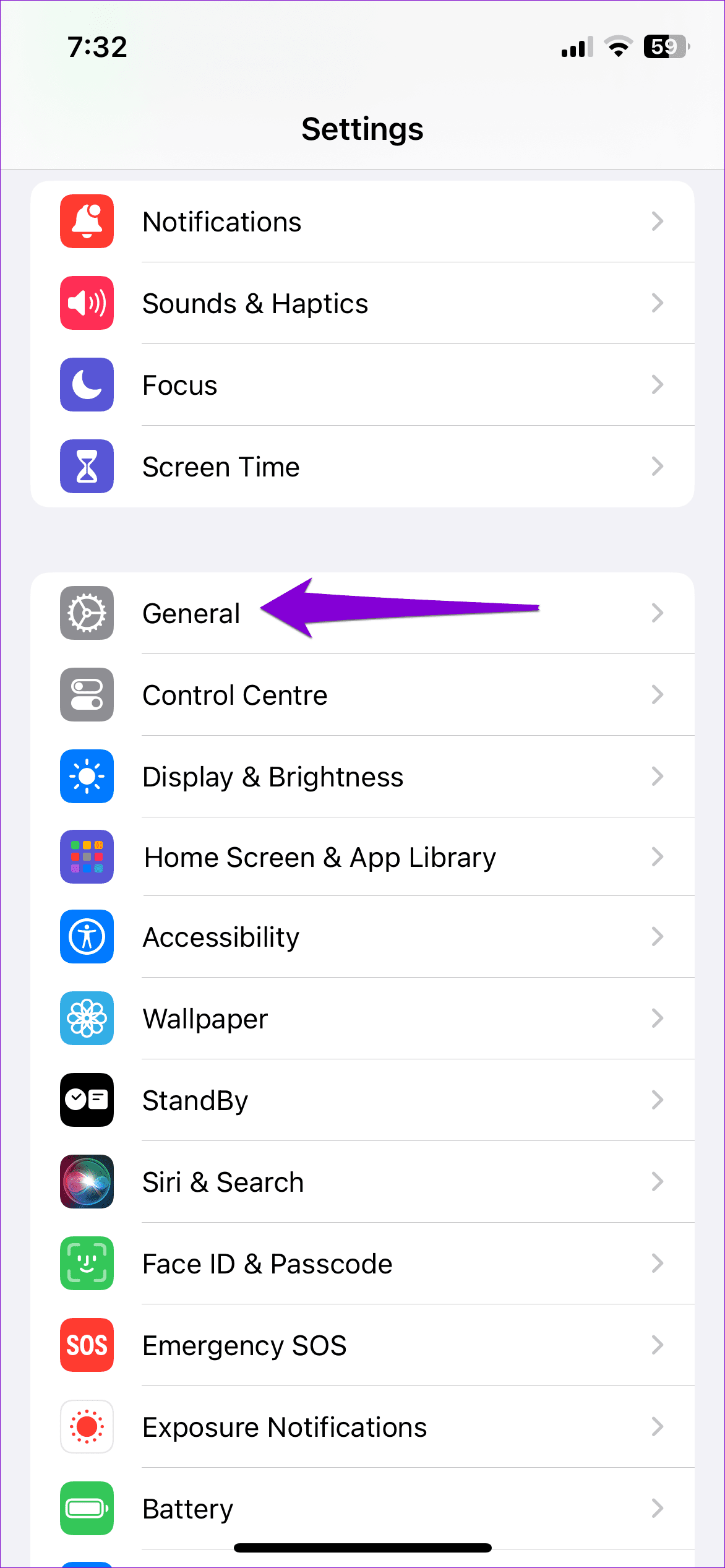
Step 1: Launch the Settings app on your iPhone and navigate to General.
Step 2: Tap on Date & Time and toggle on the switch next to Set Automatically.


Was this helpful?
Last updated on 16 May, 2024
1 Comment
Leave a Reply
Read Next
 3 Ways to Fix Snapchat “Something Went Wrong” Error on Android and iPhone
https://youtu.be/qmKVtzAaayE Try Basic Fixes Avoid adding too many friends at once: If you've recently added too many friends, Snapchat may prevent you from adding more by displaying errors like "Something
3 Ways to Fix Snapchat “Something Went Wrong” Error on Android and iPhone
https://youtu.be/qmKVtzAaayE Try Basic Fixes Avoid adding too many friends at once: If you've recently added too many friends, Snapchat may prevent you from adding more by displaying errors like "Something
 3 Ways to Fix “Something Went Wrong” Error on Facebook Messenger
Try Basic Fixes Update the app: The Facebook Messenger app could malfunction if you haven't updated it in a while.
3 Ways to Fix “Something Went Wrong” Error on Facebook Messenger
Try Basic Fixes Update the app: The Facebook Messenger app could malfunction if you haven't updated it in a while.
 Top 4 Ways to Fix ‘Something Went Wrong’ Error on X (Formerly Twitter)
Preliminary Fixes Check Network Connection: First, check the network connection on your phone and the desktop.
Top 4 Ways to Fix ‘Something Went Wrong’ Error on X (Formerly Twitter)
Preliminary Fixes Check Network Connection: First, check the network connection on your phone and the desktop.
 4 Ways to Fix Outlook Error 500 ‘Something Went Wrong’
Preliminary Fixes Troubleshoot your internet connection: Ensure you have a stable and reliable internet connection.
4 Ways to Fix Outlook Error 500 ‘Something Went Wrong’
Preliminary Fixes Troubleshoot your internet connection: Ensure you have a stable and reliable internet connection.
 4 Ways to Fix Instagram Something Went Wrong Error
Basic Fixes Check your network connection: Ensure your device has a good internet connection.
4 Ways to Fix Instagram Something Went Wrong Error
Basic Fixes Check your network connection: Ensure your device has a good internet connection.
 5 Ways to Fix “Something Went Wrong” Error in Microsoft Teams for Windows
Try Basic Fixes Check if Teams is down: It's not uncommon for Microsoft Teams servers to go down at times.
5 Ways to Fix “Something Went Wrong” Error in Microsoft Teams for Windows
Try Basic Fixes Check if Teams is down: It's not uncommon for Microsoft Teams servers to go down at times.
 6 Ways to Fix ‘Something Went Wrong’ Error in Play Store
Basic Fixes Restart Play Store: Long tap on the Play Store app, select App Info, and tap on Force Stop.
6 Ways to Fix ‘Something Went Wrong’ Error in Play Store
Basic Fixes Restart Play Store: Long tap on the Play Store app, select App Info, and tap on Force Stop.
 Top 9 Fixes For ‘There Is Something Wrong With the Proxy Server’ Error in Chrome
Proxy servers are useful when you need to hide your internet traffic from your ISP or connect to blocked websites.
Top 9 Fixes For ‘There Is Something Wrong With the Proxy Server’ Error in Chrome
Proxy servers are useful when you need to hide your internet traffic from your ISP or connect to blocked websites.
The article above may contain affiliate links which help support Guiding Tech. The content remains unbiased and authentic and will never affect our editorial integrity.
Nothings works… I cannot login bcs of something went wrong…