


Basic Troubleshooting
- Ensure that your TV supports AirPlay: A quick read of your TV’s manual or an internet search could give you the answer. Although, even if your TV doesn’t support AirPlay natively, you can use third-party apps as substitutes.
- Ensure the same Wi-Fi network and band (2.4GHz or 5GHz): Screen mirroring from iPhone requires your iPhone and TV to be on the same Wi-Fi network. So, check and ensure that this condition is met.
- Check if screen mirroring is enabled on Smart TV: Depending upon your TV model, ensure that screen mirroring or AirPlay is enabled.
- Disable Screen Time: You may encounter the screen mirroring not working on iPhone problem due to content restrictions settings. Try disabling Screen Time and mirroring again.
- Disable Bluetooth: Screen mirroring works flawlessly on a Wi-Fi connection. You can disable Bluetooth on your iPhone, so it doesn’t interfere with screen mirroring.
Fix 1. Check Permission for the Home App
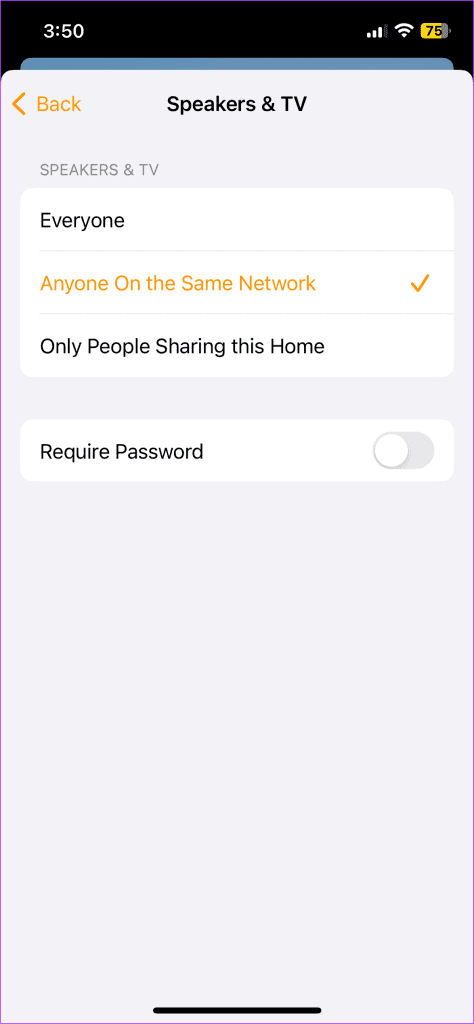
If your TV is set up or added to the Home app, you may need to grant the app the necessary permissions for screen mirroring to work.
Step 1: Open the Home app > tap the More (three-dot icon) button.
Step 2: Go to Home Settings.
Step 3: Select Speakers & TV > select Everyone or Anyone On the Same Network.

Fix 2. Disable Low Power Mode
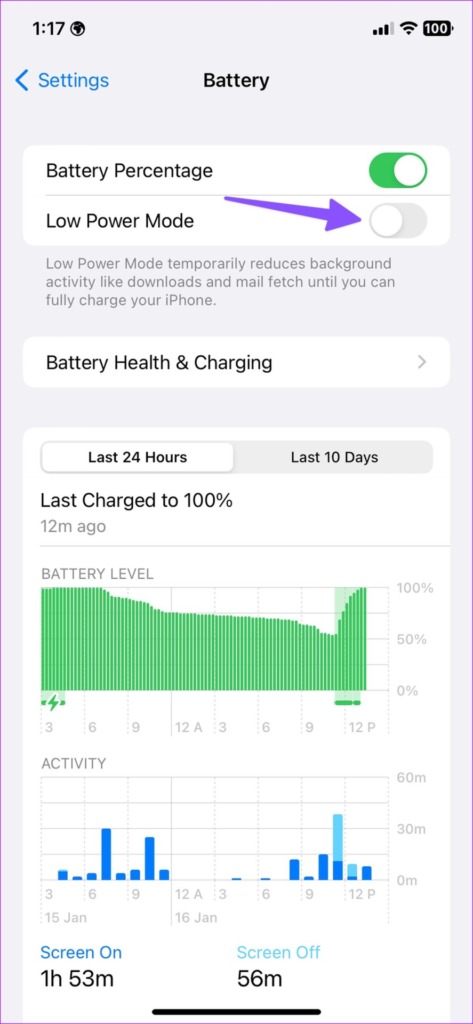
iOS may suspend screen mirroring on an active Low Power mode. Disable the mode to test your suspicion.
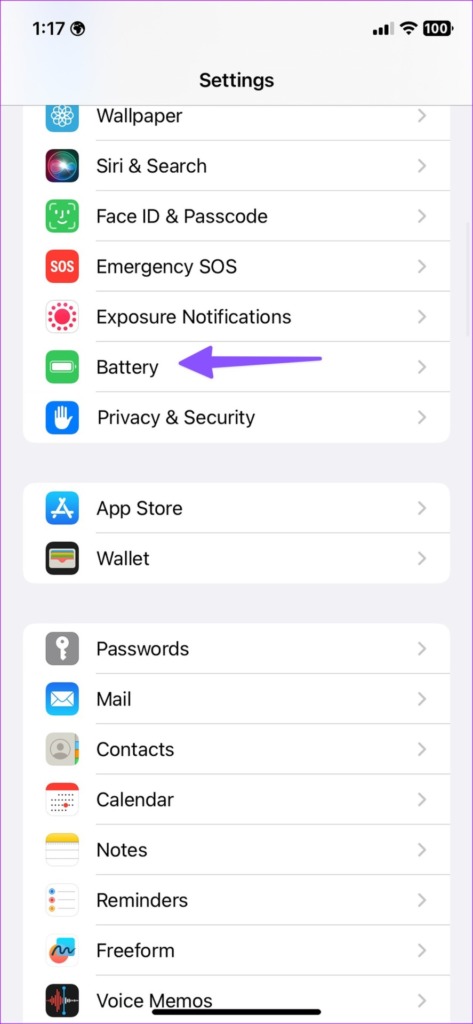
Step 1: Launch Settings on your iPhone > scroll down and tap Battery.
Step 2: Turn off the toggle for Low Power Mode.
Now, try mirroring your iPhone screen.
Fix 3. Reset Network Settings
Glitches in network settings may cause issues with screen mirroring on your iPhone. To fix this, reset the network settings and try again.
Note: iOS will delete all the saved Wi-Fi networks, VPN profiles, and Bluetooth connections from your iPhone. You’ll need to add those details again and mirror the content.
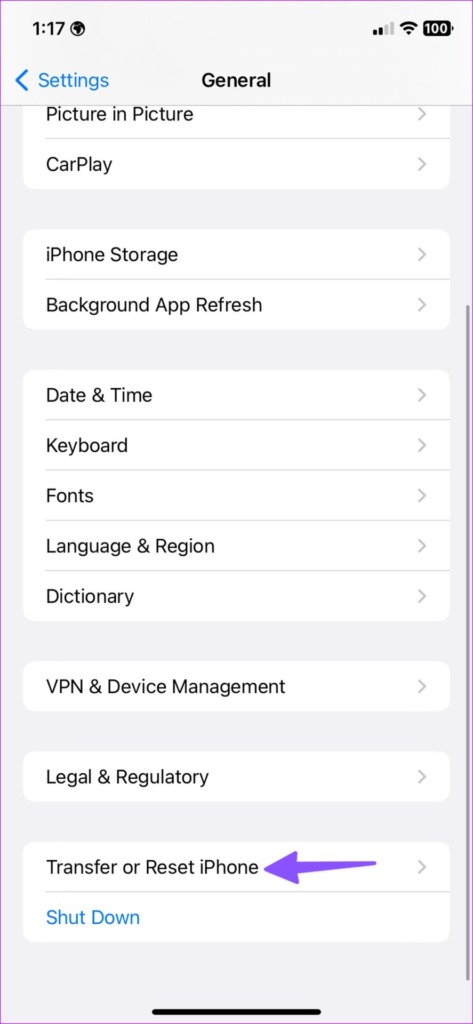
Step 1: Launch Settings on iPhone > scroll to General.
Step 2: Tap Transfer or Reset iPhone.

Step 3: Select Reset > tap Reset Network Settings.


Was this helpful?
Last updated on 25 July, 2024
1 Comment
Leave a Reply
Read Next
 3 Ways to Fix Screen Mirroring Not Working on Android
Basic Fixes Check network connection: Screen mirroring requires a robust Wi-Fi connection.
3 Ways to Fix Screen Mirroring Not Working on Android
Basic Fixes Check network connection: Screen mirroring requires a robust Wi-Fi connection.
 What Is iPhone Screen Mirroring: A Complete Guide
iPhone Screen Mirroring: Basic Overview As the name suggests, Screen Mirroring allows you to mirror the content of your iPhone's screen on other devices.
What Is iPhone Screen Mirroring: A Complete Guide
iPhone Screen Mirroring: Basic Overview As the name suggests, Screen Mirroring allows you to mirror the content of your iPhone's screen on other devices.
 3 Ways to Fix Fire TV Stick Mirroring Not Working or Freezing
Screen Mirroring Requirements and Limitations for Fire TV Stick Before starting, let us look at certain conditions that you might need to meet when screen mirroring your device to your
3 Ways to Fix Fire TV Stick Mirroring Not Working or Freezing
Screen Mirroring Requirements and Limitations for Fire TV Stick Before starting, let us look at certain conditions that you might need to meet when screen mirroring your device to your
 3 Ways to Fix Screen Recording Not Working on iPhone and iPad
Basic Fixes Restart iPhone: Restarting your iPhone may resolve any software glitches preventing screen recording.
3 Ways to Fix Screen Recording Not Working on iPhone and iPad
Basic Fixes Restart iPhone: Restarting your iPhone may resolve any software glitches preventing screen recording.
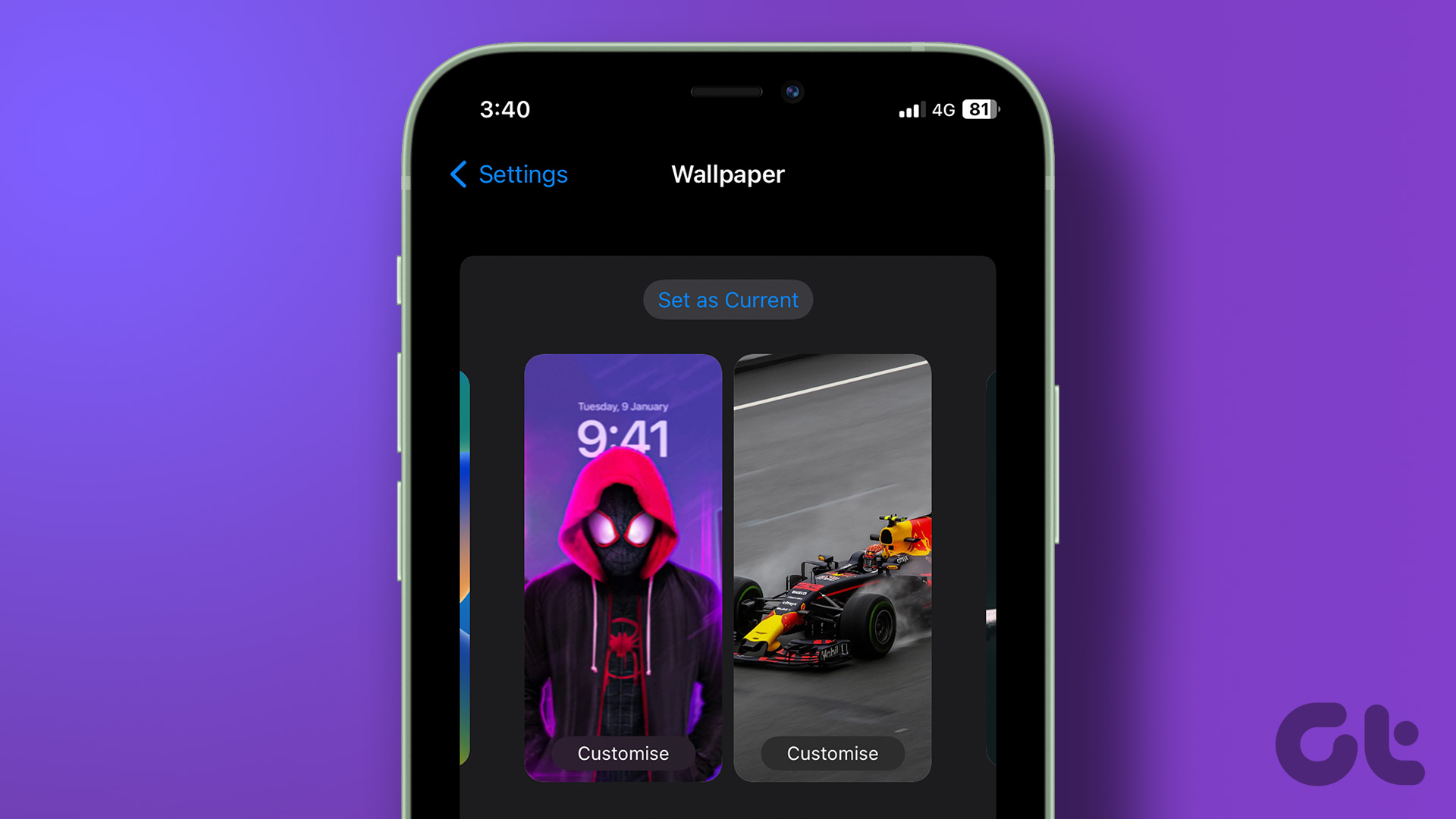 How to Set Different Lock Screen and Home Screen Wallpaper on iPhone
How to Add Different Wallpapers on iPhone Home Screen and Lock Screen Step 1: Open the Settings app > select Wallpaper.
How to Set Different Lock Screen and Home Screen Wallpaper on iPhone
How to Add Different Wallpapers on iPhone Home Screen and Lock Screen Step 1: Open the Settings app > select Wallpaper.
 How to Fix Screen Time App Limits Not Working on iPhone
Basic Fixes Force restart your iPhone: Depending on your model name, we suggest force restarting your iPhone.
How to Fix Screen Time App Limits Not Working on iPhone
Basic Fixes Force restart your iPhone: Depending on your model name, we suggest force restarting your iPhone.
 4 Ways to Fix Screen Time Not Showing Data on iPhone
Common Fixes Check service status - Use the Apple System Status page to verify Screen Time availability.
4 Ways to Fix Screen Time Not Showing Data on iPhone
Common Fixes Check service status - Use the Apple System Status page to verify Screen Time availability.
 3 Ways to Fix iPhone Lock/Wake Screen Delay
https://youtu.be/94mfnn8hCSw Why Is There a Delay When Locking or Waking up Your iPhone If you have mapped a double/triple click shortcut to the power button of your iPhone, and when
3 Ways to Fix iPhone Lock/Wake Screen Delay
https://youtu.be/94mfnn8hCSw Why Is There a Delay When Locking or Waking up Your iPhone If you have mapped a double/triple click shortcut to the power button of your iPhone, and when
The article above may contain affiliate links which help support Guiding Tech. The content remains unbiased and authentic and will never affect our editorial integrity.

I’ve been trying to fix AirPlay problems for months. Resetting the network setting did it for me. THANKS