Fix 1: Unhide Home Screen Page
If the Safari icon has gone missing along with other app icons, you might have hidden a home screen page.
Step 1: On your iPhone’s home screen, touch and hold the page dots at the bottom until you see the thumbnails of your home screen.
Step 2: The pages that have checkmarks under them are enabled. Look for the page with the Safari browser and tap on the selection circle under it to enable it.
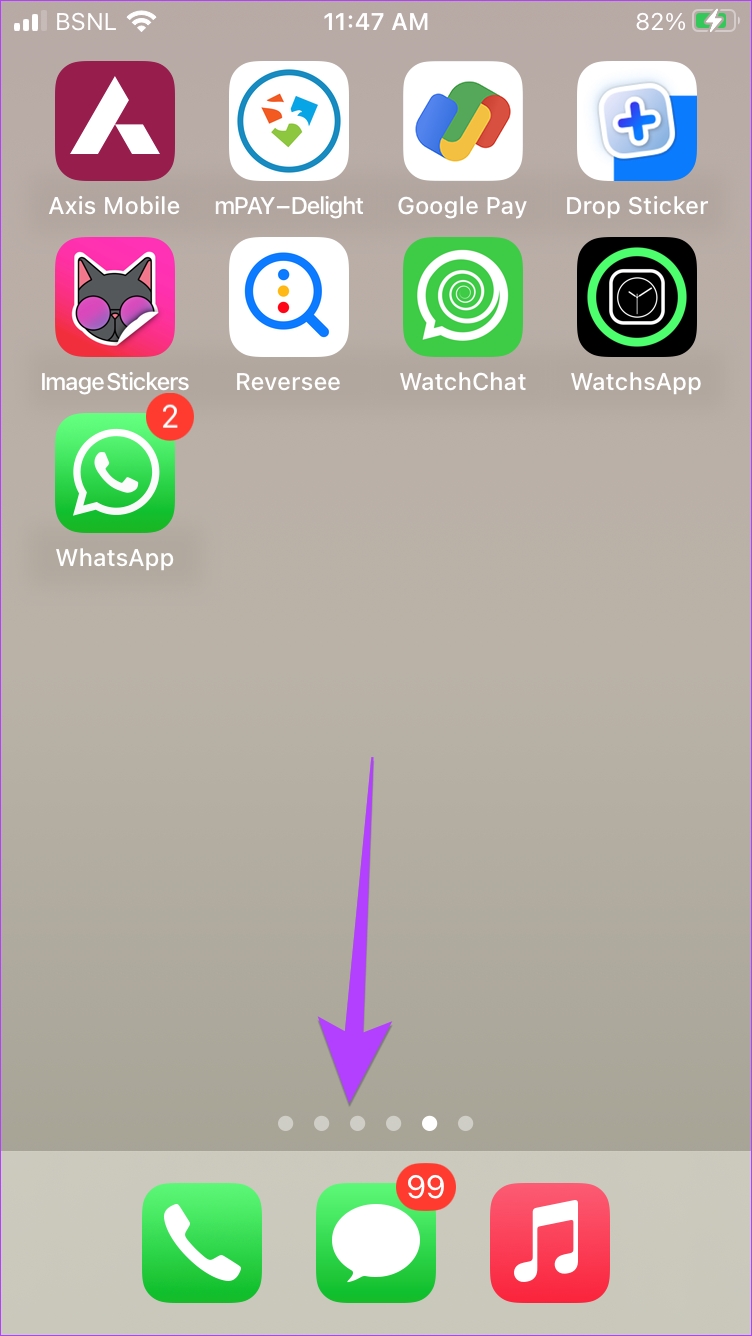

That’s it. Now, go to your phone’s home screen, and you should see the Safari icon.
Fix 2: Remove Screen Time Restrictions From iPhone
If you can’t find Safari on your iPhone using the above methods, you must check and remove screen time restrictions from the Safari app.
Step 1: Open Settings on your iPhone > go to Screen Time > Content & Privacy Restrictions.


Step 2: Tap on Allowed Apps. Turn off the toggle next to Safari. It should turn green.
That’s it. Go to your home screen, and you should see the Safari app. If the Safari icon is missing, use the above methods to put it back on the home screen.
Fix 3: Reset Home Screen Layout
Resetting the home screen layout of your iPhone will delete folders that you have created on the home screen and put all the pre-installed Apple apps, including Safari, at their original location. This will help in restoring Safari to the home screen.
To reset the home screen layout, go to Settings > General > Transfer or Reset > Reset > Reset Home Screen Layout.


Once reset, go back to the home screen, and you should see the Safari icon happily sitting over there. If Safari doesn’t work, learn how to fix Safari not working on your iPhone.
Was this helpful?
Last updated on 25 April, 2024
Read Next
 How to Set Different Lock Screen and Home Screen Wallpaper on iPhone
How to Add Different Wallpapers on iPhone Home Screen and Lock Screen Step 1: Open the Settings app > select Wallpaper.
How to Set Different Lock Screen and Home Screen Wallpaper on iPhone
How to Add Different Wallpapers on iPhone Home Screen and Lock Screen Step 1: Open the Settings app > select Wallpaper.
 8 Ways to Add an App Back to Home Screen on iPhone and Android
Method 1: Look for the App Inside the Folders If an app has gone missing from your iPhone or Android phone, start by looking in the folders on your phone’s
8 Ways to Add an App Back to Home Screen on iPhone and Android
Method 1: Look for the App Inside the Folders If an app has gone missing from your iPhone or Android phone, start by looking in the folders on your phone’s
 How to Remove Floating Home Button From iPhone and Android Screen
Before you begin, uninstall any third-party apps that enable the floating menu button on your Android device.
How to Remove Floating Home Button From iPhone and Android Screen
Before you begin, uninstall any third-party apps that enable the floating menu button on your Android device.
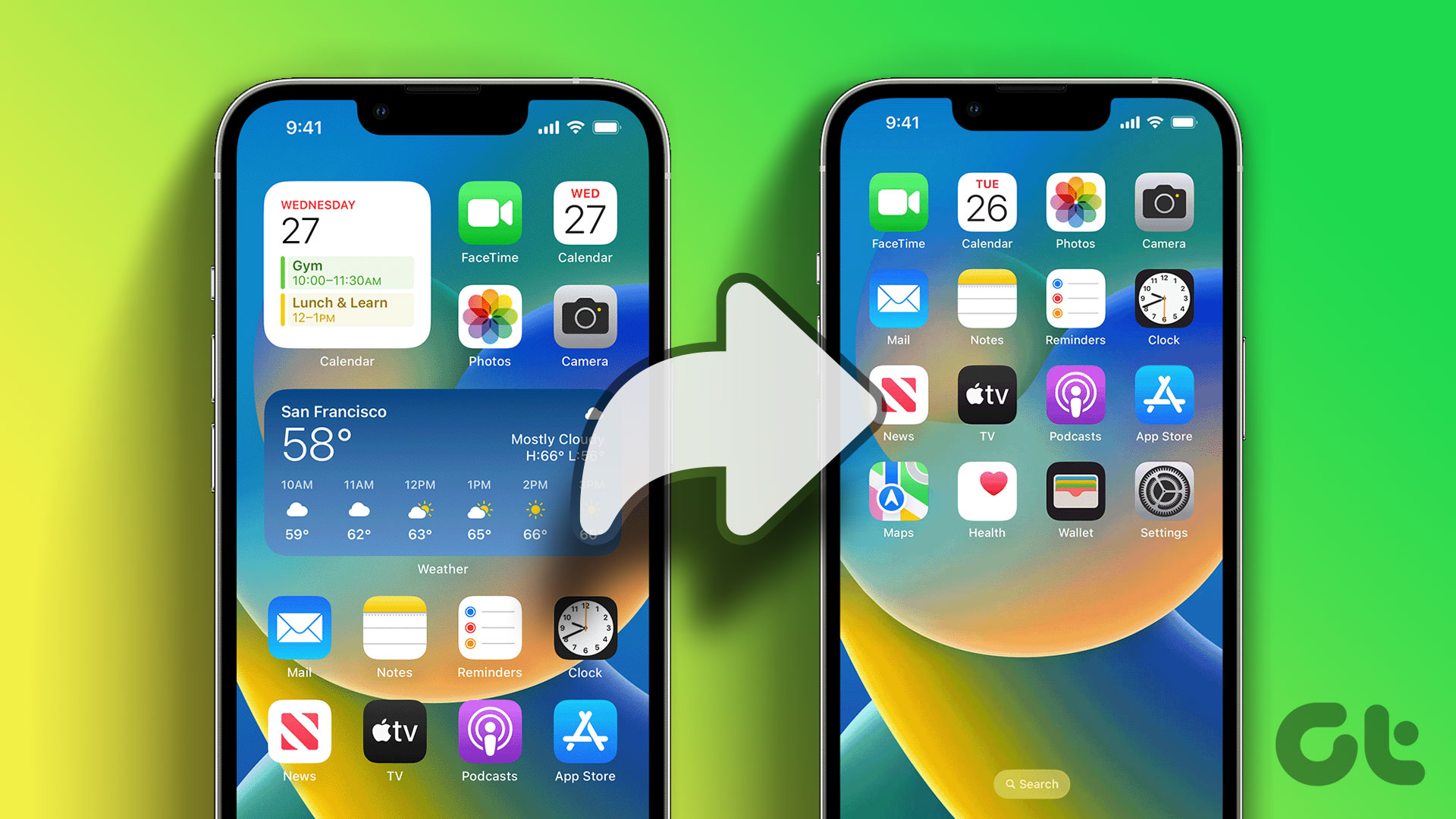 How to Reset iPhone Home Screen Layout to Default
What Is Reset Home Screen Layout on iPhone?
How to Reset iPhone Home Screen Layout to Default
What Is Reset Home Screen Layout on iPhone?
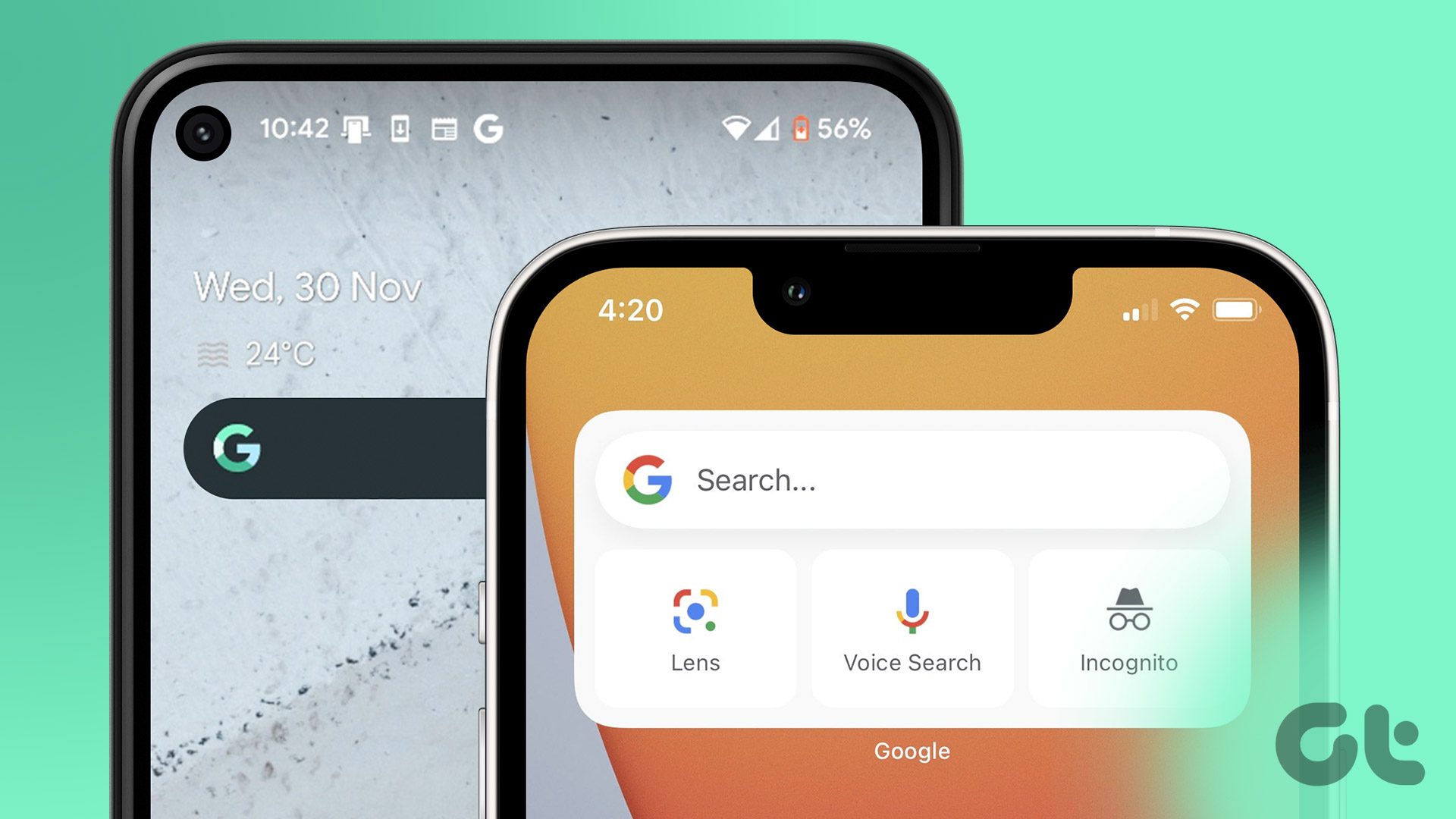 How to Add Google Search Bar to Home Screen on Android and iPhone
On Android Step 1: Tap and hold a space on your home screen, and tap on Widgets.
How to Add Google Search Bar to Home Screen on Android and iPhone
On Android Step 1: Tap and hold a space on your home screen, and tap on Widgets.
 15 Best Home Screen Layout Ideas on iPhone
Apple's iOS is often criticized for the lack of customization options.
15 Best Home Screen Layout Ideas on iPhone
Apple's iOS is often criticized for the lack of customization options.
 5 Ways to Fix Blurry Home or Lock Screen Wallpaper on iPhone
Fix 1: Check if the Wallpaper Resolution Fits Your iPhone's Screen If you have downloaded a wallpaper, check its resolution and ensure that it matches the screen resolution of your
5 Ways to Fix Blurry Home or Lock Screen Wallpaper on iPhone
Fix 1: Check if the Wallpaper Resolution Fits Your iPhone's Screen If you have downloaded a wallpaper, check its resolution and ensure that it matches the screen resolution of your
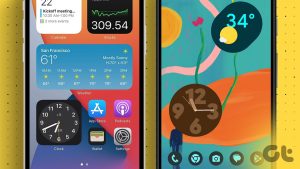 How to Add Date, Time and Weather to Your Phone’s Home Screen
How to Show Date, Time, and Weather on iPhone Home Screen You can do so, in the following two ways.
How to Add Date, Time and Weather to Your Phone’s Home Screen
How to Show Date, Time, and Weather on iPhone Home Screen You can do so, in the following two ways.
The article above may contain affiliate links which help support Guiding Tech. The content remains unbiased and authentic and will never affect our editorial integrity.