Common Fixes
- Check internet speed – I recommend at least 5Mbps to stream Netflix in high definition (HD) and a minimum of 25Mbps for Ultra HD and 4K video quality. Measure your internet speed online.
- Disable data saver – Open the Android settings, select Network & internet, and disable the Data Saver toggle. On iPhone, head to Settings > Wi-Fi or Mobile Service > select network > disable Low Data Mode.
- Force quit and reopen Netflix – Swipe up from the screen bottom to switch apps and slide up the Netflix card to force close it. Re-open Netflix.
- Sign out and re-authenticate account – Open your Netflix profile, tap the hamburger menu at the top right corner, and select Sign Out. Log in with your account credentials again.
- Update the Netflix app – Open the Google Play Store or Apple App Store, search Netflix, and tap Update.
Fix 1: Check Your Subscription Plan
Your Netflix subscription governs the video quality you receive. Check your subscription status to verify your plan supports high-quality video streaming. If it doesn’t, upgrade your existing plan.
| Subscription Plan | Video Resolution |
| Mobile (India) | SD (480p) |
| Basic (India) | HD (720p) |
| Standard with ads (U.S.) | Full HD (1080p) |
| Standard (U.S., India) | Full HD (1080p) |
| Standard (U.S., India) | Ultra HD |
Fix 2: Check Video Playback Settings
If Netflix is streaming in low quality on your device despite purchasing an HD-ready plan, check and switch your video playback settings.
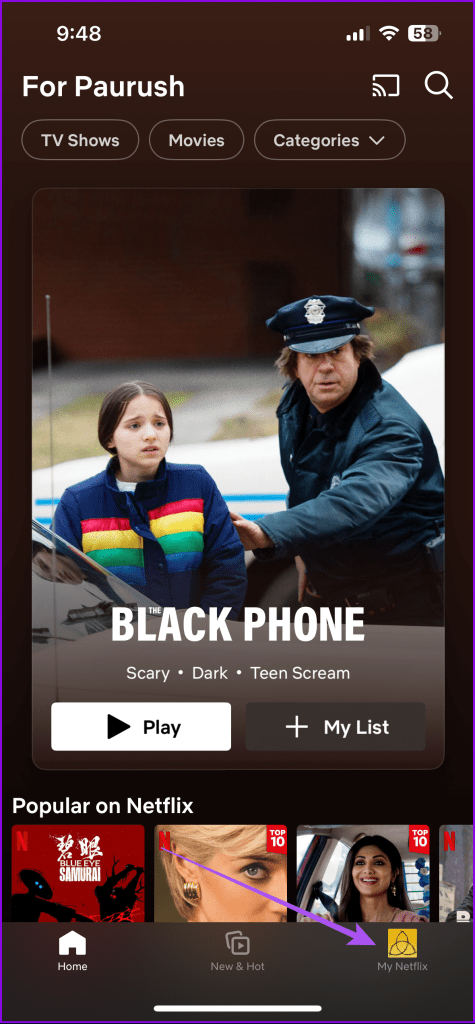
Step 1: Open your Netflix profile from the bottom right, tap the hamburger menu at the top right corner, and select App Settings.

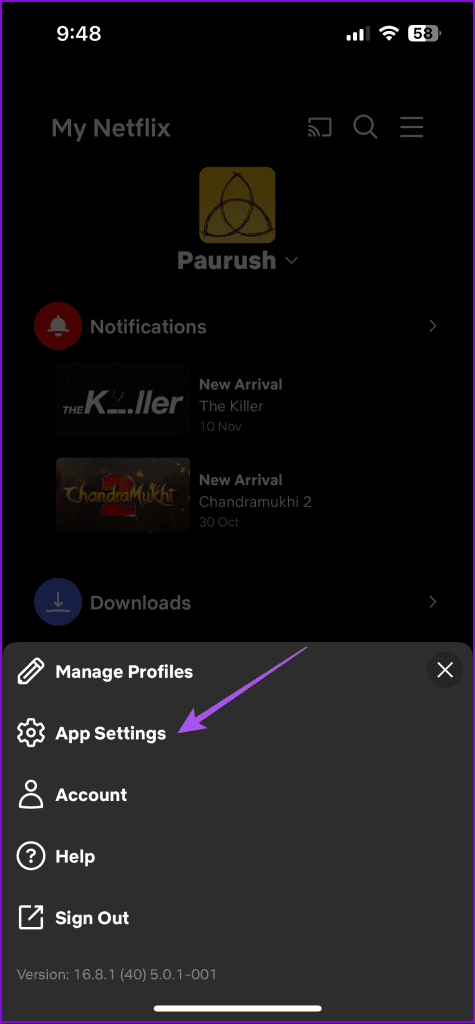
Step 2: Ensure Video Playback is not set to Save Data.
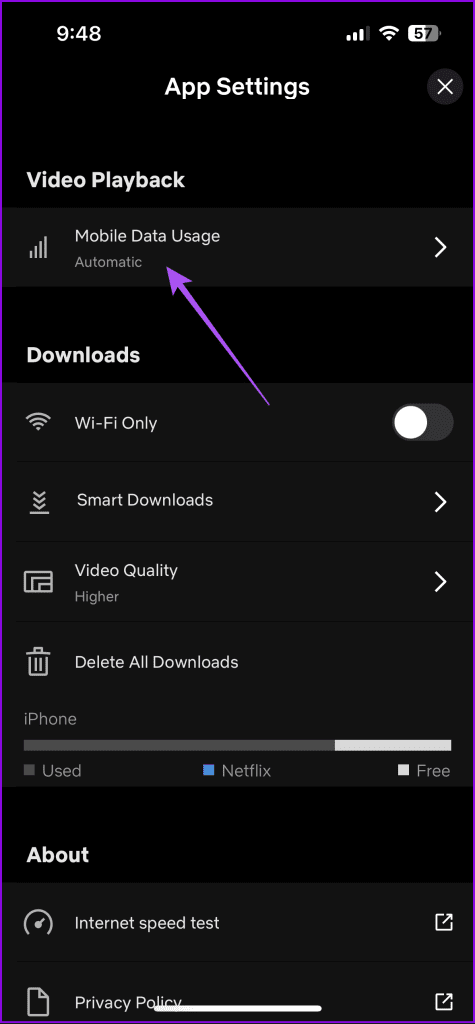

Step 3: Further, tap Video Quality and set it to Higher.


Fix 3: Verify Device Compatibility for Picture Quality
The Netflix app automatically checks your device for HD compatibility upon launch, displaying an HD label next to the video titles for high-quality streaming. If absent, your device may not support HD streaming or requires a software update to enable it.
Fix 4: Clear Netflix App Cache
Corrupt cache files are a common underlying culprit behind Netflix streaming content in low quality. Clear the app cache manually to fix it.
On Android: Long-tap the Netflix icon to open App info > select Storage and cache > tap Clear cache.


On iPhone: Long-tap the Netflix app and select Remove App. Select Delete App to confirm your action. Reinstall Netflix from the App Store.
Note: Deleting the Netflix app removes all your downloaded in-app content.


Fix 5: Turn off Battery Saver or Low Power Mode
The Battery Saver or Low Power mode prolongs your device battery by restricting the internet speed, resulting in low-quality Netflix streaming. Disable the mode to restore normalcy.
On Android: Swipe down the notification panel from the top and tap the Battery Saver toggle to disable it.
On iPhone: Open the iOS Control Center by swiping the screen from the top right and tap the Low Power Mode toggle to turn it off.


Was this helpful?
Last updated on 26 April, 2024
Read Next
 How to Change Amazon Prime Video Streaming Quality on Any Device
Most streaming services these days offer the best quality possible.
How to Change Amazon Prime Video Streaming Quality on Any Device
Most streaming services these days offer the best quality possible.
 5 Ways to Fix Apple TV+ Low Quality on Windows
Fix 1: Install Apple TV App: A Sureshot Way to Fix the Problem Download the Apple TV app from the Microsoft App Store and sign in with your credentials.
5 Ways to Fix Apple TV+ Low Quality on Windows
Fix 1: Install Apple TV App: A Sureshot Way to Fix the Problem Download the Apple TV app from the Microsoft App Store and sign in with your credentials.
 4 Ways to Fix YouTube Quality Unavailable on iOS and Android
Basic Fixes Check Internet Connectivity: Ensure your device is connected to a Wi-Fi network or cellular data with good signal strength and an active plan.
4 Ways to Fix YouTube Quality Unavailable on iOS and Android
Basic Fixes Check Internet Connectivity: Ensure your device is connected to a Wi-Fi network or cellular data with good signal strength and an active plan.
 How to Fix Poor Video Call Quality in WhatsApp for Android and iPhone
Try Basic Fixes Disable battery and data saver mode: Enabling battery and data saver mode can affect WhatsApp's ability to use the internet freely and result in poor video call
How to Fix Poor Video Call Quality in WhatsApp for Android and iPhone
Try Basic Fixes Disable battery and data saver mode: Enabling battery and data saver mode can affect WhatsApp's ability to use the internet freely and result in poor video call
 Netflix Standard vs. Premium: Which Netflix Plan Is Best for You
Netflix Subscription Plans At a Glance While Netflix provides three plans in total, the Standard and Premium plans take the cake.
Netflix Standard vs. Premium: Which Netflix Plan Is Best for You
Netflix Subscription Plans At a Glance While Netflix provides three plans in total, the Standard and Premium plans take the cake.
 6 Ways to Fix Audio Distortion Issues While Streaming on Windows 11
Fix 1: Reconnect the Audio Device Your first course of action is to disconnect your audio device and reconnect it.
6 Ways to Fix Audio Distortion Issues While Streaming on Windows 11
Fix 1: Reconnect the Audio Device Your first course of action is to disconnect your audio device and reconnect it.
 4 Ways to Fix iPad Not Playing or Streaming Videos
Fix 1: Resolve App-Specific Problems Check app server status: Issues with the backend can affect app functions.
4 Ways to Fix iPad Not Playing or Streaming Videos
Fix 1: Resolve App-Specific Problems Check app server status: Issues with the backend can affect app functions.
 How to Send High Quality Videos on WhatsApp (iPhone and Android)
Method 1.
How to Send High Quality Videos on WhatsApp (iPhone and Android)
Method 1.
The article above may contain affiliate links which help support Guiding Tech. The content remains unbiased and authentic and will never affect our editorial integrity.