Basic Fixes
- Restart device: Restarting your device can eliminate any bugs causing problems with the Dual Apps feature.
- Try using a third-party launcher: Install a third-party launcher from the Google Play Store, and try launching the dual app.
- Enable Second Space: Instead of Dual Apps, use the Second Space feature. You will create a separate space on your phone with its settings and apps.
- Open the app using Google Search/Assistant: Try launching the apps from the Google search bar or Google Assistant.
- Update MIUI: Update MIUI to the latest version for a bug-free experience.
Also Read: How to turn off Glance lock screen on MIUI
Fix 1: Turn Off and Turn On Dual Apps
If there’s any bug with the cloned app, deleting it and adding it again might help.
Go to Settings > Apps > Dual Apps and turn off the toggle for the app that shows the error. Tap on OK to confirm. Re-enable the app in Dual Apps and check if the issue is fixed.


Fix 2: Check Permissions for Apps
If the cloned app doesn’t have the necessary permissions to function, you may see the “Permission Denied” error.
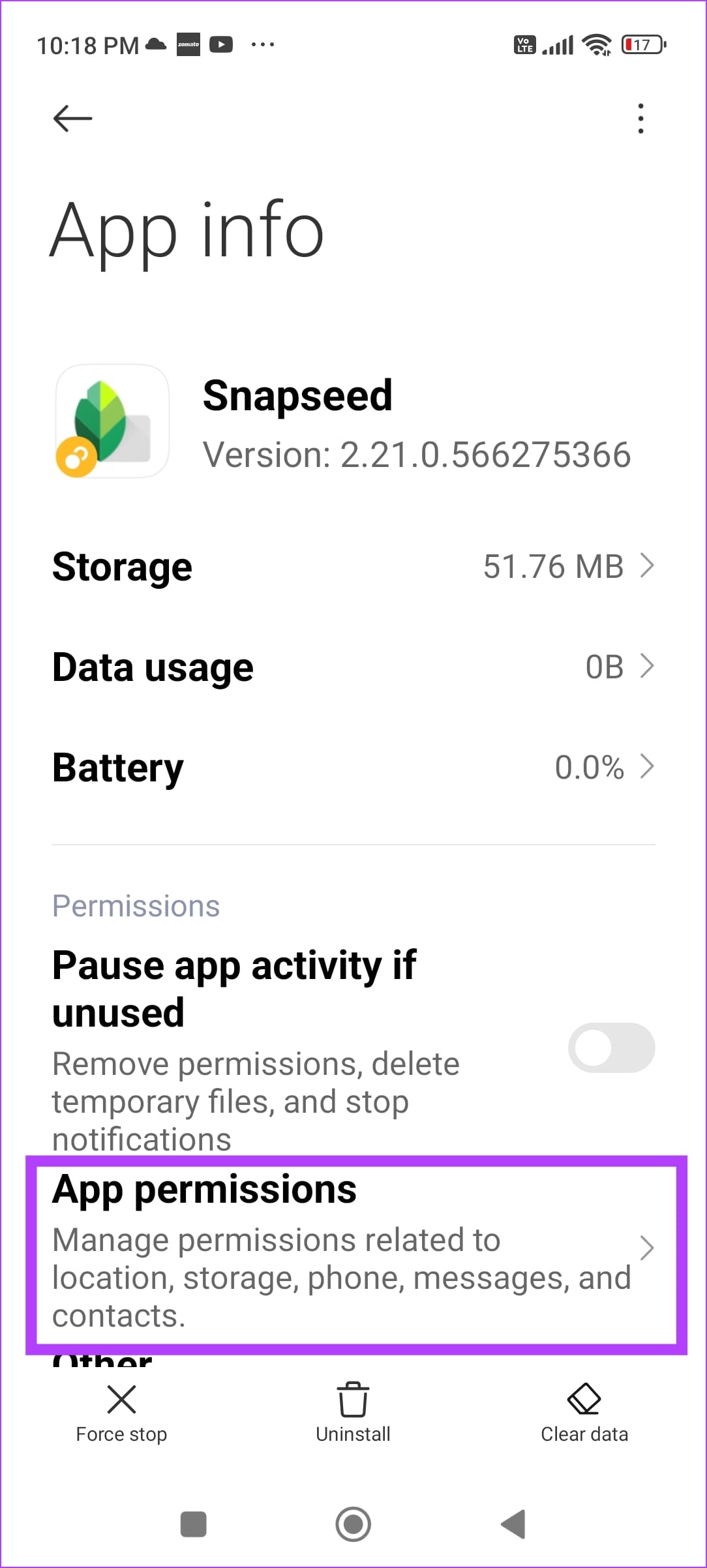
Long-tap on the cloned app icon > select App Info > tap on App permissions. Ensure you’ve provided all the necessary permissions.


Fix 3: Use a Third-Party App for Cloning
If the Dual Apps feature isn’t working – you can try using a third-party app like Parallel App or Parallel Space on your device. These apps perform the same functions as the Dual Apps feature on your MIUI device.
Also Read: Parallel Space vs. Parallel Space Lite: How do they differ
Was this helpful?
Last updated on 14 May, 2024
Read Next
 6 Ways to Fix “Folder Access Denied” Error on Windows
Basic Fixes Check if the folder is encrypted. The administrator could have password-locked or encrypted the folder, so contact them for assistance.
6 Ways to Fix “Folder Access Denied” Error on Windows
Basic Fixes Check if the folder is encrypted. The administrator could have password-locked or encrypted the folder, so contact them for assistance.
 4 Ways to Fix Access Denied Error in Steam for Windows
Try Basic Fixes Check if Steam is down: Just like any other service, Steam is vulnerable to occasional server-side glitches.
4 Ways to Fix Access Denied Error in Steam for Windows
Try Basic Fixes Check if Steam is down: Just like any other service, Steam is vulnerable to occasional server-side glitches.
 How to Fix MIUI Screen Recorder Has No Sound Error
Basic Fixes Restart device: Restarting your device can help get rid of any bugs affecting the Screen Recorder app.
How to Fix MIUI Screen Recorder Has No Sound Error
Basic Fixes Restart device: Restarting your device can help get rid of any bugs affecting the Screen Recorder app.
 5 Ways to Fix MIUI Widgets Not Working Issue
Basic Fixes Restart device: Restart your MIUI device to fix temporary bugs and glitches.
5 Ways to Fix MIUI Widgets Not Working Issue
Basic Fixes Restart device: Restart your MIUI device to fix temporary bugs and glitches.
 5 Best Ways to Clear Storage on MIUI for More Space
Over the years, Xiaomi did an excellent job of creating a skin for Android called MIUI.
5 Best Ways to Clear Storage on MIUI for More Space
Over the years, Xiaomi did an excellent job of creating a skin for Android called MIUI.
 How to Fix MIUI Battery Drain Issue on Redmi Devices
Basic Fixes: Check for software updates: If you've recently updated to a new MIUI version, software-related bugs can cause higher-than-normal battery drain.
How to Fix MIUI Battery Drain Issue on Redmi Devices
Basic Fixes: Check for software updates: If you've recently updated to a new MIUI version, software-related bugs can cause higher-than-normal battery drain.
 4 Fixes for “No Permission to Enable Voice Typing” on Android
Basic Fixes: Clear the Gboard app cache: As you use Gboard, it collects data to enhance your experience.
4 Fixes for “No Permission to Enable Voice Typing” on Android
Basic Fixes: Clear the Gboard app cache: As you use Gboard, it collects data to enhance your experience.
 How to Unhide Notes in MIUI Devices and Other Cool Tips
How to Unhide Notes in MIUI (Redmi, Poco, and Xiaomi Devices) Step 1: Open the Notes app, swipe down, hold your screen, and release it to reveal the hidden notes.
How to Unhide Notes in MIUI Devices and Other Cool Tips
How to Unhide Notes in MIUI (Redmi, Poco, and Xiaomi Devices) Step 1: Open the Notes app, swipe down, hold your screen, and release it to reveal the hidden notes.
The article above may contain affiliate links which help support Guiding Tech. The content remains unbiased and authentic and will never affect our editorial integrity.