


Fix 1: Get Help Troubleshooting
We know it’s essential, but it’s worth checking your internet connection to ensure a flawless browsing experience in Microsoft Edge.
Step 1: Open the Settings app on your computer (use Windows + I keys) and go to the Network & Internet menu.
Step 2: If it shows “No internet access Your device can only access other devices on your local network“—”, click on Get Help.

Step 3: It will launch the Windows Troubleshooter, which will suggest multiple solutions such as Restarting your router, checking cable connection, contacting support, etc.

If that doesn’t help, and other devices can connect, connect to the 5.0 Ghz frequency and ditch the 2.4 GHz one.
You can also try switching the Google or Cloudflare DNS in your browser or router to check if the ISP provided by the DNS is causing the problem.
Fix 2: Disable IPv6
IPv6 is still not used widely, and it is possible that your PC and router are not in sync or your ISP doesn’t support it. In that case, it’s best to disable IPv6 and switch to IPv4.
Step 1: Go to Network and Internet > Advanced network settings.
Step 2: Expand the Network adapter through which you are connected to the internet.

Step 3: It will open the classic Ethernet Properties window; uncheck the box for Internet Protocol version 6 (TCP/IPv6).
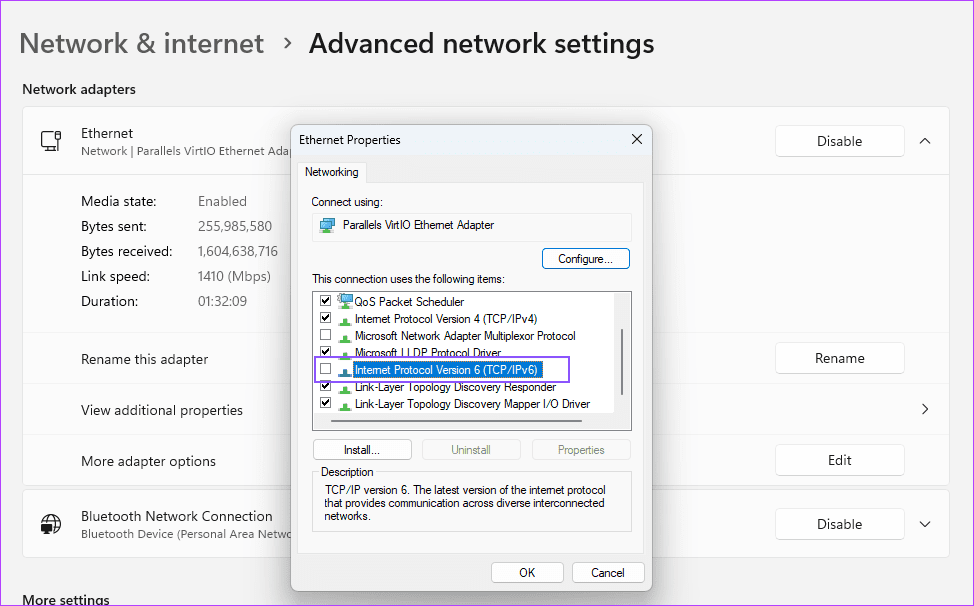
Restart the PC and check if the issue has been resolved.
Fix 3: Disable Edge Extensions
Some extensions (Adblocker and VPN) might block or restrict websites, making Microsoft Edge unable to reach this page error. While you may not have faced the issue earlier, an extension went rogue, and the recent update caused the problem.
It’s difficult to pinpoint a specific extension for this issue. However, you can temporarily disable or remove all the extensions from Microsoft Edge and fix the issue.
Step 1: Open the Microsoft Edge browser and click on the three-dot Edge menu.
Step 2: Click on Extensions > Manage Extensions
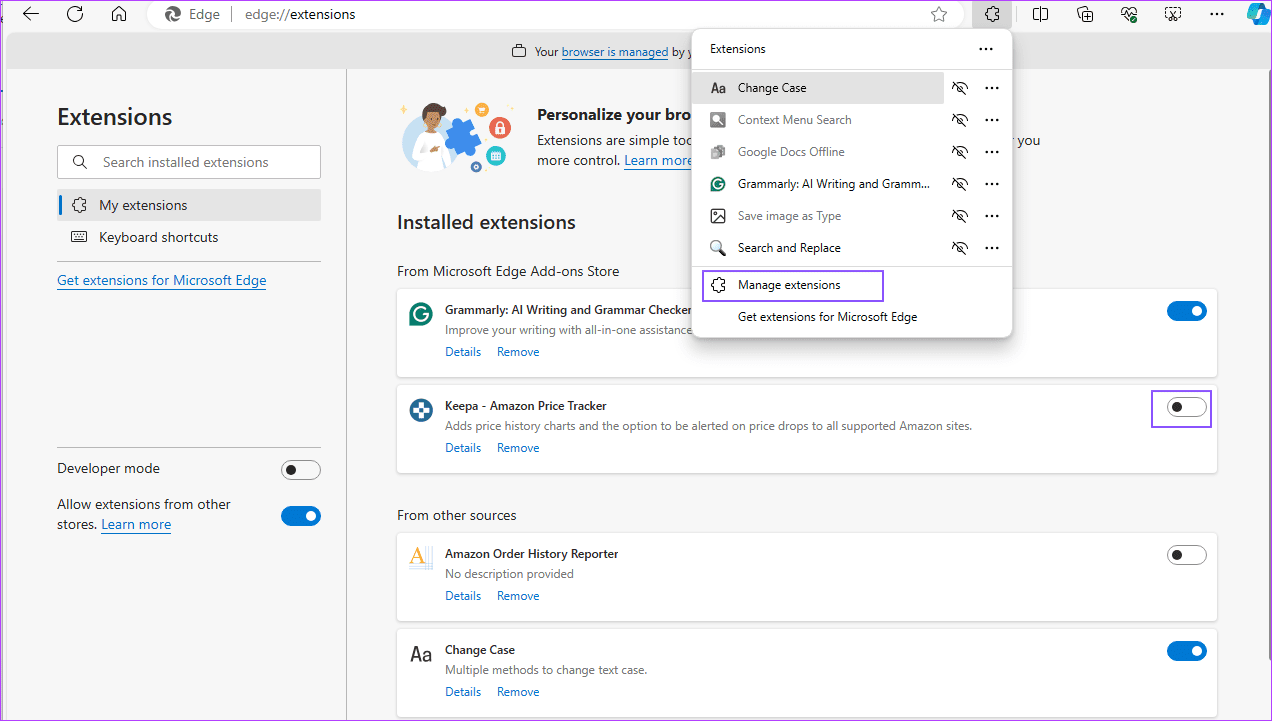
Step 3: Toggle off the extensions you don’t want to use one by one and check which one resolved the issue.
Fix 4: Clear Cache and Cookies
At times, expired cookies and cache can cause the issue. Even though everything else works, you might face problems with certain websites, if not all. It usually happens when there is a drastic change.
Step 1: Open Microsoft Edge > click on the three-dot menu > click on Settings.
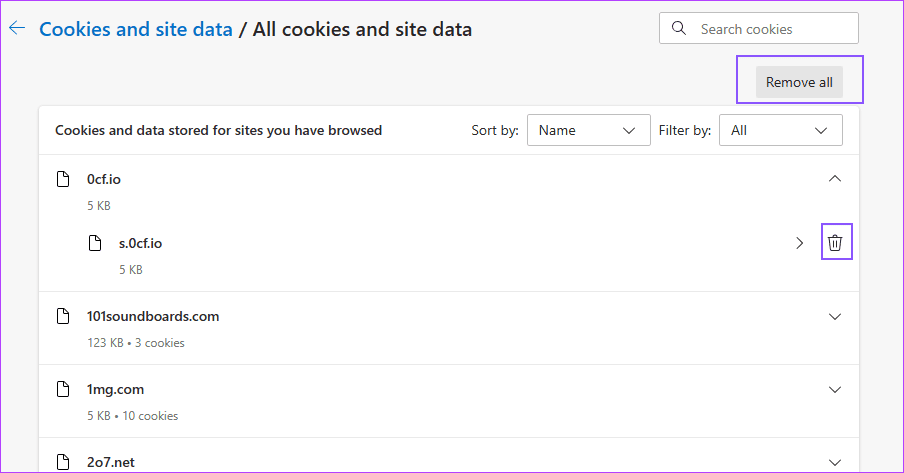
Step 2: Navigate to Cookies and site permissions > click on Manage and delete cookies and site data.
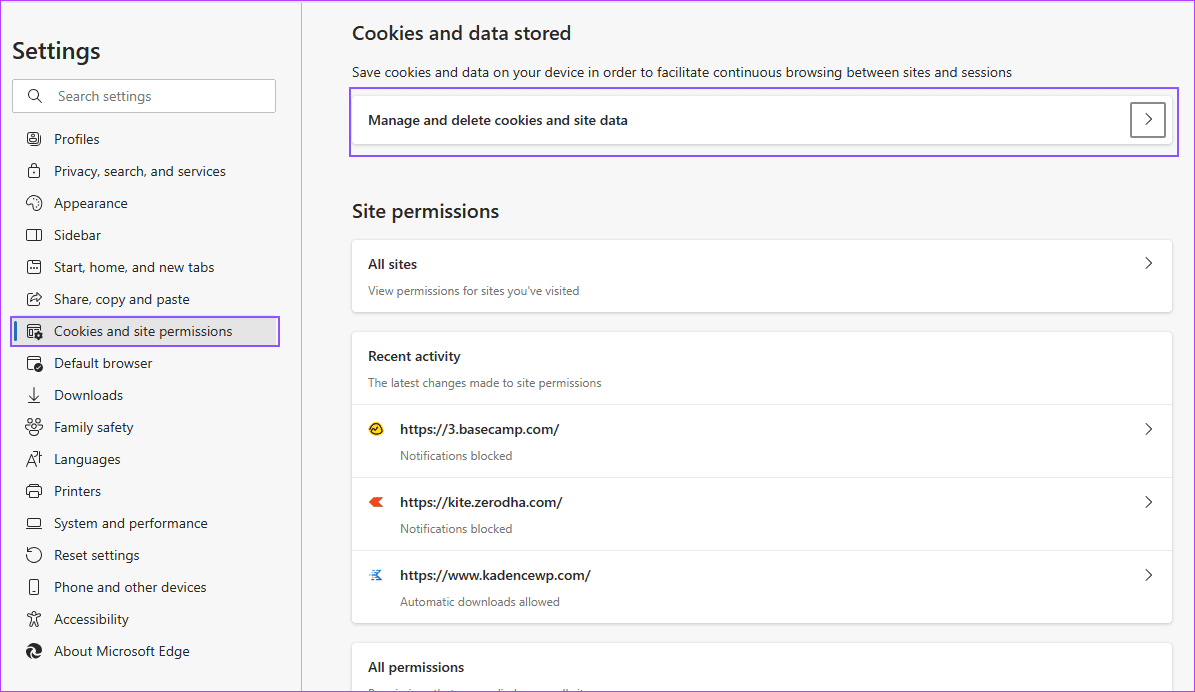
Step 3: Next, click on See all cookies and site data to view the list of sites and cookies they store.
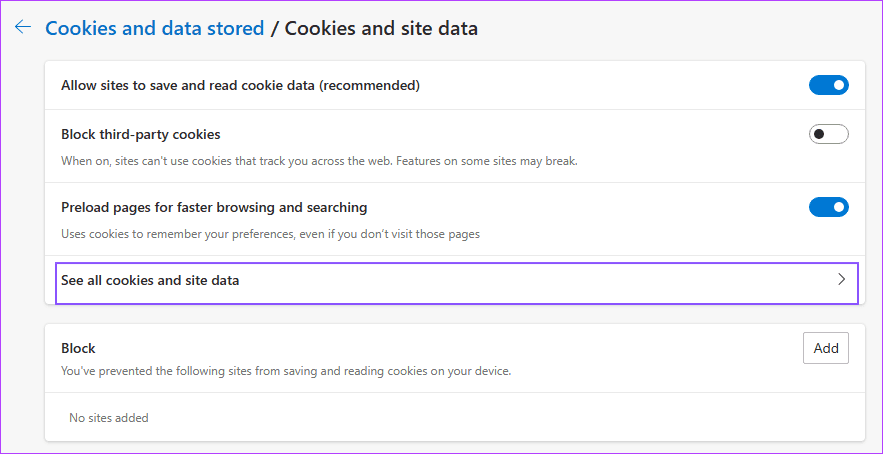
Step 4: In the next screen, remove all of them or find the site, expand it, and then delete it.
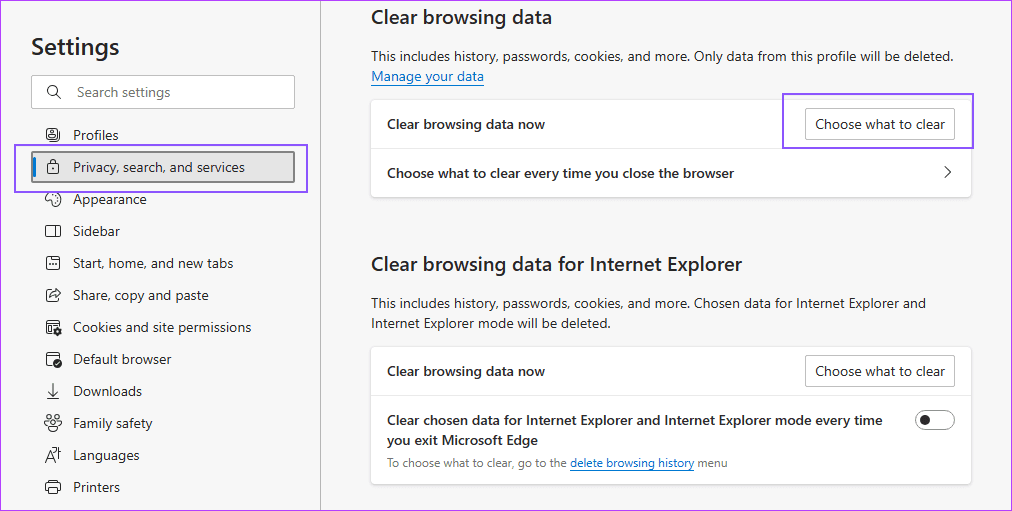
Step 5: To clear the cache, go to Privacy, search, and Services > Clear browsing data > click on Choose what to clear.
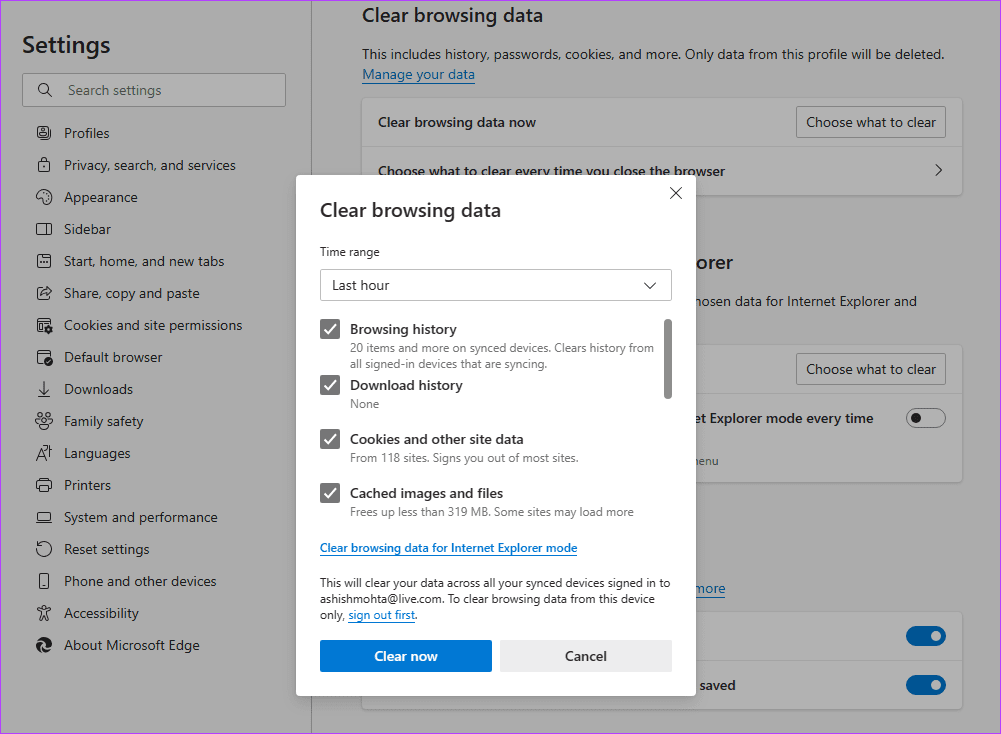
Step 6: In the Clear browsing data pop-up, uncheck everything else, and select Cached images and files.
Step 7: Choose the time range depending on when you started having the issue. If the issue just started, you can choose the Last hour option. Then, click on Clear now to empty the cache.
FAQs
Do I Need to Login Again if I Clear the Cookies?
Yes. Cookies are used by websites to collect your details, including login status. If the cookies are cleared, you cannot authenticate and may be directed back to the login page.
Does Clearing Cache Also Deletes the Browsing History?
No. However, the way clear browsing data has been designed also selects the Browsing history. So, if you are in a rush, you may clear it.
Was this helpful?
Last updated on 04 June, 2024
1 Comment
Leave a Reply
Read Next
 5 Ways to Fix “This Page Is Having a Problem” Error in Microsoft Edge
Fix 1: Disable Extensions An extension might be interfering with the browser processes and preventing Edge from loading websites.
5 Ways to Fix “This Page Is Having a Problem” Error in Microsoft Edge
Fix 1: Disable Extensions An extension might be interfering with the browser processes and preventing Edge from loading websites.
 4 Ways to Take a Full Page Screenshot on Microsoft Edge
Method 1: Use the Inbuilt Option In early 2021, Microsft released an update for Edge that added the feature to take full-page screenshots.
4 Ways to Take a Full Page Screenshot on Microsoft Edge
Method 1: Use the Inbuilt Option In early 2021, Microsft released an update for Edge that added the feature to take full-page screenshots.
 How to Use the Edge Bar in Microsoft Edge on Windows 11
How to Enable Edge Bar in Microsoft Edge Step 1: Launch Microsoft Edge on your PC > click the three-dot menu icon at the top right > select Settings.
How to Use the Edge Bar in Microsoft Edge on Windows 11
How to Enable Edge Bar in Microsoft Edge Step 1: Launch Microsoft Edge on your PC > click the three-dot menu icon at the top right > select Settings.
 6 Ways to Fix Failed to Load Web Page Error in Steam for Windows
Fix 1: Terminate Steam Processes and Reopen the App The "Failed to load web page" error in Steam can occur if one of the app processes is experiencing issues.
6 Ways to Fix Failed to Load Web Page Error in Steam for Windows
Fix 1: Terminate Steam Processes and Reopen the App The "Failed to load web page" error in Steam can occur if one of the app processes is experiencing issues.
 4 Ways to Fix Profile Error in Microsoft Edge
Fix 1: Delete the Web Data File Such errors in Microsoft Edge can also occur if the "Web Data" file stored on your PC becomes corrupted.
4 Ways to Fix Profile Error in Microsoft Edge
Fix 1: Delete the Web Data File Such errors in Microsoft Edge can also occur if the "Web Data" file stored on your PC becomes corrupted.
 5 Ways to Change the Default Page Layout in Microsoft Word
Method 1: Change Page Size Microsoft Word uses the document size and layout as A4 by default.
5 Ways to Change the Default Page Layout in Microsoft Word
Method 1: Change Page Size Microsoft Word uses the document size and layout as A4 by default.
 3 Ways to Fix Extensions Not Working in Microsoft Edge
Basic Fixes: Ensure you're signed in on Edge: Signing in to Edge helps you access all browser features while syncing your information.
3 Ways to Fix Extensions Not Working in Microsoft Edge
Basic Fixes: Ensure you're signed in on Edge: Signing in to Edge helps you access all browser features while syncing your information.
 3 Ways to Fix Microsoft Edge Keeps Running in Background Issue
Basic Fixes: Stop Edge using Task Manager: You can use Task Manager to check Edge's resource usage and stop it from running in the background if it is using too
3 Ways to Fix Microsoft Edge Keeps Running in Background Issue
Basic Fixes: Stop Edge using Task Manager: You can use Task Manager to check Edge's resource usage and stop it from running in the background if it is using too
The article above may contain affiliate links which help support Guiding Tech. The content remains unbiased and authentic and will never affect our editorial integrity.

How do I stop my cursor froming moving backwards and not forward while I am typing from left to right on my google docs? As I type, my my cursor moves to the right instead of the left.