Fix 1: Review Incompatible Drivers
Step 1: Press the Windows key, type Windows Security, and hit Enter.
Step 1: Go to Device security, and click on Review incompatible drivers.
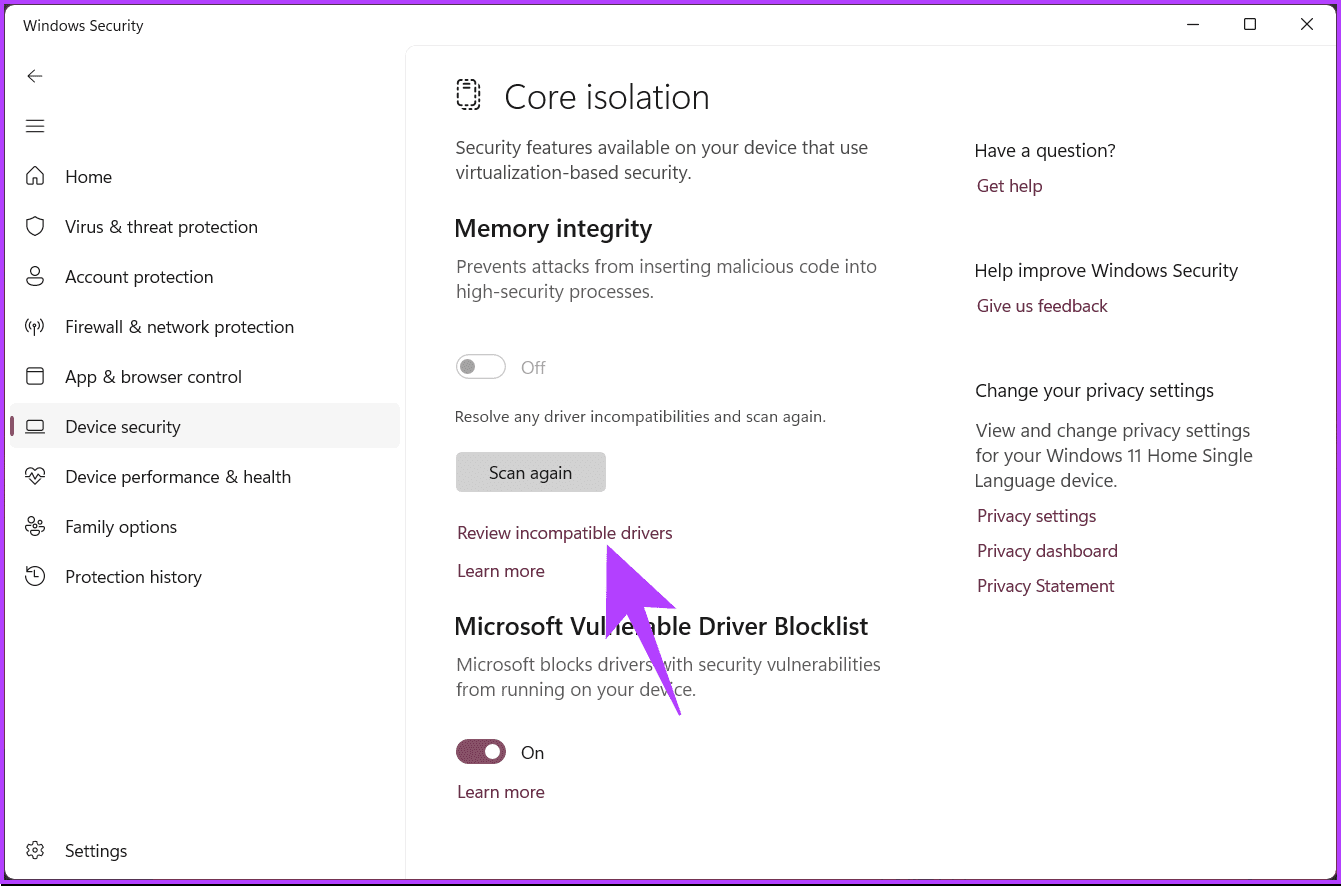
Step 3: In the Incompatible drivers section, note the list of drivers with compatibility issues.

Now that you have taken note of the incompatible drivers, it is time to update them. If updating drivers doesn’t fix the memory integrity is off issue, maybe the next method will be to. Continue reading.
Fix 2: Utilize the System File Checker Tool
Step 1: Press the Windows key, type Command Prompt, and click Run as administrator.
Step 2: Type the below command and hit Enter.
sfc /scannow

This scan will find and repair any corrupted system files. Once the scan is complete, restart your Windows machine and try activating memory integrity by going to Windows security > Device security > Core isolation details.
If scanning and fixing the system files or drivers didn’t fix the memory integrity disabled error, check out the next method.
Fix 3: Remove Incompatible Drivers
Step 1: Press the Windows key, type Command Prompt, and click Run as administrator.
Step 2: Type the below command and hit Enter.
dism /online /get-drivers /format:table
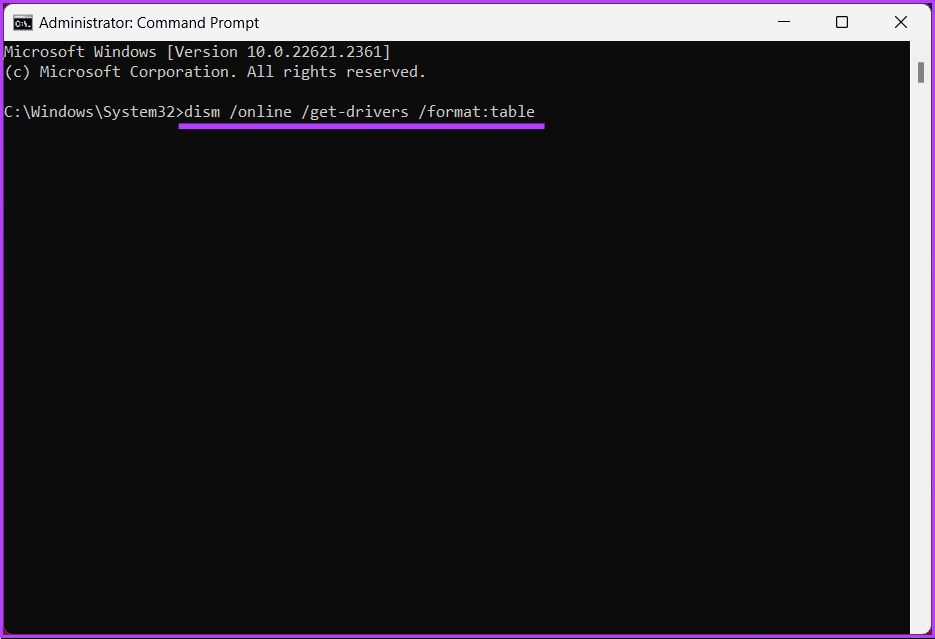
Step 3: Now, locate the incompatible driver’s Published Name from the table, type the below command, and hit Enter.
Note: Replace the driver’s published name with the driver’s actual published name.
pnputil /delete-driver driver's published name /uninstall /force
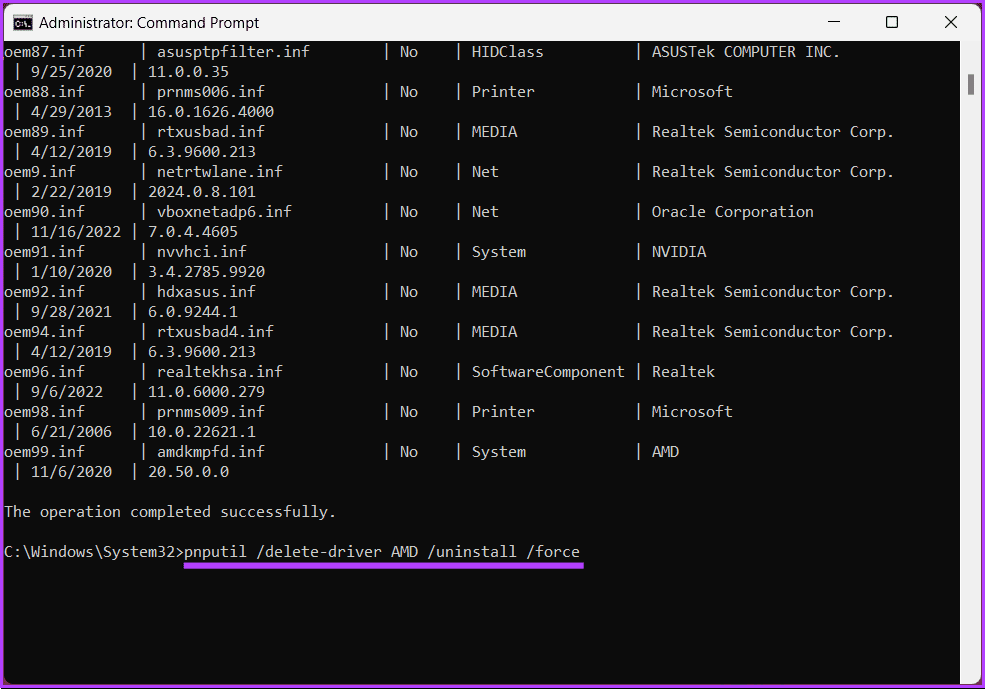
Deleting the incompatible driver will clear the way to resolve the memory integrity greyed-out or disabled issue, allowing you to enable it. If this method doesn’t help, move on to the next method.
Fix 4: Uninstall Related Programs or Drivers
Some third-party security software or utilities may conflict with memory integrity. Uninstall any recently installed or suspicious programs and drivers that may interfere with the feature. We have already covered an article on how to uninstall programs on Windows 11/10.
If uninstalling apps and programs didn’t fix the memory integrity is off error, move to the next method.
Fix 5: Reset the Windows Security App
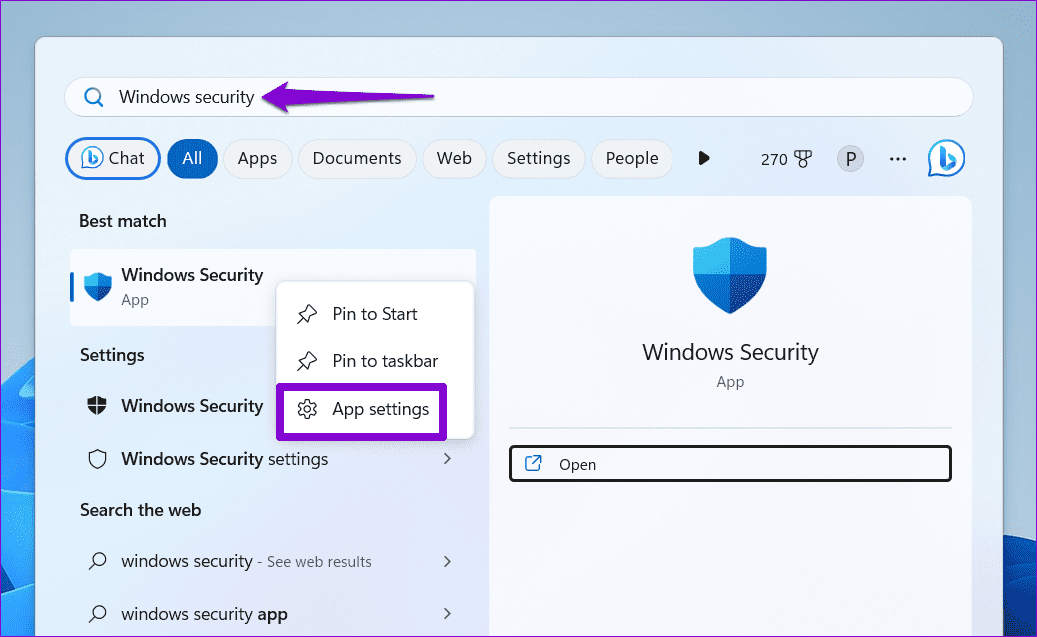
Step 1: Press the Windows key, type Windows Security, right-click on the first result that appears, and select App settings.
Step 2: Click the Reset button.
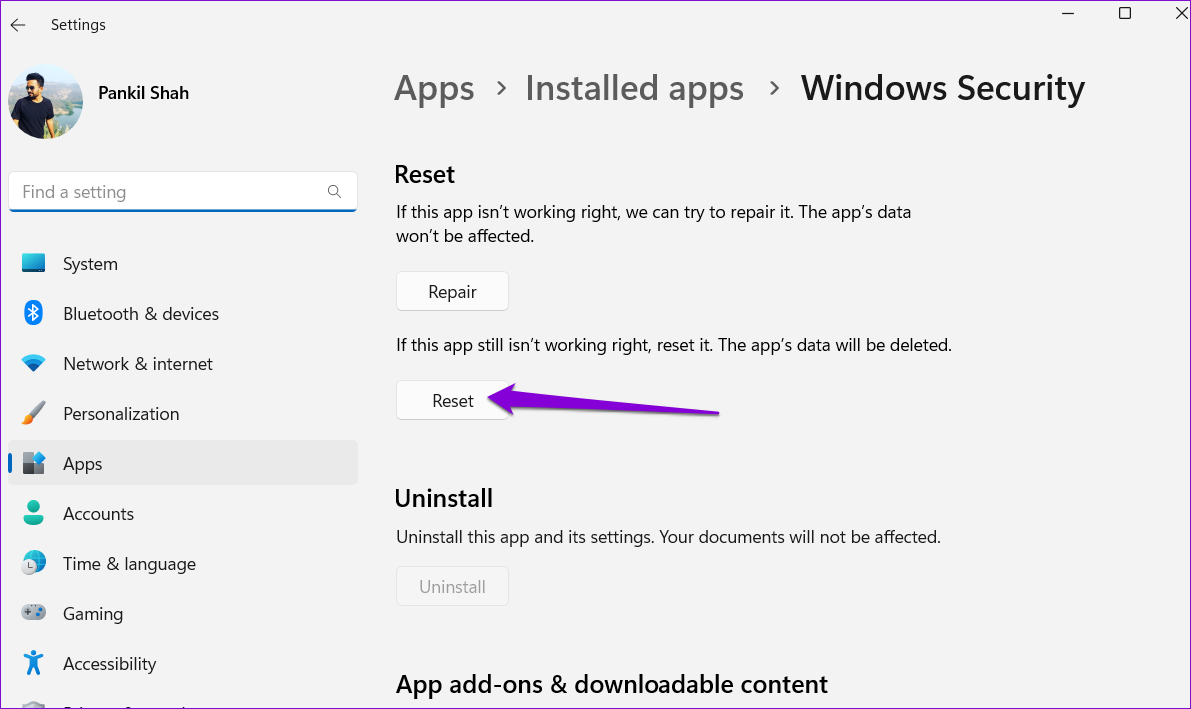
Once done, check if the memory integrity issue has been resolved. If not, maybe the next method will help.
Fix 6: Apply Pending Windows 11 or 10 Updates
Step 1: Press the Windows key on your keyboard, type Settings, and click Open.
Step 2: In the Settings window, go to Windows Update.
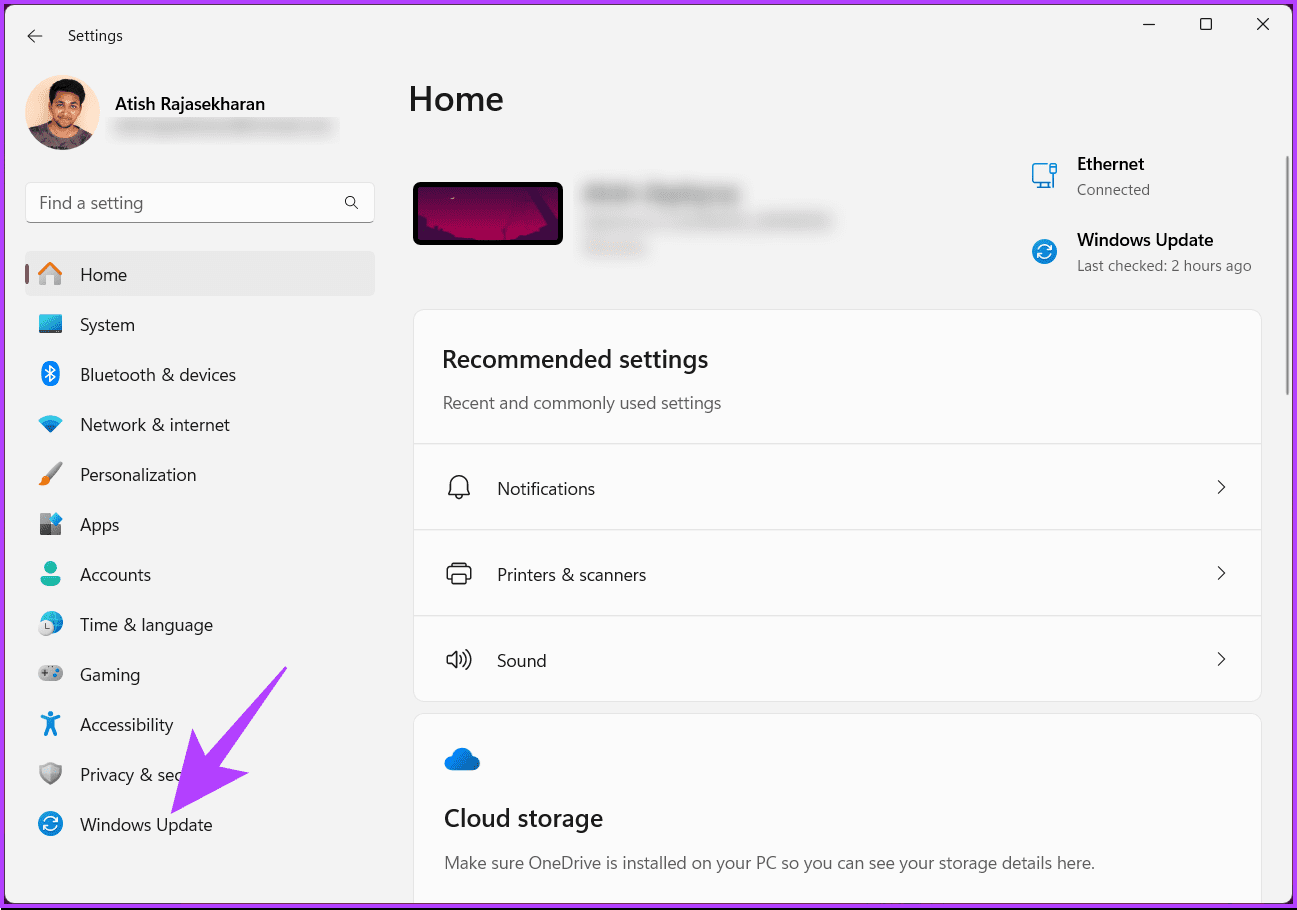
Step 3: On the right pane, under Windows Update, click the Check for updates button.
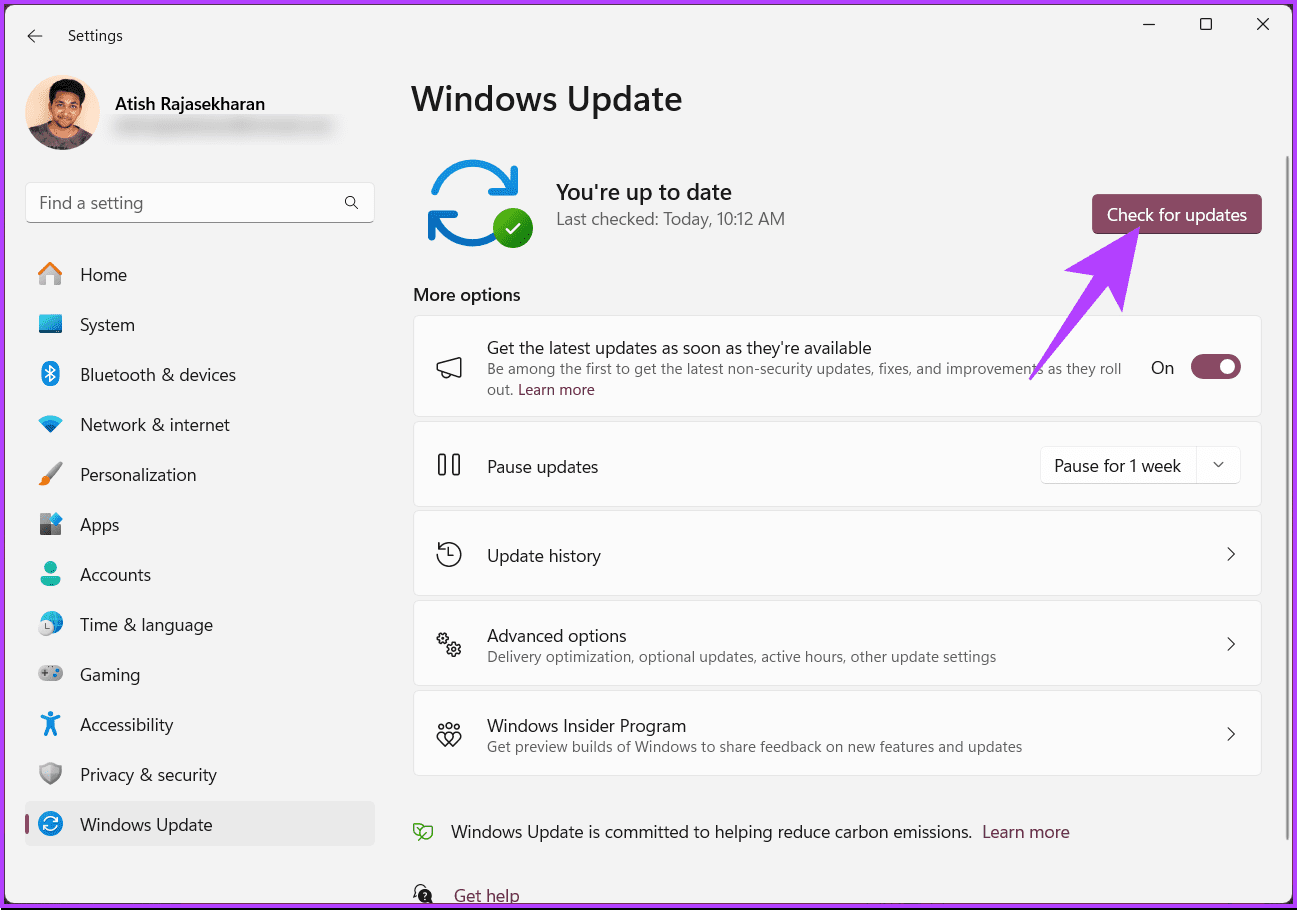
You might receive a prompt to download the Windows update. After downloading the update, the system will install it and then request a restart of your Windows machine.
Once your PC boots back up, the update will have been applied. If this error occurred after you updated your Windows machine, continue reading.
Fix 7: Force Enable Memory Integrity via Registry Editor
Step 1: Open the Start menu, type Registry Editor, and click Run as administrator.
In the prompt, select Yes.
Step 2: In the top address bar, enter the mentioned address and hit Enter.
HKEY_LOCAL_MACHINE\SYSTEM\CurrentControlSet\ControlDeviceGuard\Scenarios\HypervisorEnforcedCodeIntegrity
Note: You can manually navigate to the section too.

Step 3: Double-click the Enabled key, type 1 in the Value Data field, and press OK.
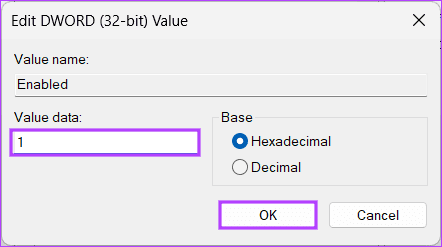
Finally, reboot the system to implement the changes. And that’s it! Any issues relating to the printer error should be resolved upon booting up your PC again.
Fix 8: Perform a Clean Boot
Performing a clean boot systematically troubleshoots and identifies software conflicts that may be causing the Memory Integrity greyed out error on Windows 11/10. Check out our detailed article on how to perform a clean boot on Windows 11.
This should resolve the issue; if not, look at the following method and fix the issue.
Fix 9: Activate Hardware Virtualization in BIOS or UEFI
Activating hardware virtualization in the BIOS or UEFI is crucial in resolving the memory integrity disabled issue on Windows 11/10. We already have an article on it; check out how to enable virtualization in Windows 11. When you enable hardware virtualization in the BIOS/UEFI, features like memory integrity in Windows 11/10 are supported at the hardware level.
This should fix the issue; if you still cannot fix the issue and none of the methods mentioned above didn’t work, then reach out to Microsoft support and get it resolved.
FAQs on Fixing Memory Integrity Is Off Error
Enabling memory integrity may have a minimal impact on system performance. Most users won’t notice a significant slowdown. However, if you have an older or less powerful computer, you might want to assess its impact on your specific hardware.
While enabling memory integrity is generally safe, it may cause compatibility issues with certain older or poorly designed drivers. If you experience problems with your computer after enabling it, you can turn memory integrity off.
Now that you know how to fix memory integrity is off error on Windows 11/10, your system will be better protected against various cyberattacks.
Was this helpful?
Last updated on 26 August, 2024
Read Next
 How to Control Integrity Level of Windows 10 Files, Folders
Ever had the problem of ‘Access is Denied’ while browsing through your own computer?
How to Control Integrity Level of Windows 10 Files, Folders
Ever had the problem of ‘Access is Denied’ while browsing through your own computer?
 5 Ways to Fix “Your Computer Is Low on Memory” Error on Windows 10 and Windows 11
Try Basic Fixes Close unwanted apps and programs: Start by closing any unwanted apps and programs on your computer, especially the ones consuming a major chunk of your PC’s memory.
5 Ways to Fix “Your Computer Is Low on Memory” Error on Windows 10 and Windows 11
Try Basic Fixes Close unwanted apps and programs: Start by closing any unwanted apps and programs on your computer, especially the ones consuming a major chunk of your PC’s memory.
 4 Ways to Fix DirectX ‘Could Not Allocate Sufficient Memory’ Error on Windows 11
Common Fixes Launch the Windows Memory Diagnostic tool: Press the Windows key, search Windows Memory Diagnostic tool, and click to open it.
4 Ways to Fix DirectX ‘Could Not Allocate Sufficient Memory’ Error on Windows 11
Common Fixes Launch the Windows Memory Diagnostic tool: Press the Windows key, search Windows Memory Diagnostic tool, and click to open it.
 6 Ways to Fix Google Chrome Error Code: Out of Memory on Windows
Basic Fixes Restart PC: Restart your PC to fix temporary bugs and glitches.
6 Ways to Fix Google Chrome Error Code: Out of Memory on Windows
Basic Fixes Restart PC: Restart your PC to fix temporary bugs and glitches.
 5 Fixes for Microsoft Outlook Out of Memory or System Resources Error on Windows
Fix 1: Run the Inbox Repair Tool Damaged or corrupted PST or OST files can cause Outlook to run out of memory on your Windows computer.
5 Fixes for Microsoft Outlook Out of Memory or System Resources Error on Windows
Fix 1: Run the Inbox Repair Tool Damaged or corrupted PST or OST files can cause Outlook to run out of memory on your Windows computer.
 4 Fixes for ‘Video Memory Management Internal’ Error on Windows
Basic Fixes Restart PC: Restart your PC to fix temporary bugs and glitches.
4 Fixes for ‘Video Memory Management Internal’ Error on Windows
Basic Fixes Restart PC: Restart your PC to fix temporary bugs and glitches.
 6 Ways to Reduce Microsoft Teams Memory Usage in Windows 10 or 11
Fix 1: Disable GPU Hardware Acceleration in Teams GPU hardware acceleration is enabled by default in Microsoft Teams for smooth performance.
6 Ways to Reduce Microsoft Teams Memory Usage in Windows 10 or 11
Fix 1: Disable GPU Hardware Acceleration in Teams GPU hardware acceleration is enabled by default in Microsoft Teams for smooth performance.
 4 Ways to Increase Dedicated Video Memory (VRAM) in Windows 10/11
Method 1: Upgrade to a Dedicated GPU The best way to increase the dedicated Video RAM (VRAM) on your Windows is by upgrading the Graphics card in your PC.
4 Ways to Increase Dedicated Video Memory (VRAM) in Windows 10/11
Method 1: Upgrade to a Dedicated GPU The best way to increase the dedicated Video RAM (VRAM) on your Windows is by upgrading the Graphics card in your PC.
The article above may contain affiliate links which help support Guiding Tech. The content remains unbiased and authentic and will never affect our editorial integrity.