Preliminary Fixes
- Check if You Have Supported Devices: Logitech Flow is only compatible with specific Logitech devices, so the first step is to ensure your devices support this feature.
- Restart Devices: A simple restart can often resolve connectivity issues or software glitches that prevent Logitech Flow from working correctly.
- Connect to the Same Wi-Fi Network: For Logitech Flow to function, all connected computers must be on the same Wi-Fi network. If they are on different networks, Logitech Flow will not be able to communicate between devices.
- Use Right Software: Logitech Flow requires the correct software to be installed and configured on all computers. This software is Logitech Options, which needs to be properly set up for Flow to work.
- Update the App: Outdated software can often cause issues with functionality. Ensuring that Logitech Options is up to date can help resolve bugs or compatibility issues preventing Flow from working.
Fix 1: Enable Flow on Both Devices
Step 1: Open the Logi Options+ app on your first computer.
Step 2: Click on your mouse. If your mouse doesn’t show up, it’s not connected to the computer. Pair it with the computer first.

Step 3: Click on Flow and enable the toggle next to Flow at the top.
Note: If it’s already on, turn it off and enable it again.

Fix 2: Change Wi-Fi to Private (Windows)
Step 1: Go to Settings, followed by Network & internet and select Wi-Fi.

Step 2: Click on your Wi-Fi network.
Step 3: Select Private network under Network profile type.

Tip: Learn what happens when you reset network settings on Windows.
Fix 3: Allow Logitech App in Firewall Settings (Windows)
Step 1: Type Windows Security in Windows search. Click on it in the search results.
Step 2: Click on Firewall & network protection, then Allow an app through firewall.

Step 3: Click on Change Settings, find LogiOptionsMgr.EX or Log Options+ Agent, and check the box on the left for Private and Public.

Step 4: Similarly, do the same on another computer if you are trying to use Logitech Flow between two Windows computers.
Step 5: Restart both computers.
Tip: Learn how to disable the firewall on a Windows computer
Fix 4: Install Set Point (Windows)
Step 1: Open the SetPoint page and click on the Download button.

Step 2: Follow the on-screen instructions to install it on your computer.
Step 3: Restart your computer and try using the Logitech Flow.
Fix 5: Reset Flow
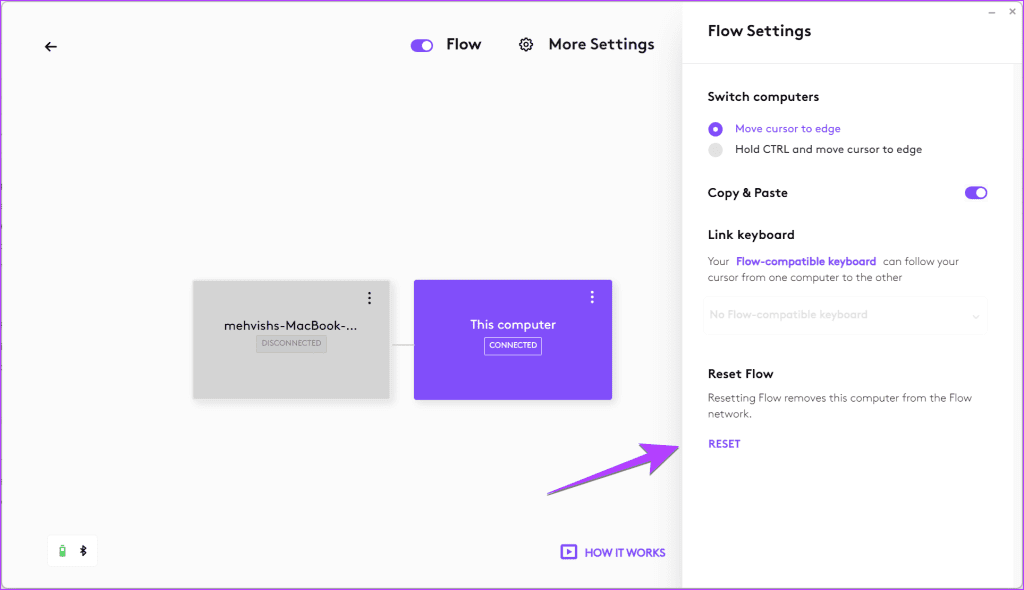
Step 1: Open the Logi Options app and select your mouse.
Step 2: Click on Flow, followed by More Settings at the top.

Step 3: Click on Reset.
Tip: Learn how to get Mac gestures on any mouse
Fix 6: Use the Mouse Without Borders App
If Logitech Flow still doesn’t work after following the above fixes, try using the Mouse without the Borders app from Microsoft instead of the Logitech app. However, please remember that this app only works on Windows computers. If the app doesn’t work, learn how to fix Mouse without Borders app not working.
Using the above fixes, the Logitech Flow not working issue should be resolved. If you want a new mouse, check out the best mouse with programmable buttons.
Was this helpful?
Last updated on 28 August, 2024
Read Next
 Microsoft Your Phone vs Samsung Flow: Which Is Better for Connecting Phone to Windows
I envy iPhone users for only one reason — the ability to link their Mac and iPhone easily.
Microsoft Your Phone vs Samsung Flow: Which Is Better for Connecting Phone to Windows
I envy iPhone users for only one reason — the ability to link their Mac and iPhone easily.
 7 Best Logitech Mice in 2024: Gaming, Work, and More
In the vast sea of computer peripherals, finding the perfect mouse that suits your needs can be tedious.
7 Best Logitech Mice in 2024: Gaming, Work, and More
In the vast sea of computer peripherals, finding the perfect mouse that suits your needs can be tedious.
 4 Ways to Fix Dynamic Lock Not Working on Windows 11
Basic Fixes Re-pair your Bluetooth device: Press the Windows + I shortcut to open the Settings app, select Bluetooth & devices from the left sidebar, and click Devices.
4 Ways to Fix Dynamic Lock Not Working on Windows 11
Basic Fixes Re-pair your Bluetooth device: Press the Windows + I shortcut to open the Settings app, select Bluetooth & devices from the left sidebar, and click Devices.
 4 Ways to Fix Copy and Paste Not Working in Windows 11
Try Basic Fixes Restart Windows Explorer: Problems with the Windows Explorer process can also prevent you from copying and pasting files in File Explorer.
4 Ways to Fix Copy and Paste Not Working in Windows 11
Try Basic Fixes Restart Windows Explorer: Problems with the Windows Explorer process can also prevent you from copying and pasting files in File Explorer.
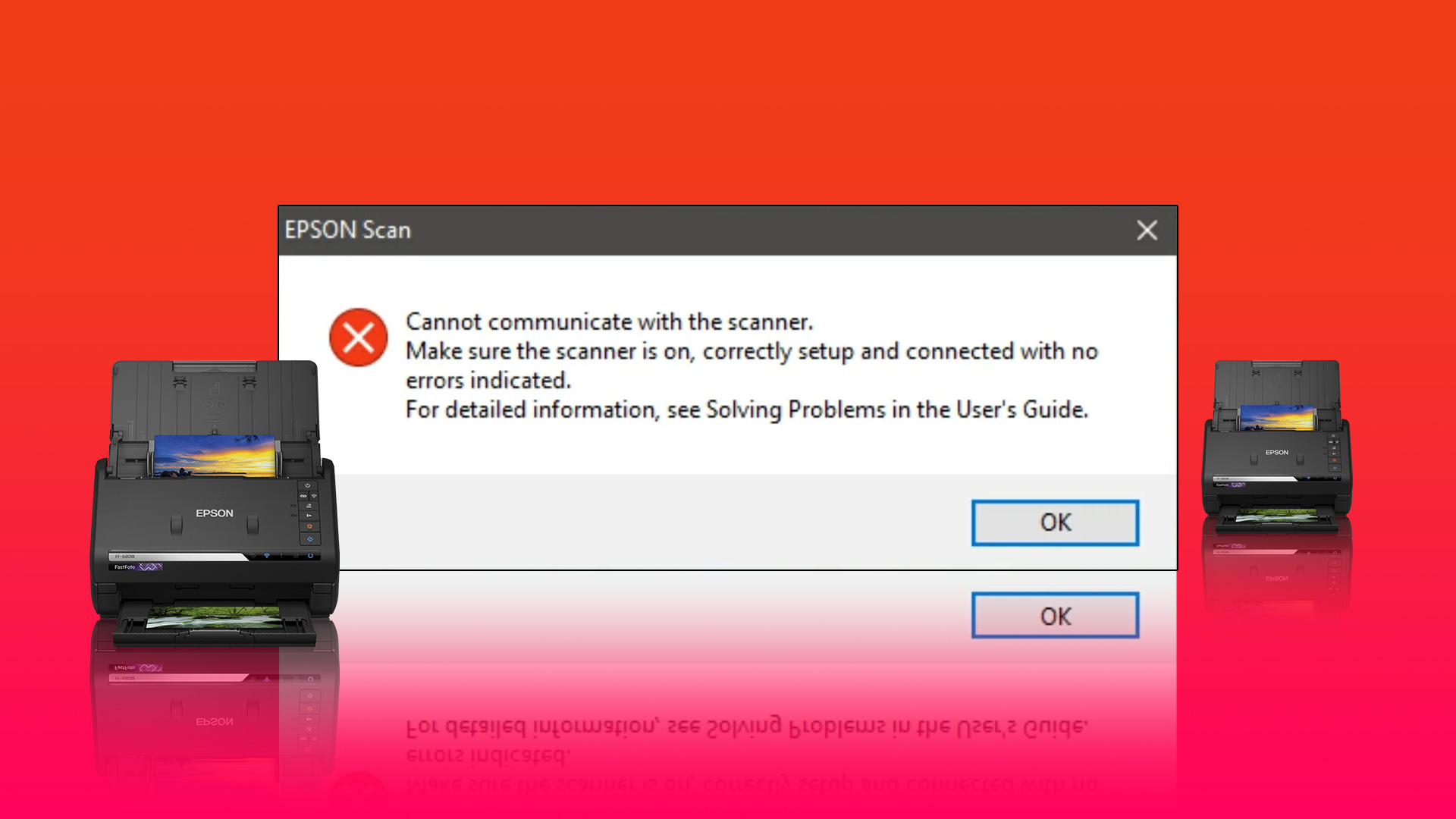 5 Ways to Fix Scanner Not Working on Windows 11
Fix 1: Remove and Re-Add Your Scanner Removing the scanner from Windows and setting it up again can help resolve any problems caused by incorrect configuration.
5 Ways to Fix Scanner Not Working on Windows 11
Fix 1: Remove and Re-Add Your Scanner Removing the scanner from Windows and setting it up again can help resolve any problems caused by incorrect configuration.
 3 Ways to Fix Ctrl + Alt + Delete Not Working on Windows 11
Basic Fixes Ensure keyboard keys are intact: Ensure that Ctrl, Alt, and Delete keys aren't damaged on your keyboard and are functioning properly.
3 Ways to Fix Ctrl + Alt + Delete Not Working on Windows 11
Basic Fixes Ensure keyboard keys are intact: Ensure that Ctrl, Alt, and Delete keys aren't damaged on your keyboard and are functioning properly.
 6 Ways to Fix Camera Not Working in Microsoft Edge on Windows
Fix 1: Close Background Apps If another app is already using your computer’s camera, Microsoft Edge can't access it.
6 Ways to Fix Camera Not Working in Microsoft Edge on Windows
Fix 1: Close Background Apps If another app is already using your computer’s camera, Microsoft Edge can't access it.
 6 Ways to Fix Task Scheduler Not Working on Windows
Fix 1.
6 Ways to Fix Task Scheduler Not Working on Windows
Fix 1.
The article above may contain affiliate links which help support Guiding Tech. The content remains unbiased and authentic and will never affect our editorial integrity.