

- Switch to a different network connection: A slow or intermittent internet connection can also cause login errors in Steam. To fix this, try switching to a different network connection. Additionally, if you use a VPN service, consider disabling it momentarily and then try again.
- Check if Steam is down: There’s a chance that Steam’s servers are facing an outage, resulting in the login error code E84. You can visit Downdetector to inspect if other Steam users are facing similar issues.
Fix 1: Add a Login Parameter in Steam’s EXE File
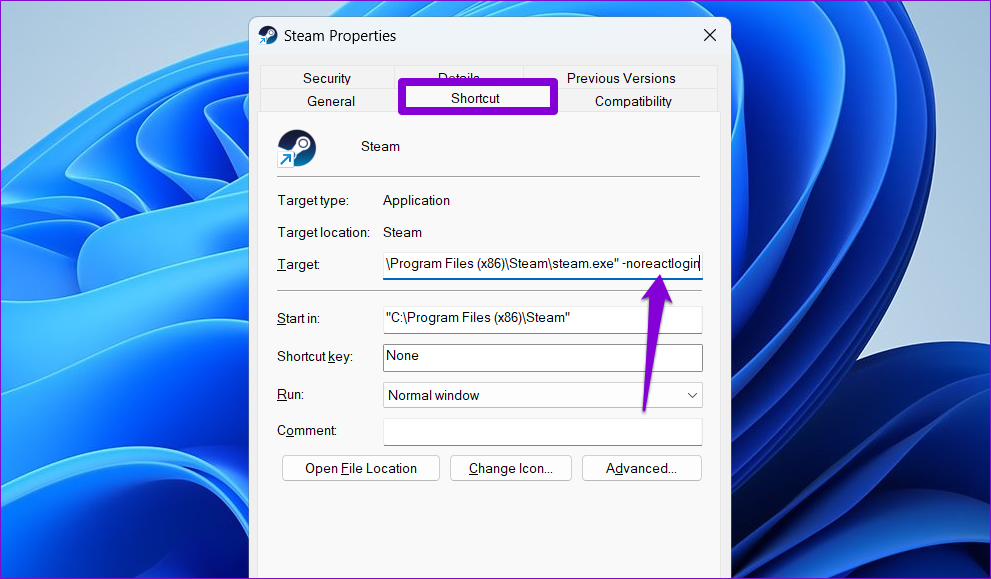
One effective workaround to fix the login error code E84 is to add the “-noreactlogin” parameter to Steam’s executable file. Several users on the Steam forums reported fixing this particular error with this trick. You can also give it a try.
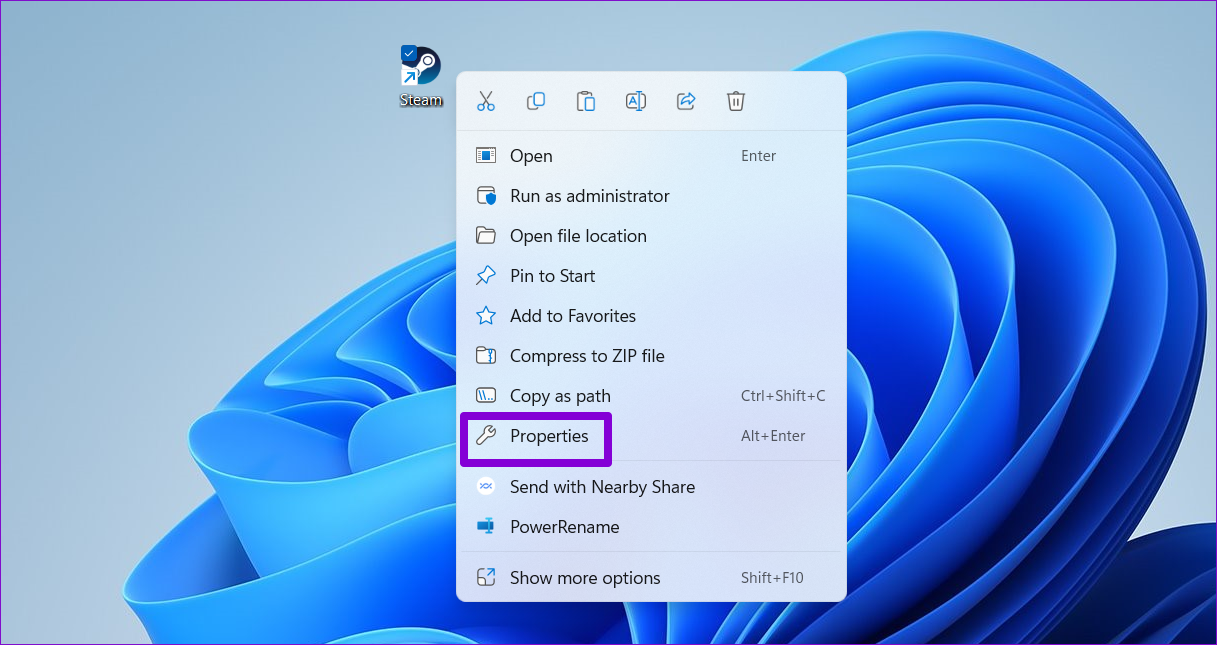
Step 1: On your computer’s desktop, right-click on Steam’s shortcut and select Properties.
Step 2: Switch to the Shortcut tab. In the Target field, click at the end of the path, enter a space, and type -noreactlogin.
Step 3: Hit Apply, followed by OK.
Open the Steam app again and check if it still shows errors when you log in. If it does not, repeat the above steps, remove the “-noreactlogin” parameter, and continue with the fixes below.
Fix 2: Reset Your Steam Password
Another cause of the login error code E84 in Steam is authentication issues with your account. To fix this, try resetting your account password from Steam’s website.
Step 1: Open your preferred web browser and head over to Steam’s website.
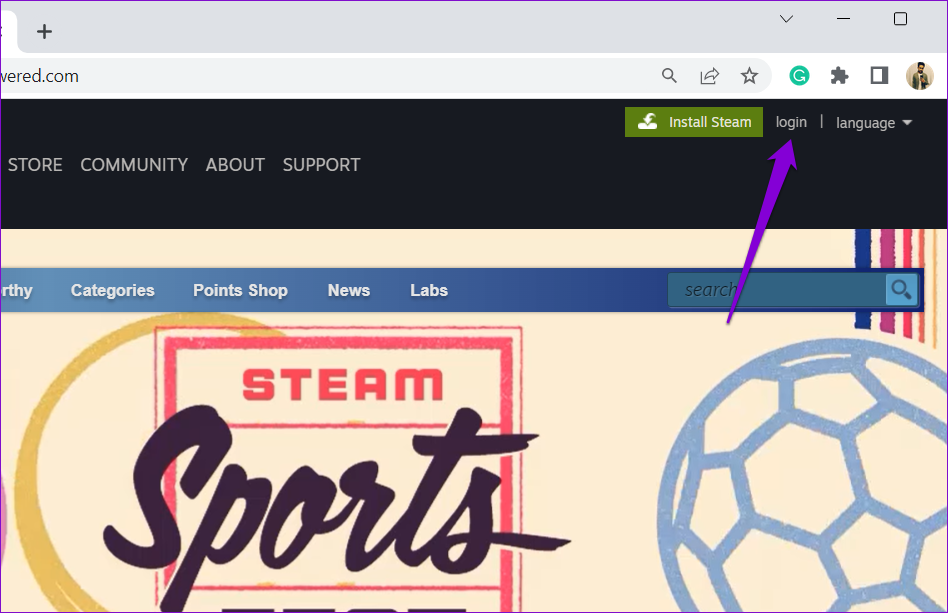
Step 2: Click the Login option at the top-right corner.
Step 3: Click Help, I can’t sign in at the bottom.

Step 4: Select the I forgot my Steam Account name or password option.

Step 5: Type the email address or phone number linked to your Steam account and click Search.

Step 6: Select the Email an account verification code to [Email ID] option. Then, click the verification link received in your email.

Step 7: Click on Reset my password.

Step 8: Set a new password for your Steam account and click the Change Password button.

After resetting your password, try to log into the Steam app again.
Fix 3: Correct System Date and Time
If your Windows computer is set to an incorrect date or time, apps like Steam may have trouble communicating with the server. To avoid discrepancies, enable the automatic date and time feature on your Windows computer.
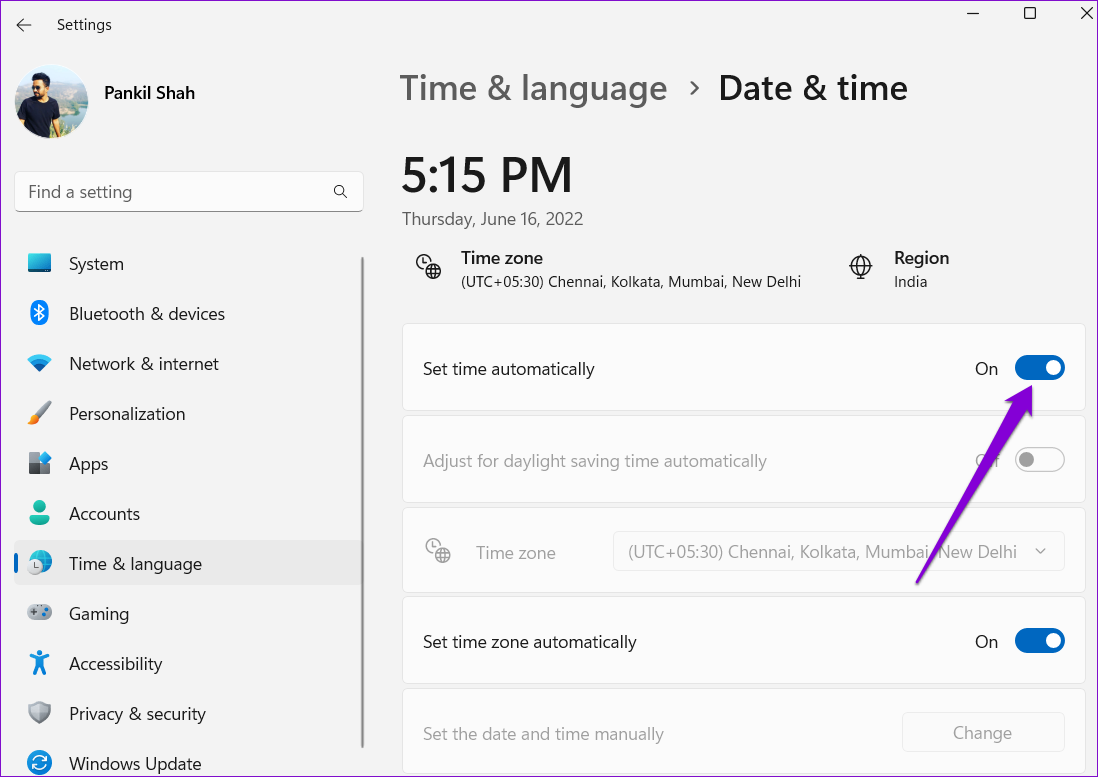
Step 1: Press the Windows key + I to open the Settings app and head to Time & language > Date & time.
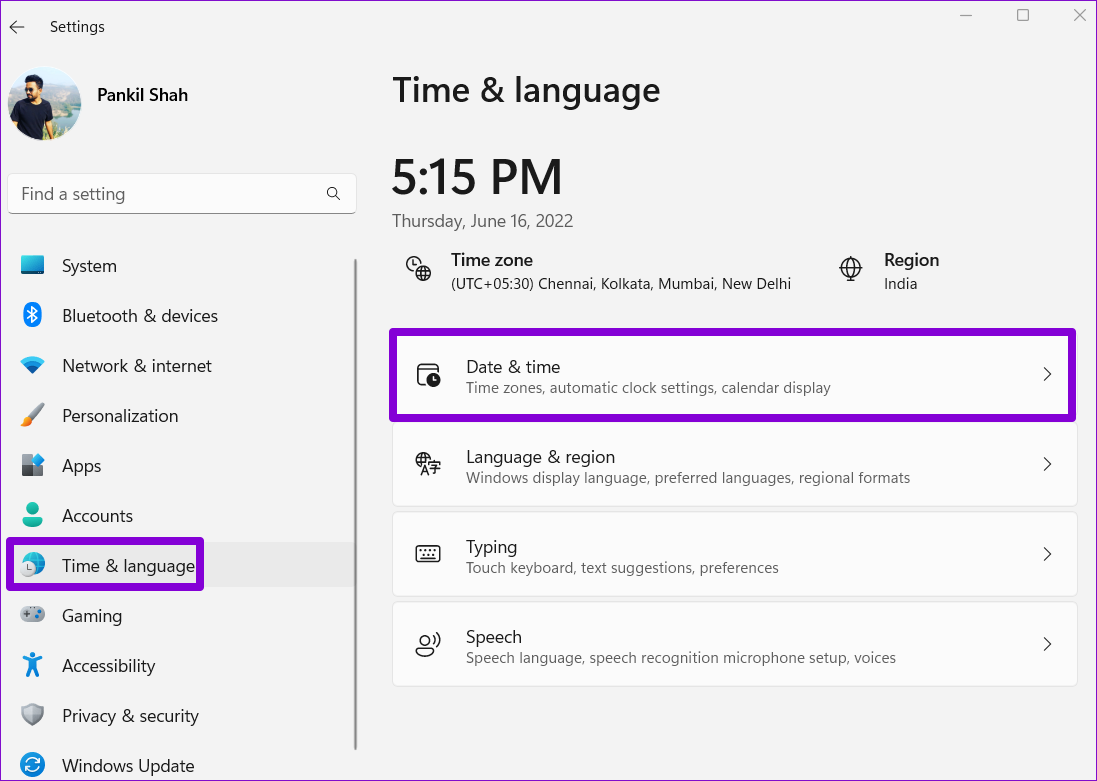
Step 2: Enable the toggle next to Set time automatically.
Fix 4: Reinstall the Steam App
If you can’t log into the Steam app at this point, some of the app’s core files may be corrupt. In that case, your best option is to uninstall and reinstall Steam on your PC.
Note: Uninstalling Steam will also remove all game content from your computer. Check out Steam’s official guide to change the default location of your games.
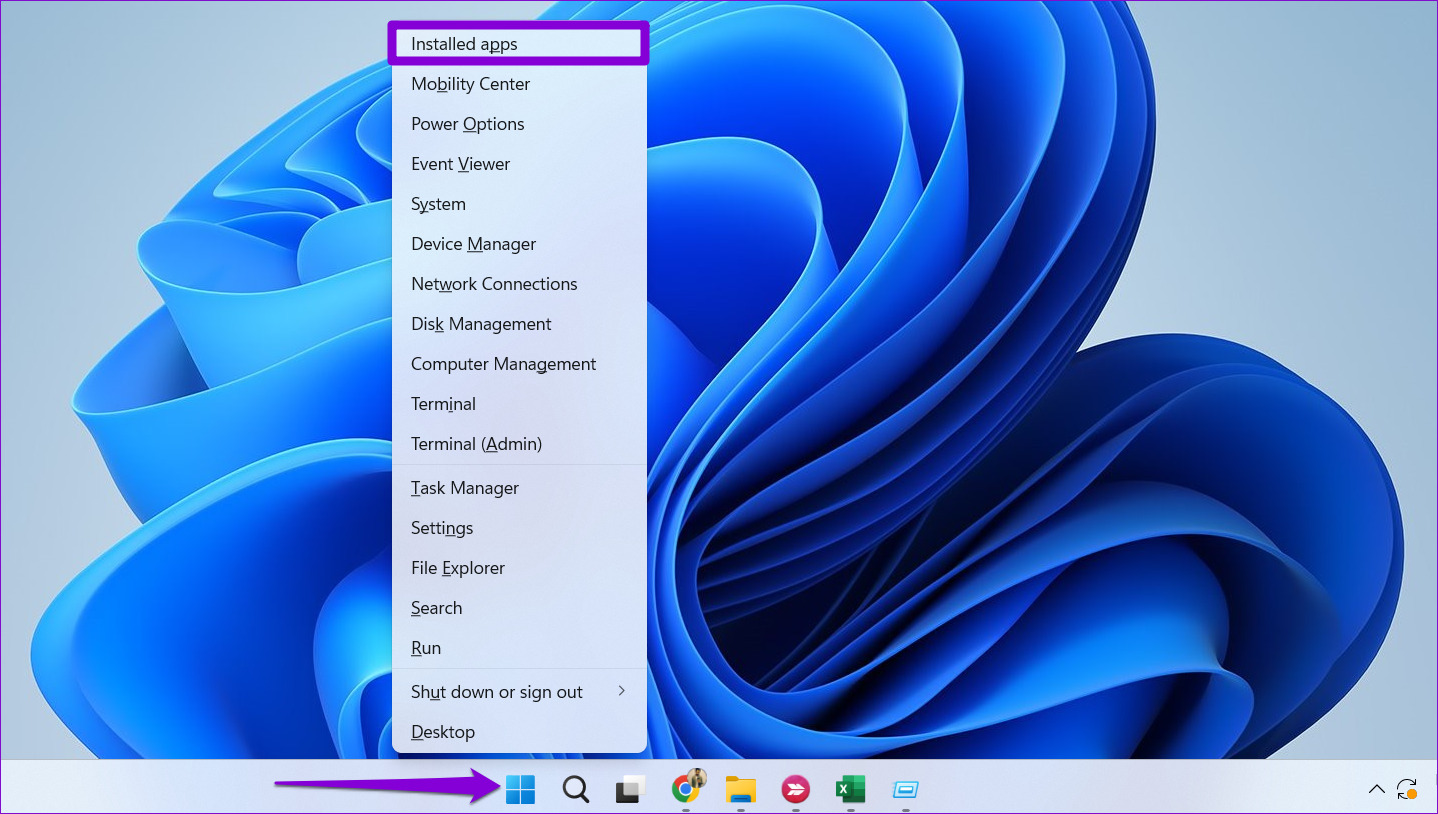
Step 1: Right-click on the Start icon and select Installed apps from the list.
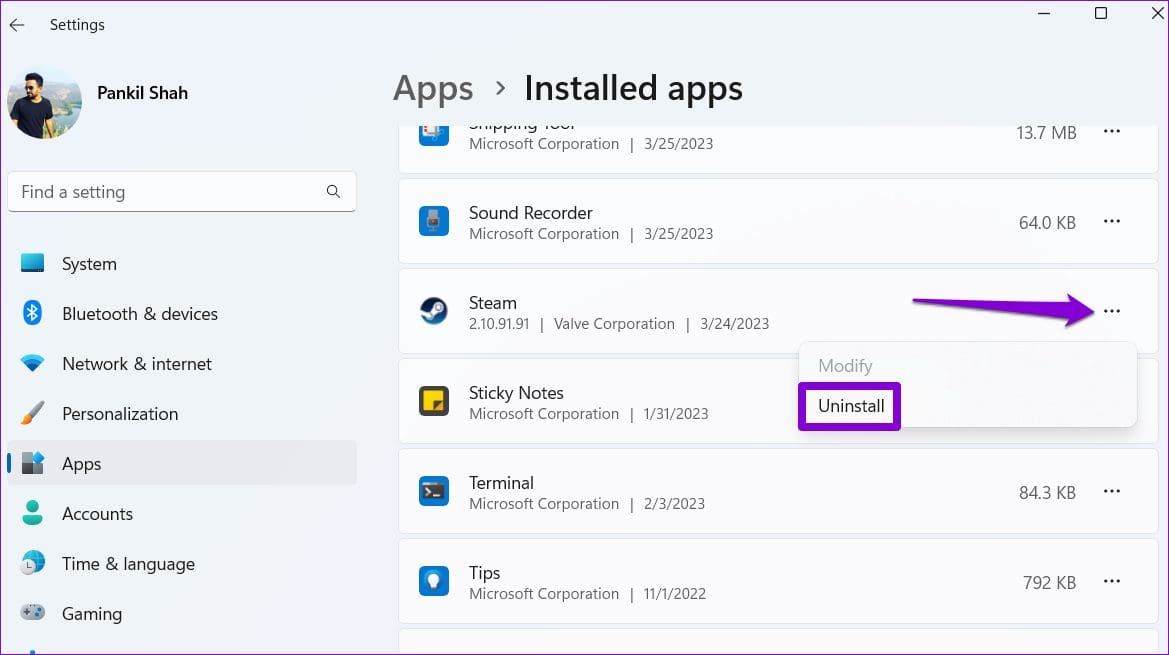
Step 2: Locate the Steam app on the list, click the menu icon (three horizontal dots) next to it, and select Uninstall.
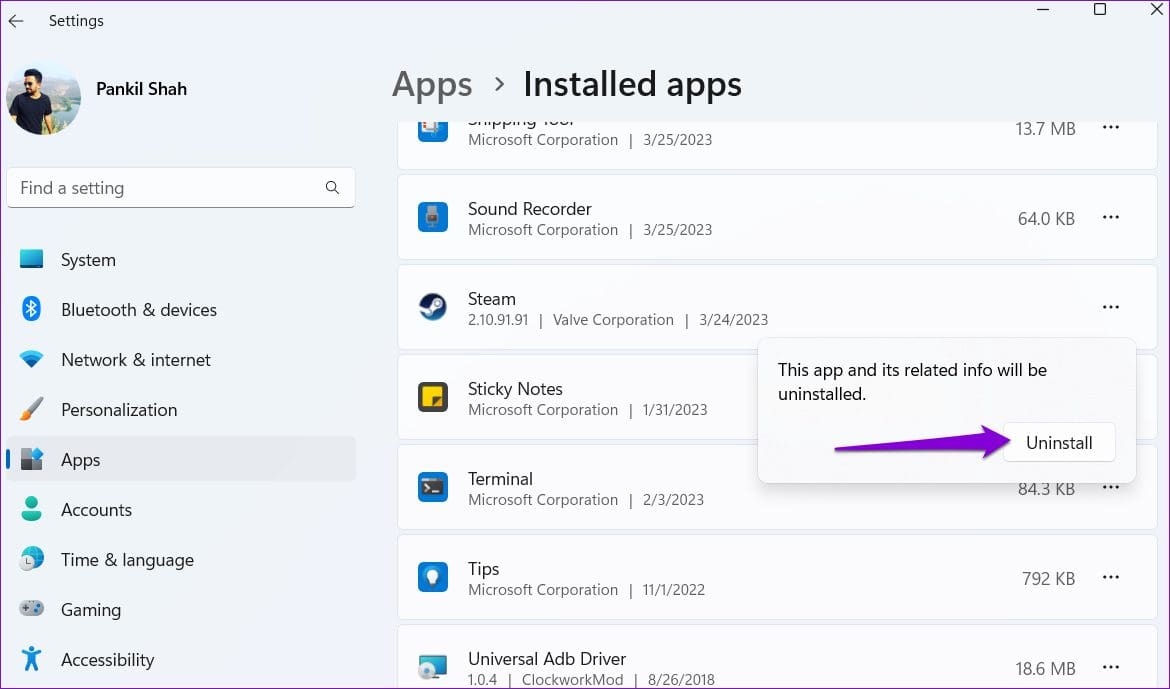
Step 3: Select Uninstall to confirm.
After that, download and install the Steam app again. You should then be able to log in without any errors.
Was this helpful?
Last updated on 03 May, 2024
Read Next
 6 Ways to Fix Login Screen Not Showing in Windows 11
Common Fixes Press Ctrl + Alt + Delete - This shortcut refreshes the login interface to bring up the login screen.
6 Ways to Fix Login Screen Not Showing in Windows 11
Common Fixes Press Ctrl + Alt + Delete - This shortcut refreshes the login interface to bring up the login screen.
 Top 3 Ways to Fix OneDrive Connectivity Error Code 0x8004de40 in Windows 10
OneDrive is arguably one of the best cloud storage and backup solutions for Windows computers.
Top 3 Ways to Fix OneDrive Connectivity Error Code 0x8004de40 in Windows 10
OneDrive is arguably one of the best cloud storage and backup solutions for Windows computers.
 4 Ways to Fix Graphics Device Driver Error Code 22 on Windows
Fix 1: Enable and Update the Graphics Driver You may see error code 22 on Windows if you have previously disabled the graphics driver or if it's outdated.
4 Ways to Fix Graphics Device Driver Error Code 22 on Windows
Fix 1: Enable and Update the Graphics Driver You may see error code 22 on Windows if you have previously disabled the graphics driver or if it's outdated.
 4 Ways to Fix Error Code 0xc000000f in Windows 11
Basic Fixes: Disconnect all external devices: Error code 0xc00000f can indicate issues with the boot configuration data (BCD), but sometimes, it may arise due to conflicts with external devices like
4 Ways to Fix Error Code 0xc000000f in Windows 11
Basic Fixes: Disconnect all external devices: Error code 0xc00000f can indicate issues with the boot configuration data (BCD), but sometimes, it may arise due to conflicts with external devices like
 How to Fix Printer Not Activated (Error Code 30) on Windows 11
Basic Fixes Reconnect printer: If you're using a wired printer, its loose USB connection to your PC may result in 'Printer not activated (Error Code 30)'.
How to Fix Printer Not Activated (Error Code 30) on Windows 11
Basic Fixes Reconnect printer: If you're using a wired printer, its loose USB connection to your PC may result in 'Printer not activated (Error Code 30)'.
 4 Ways to Fix Error Code 0x80070570 in Windows
Fix 1: Re-Download Windows ISO Finding the correct Windows ISO for your PC is crucial for proper installation.
4 Ways to Fix Error Code 0x80070570 in Windows
Fix 1: Re-Download Windows ISO Finding the correct Windows ISO for your PC is crucial for proper installation.
 Top 5 Ways to Fix ‘Steam Stuck on Verifying Installation’ Error in Windows
Basic Fixes Check Your Internet Connection: As a starting point, it's important to ensure that your internet connection is working.
Top 5 Ways to Fix ‘Steam Stuck on Verifying Installation’ Error in Windows
Basic Fixes Check Your Internet Connection: As a starting point, it's important to ensure that your internet connection is working.
 6 Ways to Fix Not Enough Disk Space Error in Steam on Windows 11
Why Don’t I Have Enough Disk Space While Running Steam?
6 Ways to Fix Not Enough Disk Space Error in Steam on Windows 11
Why Don’t I Have Enough Disk Space While Running Steam?
The article above may contain affiliate links which help support Guiding Tech. The content remains unbiased and authentic and will never affect our editorial integrity.

