

Basic Fixes
- Check charging accessories: If there’s any visible damage to the charging cable/adapter, it can certainly cause issues while you try and charge your Kindle reader.
- Check power source: You also need to make sure the power outlet from your wall or any other source is functional and not damaged.
- Remove case: If you have a protective case on your Kindle reader, make sure it is not restricting or covering the charging port.
- Clean charging port: Sometimes, there might be some dust or lint present inside the charging port and this might prevent you from fully inserting the charger into your Kindle.
Fix 1: Restart Kindle
Shutting down your Kindle shuts down all the operations and possibly clears the bug causing the issue as well.
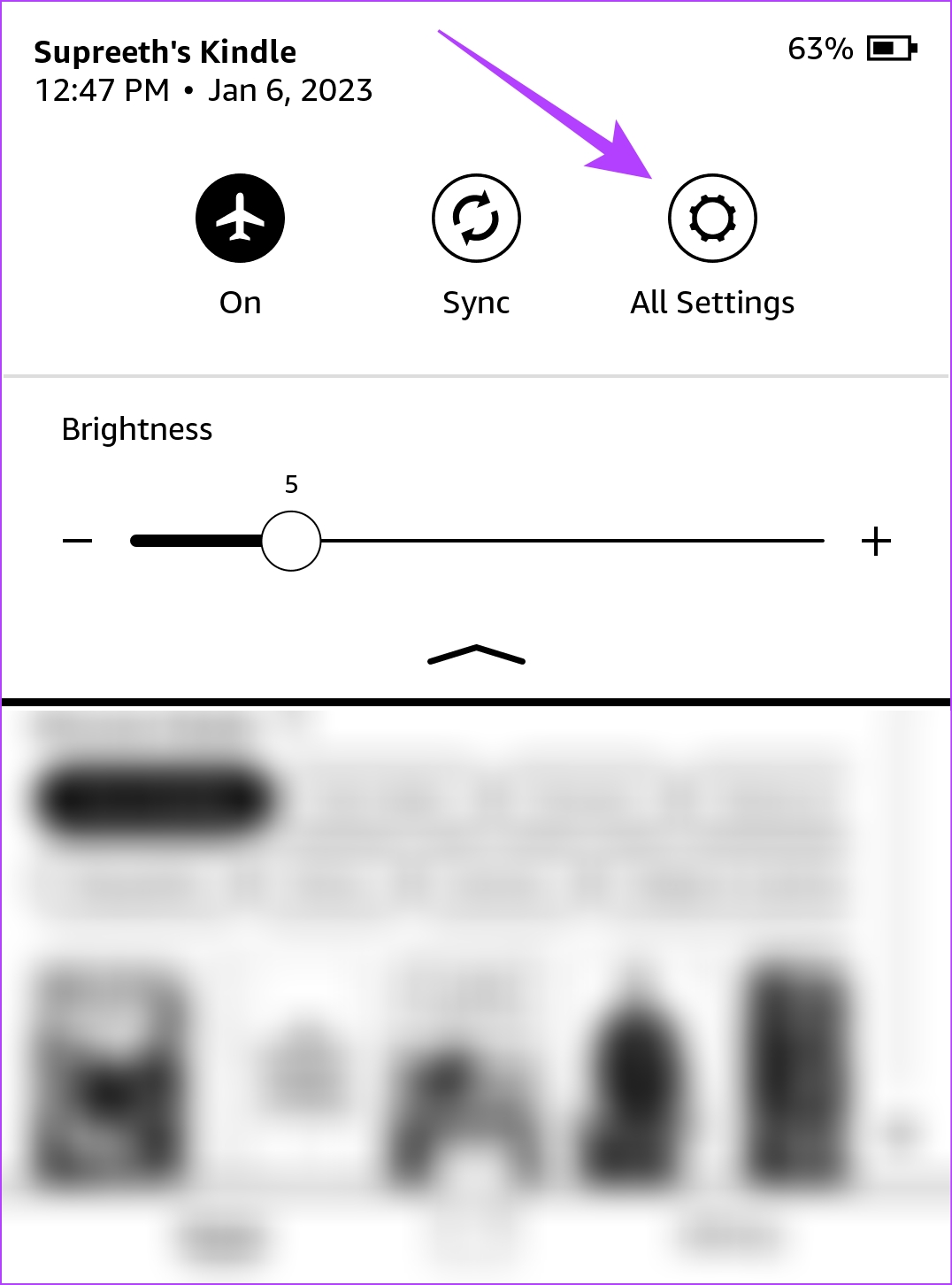
Step 1: Tap anywhere on your screen if you are reading a book. If you are on the Home page, jump to Step 2.
Step 2: Tap on the downward-facing arrow icon to open the control panel and go to All Settings.
Step 3: Tap on Device Options. Tap on Restart and select Yes to confirm.


Also Read: How to fix Kindle battery draining fast
Fix 2: Update Kindle
If several readers are facing a problem in charging their Kindle, Amazon will certainly take note of it and release a firmware update to fix the issue.
Step 1: Tap anywhere on your screen if you are reading a book. If you are on the Home page, jump to Step 2.
Step 2: Tap on the downward-facing arrow icon to open the control panel and go to All Settings.
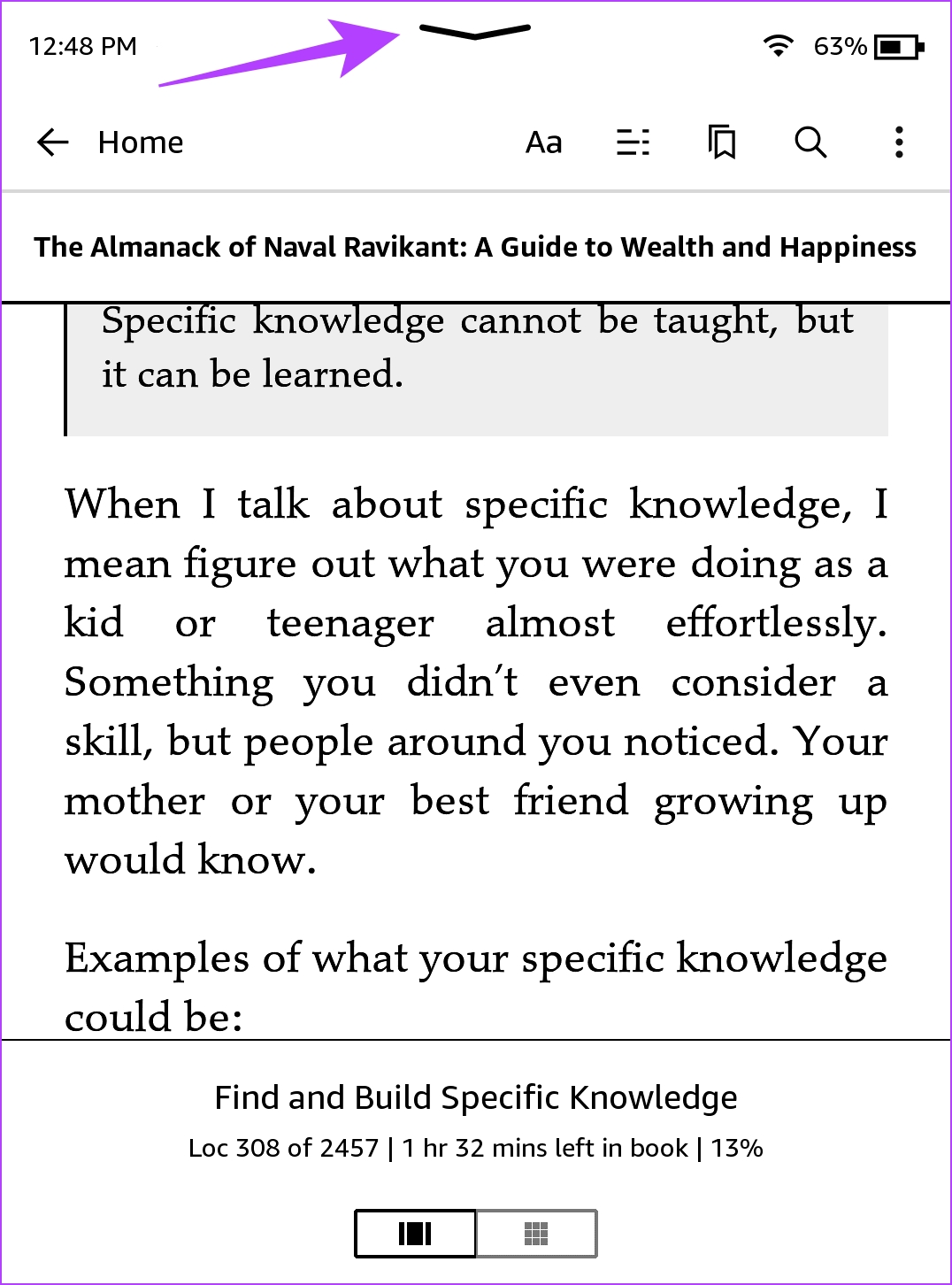
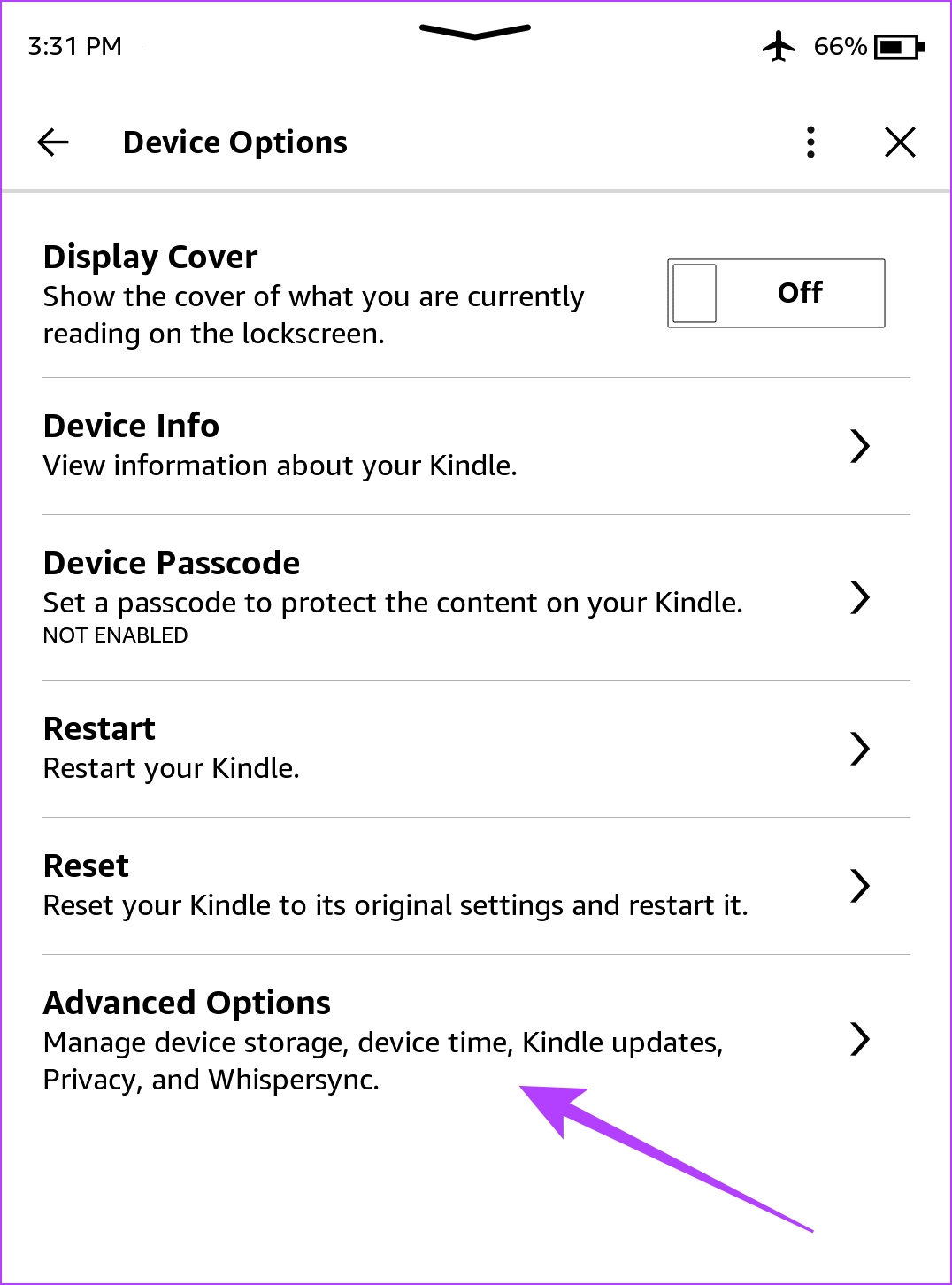
Step 3: Tap on Device Options > Advanced Options.
Step 4: Tap on Update Your Kindle. Your device will restart after the firmware update is completed.
If the option is greyed out, your Kindle is already running on the latest software version.

Fix 3: Reset the Kindle
Once you reset your Kindle reader, all the configurations and settings will be reset to their default values. Therefore, any misconfiguration causing your Kindle not to charge properly will be fixed once you reset it.
Here’s what happens if you reset your Kindle:
- You will lose all your data, including your books, documents, and settings.
- You will need to re-download any content that you want to keep.
- You will need to sign in to your Amazon account again.
Here’s how to reset your Kindle.
Step 1: Tap anywhere on your screen if you are reading a book. If you are on the Home page, jump to Step 2.
Step 2: Tap on the downward-facing arrow icon to open the control panel and go to All Settings.
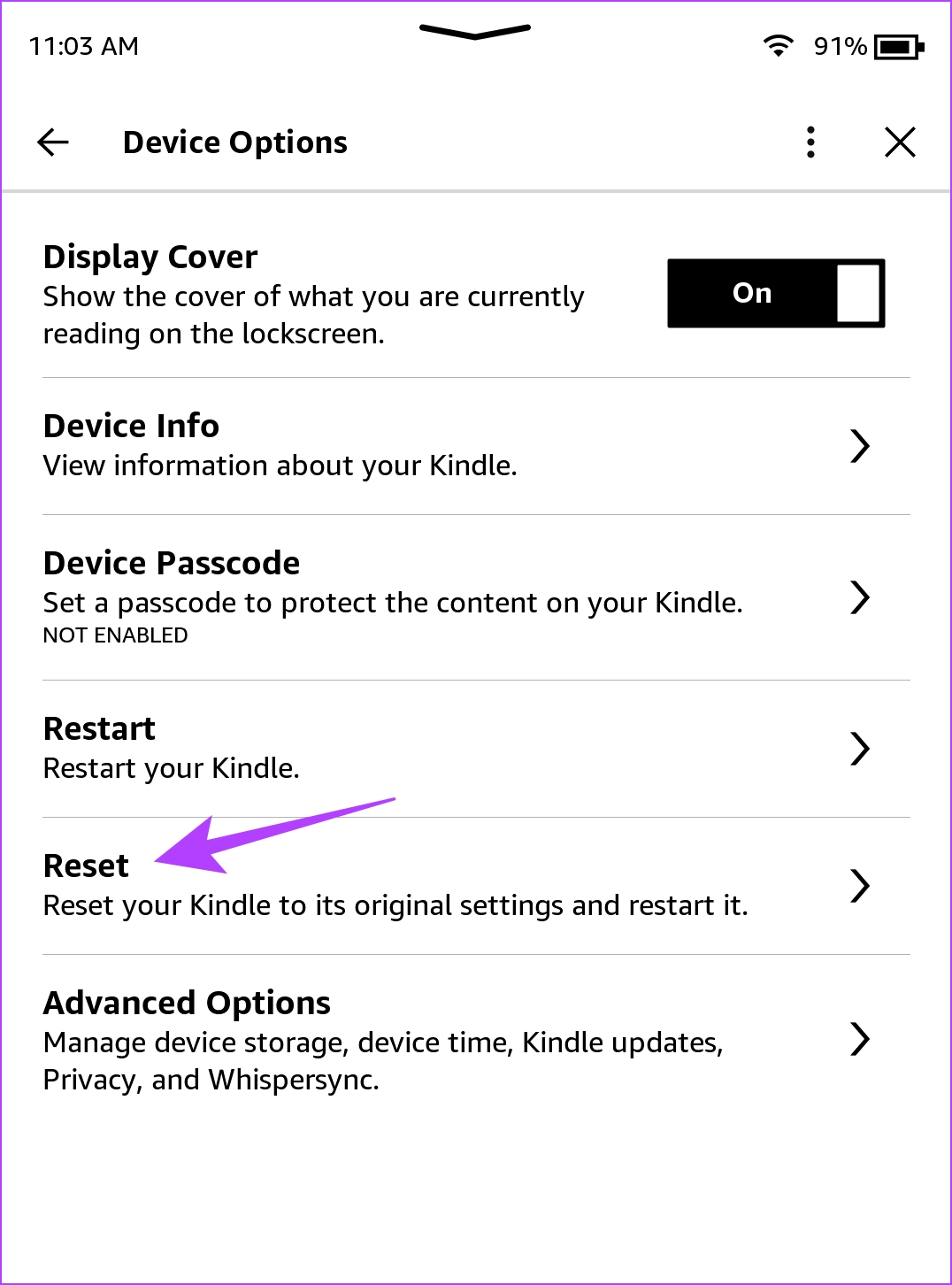
Step 3: Tap on Device Options. Tap on Reset.
Step 4: Tap on yes to confirm and wait for it to complete the process.

Fix 4: Contact Amazon Support
If you are unable to fix the issue yourself, you can always contact Amazon customer support for help. They will assist you, or even take a look at your Kindle reader to find out exactly what the problem is and fix it in due time.
In case you want to purchase the Kindle Paperwhite :

Was this helpful?
Last updated on 16 July, 2024
3 Comments
Leave a Reply
Read Next
 7 Best Multi-Charging Cables for Charging Multiple Devices
Most of us nowadays have multiple devices to charge.
7 Best Multi-Charging Cables for Charging Multiple Devices
Most of us nowadays have multiple devices to charge.
 3 Ways to Fix Kindle Not Connecting to Wi-Fi Network
Basic Fixes Disable airplane mode: If you have turned on Airplane Mode, you can't connect to the Wi-Fi network.
3 Ways to Fix Kindle Not Connecting to Wi-Fi Network
Basic Fixes Disable airplane mode: If you have turned on Airplane Mode, you can't connect to the Wi-Fi network.
 3 Ways to Fix Kindle Dictionary Not Working
Basic Fixes Check Network Connection: If you want to use Wikipedia to find the meaning of a word or translate a word, disable airplane mode and use an internet connection
3 Ways to Fix Kindle Dictionary Not Working
Basic Fixes Check Network Connection: If you want to use Wikipedia to find the meaning of a word or translate a word, disable airplane mode and use an internet connection
 5 Ways to Fix the Kindle Won’t Turn On Issue
Fix 1: Charge Kindle The most likely reason why your Kindle is not turning on is that its battery might have completely drained.
5 Ways to Fix the Kindle Won’t Turn On Issue
Fix 1: Charge Kindle The most likely reason why your Kindle is not turning on is that its battery might have completely drained.
 3 Ways to Fix Kindle Not Downloading Books
Fix 1: Register Your Kindle Again Step 1: On your Kindle home page, tap the downward-facing arrow to open Control Panel.
3 Ways to Fix Kindle Not Downloading Books
Fix 1: Register Your Kindle Again Step 1: On your Kindle home page, tap the downward-facing arrow to open Control Panel.
 10 Tips to Fix Kindle Battery Draining Fast
1.
10 Tips to Fix Kindle Battery Draining Fast
1.
 4 Ways to Fix Xiaomi Mi Band Not Charging
Fix 1: Connect the Charger Properly The main reason Mi Bands don't charge is their incorrect positioning inside the charging cable.
4 Ways to Fix Xiaomi Mi Band Not Charging
Fix 1: Connect the Charger Properly The main reason Mi Bands don't charge is their incorrect positioning inside the charging cable.
 2 Ways to Fix a Frozen Kindle Screen
Basic Fixes Low battery: If your Kindle's battery is critically low, it might freeze as it may not have enough power to refresh the display.
2 Ways to Fix a Frozen Kindle Screen
Basic Fixes Low battery: If your Kindle's battery is critically low, it might freeze as it may not have enough power to refresh the display.
The article above may contain affiliate links which help support Guiding Tech. The content remains unbiased and authentic and will never affect our editorial integrity.
My Kindle is not charging and is completely dead it was fine last night any ideas?
Both mine and my girlfriends paperwhite kindles died within days of each other. Have tried everything.
Amazon solution. replace both at full price. Not worth it if I am buying a new device every 18 months.
I think it is time to look at kobo. Either way I canceled both our memberships for kindleunlimited.
My Kindle will not charge, both the charges I’ve used work on other devices. But the Kindle won’t make a connection? I would love to get this fixed asap!