Basic Fixes
- Check Network Connection: If you want to use Wikipedia to find the meaning of a word or translate a word, disable airplane mode and use an internet connection on your Kindle.
- Restart Kindle: Shutting down your Kindle shuts down all the operations, clearing bugs. Therefore, restarting your Kindle can help fix the problem.
- Update Kindle: If several readers face a problem while using the dictionary on their Kindle devices, Amazon will take note of it and release an update to your Kindle reader.
Fix 1: Download the Dictionary
If you can’t use the dictionary on your Kindle, the dictionary may not be added to your Kindle reader in the first place. Here’s how to fix it.
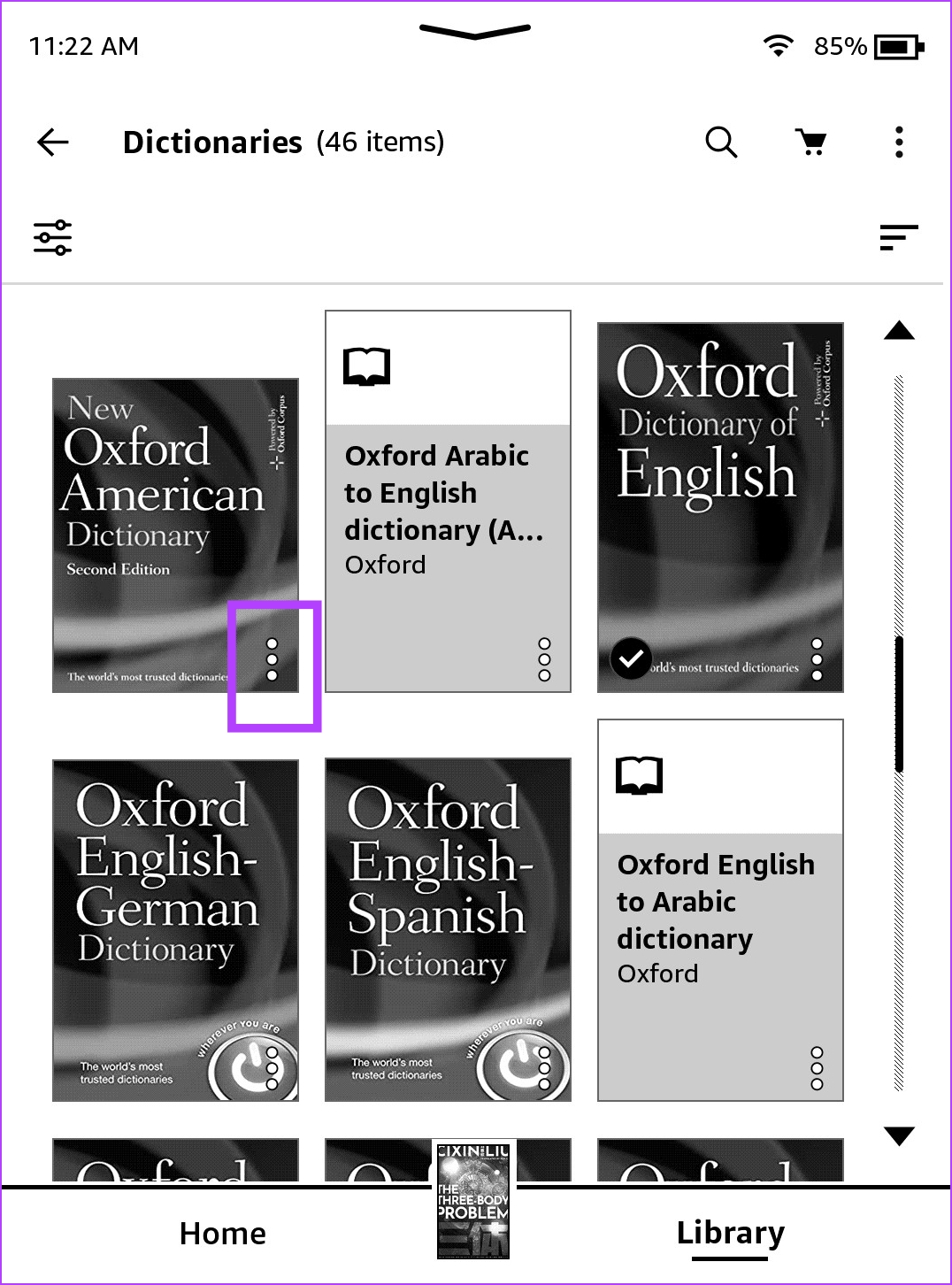
Step 1: Connect your Kindle to the internet and open the library. Scroll down to find the Dictionaries section.
Step 2: You will see a collection of dictionaries. Select the one you want to use and tap on the three dots icon. Tap on Download.
The dictionary will now be downloaded on your Kindle reader.

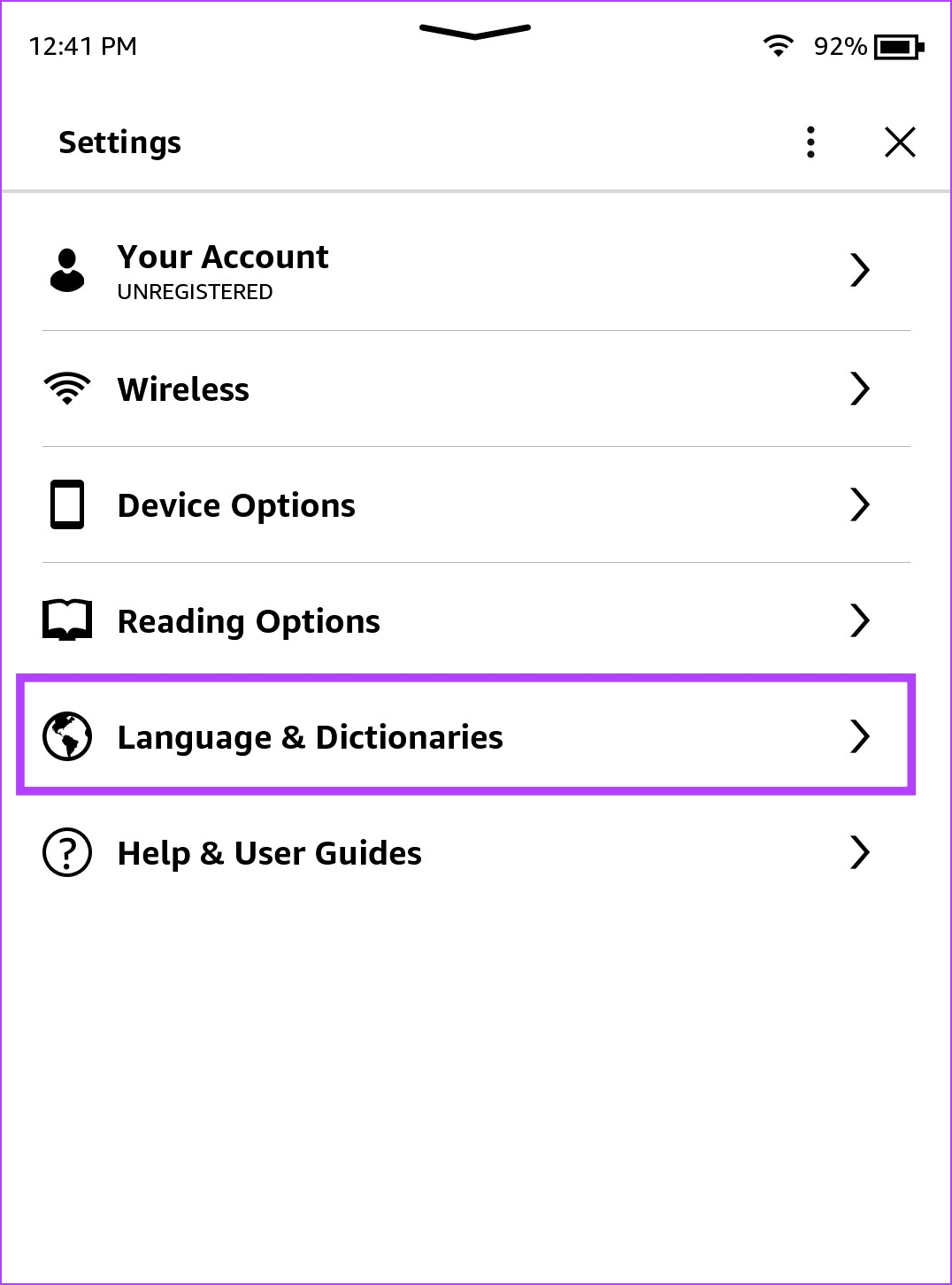
Step 3: Tap anywhere on the screen and select the downward-facing arrow at the top of the screen. Tap on all Settings.
Step 4: Tap on Language & Dictionaries > Dictionaries.

Step 5: Tap on the language of the dictionary and select the dictionary you downloaded.
Now, you can use the selected dictionary while reading a book on your Kindle ebook reader.


Fix 2: Re-Download the Dictionary
If you downloaded a dictionary and it is not working, the chances are it wasn’t downloaded properly and faced an interruption in the process. You can delete the dictionary and download it again.
Step 1: Open the library and scroll down to find and open the Dictionaries section. Tap on the three dots icon on the downloaded dictionary.

Step 2: Tap on Remove Download and tap on three dots icon on the dictionary you want to re-download.
Step 3: Tap on Download. The dictionary will be downloaded onto your Kindle device.
Once downloaded, you can go to Settings > Language and Dictionaries > Dictionaries and select the dictionary you downloaded.

Fix 3: Reset Kindle
Any misconfiguration causing your Kindle’s dictionary not to work properly will be fixed once you reset it. Here’s what happens if you reset your Kindle:
- You will lose all your data, including books, documents, and settings.
- You will need to re-download any content that you want to keep.
- You will need to sign in to your Amazon account again.
Step 1: Tap anywhere on your screen while reading a book. If you are on the home page, jump to Step 2.
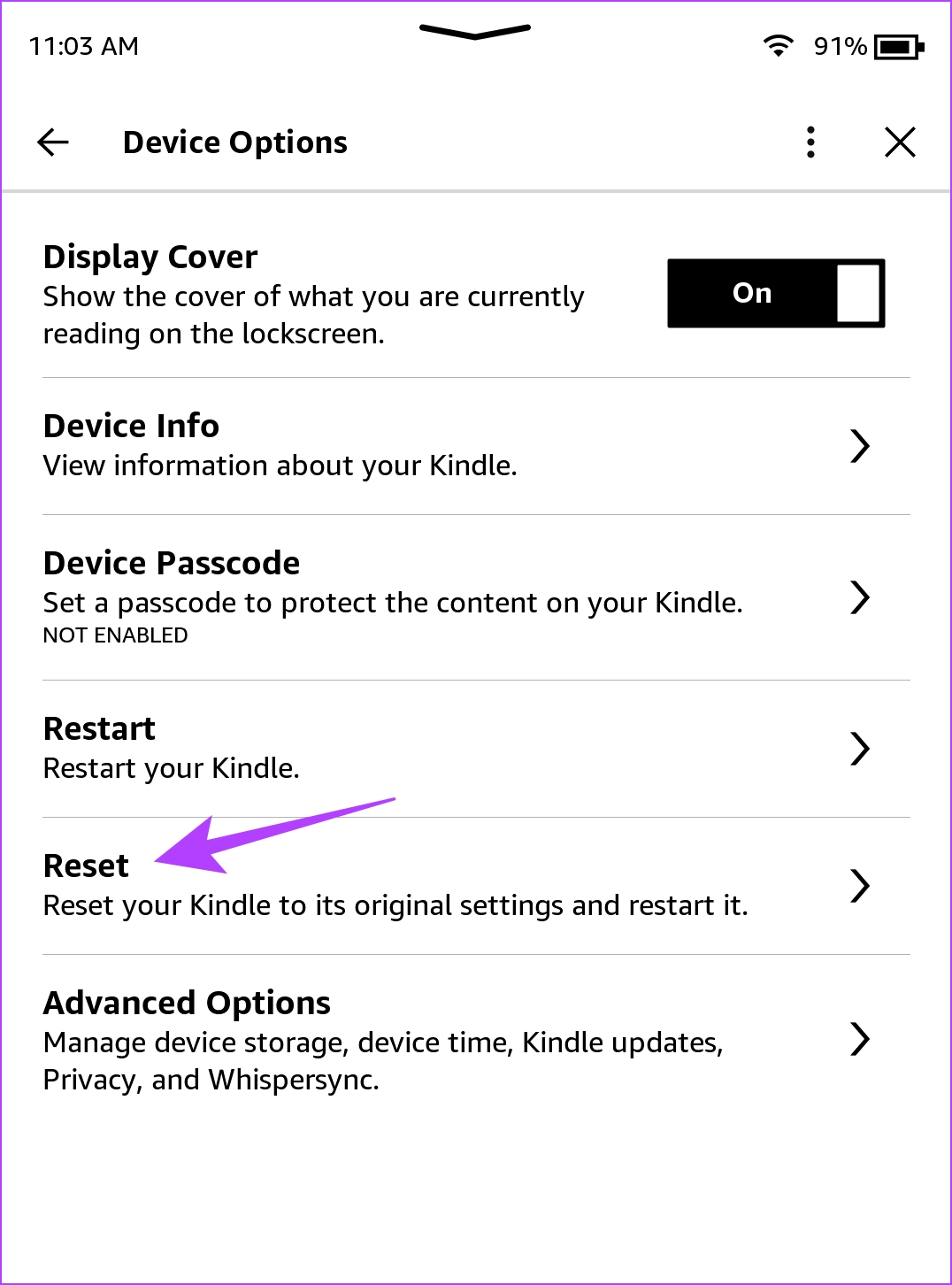
Step 2: Tap on the downward-facing arrow icon to open the control panel and go to All Settings. Tap on Device Options.
Step 3: Tap on Reset. Tap on yes to confirm and wait for it to complete the process.


Was this helpful?
Last updated on 04 April, 2024
Read Next
 How to Use Dictionary in Any Kindle: A Comprehensive Guide
How to Download Dictionary on Kindle By default, an English dictionary will be downloaded onto your Kindle.
How to Use Dictionary in Any Kindle: A Comprehensive Guide
How to Download Dictionary on Kindle By default, an English dictionary will be downloaded onto your Kindle.
 8 Best Dictionary Extensions for Chrome
1.
8 Best Dictionary Extensions for Chrome
1.
 4 Best Offline Dictionary Apps for Windows 10 PC
In this day and age, pretty much everything is connected to the internet.
4 Best Offline Dictionary Apps for Windows 10 PC
In this day and age, pretty much everything is connected to the internet.
 How to Create a Custom Dictionary in Microsoft Word
Have you ever typed a certain word in Microsoft Word only to get the red zig-zag line underneath?
How to Create a Custom Dictionary in Microsoft Word
Have you ever typed a certain word in Microsoft Word only to get the red zig-zag line underneath?
 3 Ways to Fix Kindle Not Connecting to Wi-Fi Network
Basic Fixes Disable airplane mode: If you have turned on Airplane Mode, you can't connect to the Wi-Fi network.
3 Ways to Fix Kindle Not Connecting to Wi-Fi Network
Basic Fixes Disable airplane mode: If you have turned on Airplane Mode, you can't connect to the Wi-Fi network.
 4 Ways to Fix Kindle Not Charging
Basic Fixes Check charging accessories: If there’s any visible damage to the charging cable/adapter, it can certainly cause issues while you try and charge your Kindle reader. Check power source:
4 Ways to Fix Kindle Not Charging
Basic Fixes Check charging accessories: If there’s any visible damage to the charging cable/adapter, it can certainly cause issues while you try and charge your Kindle reader. Check power source:
 5 Ways to Fix the Kindle Won’t Turn On Issue
Fix 1: Charge Kindle The most likely reason why your Kindle is not turning on is that its battery might have completely drained.
5 Ways to Fix the Kindle Won’t Turn On Issue
Fix 1: Charge Kindle The most likely reason why your Kindle is not turning on is that its battery might have completely drained.
 3 Ways to Fix Kindle Not Downloading Books
Fix 1: Register Your Kindle Again Step 1: On your Kindle home page, tap the downward-facing arrow to open Control Panel.
3 Ways to Fix Kindle Not Downloading Books
Fix 1: Register Your Kindle Again Step 1: On your Kindle home page, tap the downward-facing arrow to open Control Panel.
The article above may contain affiliate links which help support Guiding Tech. The content remains unbiased and authentic and will never affect our editorial integrity.