Basic Fixes:
- Increase brightness on iPhone: Increasing brightness may help fix the flickering screen issue on iPhone.
- Check if screen flickers on specific apps: If your iPhone screen flickers only on specific apps, it is best to uninstall and reinstall the app from the App Store.
- Update iPhone: If a widespread bug is causing the screen to flicker, Apple will certainly release a new iOS update over the air.
- Use MFi Accessories: If the voltage and other parameters are not properly regulated on fault accessories, they can cause issues with your display.
- Check Battery Health: When your battery health goes below 80%, it is time for a replacement. A faulty battery may not power your display without problems.
Fix 1: Force Restart iPhone
If you can’t access your display to restart your iPhone, this method will help you do it. The steps to force restart the iPhone depend upon your version.
- On iPhone 8, iPhone SE 2nd gen, and later:
- Press and quickly release the volume up button.
- Press and quickly release the volume down button, then press and hold the side button.
- When the Apple logo appears, release the button.
- On iPhone 7 and iPhone 7 Plus:
- Press and hold both the volume down button and the Sleep/Wake button at the same time.
- When the Apple logo appears, release both buttons.
- On iPhone 6s and iPhone SE 1st gen:
- Press and hold both the Sleep/Wake button and the Home button at the same time.
- When the Apple logo appears, release both buttons.
Fix 2: Disable Reduce White Point
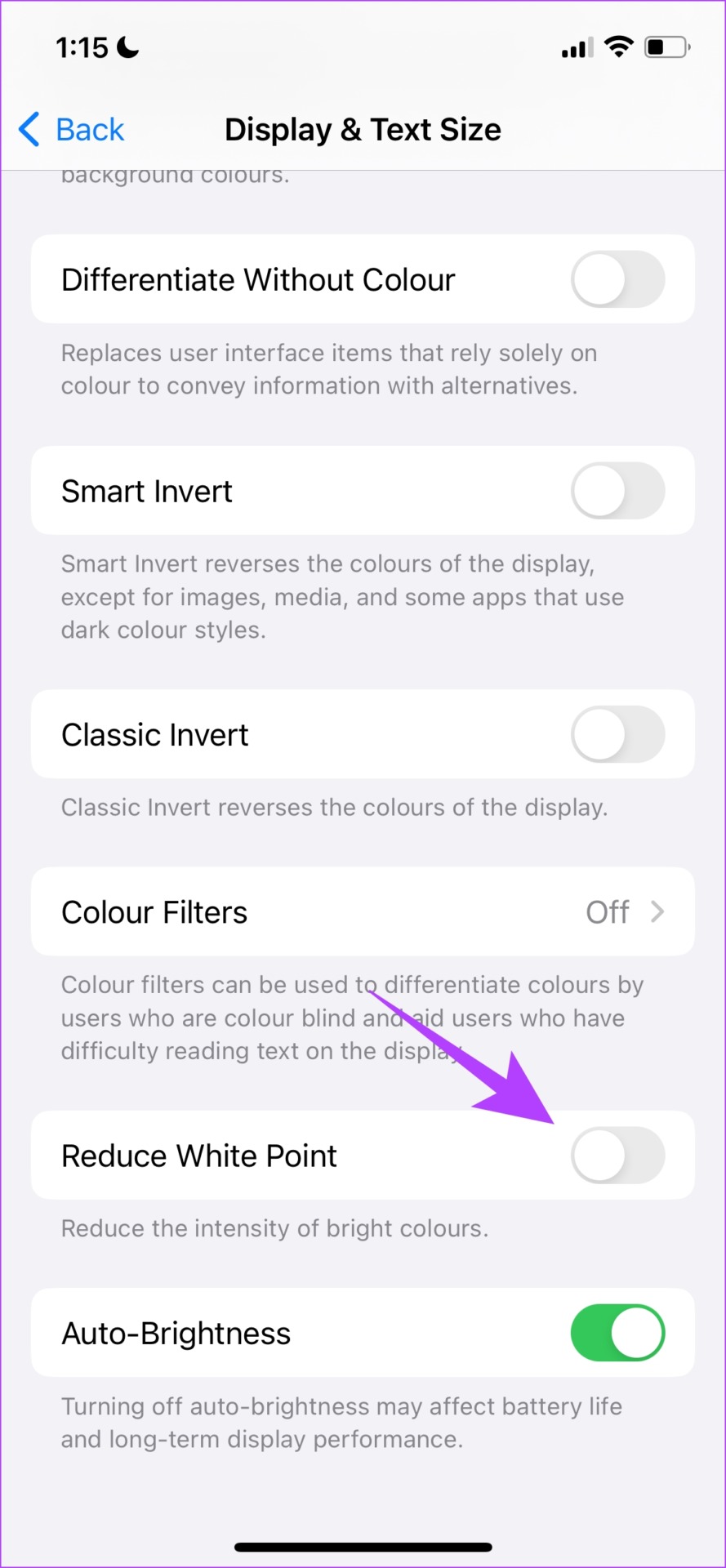
A few users in a community forum revealed that doing this helped fix the issue on their iPhones. Reducing the white point setting essentially reduces the intensity of a few bright colors.
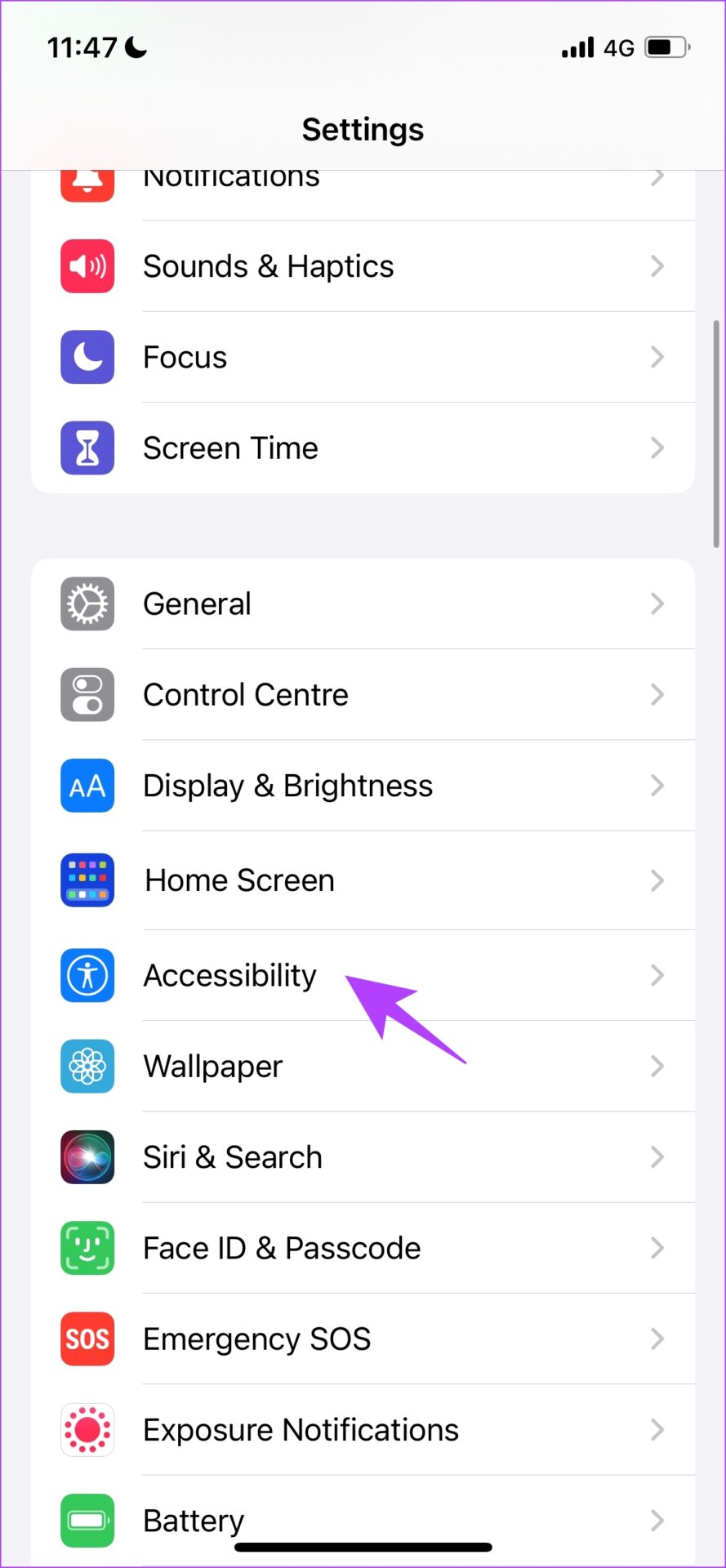
Step 1: Open the Settings app and select Accessibility.
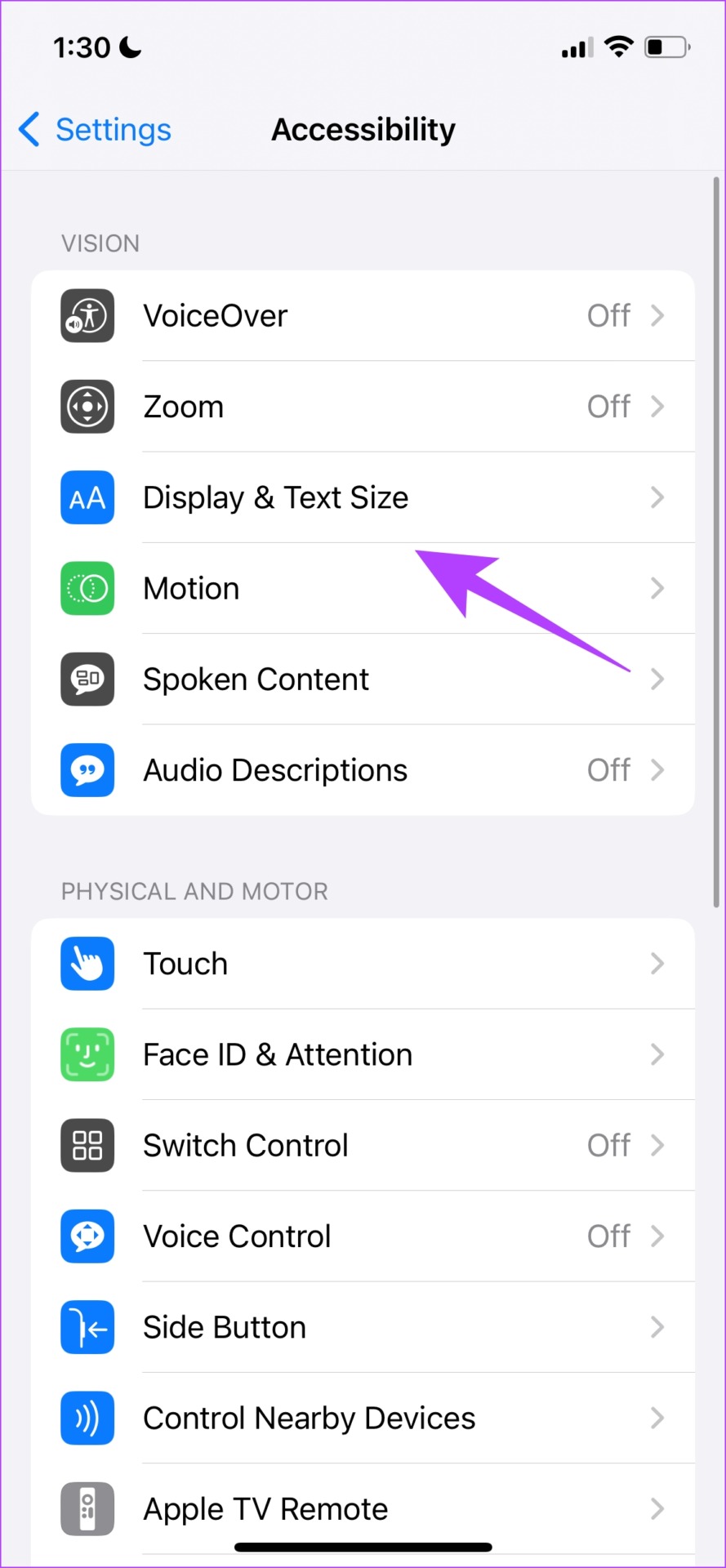
Step 2: Select Display & Text Size. Ensure the toggle is turned off for Reduce White Point.
Fix 3: Reset iPhone
A factory reset of your iPhone will restore all the settings to default. This can help fix the issue of screen flickering on iPhone.
Note: This won’t remove any data or files. However, all your settings and preferences will reset.
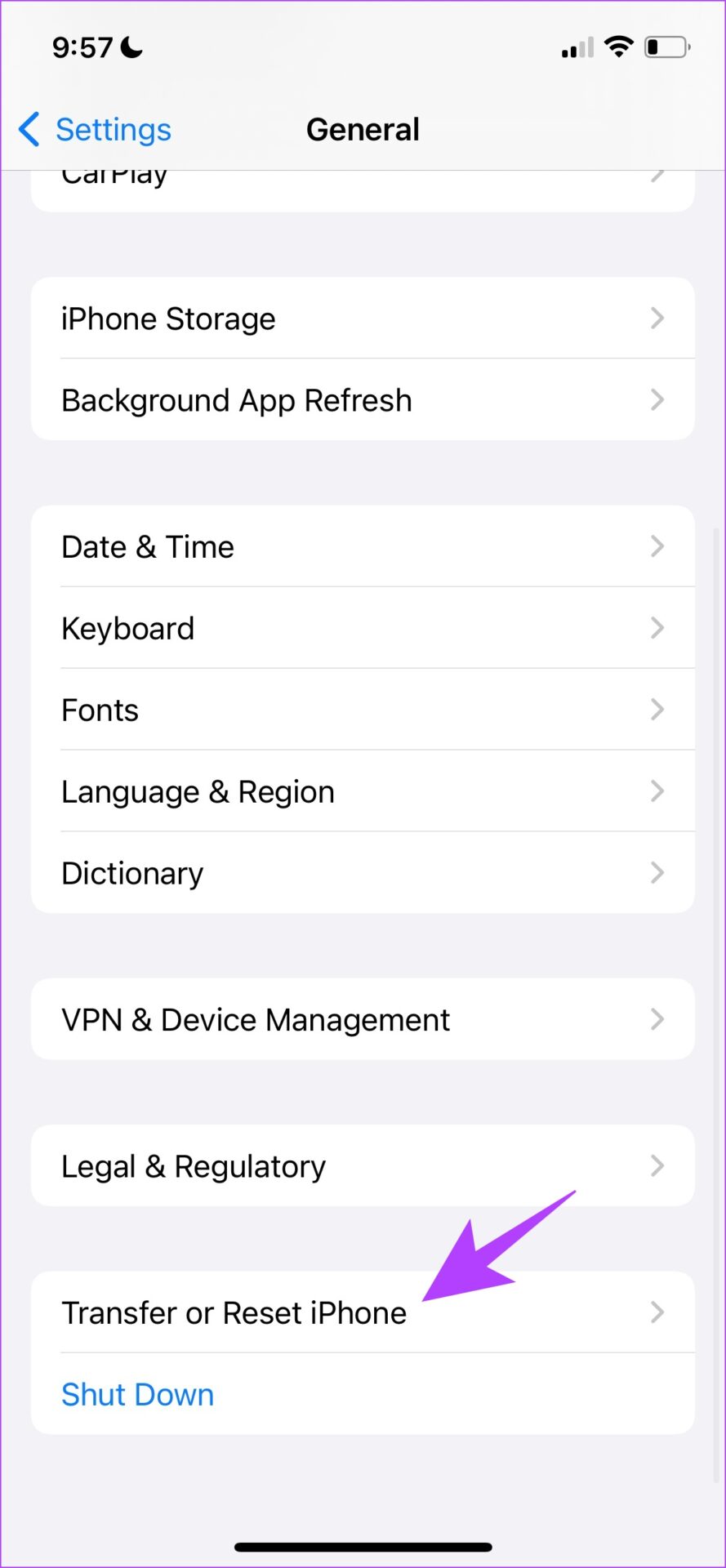
Step 1: Open the Settings app and select General.
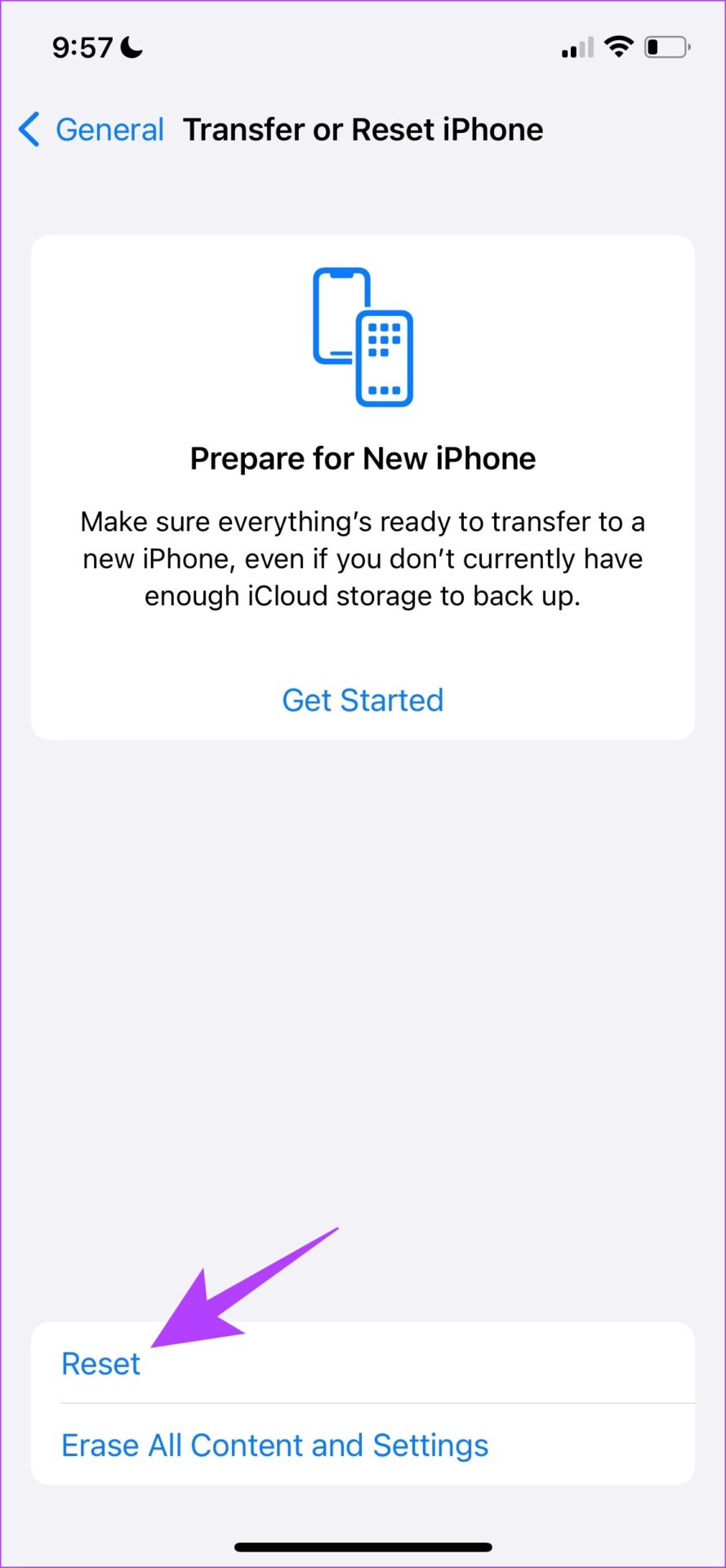
Step 2: Now, select Transfer or Reset iPhone > tap on Reset > Reset All Settings. Enter your iPhone’s passcode and follow the on-screen instructions.

If Nothing Works: Contact Apple Support
The safest course of action may be to bring your device to an Apple-authorized service center. It is the best option to identify the problem and find its fix. Below, we’ve provided some important links to assist you in contacting Apple Support.
Was this helpful?
Last updated on 15 May, 2024
Read Next
 4 Ways to Fix iPad Screen Glitching or Flickering
Why Is My iPad Screen Jumping Around Before we start troubleshooting, let's examine a few reasons you might encounter this issue on your iPad.
4 Ways to Fix iPad Screen Glitching or Flickering
Why Is My iPad Screen Jumping Around Before we start troubleshooting, let's examine a few reasons you might encounter this issue on your iPad.
 How to Set Different Lock Screen and Home Screen Wallpaper on iPhone
How to Add Different Wallpapers on iPhone Home Screen and Lock Screen Step 1: Open the Settings app > select Wallpaper.
How to Set Different Lock Screen and Home Screen Wallpaper on iPhone
How to Add Different Wallpapers on iPhone Home Screen and Lock Screen Step 1: Open the Settings app > select Wallpaper.
 3 Ways to Fix Screen Recording Not Working on iPhone and iPad
Basic Fixes Restart iPhone: Restarting your iPhone may resolve any software glitches preventing screen recording.
3 Ways to Fix Screen Recording Not Working on iPhone and iPad
Basic Fixes Restart iPhone: Restarting your iPhone may resolve any software glitches preventing screen recording.
 4 Ways to Fix Screen Time Not Showing Data on iPhone
Common Fixes Check service status - Use the Apple System Status page to verify Screen Time availability.
4 Ways to Fix Screen Time Not Showing Data on iPhone
Common Fixes Check service status - Use the Apple System Status page to verify Screen Time availability.
 3 Ways to Fix iPhone Lock/Wake Screen Delay
https://youtu.be/94mfnn8hCSw Why Is There a Delay When Locking or Waking up Your iPhone If you have mapped a double/triple click shortcut to the power button of your iPhone, and when
3 Ways to Fix iPhone Lock/Wake Screen Delay
https://youtu.be/94mfnn8hCSw Why Is There a Delay When Locking or Waking up Your iPhone If you have mapped a double/triple click shortcut to the power button of your iPhone, and when
 3 Ways to Fix iPhone Screen Black and White Issue
Basic Fixes: Connect to a charger: If your device has low battery levels, it might automatically switch to the Grayscale setting to extend battery life.
3 Ways to Fix iPhone Screen Black and White Issue
Basic Fixes: Connect to a charger: If your device has low battery levels, it might automatically switch to the Grayscale setting to extend battery life.
 5 Ways to Fix Blurry Home or Lock Screen Wallpaper on iPhone
Fix 1: Check if the Wallpaper Resolution Fits Your iPhone's Screen If you have downloaded a wallpaper, check its resolution and ensure that it matches the screen resolution of your
5 Ways to Fix Blurry Home or Lock Screen Wallpaper on iPhone
Fix 1: Check if the Wallpaper Resolution Fits Your iPhone's Screen If you have downloaded a wallpaper, check its resolution and ensure that it matches the screen resolution of your
 5 Ways to Fix iPhone Showing Incorrect Screen Time
Basic Fixes: Disable and Re-enable Screen Time: If your iPhone screen time report shows the wrong data, you can start by resetting the feature.
5 Ways to Fix iPhone Showing Incorrect Screen Time
Basic Fixes: Disable and Re-enable Screen Time: If your iPhone screen time report shows the wrong data, you can start by resetting the feature.
The article above may contain affiliate links which help support Guiding Tech. The content remains unbiased and authentic and will never affect our editorial integrity.