Basic Fixes
- Restart your iPhone: A quick restart can fix temporary bugs responsible for such issues.
- Change the Live Photo orientation: If you changed the orientation of your Live Photo while exporting them, switch it back to the original one.
- Send Live Photos via Apple apps: Live Photos appear as still photos when sent using non-Apple apps. Live Photos will only work if sent using Apple apps like iMessage, AirDrop, etc.
- Update iOS version: Installing the latest iOS version will remove bugs causing this issue.
Fix 1: Enable Live Photo Preview
If Live Photo preview doesn’t work even after holding down the screen for a while, check the Live Photos button to ensure it’s not turned off.
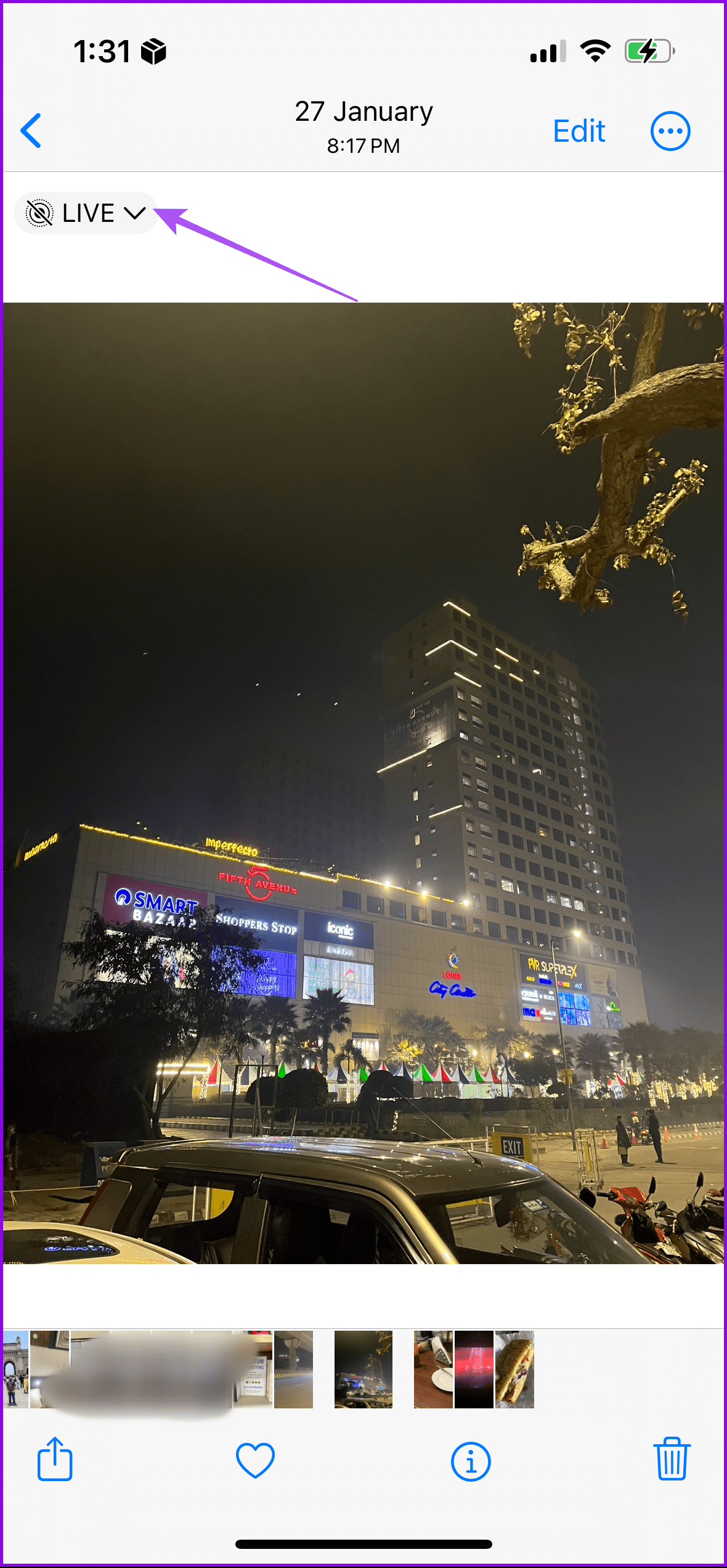
Step 1: Open the Live Photo in the Photos app and look for the Live button at the top-left corner.
Step 2: If the Live Photos icon has a bar on it, you may have accidentally disabled the Live Photos preview. Tap on the Live button and select Live instead of Live Off.
Step 3: Then, long-press on the photo, and it should start playing.

Fix 2: Enable Live Photos While Taking Photo
To enable Live Photos, open the Camera app and ensure there’s no bar on the Live Photos icon at the top. If the icon shows a bar, that means Live Photos is disabled. Tap on the icon to enable Live Photos.
Also, if the Live Photos feature keeps turning off on your iPhone, you must turn off the Preserve Live Photos setting in Camera Settings.
Step 1: Go to iPhone Settings > Camera > tap Preserve Settings.


Step 2: Turn off the toggle for Live Photo.
You can also learn how to use Live Photos as your iPhone wallpaper
Fix 3: Turn off Reduced Motion and Touch Accommodation
To prevent ghost touches while clicking a Live Photo and also reduce the motion of the user interface, turn off these two Accessibility settings on your iPhone.
Step 1: Open Settings on your iPhone > go to Accessibility > tap on Motion.
Step 2: Turn off the toggle next to Reduce motion.
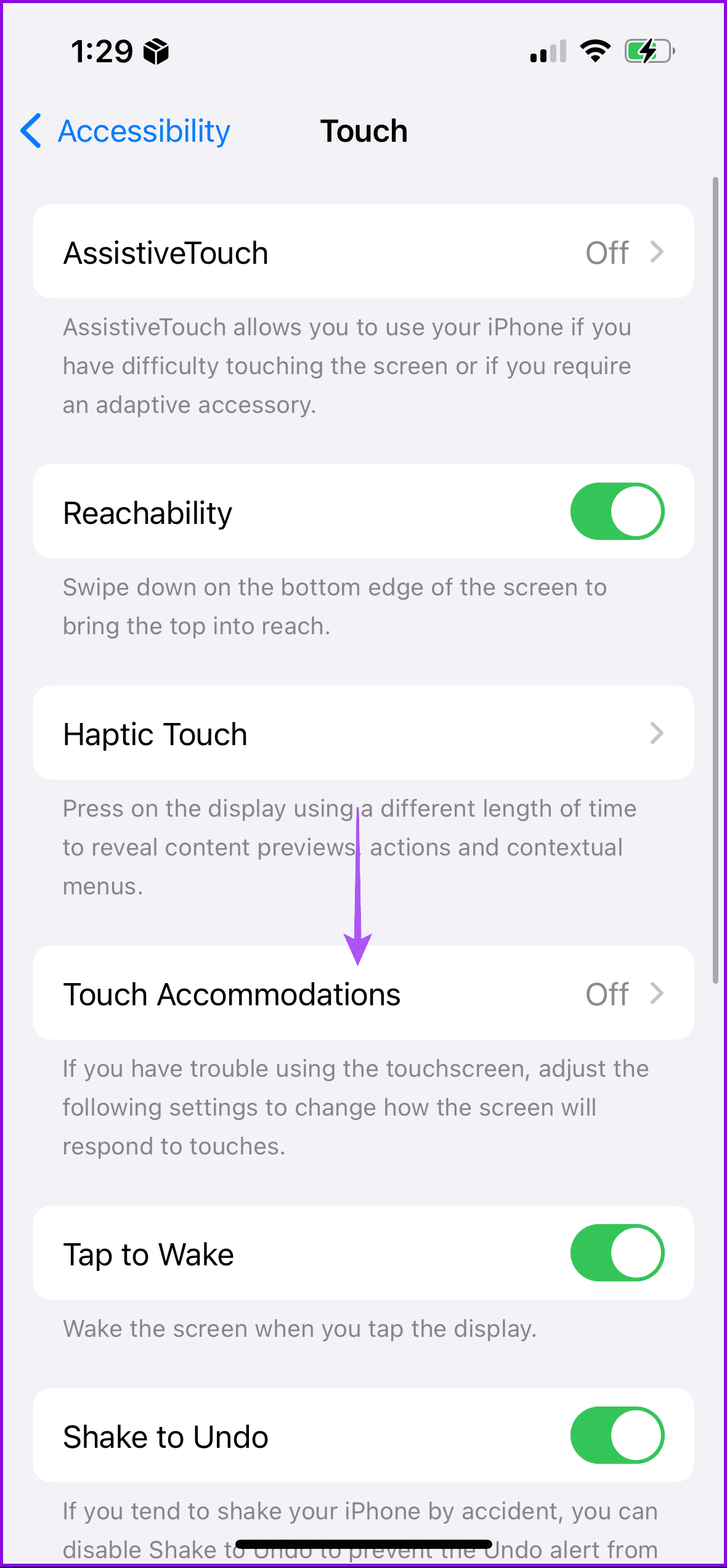
Step 3: Go back and select Touch > tap Touch Accommodations > turn it off on the next screen.

Step 4: Restart your iPhone and play the Live Photo.
On older iPhones, go to Settings > General > Accessibility > Motion and turn off Reduce Motion.
Fix 4: Reset Settings
If nothing has worked so far, reset all settings on your iPhone. This will remove all apps and preferences, and you must set up your iPhone from scratch.
Go to iPhone Settings > General > Transfer or Reset iPhone > Reset > Reset All Settings. Now, follow the on-screen prompts.


Bonus: Live Photos Sound Not Working
If your Live Photo is not playing sound, check the physical Mute button on your iPhone’s left. If you see an orange in the button, your iPhone is muted. Move the switch upwards to disable mute and enable sounds, including Live Photo sound on your iPhone.
If your iPhone isn’t muted, there’s another way to fix the sound not working in Live Photos. For that, follow these steps:
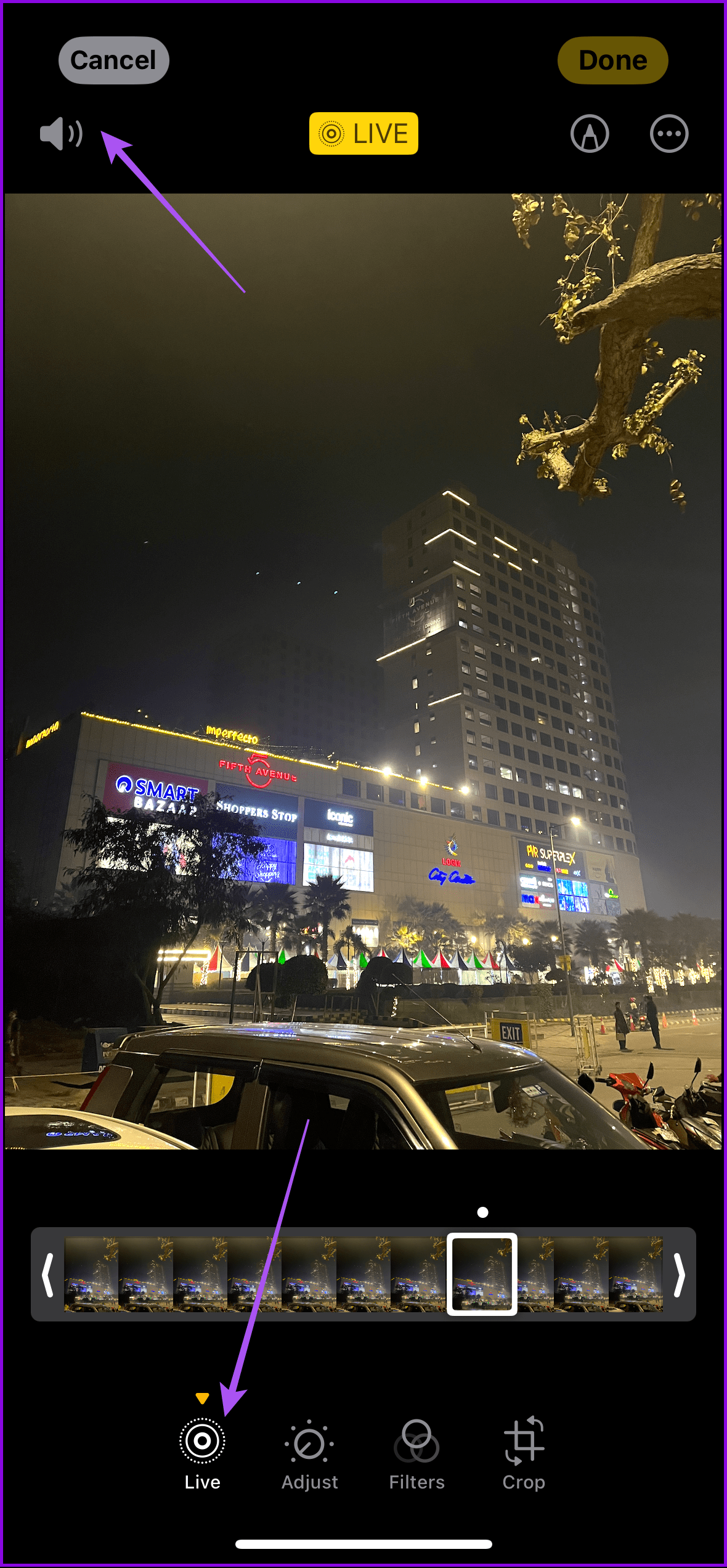
Step 1: Open the Live Photo in the Apple Photos app and tap on the Edit button.
Step 2: Tap on the Live icon > ensure the Sound icon at the top has no bar. If it has a bar, tap on it to enable sound for the Live Photo. Tap on Done to save the changes.

Was this helpful?
Last updated on 06 June, 2024
Read Next
 How to Send Live Photos as GIFs on WhatsApp
Method 1.
How to Send Live Photos as GIFs on WhatsApp
Method 1.
 How to Fix Live Activities Not Working on iPhone (iOS 16 Updated)
Live Activities was introduced with iOS 16 to display the most current data of apps on the Lock Screen of your iPhone.
How to Fix Live Activities Not Working on iPhone (iOS 16 Updated)
Live Activities was introduced with iOS 16 to display the most current data of apps on the Lock Screen of your iPhone.
 5 Ways to Fix Live Location Not Updating on Android and iPhone
Fix 1: Ensure Location Services Are Enabled Enabling location services on your phone is the most basic step before you can share your live location.
5 Ways to Fix Live Location Not Updating on Android and iPhone
Fix 1: Ensure Location Services Are Enabled Enabling location services on your phone is the most basic step before you can share your live location.
 5 Ways to Fix Google Photos App Not Showing All Photos
Basic Fixes Check your network connection - Ensure your phone is connected to a good internet connection.
5 Ways to Fix Google Photos App Not Showing All Photos
Basic Fixes Check your network connection - Ensure your phone is connected to a good internet connection.
 5 Ways to Fix WhatsApp Live Location Not Updating on Android and iPhone
Try Basic Fixes Update WhatsApp: An outdated app version can also cause performance issues, especially if you haven't updated it in a long time.
5 Ways to Fix WhatsApp Live Location Not Updating on Android and iPhone
Try Basic Fixes Update WhatsApp: An outdated app version can also cause performance issues, especially if you haven't updated it in a long time.
 4 Fixes for Telegram Live Location Not Updating on iPhone and Android
Basic Fixes: Check internet access: For apps to access your location, you require internet access on your mobile.
4 Fixes for Telegram Live Location Not Updating on iPhone and Android
Basic Fixes: Check internet access: For apps to access your location, you require internet access on your mobile.
 How to Set Live Wallpaper on iPhone (iOS 17 and Later)
Set Live Wallpaper on iPhone (iOS 17 and Lat) Apple removed the ability to set Live Photos as a wallpaper in iOS 16.
How to Set Live Wallpaper on iPhone (iOS 17 and Later)
Set Live Wallpaper on iPhone (iOS 17 and Lat) Apple removed the ability to set Live Photos as a wallpaper in iOS 16.
 How to Use (Carrier and Live) Voicemail on iPhone
Turn off Call Forwarding Before we set up voicemail on your iPhone, let's first turn off call forwarding.
How to Use (Carrier and Live) Voicemail on iPhone
Turn off Call Forwarding Before we set up voicemail on your iPhone, let's first turn off call forwarding.
The article above may contain affiliate links which help support Guiding Tech. The content remains unbiased and authentic and will never affect our editorial integrity.