


Basic Fixes
- Check if Instagram is down: Check if Instagram is facing downtime. If yes, wait for the platform to be restored.
- Update Instagram: Update Instagram to the latest version on your Android or iOS device for a bug-free experience.
- Check mobile data plan: Ensure you have an active cellular data plan with a stable network signal on your device,
Fix 1: Enable Cellular Data for Instagram
On iPhone
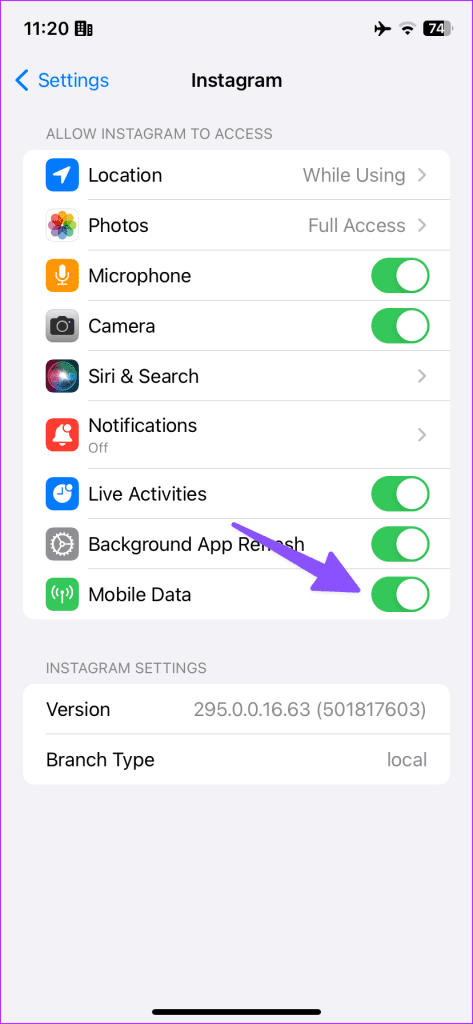
Go to Settings, scroll down, select Instagram from the list, and enable Mobile Data.

On Android
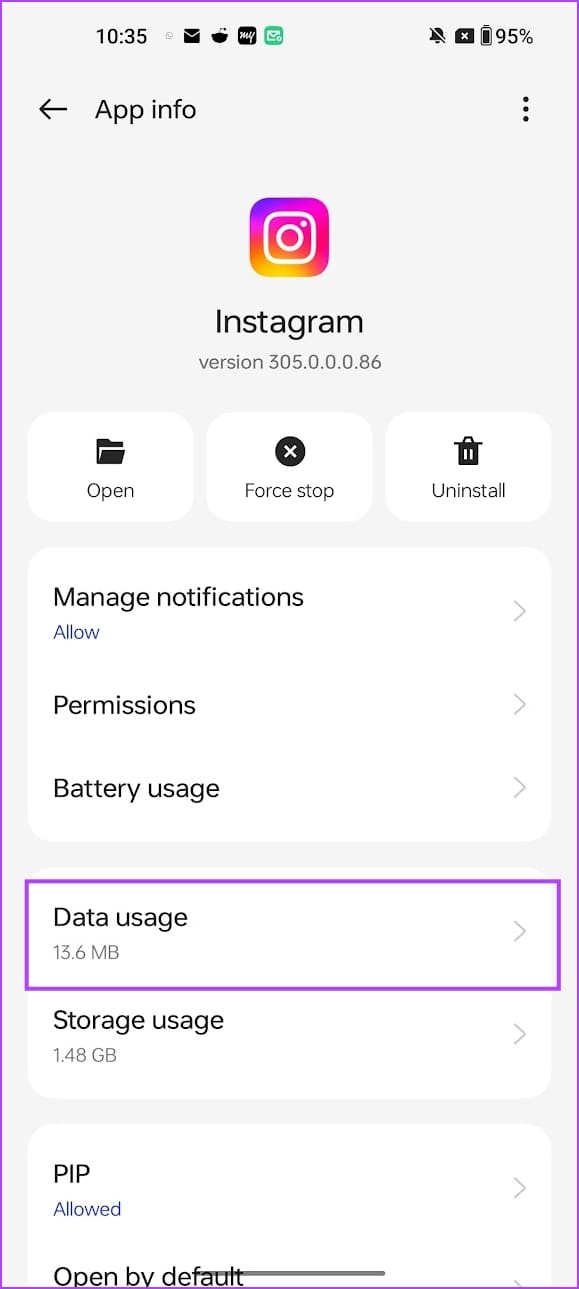
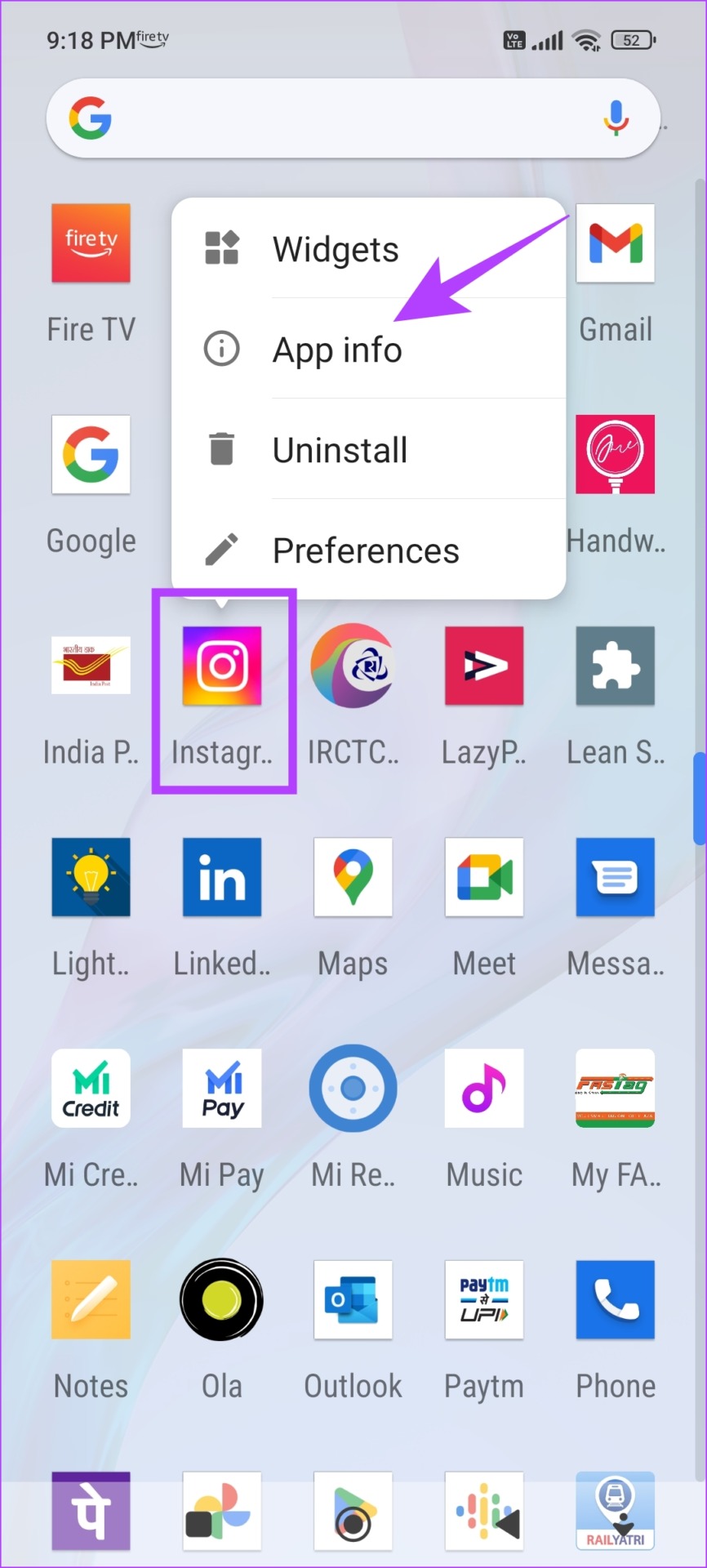
Step 1: Tap and hold the Instagram app icon, and select App Info.
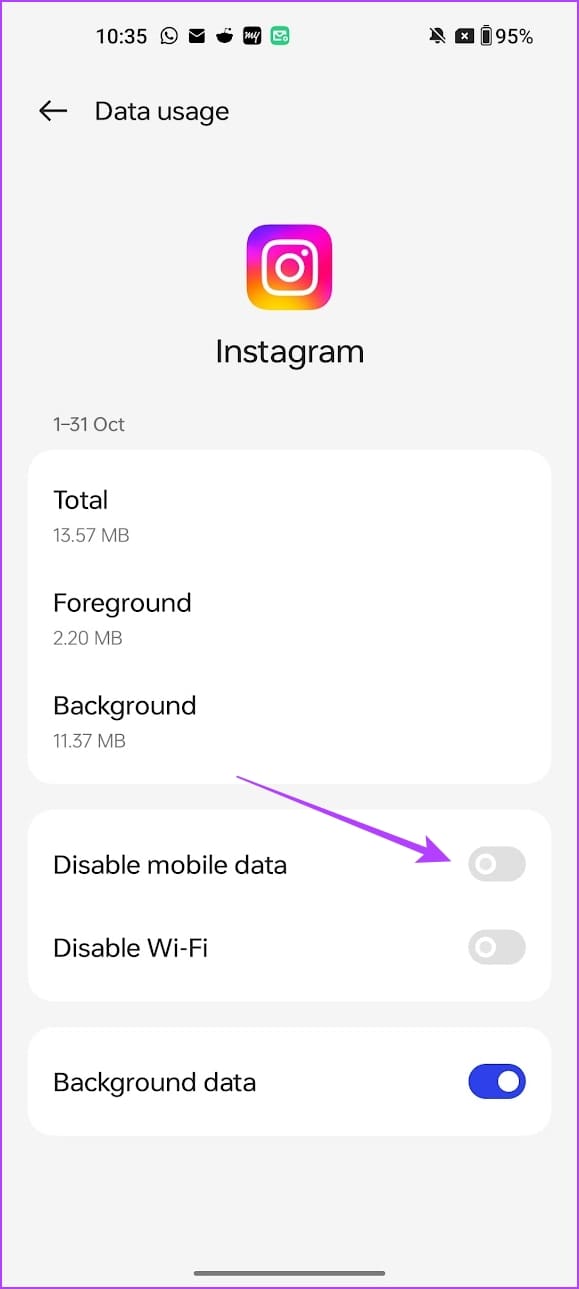
Step 2: Select Data usage and ensure you haven’t enabled Disable mobile data.

Fix 2: Disable Data Saver Mode on Instagram
The data saver mode on Instagram may affect loading speeds when you are using cellular data.
Step 1: Open the Profile tab, and tap on the menu button at the top right corner.
Step 2: Select Media quality and turn off Use less mobile data.


Fix 3: Disable Data Saver Mode on Device
Data saver settings on your device may affect Instagram and may restrict it from loading content using mobile data.
On iPhone
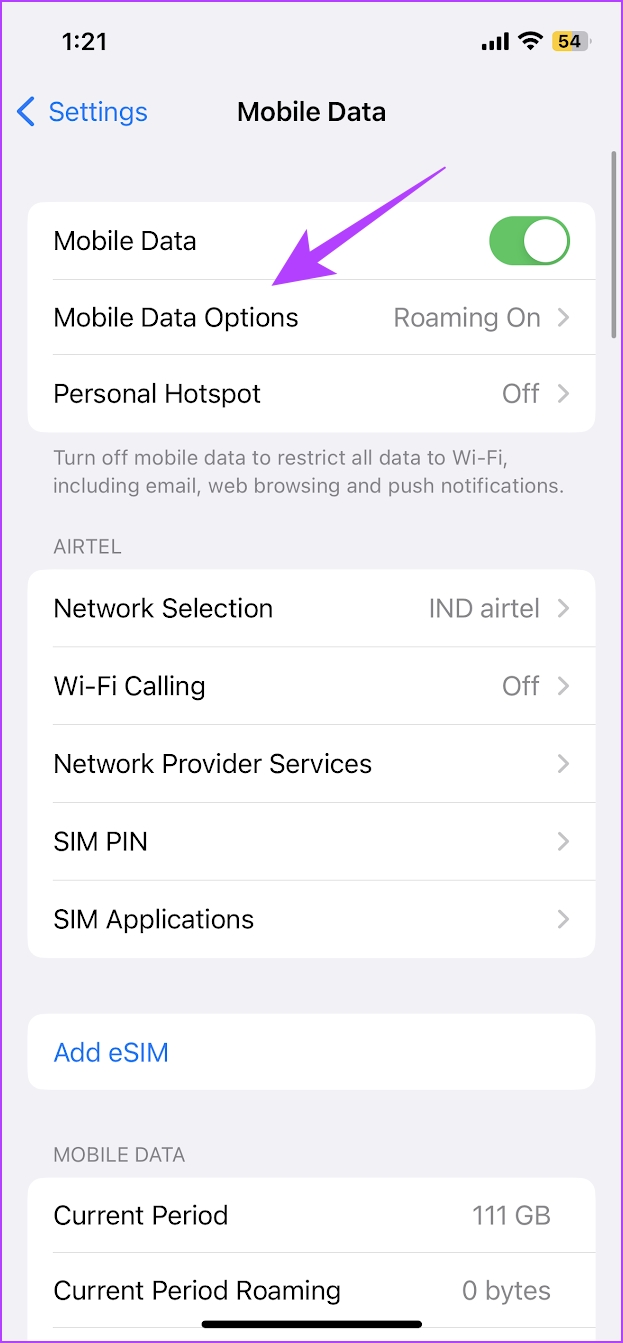
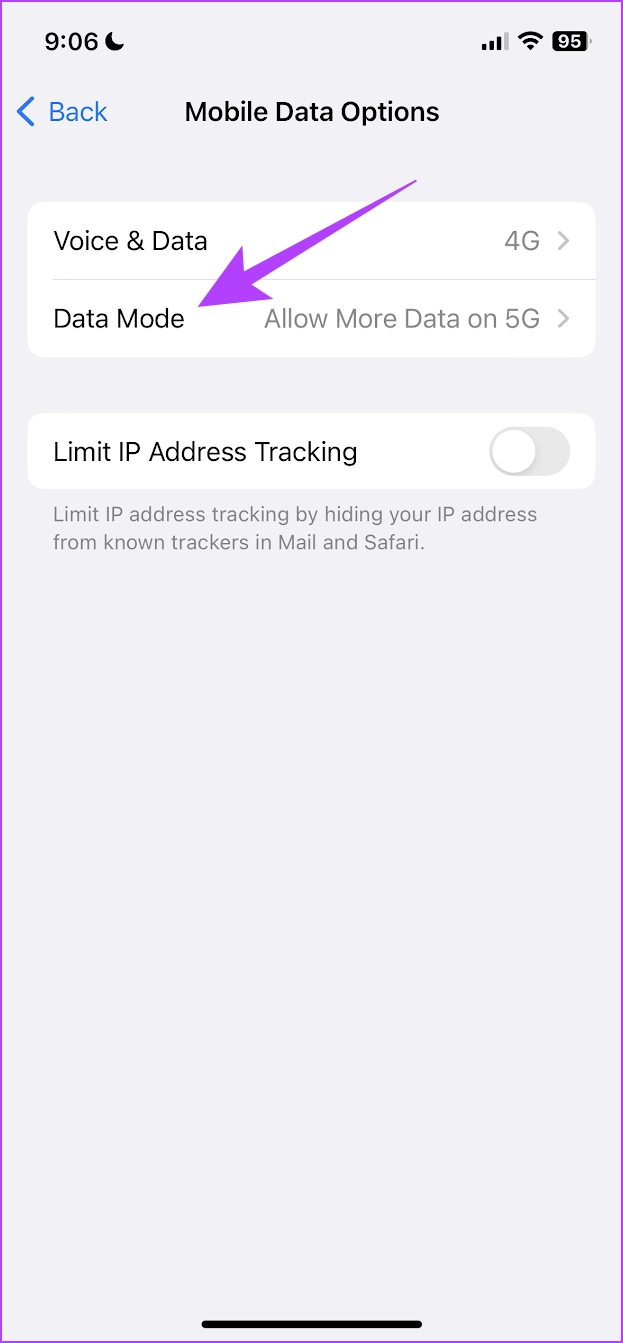
Step 1: Open Settings > tap on Cellular Data/Mobile data.
Step 2: Tap on Mobile Data Options (or Cellular Data Options).
Step 3: Tap on Data Mode. Ensure you haven’t selected Low Data Mode. Select Allow More Data on 5G or Standard.

On Android
Open the Settings app > go to Network & Internet > ensure you have not enabled the toggle for Use Data Saver.


Fix 4: Clear Cache
Clearing cache and junk files may resolve the issue with Instagram. You can check our guide on what happens when you clear your cache on Instagram for a better understanding.
On Android
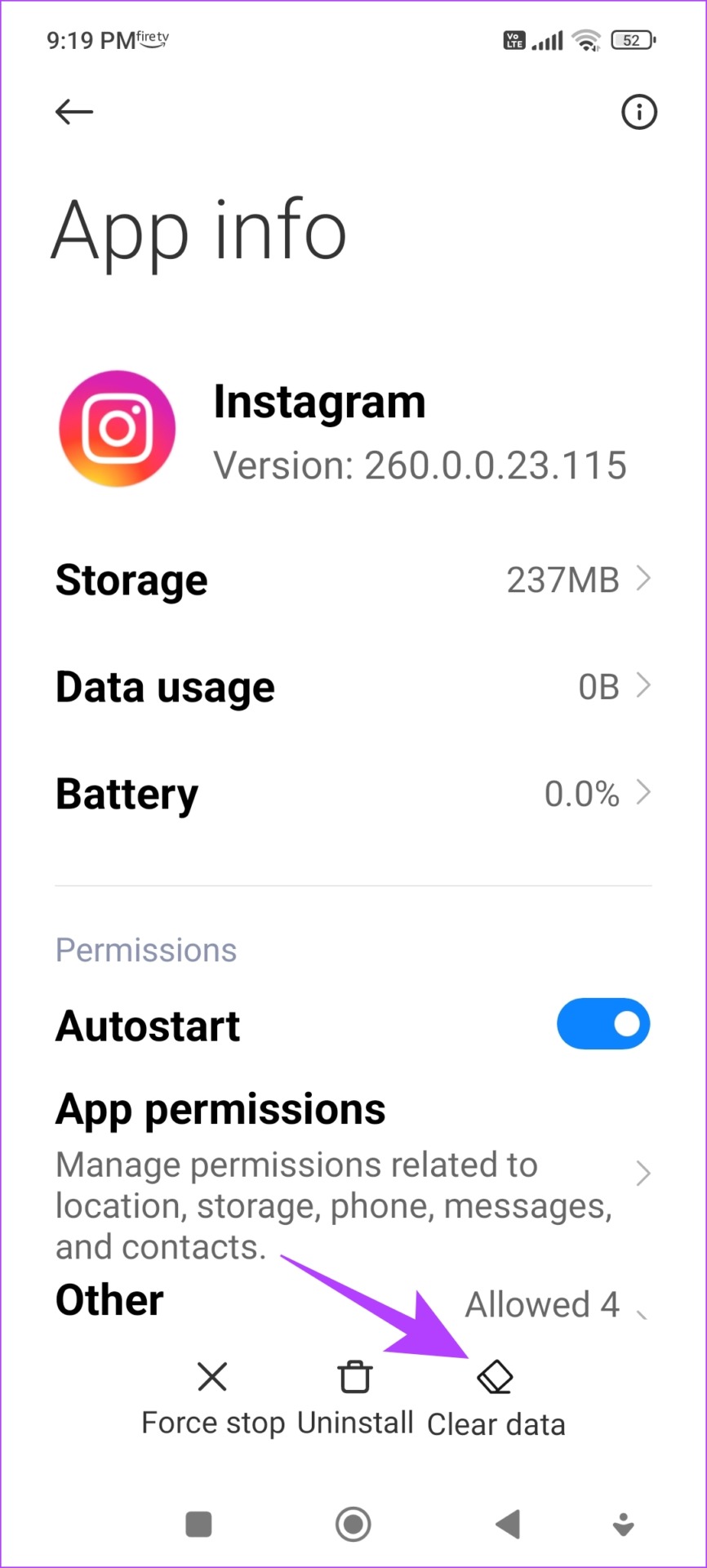
Step 1: Long-press the Instagram app on the home screen and tap on App info. Tap on Clear Data.
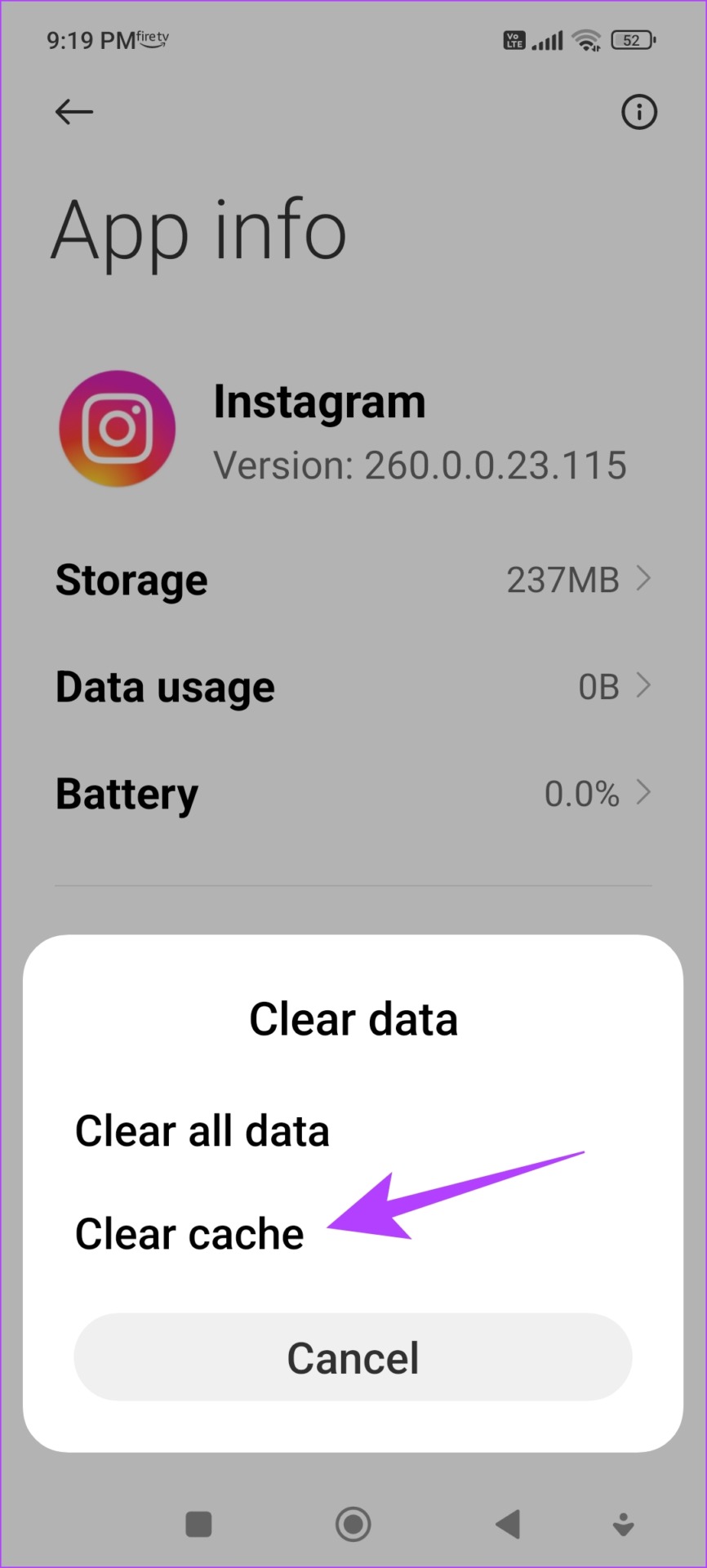
Step 2: Tap on Clear cache and select OK to confirm.
On iPhone
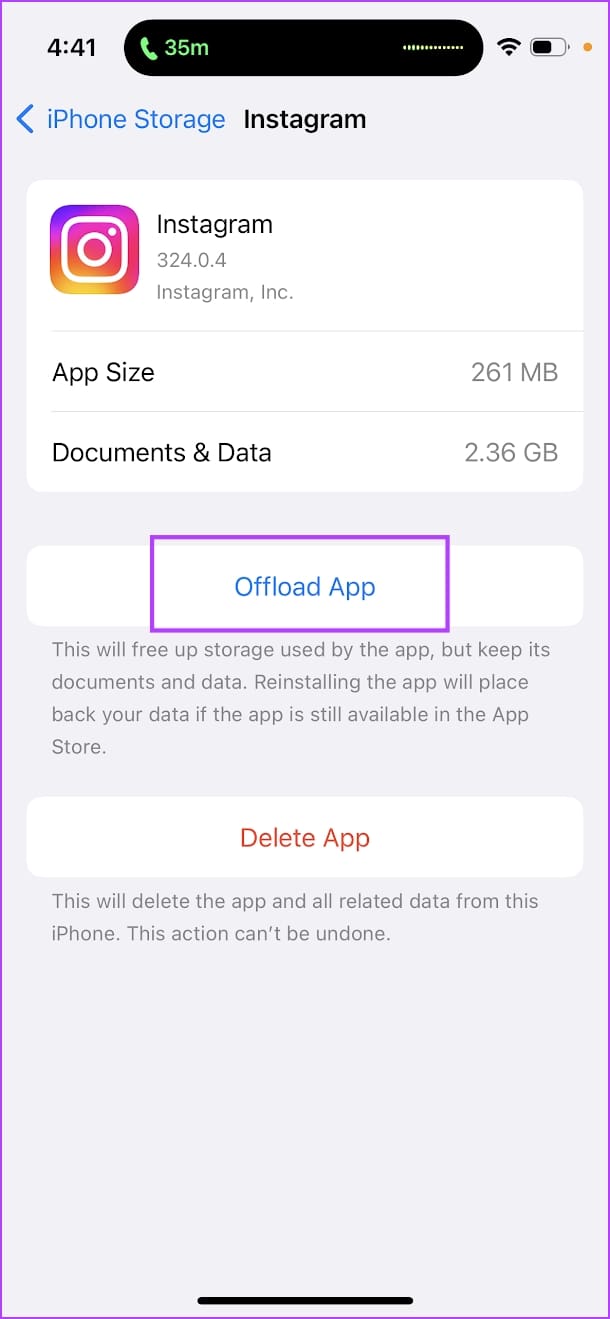
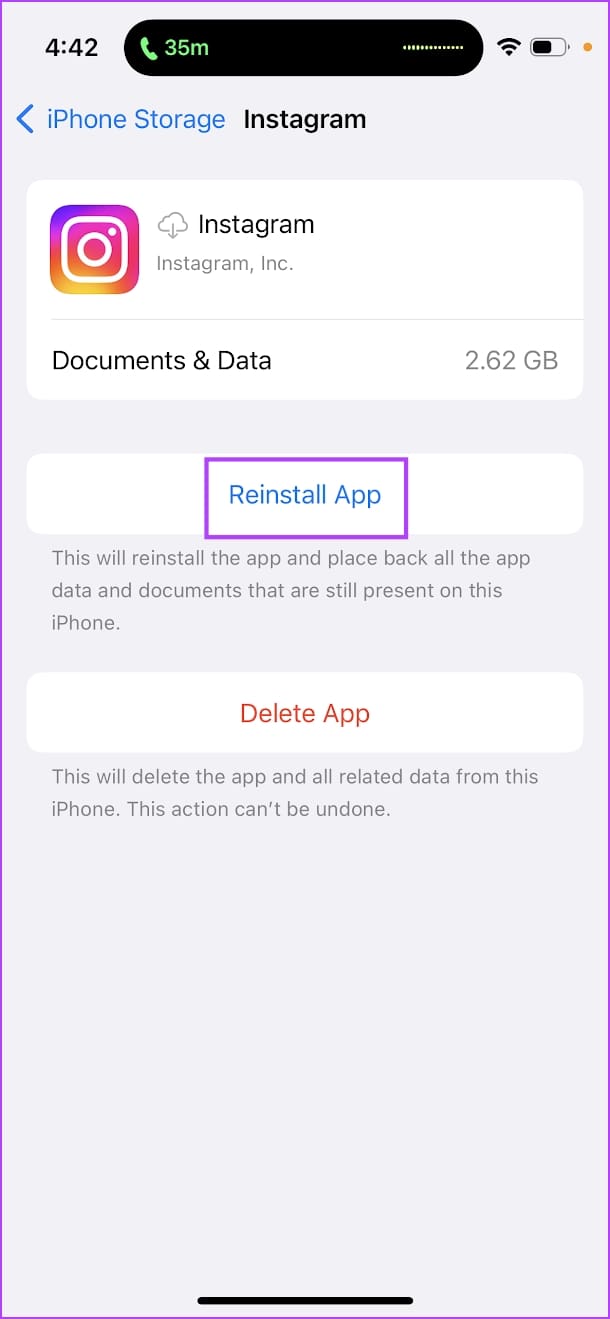
Offloading an application on your iPhone removes temporary data, including cache and junk files.
Step 1: Open the Settings app. Go to General -> iPhone Storage.
Step 2: Scroll down and select Instagram from the list. Select Offload App. Wait for the offloading to complete, then tap on the Reinstall App option.
Fix 5: Enable Unrestricted Data Usage (Android)
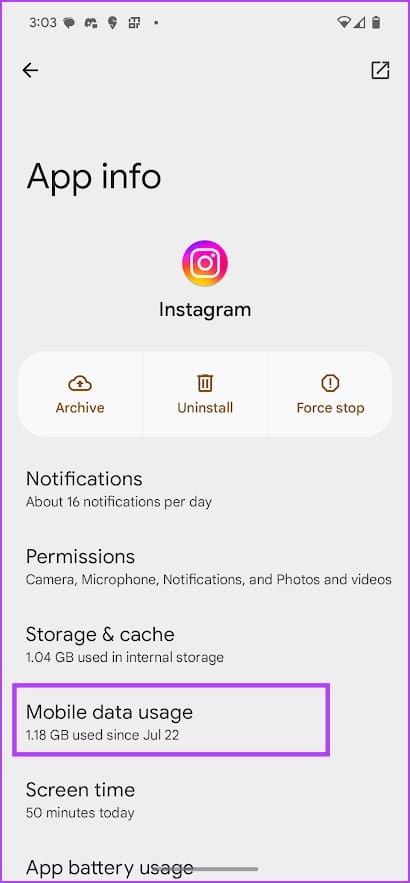
Enabling unrestricted data usage and turning on background data helps Instagram complete tasks even after you close the app.
Tap and hold the Instagram app icon, select App Info, and go to Mobile Data Usage. Turn on the toggle for Background Data and Unrestricted mobile data usage.

If none of the above methods work, you can try resetting the network settings on your device. Further, you can contact Instagram support for more assistance.
Was this helpful?
Last updated on 31 July, 2024
2 Comments
Leave a Reply
Read Next
 4 Ways to Fix WhatsApp Not Working on Mobile Data
Before you begin, ensure you have no problems with using the internet via mobile data on your smartphone.
4 Ways to Fix WhatsApp Not Working on Mobile Data
Before you begin, ensure you have no problems with using the internet via mobile data on your smartphone.
 9 Ways to Fix Facebook Not Working on Mobile Data
Basic Troubleshooting Check Facebook's status: Maybe Facebook servers are down, visit Downdetector and search for Facebook.
9 Ways to Fix Facebook Not Working on Mobile Data
Basic Troubleshooting Check Facebook's status: Maybe Facebook servers are down, visit Downdetector and search for Facebook.
 5 Ways to Fix Mobile Data Not Working on Android
Basic Fixes Check your data plan: To start, ensure your data plan is active.
5 Ways to Fix Mobile Data Not Working on Android
Basic Fixes Check your data plan: To start, ensure your data plan is active.
 4 Ways to Fix Google Chrome Not Working on Mobile Data
Basic Fixes Restart device: Restart your device to fix temporary bugs and glitches.
4 Ways to Fix Google Chrome Not Working on Mobile Data
Basic Fixes Restart device: Restart your device to fix temporary bugs and glitches.
 3 Ways to Fix Facebook “No Data Available” Error on Desktop and Mobile
Try Basic Fixes Check if Facebook is down: Facebook is not immune to occasional server-level hiccups.
3 Ways to Fix Facebook “No Data Available” Error on Desktop and Mobile
Try Basic Fixes Check if Facebook is down: Facebook is not immune to occasional server-level hiccups.
 3 Fixes for Telegram Not Working on Mobile Data
Basic Fixes Contact your mobile network operator: Due to ongoing maintenance work, there may be mobile data issues specifically for your area.
3 Fixes for Telegram Not Working on Mobile Data
Basic Fixes Contact your mobile network operator: Due to ongoing maintenance work, there may be mobile data issues specifically for your area.
 How to Fix Google Play Store Not Working on Mobile Data
Basic Fixes Check Data Plan: First, ensure you have enough mobile data balance on your data plan.
How to Fix Google Play Store Not Working on Mobile Data
Basic Fixes Check Data Plan: First, ensure you have enough mobile data balance on your data plan.
 4 Ways to Fix iPhone Keeps Switching to Mobile Data From Wi-Fi
Basic Fixes Move close to your router: Poor Wi-Fi signal can force your iPhone to switch to mobile data instead of Wi-Fi.
4 Ways to Fix iPhone Keeps Switching to Mobile Data From Wi-Fi
Basic Fixes Move close to your router: Poor Wi-Fi signal can force your iPhone to switch to mobile data instead of Wi-Fi.
The article above may contain affiliate links which help support Guiding Tech. The content remains unbiased and authentic and will never affect our editorial integrity.

Ya hice todo lo que se menciona arriba con mi iPhone y sigo teniendo problemas a la hora de cargar mi feed, tengo telcel y mis datos aun estan disponibles y no puedo ver actualizaciones, sabras una solucion?
Hola Paola, tengo el mismo problema con Telcel.
Llevo semanas que no me funciona instagram con el 4G, solo wifi.
Pudiste solucionarlo ?