Basic Fixes
- Force restart your iPhone: An existing iOS glitch may suppress iMessage notifications. Press and quickly release the Volume Up button followed by Volume Down. Press and hold the side button and release it when the Apple logo appears to force-restart your iPhone.
- Disable the Focus mode: An active Focus mode can silence iMessage notifications to minimize distractions. Swipe down from the top right corner of your iPhone to open the Control Centre, and tap the Focus toggle to disable the Do Not Disturb profile.
- Turn off Scheduled Summary: iOS’s Scheduled Summary feature bundles notifications and delivers them at a set time rather than in real-time. If iMessage is included, you may miss its instant alerts. Disable it from iPhone Settings > Notifications > Scheduled Summary.
- Verify Text Tone Sound: Make sure your iPhone plays a sound for new text notifications. Head to Settings > Sounds & Haptics > Text Tone, and ensure it isn’t set to None.
- Update iOS: Open iPhone Settings, select General, and tap Software Update. Select Install now to update your iPhone to the latest iOS version.
Fix 1: Disable and Enable iMessage
Disabling and enabling the iMessage service manually on your iPhone refreshes it, fixing existing glitches and bugs that are blocking its notifications.
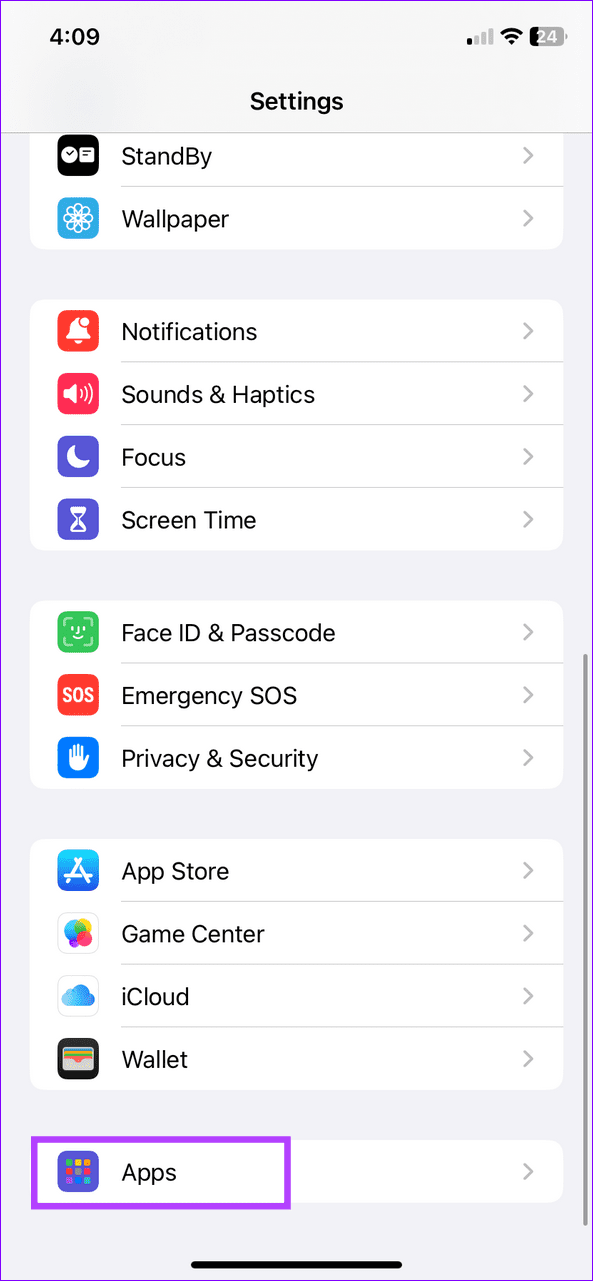
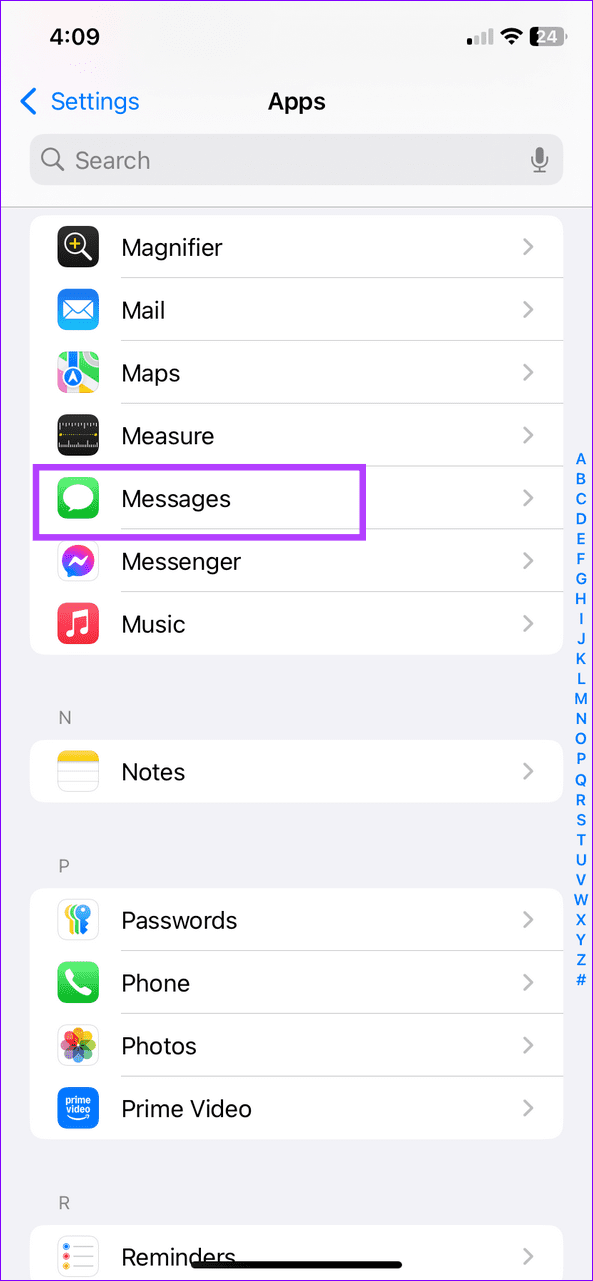
Step 1: Open the Settings app, scroll down to select Apps, and tap Messages.
Step 2: Disable the iMessage toggle, wait a few seconds, and turn it back on.

Fix 2: Check and Enable iMessage Notifications
If iMessage notifications aren’t working on your device, make sure they’re enabled under iOS settings and turn on time-sensitive notifications for the Messages app.
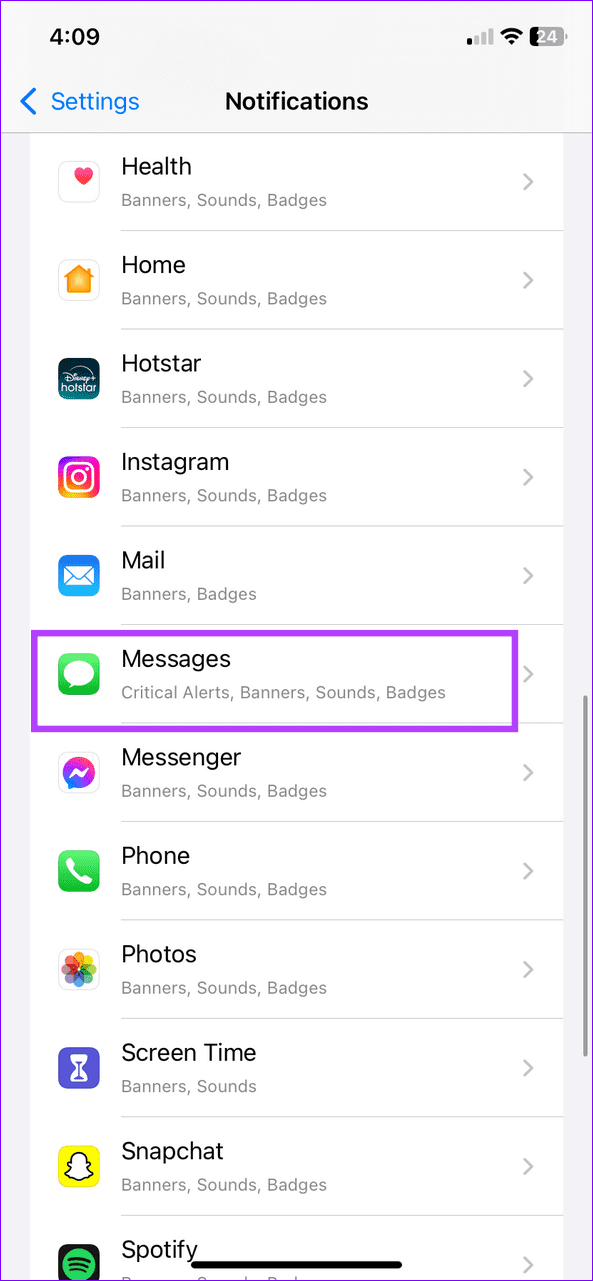
Step 1: Select Notifications under iPhone Settings and tap Messages.
Step 2: Ensure the Allow Notifications toggle is enabled and turn on Time-Sensitive Notifications.


Fix 3: Check Contact Settings
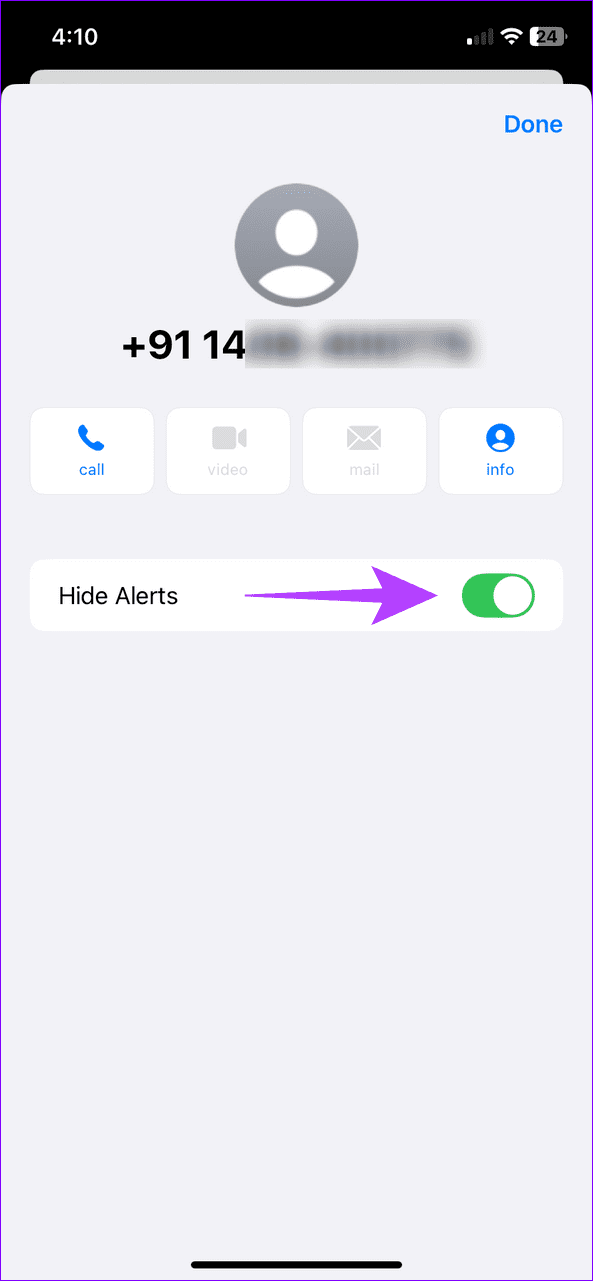
If iMessage notifications only work selectively for some contacts, check that you haven’t muted or hidden notification alerts for the affected contact.
Step 1: Open Messages, select the iMessage conversation whose notifications aren’t arriving, and tap the Sender at the top.
Step 2: Disable the Hide Alerts toggle to resume getting the iMessage notification.


Fix 4: Turn off Filter Unknown Senders
If you aren’t receiving iMessage notifications from people not on your contact list, configure your iPhone to disable the filter for unknown senders.
Step 1: Select Apps under iPhone Settings and tap Messages.


Step 2: Tap Unknown & Spam under ‘Message Filtering’ and turn off Filter Unknown Senders.


Fix 5: Turn off Message Forwarding
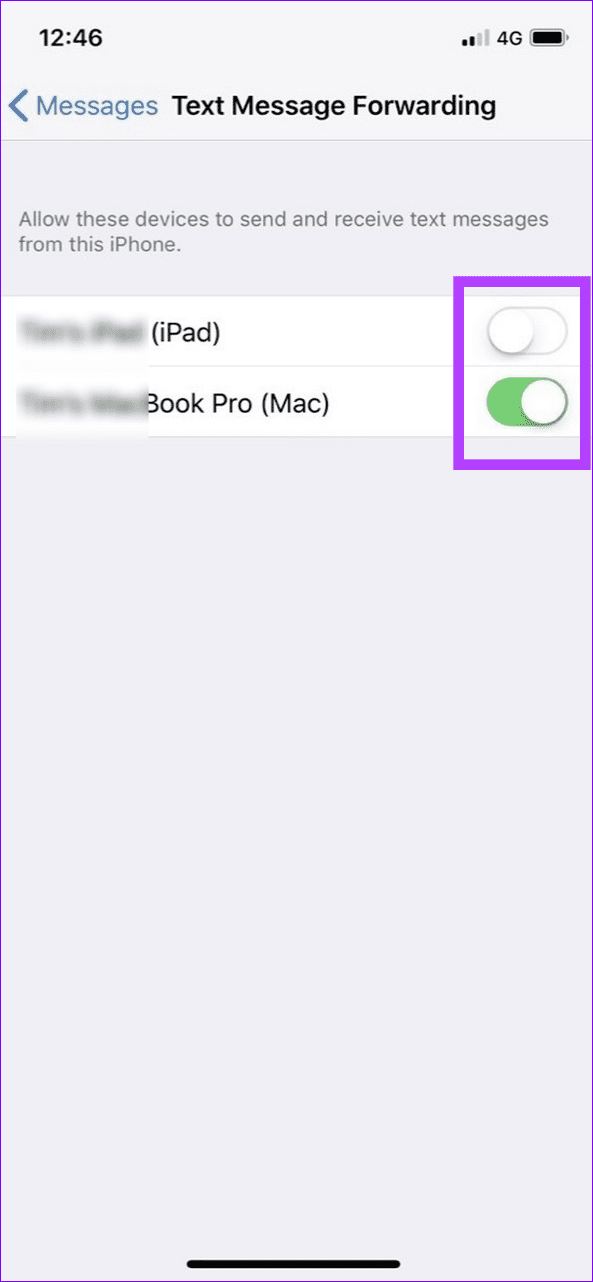
Lastly, you may miss iMessage notifications on your iPhone if you’ve configured automatic message forwarding to your connected Apple devices. To fix it, head to your iPhone Settings and disable the feature.
Note: If you can’t find the Text Message Forwarding option, sign in with the same Apple ID on other Apple devices.
Step 1: Open Messages Settings on your iPhone (check the above steps), and select Text Message Forwarding.
Step 2: Turn off the toggle for all connected Apple devices to disable text forwarding to them.

Was this helpful?
Last updated on 16 August, 2024
Read Next
 5 Best Ways to Fix iMessage Not Working On iPhone and iPad
Try Basic Fixes Check if iMessage is down: Sometimes, it's possible that the iMessage servers are down, which is why your iPhone's iMessage is not working.
5 Best Ways to Fix iMessage Not Working On iPhone and iPad
Try Basic Fixes Check if iMessage is down: Sometimes, it's possible that the iMessage servers are down, which is why your iPhone's iMessage is not working.
 4 Ways to Fix iMessage Apps and Games Not Working on iPhone
Fix 1: Enable the iMessage App and MMS Messaging Step 1: Open the Settings app on your iPhone and select Messages.
4 Ways to Fix iMessage Apps and Games Not Working on iPhone
Fix 1: Enable the iMessage App and MMS Messaging Step 1: Open the Settings app on your iPhone and select Messages.
 How to Fix iMessage Link Previews Not Working on iPhone
Basic Fixes Add link at the beginning or end of the message: Along with this, ensure that the URL starts with https://.
How to Fix iMessage Link Previews Not Working on iPhone
Basic Fixes Add link at the beginning or end of the message: Along with this, ensure that the URL starts with https://.
 6 Ways to Fix “iMessage Is Signed Out” Error on iPhone
Why Does My iMessage Keep Signing Out Firstly, you need to understand that this error differs from the iMessage activation issue.
6 Ways to Fix “iMessage Is Signed Out” Error on iPhone
Why Does My iMessage Keep Signing Out Firstly, you need to understand that this error differs from the iMessage activation issue.
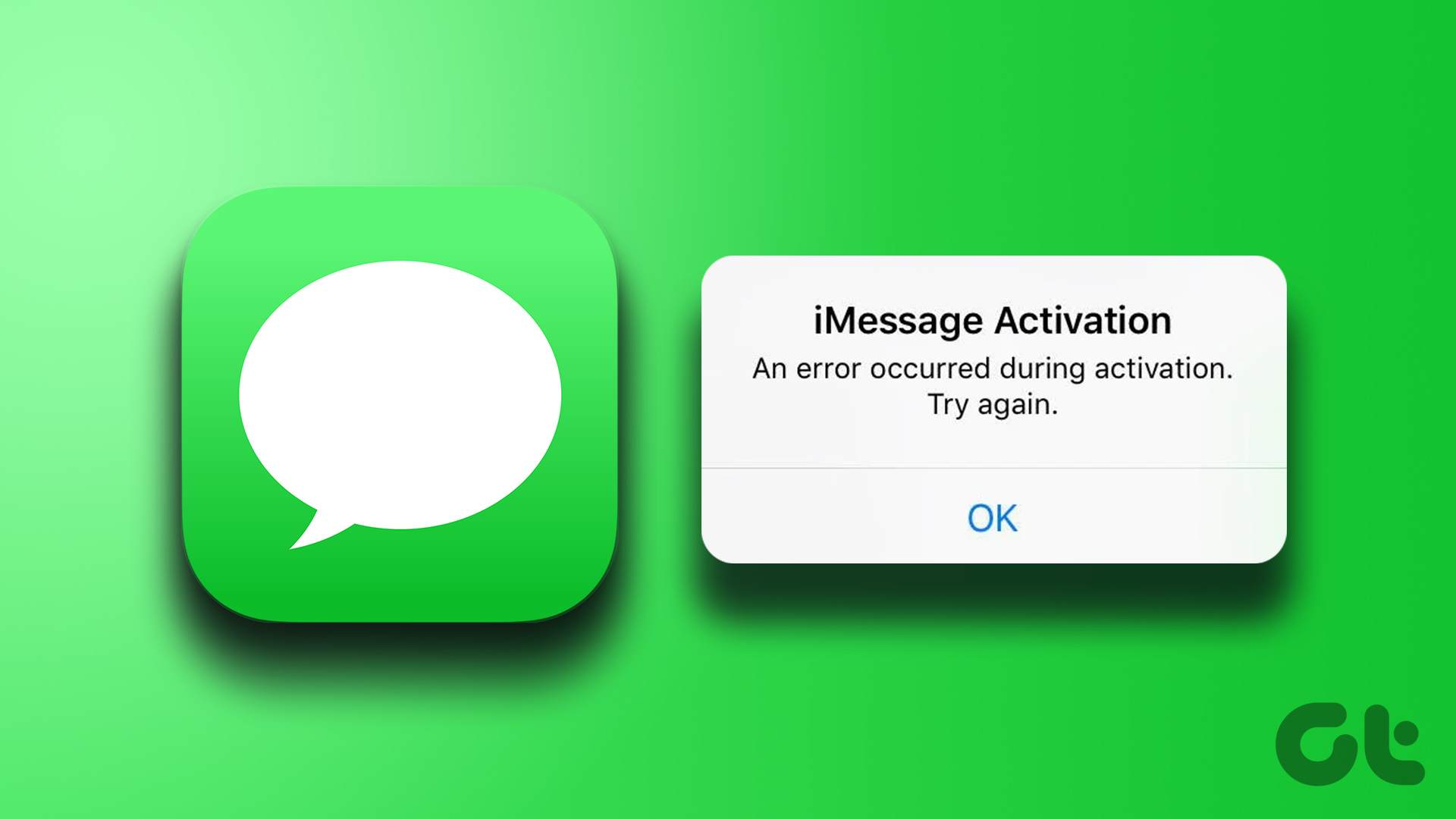 4 Ways to Fix iMessage Not Activating on iPhone
Try Basic Fixes Check Apple's iMessage server status: The iMessage servers may be down, which is why your iPhone’s iMessage is not working.
4 Ways to Fix iMessage Not Activating on iPhone
Try Basic Fixes Check Apple's iMessage server status: The iMessage servers may be down, which is why your iPhone’s iMessage is not working.
 4 Ways to Fix iMessage “Not Delivered” Error on iPhone
Why Is Your iMessage Not Being Delivered on iPhone?
4 Ways to Fix iMessage “Not Delivered” Error on iPhone
Why Is Your iMessage Not Being Delivered on iPhone?
 7 Best Fixes for iMessage Search Not Working on iPhone
Like other messaging apps, iMessage also comes packed with features for iPhone.
7 Best Fixes for iMessage Search Not Working on iPhone
Like other messaging apps, iMessage also comes packed with features for iPhone.
 Top 6 Ways to Fix Gmail Notifications Not Working on iPhone
Gmail is so popular that even iPhone users prefer it.
Top 6 Ways to Fix Gmail Notifications Not Working on iPhone
Gmail is so popular that even iPhone users prefer it.
The article above may contain affiliate links which help support Guiding Tech. The content remains unbiased and authentic and will never affect our editorial integrity.