Fix 1: Ensure JavaScript Is Enabled
Numerous modern-day websites rely on JavaScript to render content in your browser. Although JavaScript is enabled by default in Google Chrome, it’s essential to confirm that you haven’t accidentally disabled it.
Step 1: Open Chrome, type chrome://settings/content/javascript in the URL bar at the top, and press Enter.
Step 2: Under Default behavior, select Sites can use JavaScript.
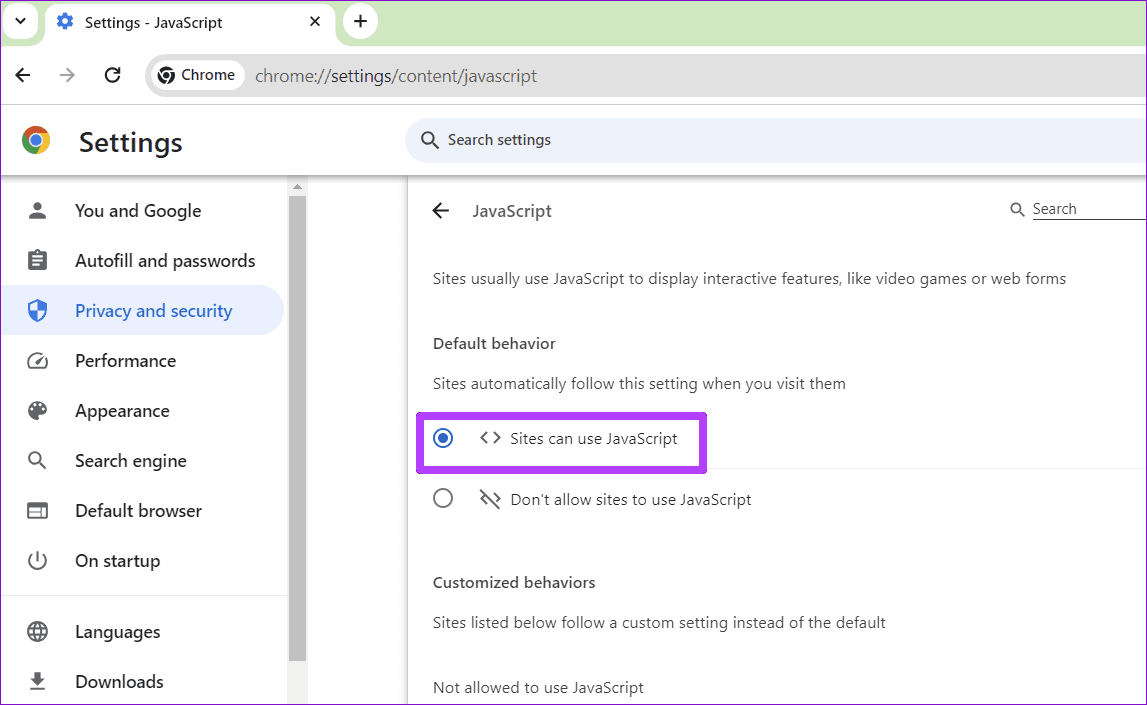
Restart Chrome after this and try loading the Google Calendar again.
Fix 2: Sign Out of Your Google Account and Sign Back In
At times, Google Calendar may not work in browsers like Chrome due to authentication issues with your account. Signing out of your Google account and signing back in is an effective way to resolve such issues.
Open Google Calendar in Chrome. If Google Calendar won’t load, visit Google Maps or Gmail. Click on your profile icon at the top right and select Sign out of all accounts.

This will sign you out of all Google services in Chrome. Try signing back in and check if Google Calendar loads after that.
Fix 3: Disable Extensions
A buggy or poorly optimized extension could disrupt Chrome’s functionality and prevent Google Calendar from loading or functioning properly. You can disable all your extensions temporarily to see if that solves the problem.
Step 1: Open Google Chrome, type chrome://extensions in the address bar at the top, and press Enter.
Step 2: Turn off the toggles next to the extensions to disable them.
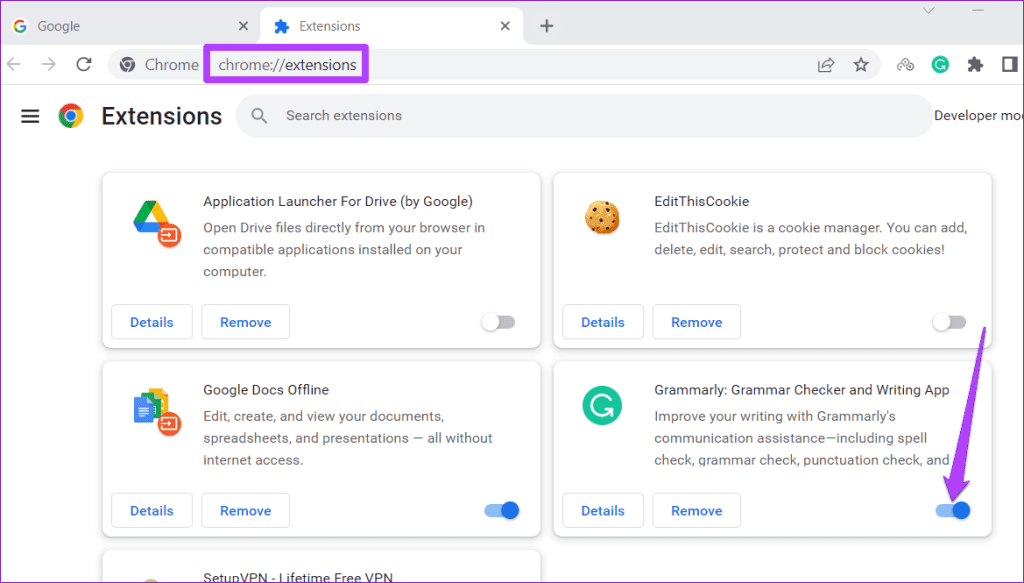
Restart Chrome and see if you can load Google Calendar after that. If this solves your problem, re-enable your extensions one by one until you find the culprit. Once you find the faulty extension, consider removing it from Chrome.
Fix 4: Clear Browsing Data
If disabling extensions proves ineffective, the existing browser cache and cookies will likely become corrupted. You can purge this problematic data to see if that restores normalcy.
To clear browsing data in Chrome, use these steps:
Step 1: Open Google Chrome on your computer. Press the Ctrl + Shift + Delete keyboard shortcut to open the Clear browsing data panel.
Step 2: Select All time from the drop-down under the Time range option. Check the boxes next to Cookies and other site data and Cached images and files. Then, hit the Clear data button.

Was this helpful?
Last updated on 03 September, 2024
Read Next
 How to Connect Outlook Calendar With Google Calendar: 4 Best Ways
Note: The methods recommended in the article allow two-way syncs in the calendar.
How to Connect Outlook Calendar With Google Calendar: 4 Best Ways
Note: The methods recommended in the article allow two-way syncs in the calendar.
 3 Fixes for Google Sheets Not Loading in Chrome
Basic Fixes: Restart Chrome: In some cases, a simple restart should fix the issue.
3 Fixes for Google Sheets Not Loading in Chrome
Basic Fixes: Restart Chrome: In some cases, a simple restart should fix the issue.
 How to Add Zoom Meetings to Outlook Calendar and Google Calendar
How to Add Zoom Meetings to Google Calendar The easiest way is using the Zoom for Google Workspace Google calendar add-on.
How to Add Zoom Meetings to Outlook Calendar and Google Calendar
How to Add Zoom Meetings to Google Calendar The easiest way is using the Zoom for Google Workspace Google calendar add-on.
 9 Best Ways to Fix Google Chrome Not Loading Pages in Windows 10
Google Chrome is one of the most used browsers in the world, no doubt.
9 Best Ways to Fix Google Chrome Not Loading Pages in Windows 10
Google Chrome is one of the most used browsers in the world, no doubt.
 7 Ways to Fix Images Not Loading in Google Chrome
Fix 1: Verify Site Settings To start, verify the content settings in Chrome and ensure websites are allowed to load images on your computer.
7 Ways to Fix Images Not Loading in Google Chrome
Fix 1: Verify Site Settings To start, verify the content settings in Chrome and ensure websites are allowed to load images on your computer.
 How to Fix Facebook Not Loading in Google Chrome
Basic Fixes Try using Incognito Mode: This is a quick hack that enables faster loading of websites that don't launch in the standard browsing window.
How to Fix Facebook Not Loading in Google Chrome
Basic Fixes Try using Incognito Mode: This is a quick hack that enables faster loading of websites that don't launch in the standard browsing window.
 6 Ways to Fix Google Slides Not Loading in Chrome
Fix 1: Free Up Google Drive Storage Space Google Slides may fail to open a file and display errors like "Something went wrong" or "Sorry, the file you have requested
6 Ways to Fix Google Slides Not Loading in Chrome
Fix 1: Free Up Google Drive Storage Space Google Slides may fail to open a file and display errors like "Something went wrong" or "Sorry, the file you have requested
 3 Ways to Fix Facebook Games Not Loading in Google Chrome
Try Basic Fixes Close and reopen the game: Sometimes, temporary glitches can cause your Facebook games to become unresponsive and stop working.
3 Ways to Fix Facebook Games Not Loading in Google Chrome
Try Basic Fixes Close and reopen the game: Sometimes, temporary glitches can cause your Facebook games to become unresponsive and stop working.
The article above may contain affiliate links which help support Guiding Tech. The content remains unbiased and authentic and will never affect our editorial integrity.