


Preliminary Fixes
- Check Messages Requests in Hidden Inbox: Sometimes, messages from people who are not on your friends list may not appear in your main inbox. Facebook Messenger has a hidden inbox for message requests.
- Check the Archived Inbox: If you have accidentally archived a conversation, it will be moved out of your main inbox.
- The Person May Have Deleted Messages: If the person you were chatting with deletes their messages, you won’t see them in your conversation.
- Check Facebook Servers: Sometimes, issues with Facebook’s servers can cause problems with message delivery and display. Visit websites like DownDetector to see if other users are experiencing similar issues.
- Update Messenger App: Running an outdated version of Facebook Messenger can cause functionality issues, including messages not showing up.
Fix 1: Enable Mobile Data for Messenger (iPhone)
If you have disabled mobile data for the Messenger app, it can’t fetch the chats or send your responses when you step away from the Wi-Fi network range. You can enable mobile data from the Settings app and allow the Messages app to show new messages. Here’s what you need to do.
Step 1: Open the Settings app on your iPhone.
Step 2: Scroll to the Messenger app.
Step 3: Enable the Mobile data toggle from the following menu.
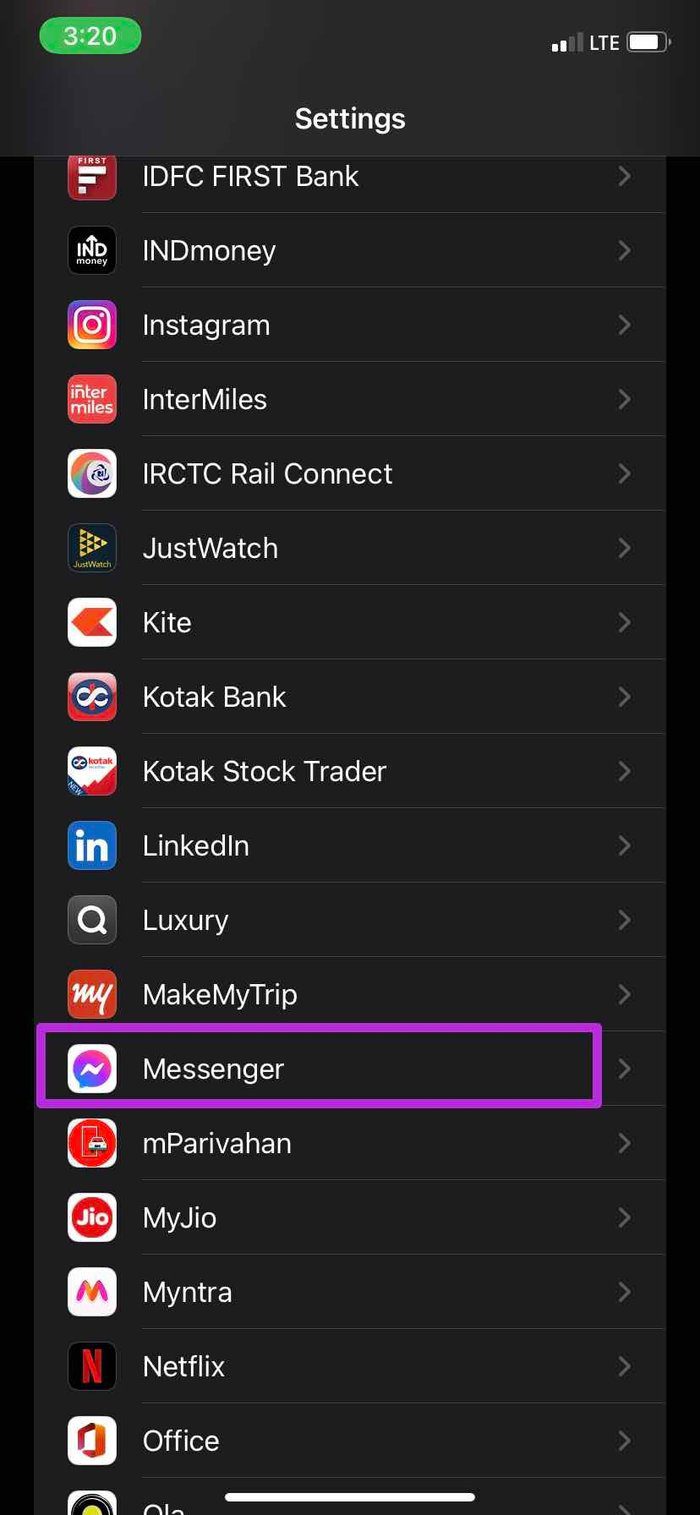
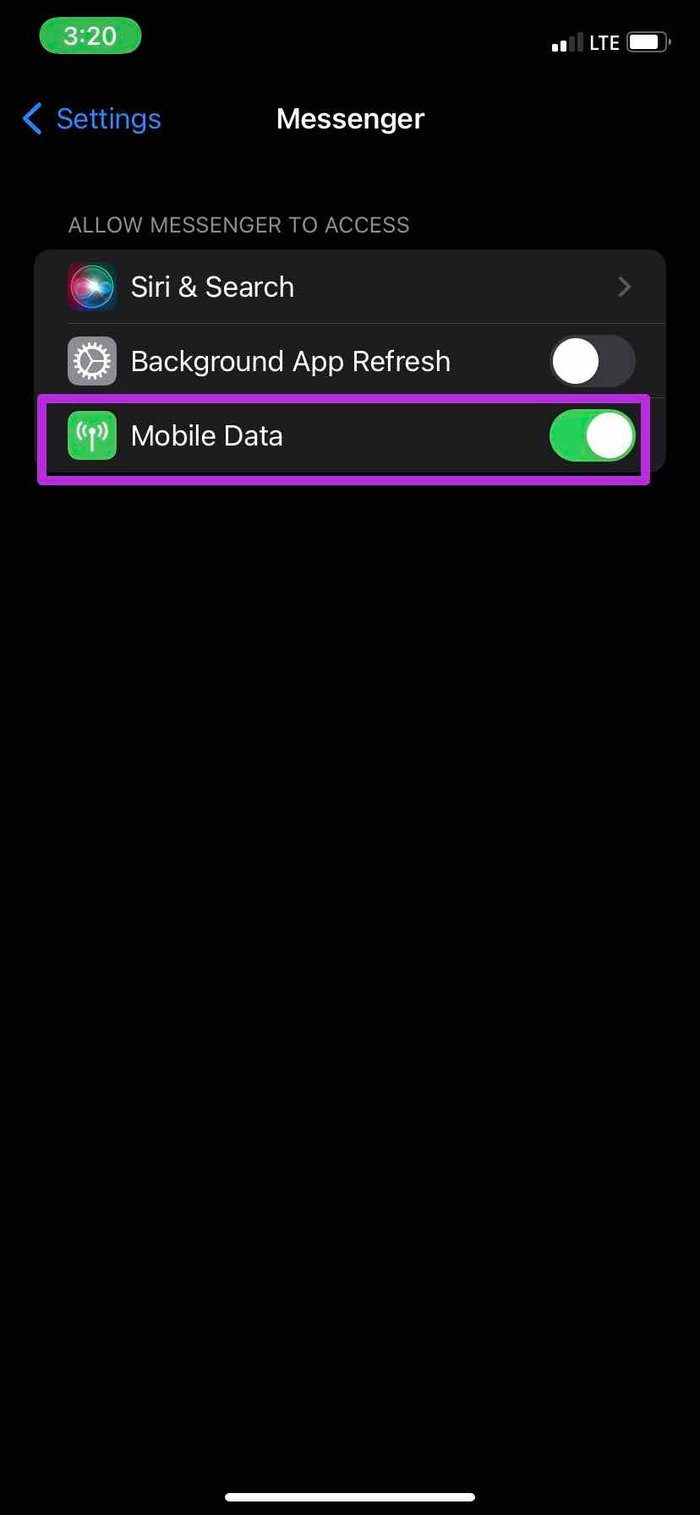
After that, open the Messenger app and give it a few seconds. The app fetches the pending updates and shows you new messages in the relevant conversations.
Fix 2: Disable Low Data Mode
Low Data Mode on your Android and iPhone helps reduce mobile data usage in several apps. When you turn on Low Data Mode, your phone pauses automatic updates and background tasks, such as Photos sync.
On iPhone
Step 1: Open the Settings app on your iPhone.
Step 2: Go to the Mobile Data.
Step 3: Select your primary SIM.
Step 4: Turn off the toggle for Low Data Mode from the following menu.
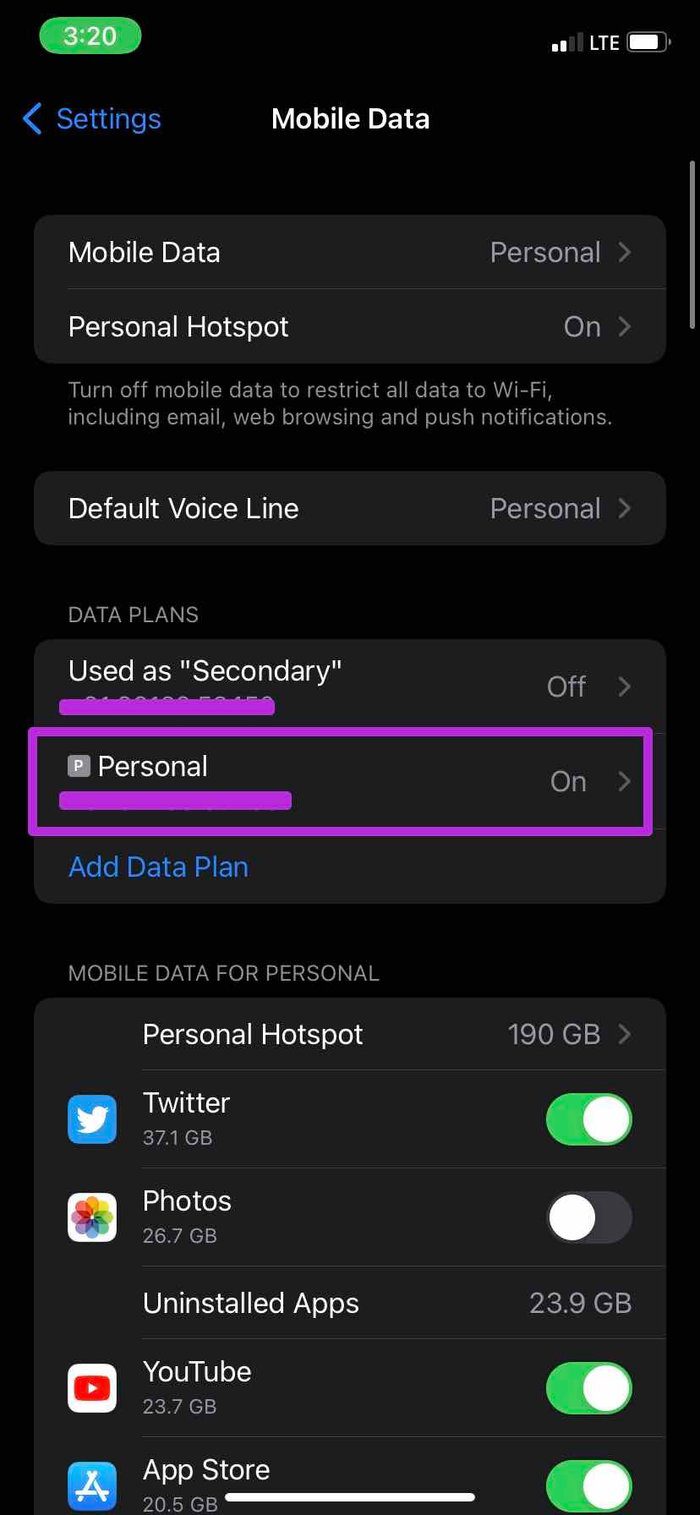
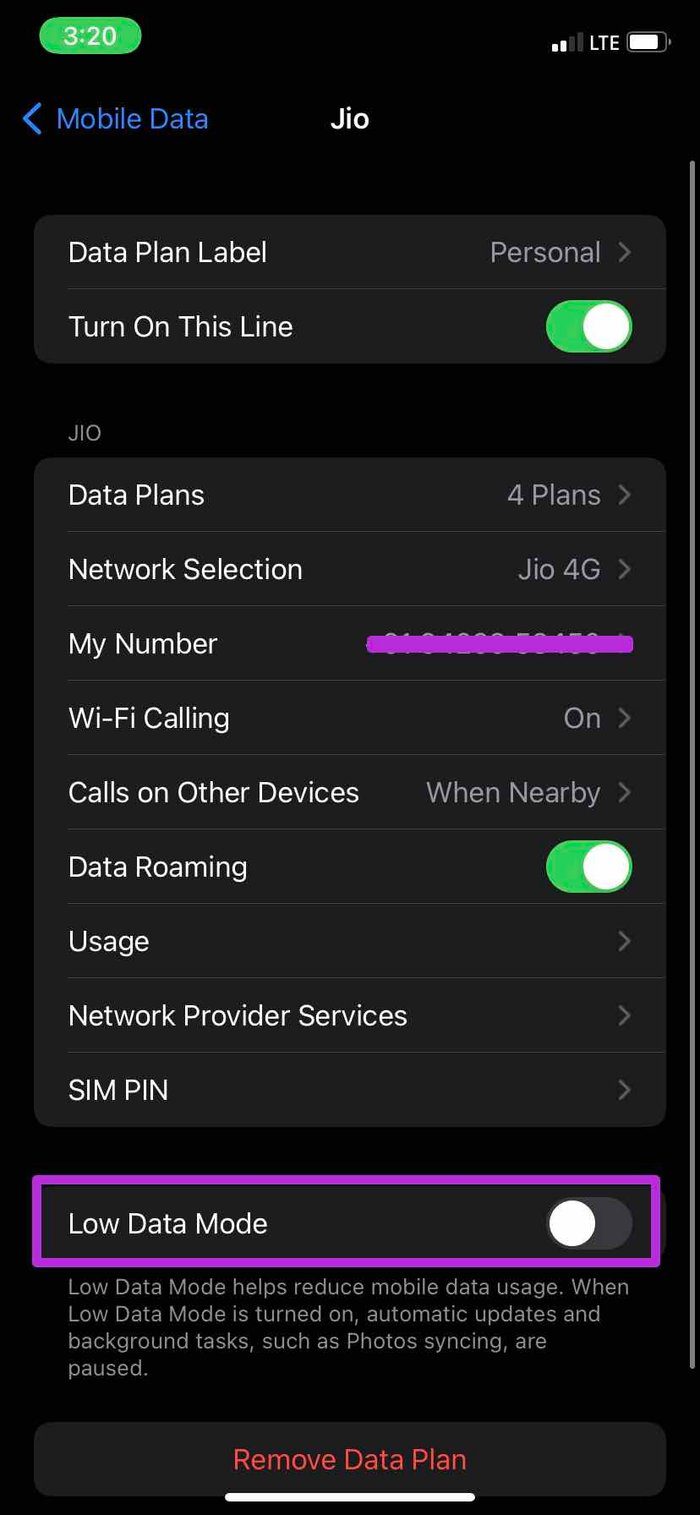
Give your phone a few minutes to fetch all the new updates and alerts for new messages in the Messenger app.
On Android
Step 1: Open Settings and select Network and Internet.
Step 2: Select Data Saver and disable the toggle from the following menu.


Method 3: Disable Facebook Messenger Data Saver Mode
Facebook Messenger also comes with a dedicated data-saving mode on Android. It can be the main culprit behind the ‘Messenger not showing messages’ problem.
Step 1: Open Messenger and tap the hamburger menu in the top left corner. Open Settings.


Step 2: Scroll to Data Saver and disable the option.


Fix 4: Clear Messenger Cache (Android)
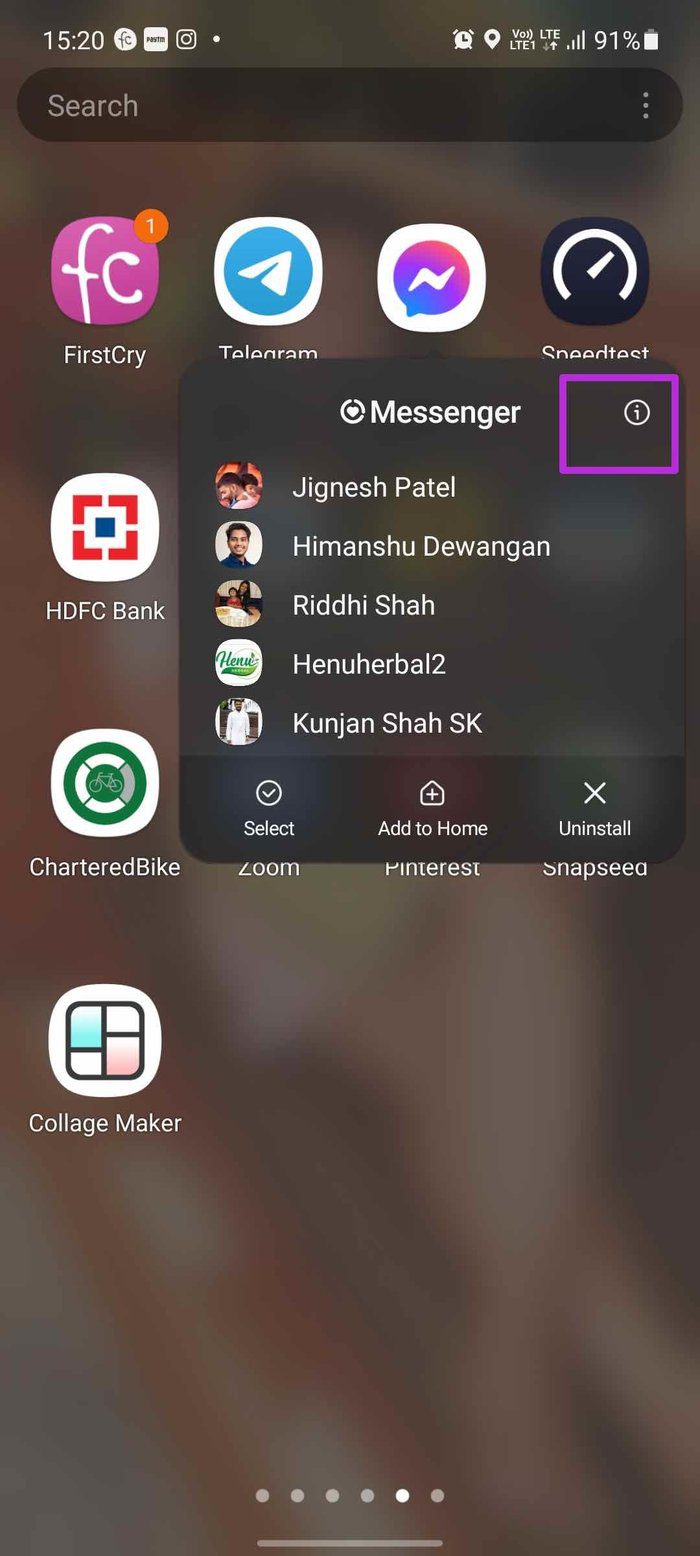
Step 1: Long-press on the Messenger app icon and open the app info menu.
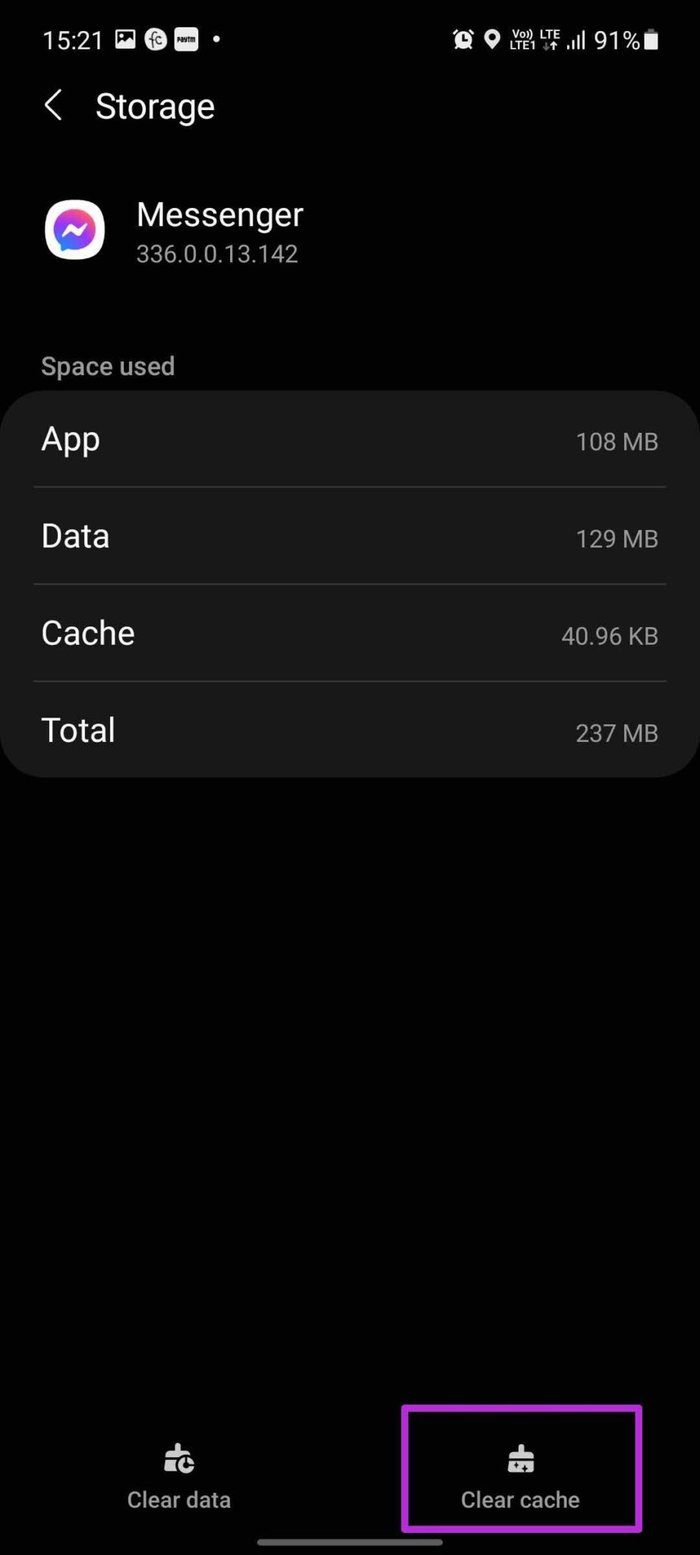
Step 2: Go to the Storage menu.
Step 3: Tap on Clear cache from the bottom button.
FAQs on Facebook Messenger Not Showing Messages
You can force-start Facebook and try loading old messages without any issues.
When someone retracts messages in the conversation, the received messages disappear from both sides.
If your friend has blocked you on Messenger, you can’t send or receive messages from them.
Facebook Messenger not showing messages may make you consider alternative messaging apps such as WhatsApp, Telegram, or Signal.
Was this helpful?
Last updated on 23 July, 2024
5 Comments
Leave a Reply
Read Next
 4 Ways to Fix Facebook Marketplace Messages Not Showing up in Messenger
Basic Fixes Check your network connection: Ensure your device has a good internet connection.
4 Ways to Fix Facebook Marketplace Messages Not Showing up in Messenger
Basic Fixes Check your network connection: Ensure your device has a good internet connection.
 Top 4 Ways to Fix Facebook Messenger Not Showing Active Status
https://youtu.be/BQ7VyEtSDlI Preliminary Fixes The Person Has Disabled Active Status: If the person whose active status you’re trying to see has disabled their active status, you won't be able to see
Top 4 Ways to Fix Facebook Messenger Not Showing Active Status
https://youtu.be/BQ7VyEtSDlI Preliminary Fixes The Person Has Disabled Active Status: If the person whose active status you’re trying to see has disabled their active status, you won't be able to see
 How to Fix Facebook Messenger Story Not Showing on iPhone and Android
Why Can't I See Stories on Facebook Messenger Several factors can affect your story experience in Facebook Messenger.
How to Fix Facebook Messenger Story Not Showing on iPhone and Android
Why Can't I See Stories on Facebook Messenger Several factors can affect your story experience in Facebook Messenger.
 4 Ways to Fix Facebook Messenger Voice Messages Not Working
Try Basic Fixes Check the volume level on phone: If the volume level on your phone is too low, you may have trouble hearing your Messenger voice messages.
4 Ways to Fix Facebook Messenger Voice Messages Not Working
Try Basic Fixes Check the volume level on phone: If the volume level on your phone is too low, you may have trouble hearing your Messenger voice messages.
 6 Fixes for Facebook Messenger Not Sending Messages (iPhone and Android)
Preliminary Fixes Enable and Disable Airplane Mode: Network glitches can prevent Facebook Messenger from sending messages.
6 Fixes for Facebook Messenger Not Sending Messages (iPhone and Android)
Preliminary Fixes Enable and Disable Airplane Mode: Network glitches can prevent Facebook Messenger from sending messages.
 How to Send Disappearing Messages in Facebook Messenger
Send Disappearing Messages in Facebook Messenger Mobile App The process of sending disappearing messages on the mobile app is the same for Android and iOS devices.
How to Send Disappearing Messages in Facebook Messenger
Send Disappearing Messages in Facebook Messenger Mobile App The process of sending disappearing messages on the mobile app is the same for Android and iOS devices.
 4 Ways to Fix Facebook Messenger Not Working on the Desktop
Basic Fixes Run Messenger app as an Admin: Search for the Messenger app on your PC and select Run as Administrator.
4 Ways to Fix Facebook Messenger Not Working on the Desktop
Basic Fixes Run Messenger app as an Admin: Search for the Messenger app on your PC and select Run as Administrator.
 Top 5 Ways to Fix Facebook Messenger Calls Not Working (iPhone and Android)
Preliminary Fixes Check the Network Connection: A stable internet connection is crucial for Messenger calls.
Top 5 Ways to Fix Facebook Messenger Calls Not Working (iPhone and Android)
Preliminary Fixes Check the Network Connection: A stable internet connection is crucial for Messenger calls.
The article above may contain affiliate links which help support Guiding Tech. The content remains unbiased and authentic and will never affect our editorial integrity.
I can’t use my messenger, can’t see the message and search
I can send messages but to reply shows totally blank. How can can I correct this. Thank you.
Hi When I log into facebook all that comes up is a row of mssages down he middle can you help pleas?
Why have a password if your not going to let me access this shit even when I type in the correct password? It pisses me off, I lost my phone and you and Google linc everything to that freaking phone number and so by doing so, you lock me out of my own accounts even when I type in my password! This is the dumbest level of stupidity I’ve ever seen! Grow a brain assholes!
Before (about a week ago) all my old messages showed in chat. Now inside the chat feature, all my past mail has disappeared in the chat section. How do I retrieve them?