Basic Fixes
- Force stop the Facebook app and reopen: Swipe up from your phone’s screen bottom to switch apps and slide up the Facebook card to force close it. Alternatively, long-tap the Facebook app icon on your Android phone to open ‘App info’, and tap ‘Force stop’ followed by reopening it.
- Update or reinstall the Facebook app: Open the Google Play Store or Apple App Store, search Facebook, and tap Update. If unavailable, uninstall the Facebook app and install it afresh.
Fix 1: Enable Notifications for All Memories
Facebook memories may not show automatically on your phone if you’ve disabled its notifications. Head to the Facebook Memories settings to enable it manually.
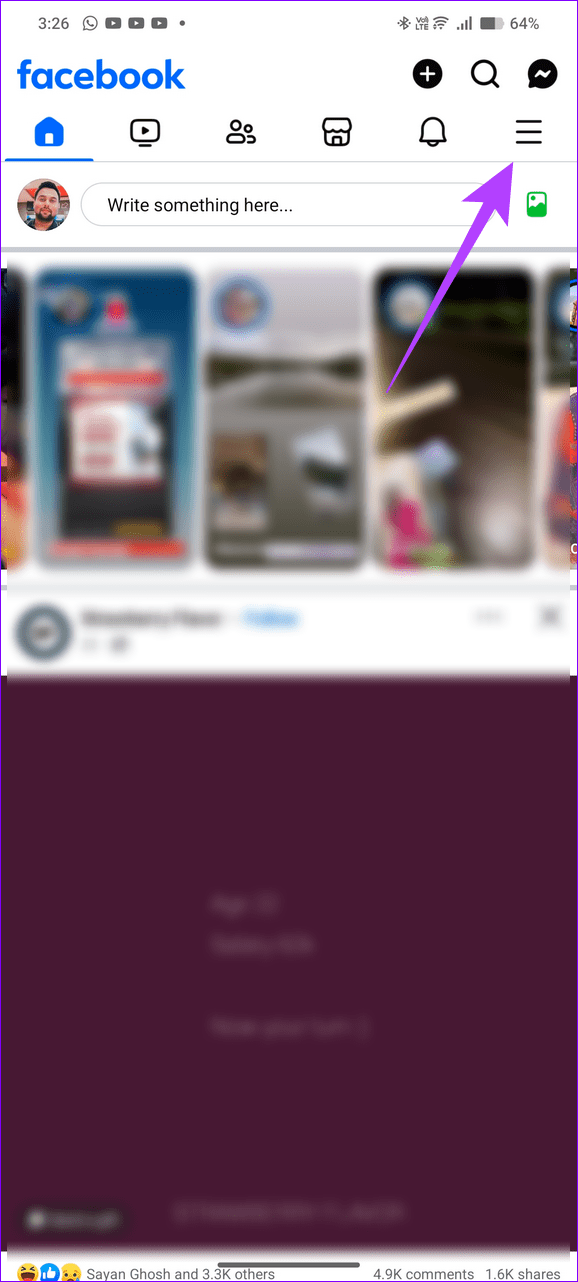
Step 1: Open the Facebook app, tap the Hamburger menu at the top right (bottom right on iOS), and select Memories.
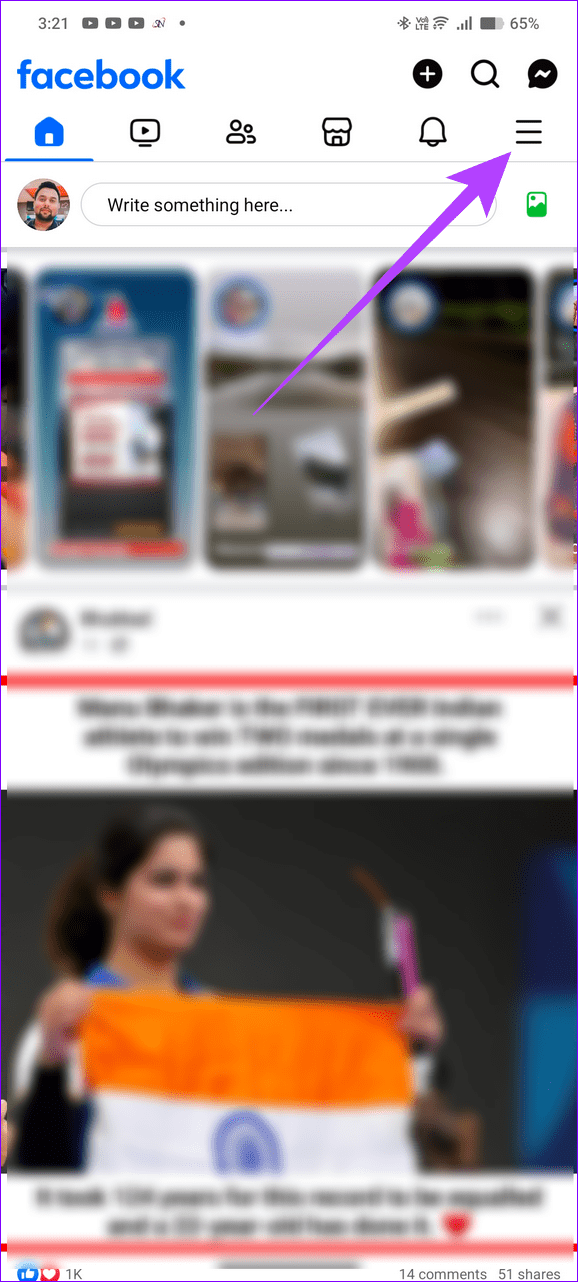

Step 2: Select the Gear icon at the top right corner and set ‘Notifications’ to All Memories.


Fix 2: Clear Facebook Cache and App Data (Android)
A corrupt cache or obsolete app data may malfunction the Facebook app, creating issues in viewing your memories on Android. Clear them manually and retry accessing your Facebook Memories.
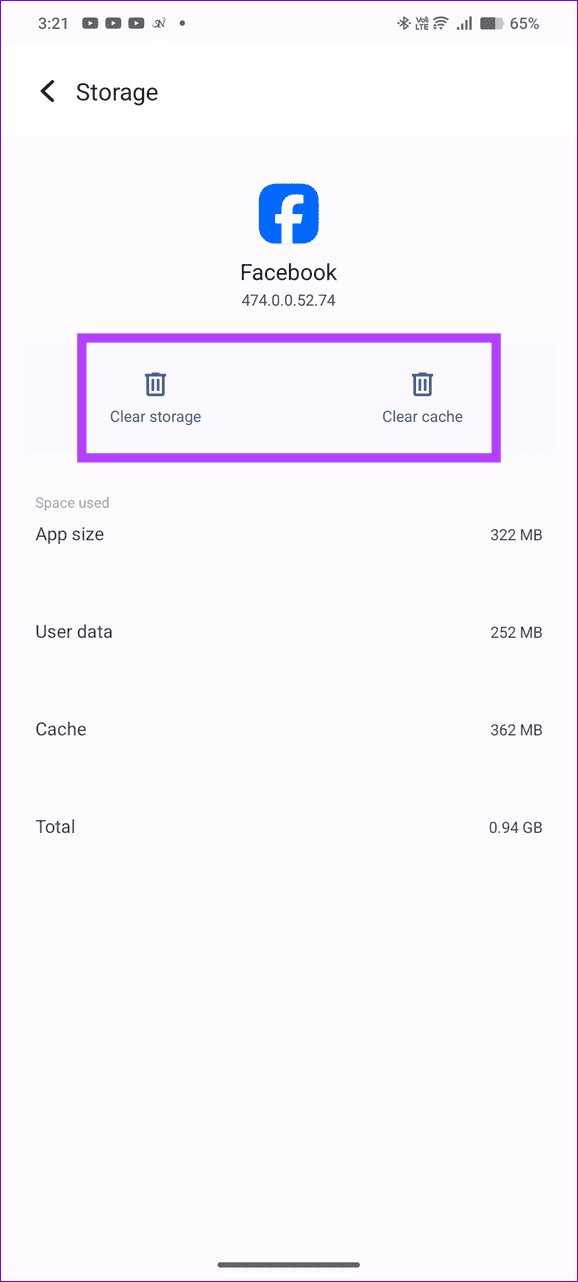
Step 1: Long-tap the Facebook app icon and open App info.
Step 2: Select Storage and cache, and tap Clear cache followed by Clear storage.


Fix 3: Offload the Facebook App (iOS)
Unlike Android, iOS doesn’t allow clearing the Facebook app cache manually. Instead, offload the Facebook app and reinstall it from the Apple App Store, fixing all issues.
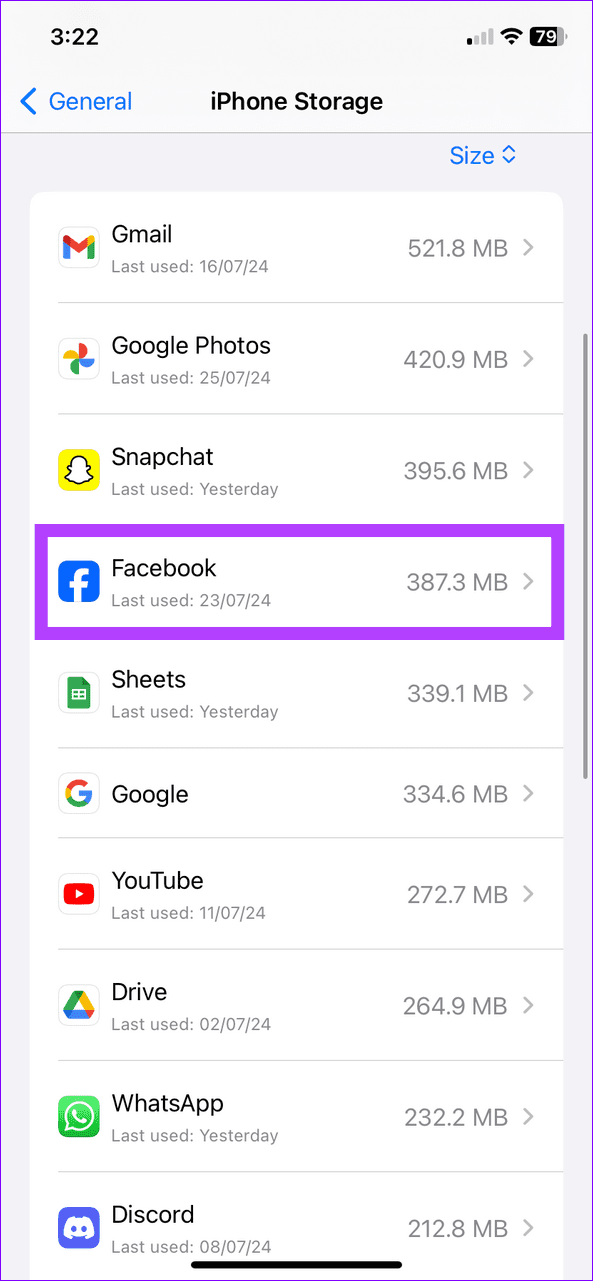
Step 1: Open iPhone Settings, select General, and tap iPhone Storage.
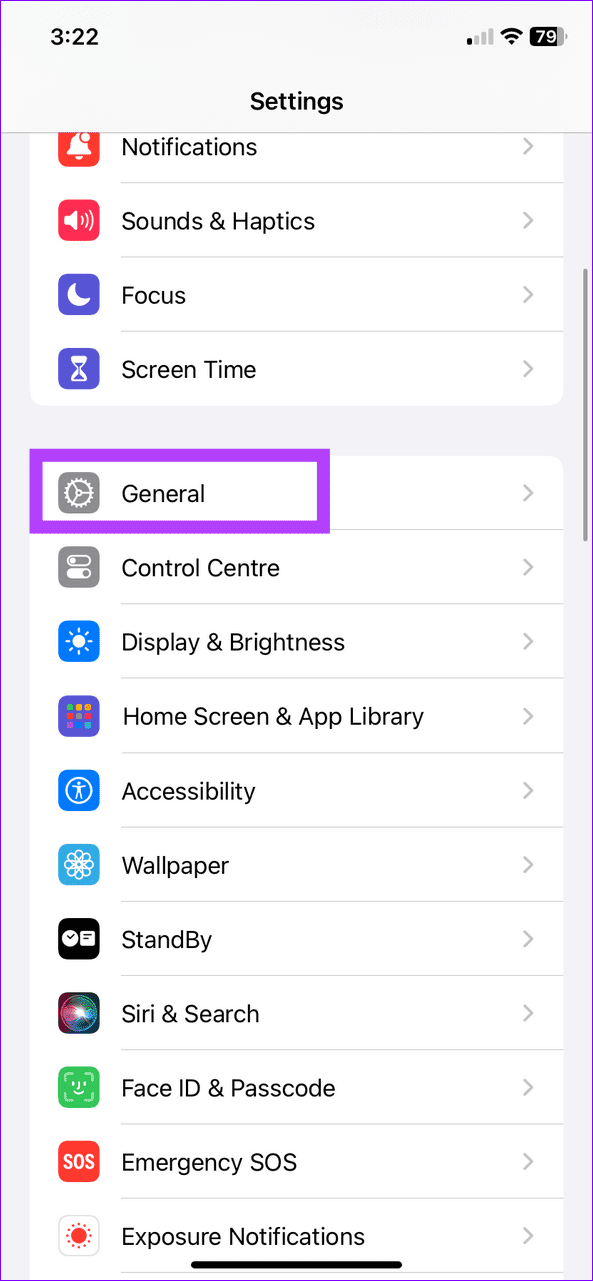
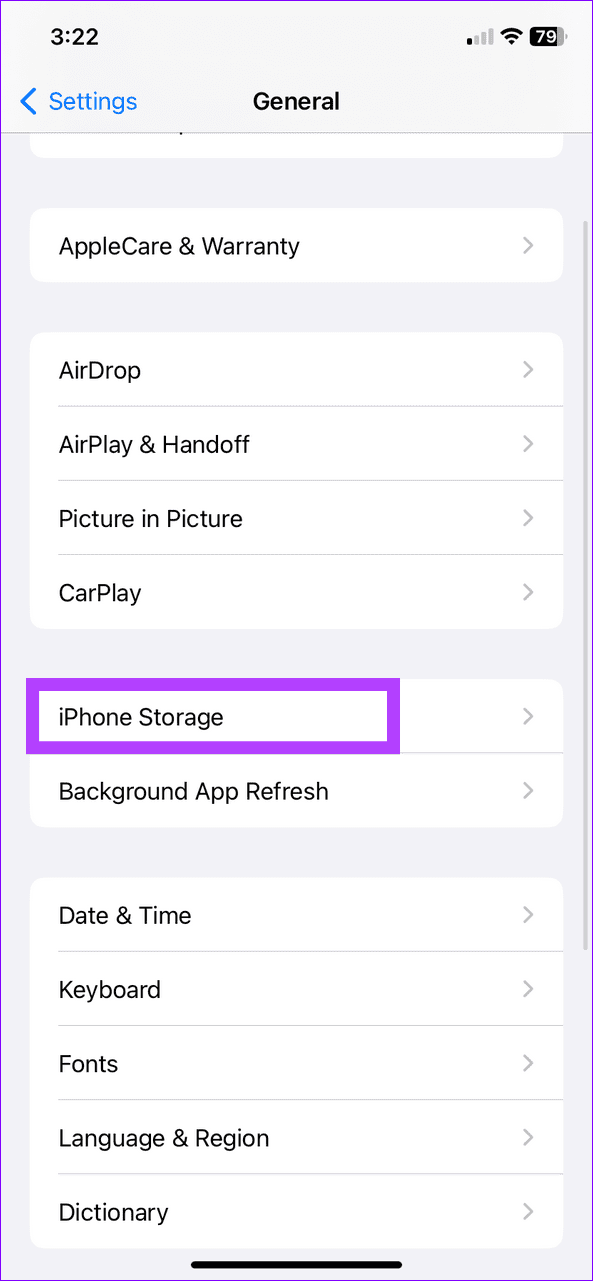
Step 2: Select Facebook, tap Offload App, and reinstall it from the Apple App Store.

Fix 4: Disable Browser Extensions (Web)
If you’re browsing Facebook on your desktop and can’t receive your Facebook Memories notification, an existing browser extension might be suppressing it. Head to your browser settings to disable or remove it.
Step 1: Click the three-dot menu at the top right of Google Chrome, select Extensions, and open Manage Extensions.

Step 2: Toggle off the browser extension to disable it. Alternatively, click Remove to delete it.

Fix 5: Log Out and Sign Back in
Lastly, account authentication issues can prevent Facebook Memories from showing up on your timeline. Sign out and log back in to restore normalcy.
Step 1: Open the Facebook app and tap the Hamburger menu at the top right (bottom right on iOS) to view more options.
Step 2: Scroll down to the bottom and tap Log out.

Step 3: Next, select Log in and type your Facebook account credentials to sign back in.
Find Facebook Memories After Enabling It
If you’ve accidentally discarded a Facebook memory notification from your feed, follow these easy steps to view them on your phone or PC.
On Phone
Step 1: Tap the Hamburger menu at the top right of the Facebook app (bottom-right on iOS), and select Memories.
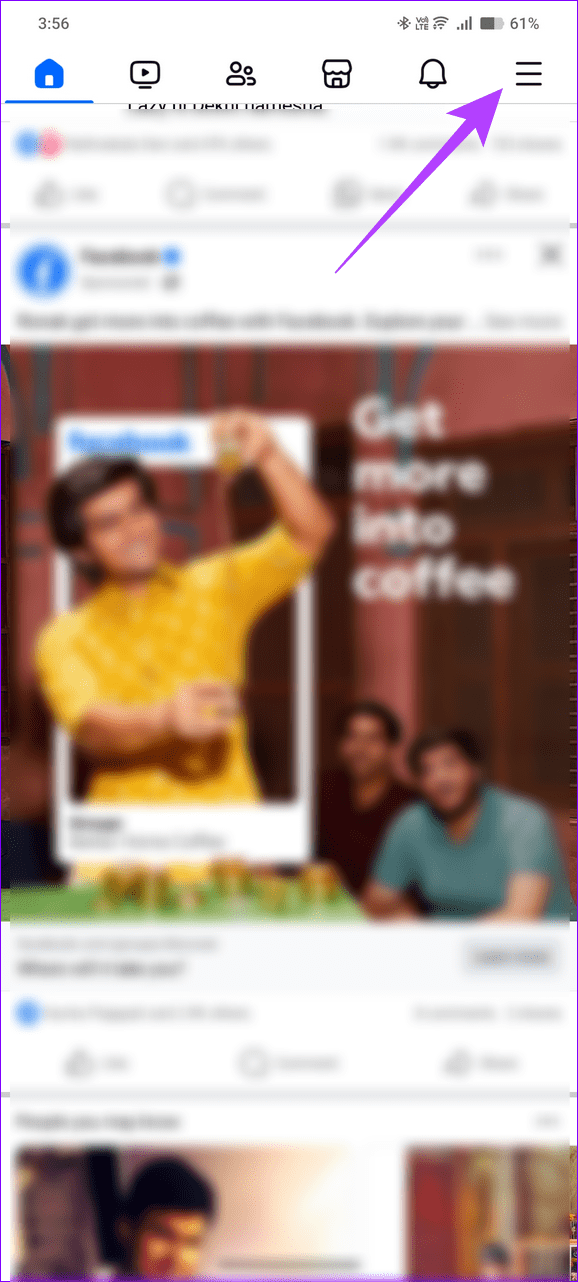

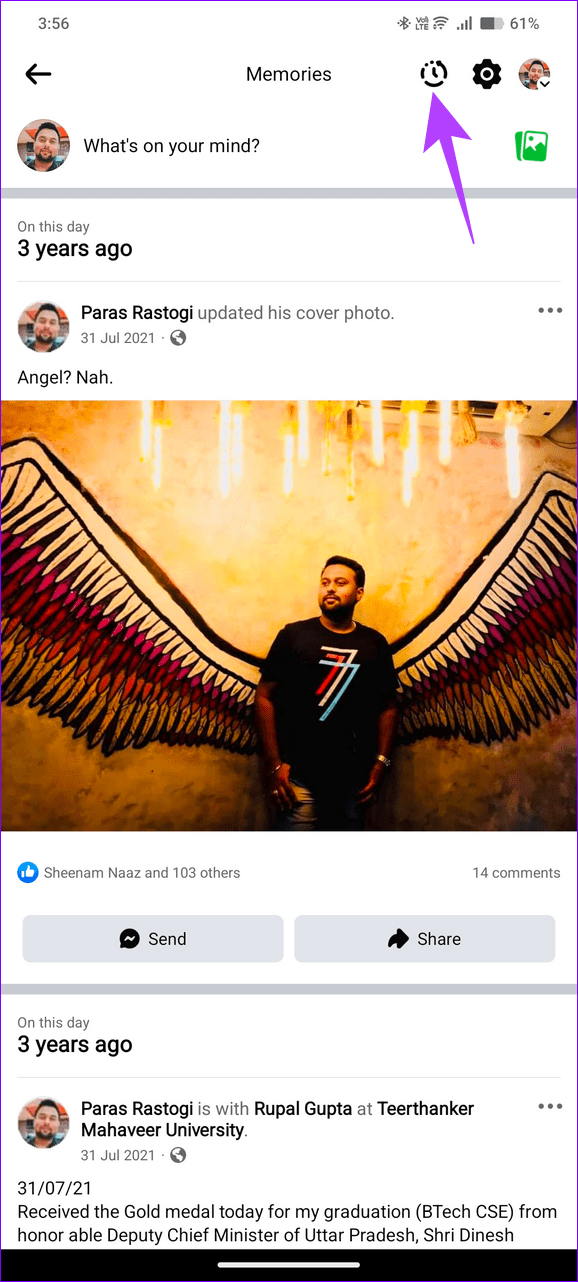
Step 2: Scroll down to view your Facebook memories of the day. Additionally, tap the rotating clock icon at the top right corner to view your Facebook story archive.

On Web
Step 1: Open Facebook and select Memories from the left sidebar to view them.

Step 2: If you’ve hidden a memory before, you can view it by clicking the Hide dates filter under Settings.

Was this helpful?
Last updated on 01 August, 2024
Read Next
 4 Ways to Fix Snapchat Not Backing Up Memories on Android and iPhone
Try Basic Fixes Check if Snapchat is down: Server-side issues could prevent some Snapchat features from working.
4 Ways to Fix Snapchat Not Backing Up Memories on Android and iPhone
Try Basic Fixes Check if Snapchat is down: Server-side issues could prevent some Snapchat features from working.
 How to Fix Snapchat Memories Not Loading on Android and iPhone
Try Basic Fixes Check if Snapchat is down: If the internet connection seems to be working, ensure that the Snapchat servers are up and running.
How to Fix Snapchat Memories Not Loading on Android and iPhone
Try Basic Fixes Check if Snapchat is down: If the internet connection seems to be working, ensure that the Snapchat servers are up and running.
 How to Create Memories Using the Photos App on iPhone and iPad
The modern gallery apps such as Google Photos, Apple Photos, and Samsung gallery come with cloud storage support, face recognition, advanced editing tools, and the ability to create a video/movie
How to Create Memories Using the Photos App on iPhone and iPad
The modern gallery apps such as Google Photos, Apple Photos, and Samsung gallery come with cloud storage support, face recognition, advanced editing tools, and the ability to create a video/movie
 5 Ways to Turn off OneDrive Memories Notifications on Windows and Mobile
Method 1.
5 Ways to Turn off OneDrive Memories Notifications on Windows and Mobile
Method 1.
 Top 4 Ways to Fix Facebook Messenger Not Showing Messages
Preliminary Fixes Check Messages Requests in Hidden Inbox: Sometimes, messages from people who are not on your friends list may not appear in your main inbox.
Top 4 Ways to Fix Facebook Messenger Not Showing Messages
Preliminary Fixes Check Messages Requests in Hidden Inbox: Sometimes, messages from people who are not on your friends list may not appear in your main inbox.
 Top 4 Ways to Fix Facebook Marketplace Not Showing All Listings
Preliminary Fixes Check the Network Connection: A stable and reliable internet connection is crucial for loading all content on Facebook Marketplace.
Top 4 Ways to Fix Facebook Marketplace Not Showing All Listings
Preliminary Fixes Check the Network Connection: A stable and reliable internet connection is crucial for loading all content on Facebook Marketplace.
 Top 4 Ways to Fix Facebook Messenger Not Showing Active Status
https://youtu.be/BQ7VyEtSDlI Preliminary Fixes The Person Has Disabled Active Status: If the person whose active status you’re trying to see has disabled their active status, you won't be able to see
Top 4 Ways to Fix Facebook Messenger Not Showing Active Status
https://youtu.be/BQ7VyEtSDlI Preliminary Fixes The Person Has Disabled Active Status: If the person whose active status you’re trying to see has disabled their active status, you won't be able to see
 4 Ways to Fix Facebook Marketplace Messages Not Showing up in Messenger
Basic Fixes Check your network connection: Ensure your device has a good internet connection.
4 Ways to Fix Facebook Marketplace Messages Not Showing up in Messenger
Basic Fixes Check your network connection: Ensure your device has a good internet connection.
The article above may contain affiliate links which help support Guiding Tech. The content remains unbiased and authentic and will never affect our editorial integrity.