

Fix 1: Scan for Malware
Malware infections can often disrupt Windows operations and prevent EXE files from running on your PC. Hence, you should first run a full system scan using Windows Defender or a third-party antivirus program you trust.
If the scan detects any threats, take the recommended steps to remove them from your PC.
Fix 2: Edit Registry Files
Incorrect or corrupt registry entries can also keep Windows from opening EXE files at times. To fix this, manually correct the registry entries associated with EXE files.
Step 1: Press the Windows key + R to open the Run dialog box. Type regedit in the box and press Enter.
Step 2: Paste the following path in the address bar at the top and press Enter.
HKEY_CLASSES_ROOT\.exe
Step 3: Double-click the Default entry in the right pane and type exefile in the value data field. Then, click OK.
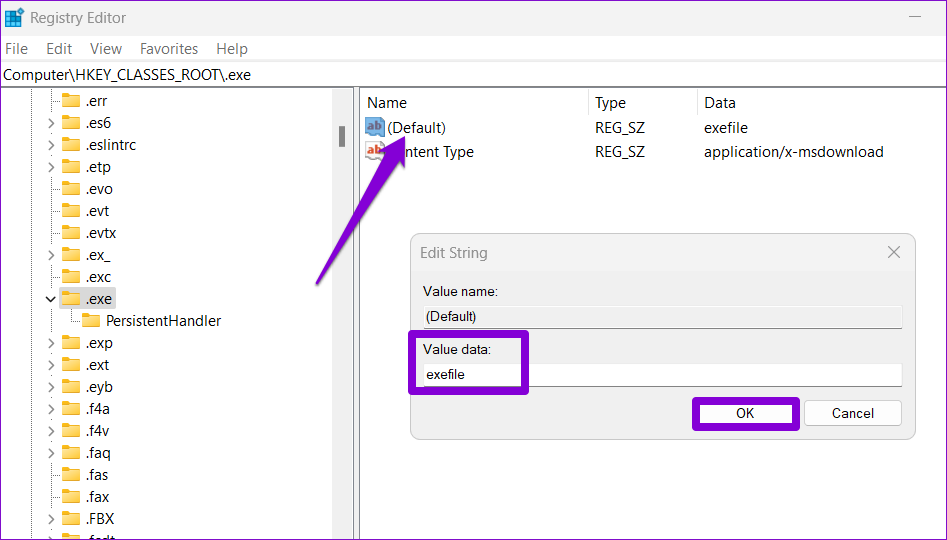
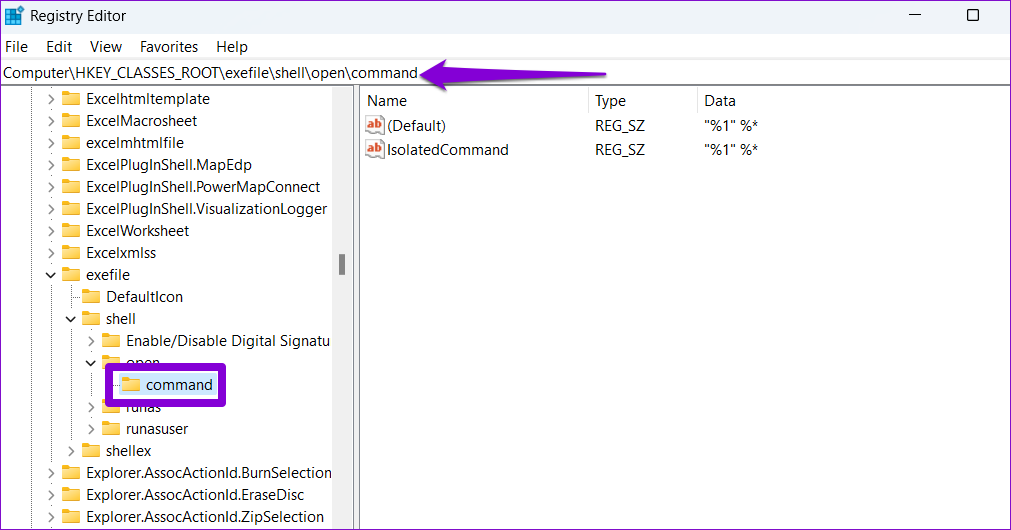
Step 4: Paste the following path in the address bar > press Enter to quickly access the command key.
Computer\HKEY_CLASSES_ROOT\exefile\shell\open\command
Step 5: Double-click the Default entry in the right pane > enter “%1” %* in the value data field > hit OK.
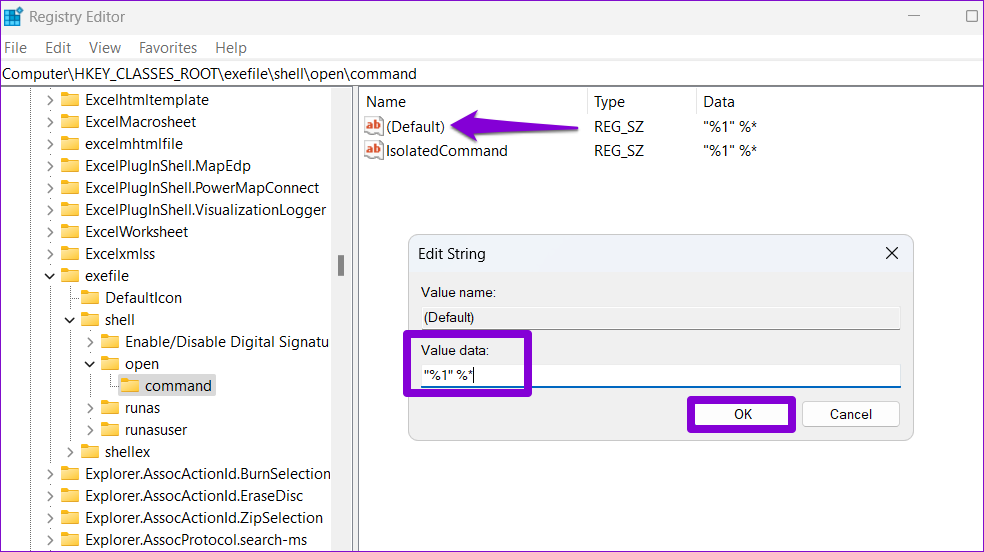
Restart your PC after completing the above steps and see if you can open EXE files.
Fix 3: Fix Broken EXE File Association
Another thing to do is fix the EXE file association on Windows using the Command Prompt. Here’s how to do it.
Step 1: Right-click on the Start icon > select Terminal (Admin) from the list.

Step 2: In the console, paste the following command and press Enter.
assoc .exe=exefile

Fix 4: Run the Program in Compatibility Mode
Windows 11 offers a compatibility mode feature that allows you to run programs in compatibility settings for older Windows versions. If Windows cannot run a specific EXE file, run it in compatibility mode and see if that helps.
Step 1: Right-click on the problematic EXE file > select Properties.

Step 2: Switch to the Compatibility tab and check the box for Run this program in compatibility mode for.

Step 3: Use the drop-down menu to select Windows 8 and hit Apply, followed by OK.

Fix 5: Check the Location of Program Files Folder in the Registry
The Program Files folder is typically located on your primary drive, where Windows is installed. However, if you have moved or made alterations to this folder, Windows may fail to open your installed programs. Here’s how to fix it.
Step 1: Click the magnifying icon on the taskbar > type registry editor in the search box > select Run as administrator.

Step 2: Type the following path in the address bar and press Enter.
HKEY_LOCAL_MACHINE\SOFTWARE\Microsoft\Windows\CurrentVersion
Step 3: Double-click the ProgramFilesDir string value in the right pane > enter C:\Program Files in the value data field > hit OK.

Step 4: Double-click the ProgramFilesDir (x86) entry > type C:\Program Files (x86) in the text field > hit OK.
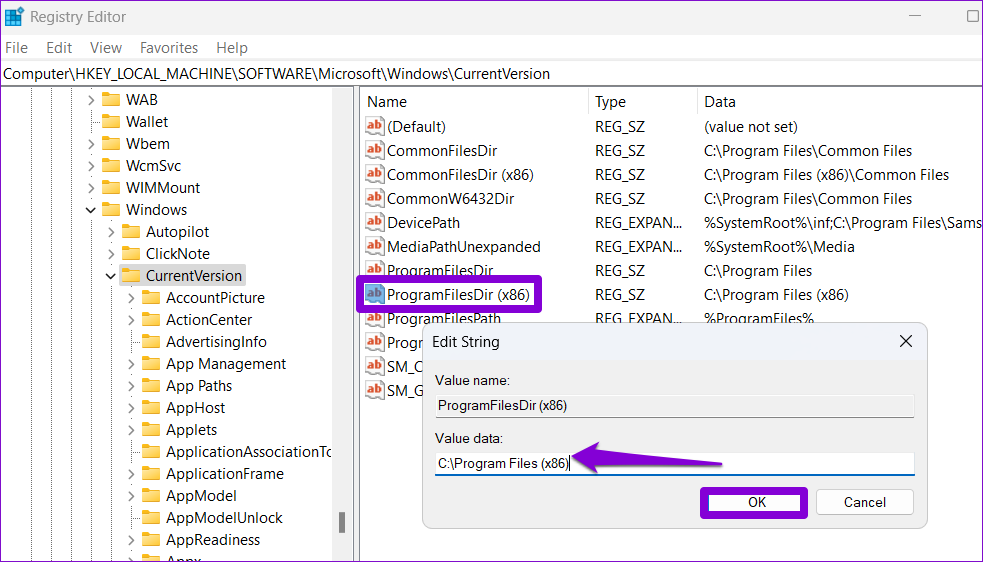
Restart your PC after making the above changes and check if the issue is still there.
Fix 6: Create a New User Account
If your EXE files still won’t open, some critical data associated with your user account may be corrupt. Your best option is to create and switch to a new user account. Here’s how to do it.
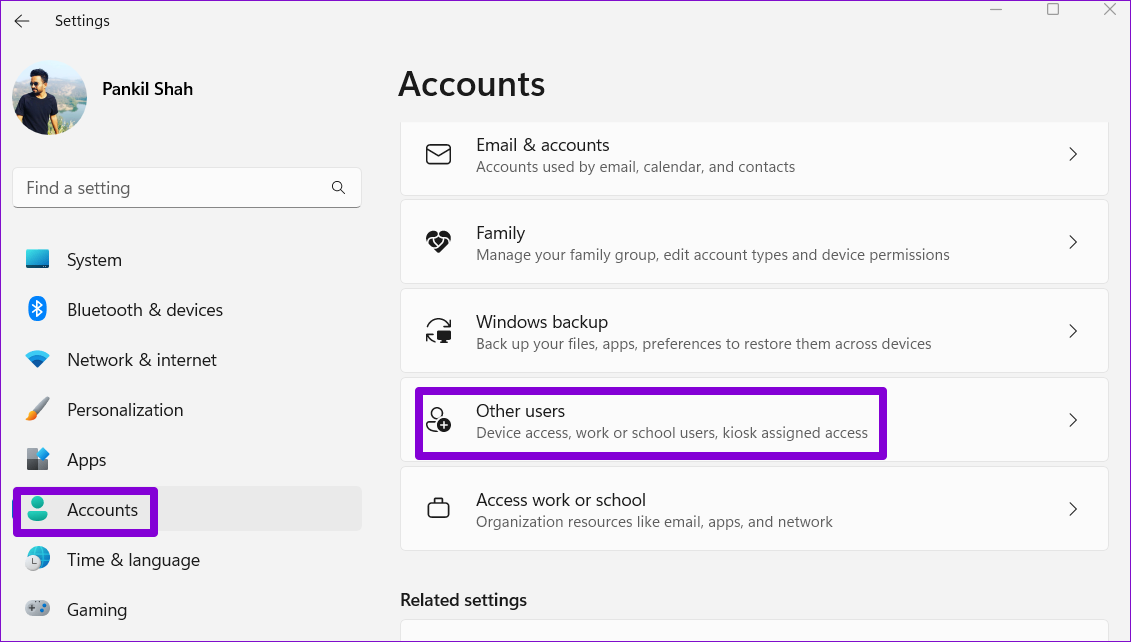
Step 1: Press the Windows + I keys to open the Settings app > navigate to Accounts > Other users.
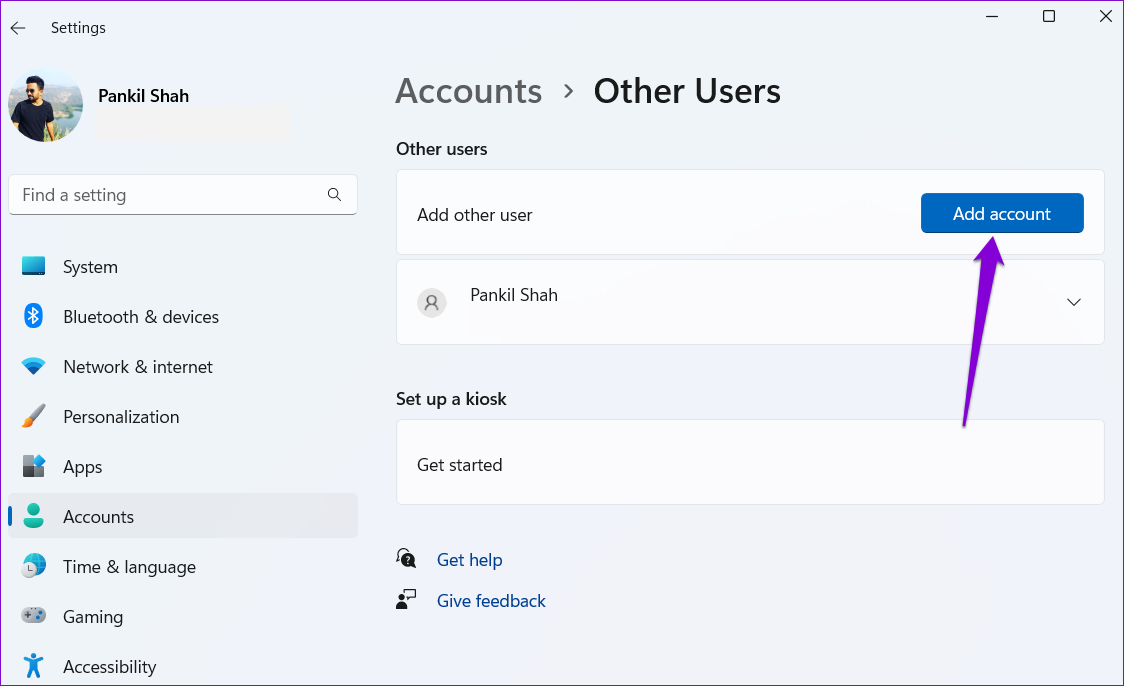
Step 2: Click the Add account button.
Step 3: In the Microsoft account window, click on I don’t have this person’s sign-in information and follow the on-screen prompts to create a new user account.

Switch to your newly created account and run your EXE files again.
Was this helpful?
Last updated on 31 July, 2024
1 Comment
Leave a Reply
Read Next
 5 Ways to Run Executables (EXE) Files From PowerShell
Method 1: Using .\ (Dot Slash) To run an executable file (EXE) located in your PowerShell working directory, use the .\ (dot slash) prefix.
5 Ways to Run Executables (EXE) Files From PowerShell
Method 1: Using .\ (Dot Slash) To run an executable file (EXE) located in your PowerShell working directory, use the .\ (dot slash) prefix.
 What to Do if You Are Unable to Upload Any Files on Discord
Basic Fixes Update the Discord app: If you are using an outdated app, Discord may not upload images or other files.
What to Do if You Are Unable to Upload Any Files on Discord
Basic Fixes Update the Discord app: If you are using an outdated app, Discord may not upload images or other files.
 Top 9 Ways to Fix Unable to Change Default Programs in Windows 10
The apps offered by Microsoft are great.
Top 9 Ways to Fix Unable to Change Default Programs in Windows 10
The apps offered by Microsoft are great.
 4 Ways to Fix Unable to Install Programs or Software on Windows 11
Try Basic Fixes Check program compatibility: Programs and games that worked perfectly on Windows 10 may not necessarily be compatible with Windows 11.
4 Ways to Fix Unable to Install Programs or Software on Windows 11
Try Basic Fixes Check program compatibility: Programs and games that worked perfectly on Windows 10 may not necessarily be compatible with Windows 11.
 6 Ways to Fix Unable to Remove Printer on Windows 11
Fix 1: Run the Printer Troubleshooter Start by running Windows' built-in printer troubleshooter to see if it can detect and resolve any pending printing errors.
6 Ways to Fix Unable to Remove Printer on Windows 11
Fix 1: Run the Printer Troubleshooter Start by running Windows' built-in printer troubleshooter to see if it can detect and resolve any pending printing errors.
 5 Ways to Fix Unable to Eject a USB Drive on Windows 11
Fix 1: Eject Drive Using the Settings App Windows provides several options for removing a USB drive.
5 Ways to Fix Unable to Eject a USB Drive on Windows 11
Fix 1: Eject Drive Using the Settings App Windows provides several options for removing a USB drive.
 5 Ways to Fix Unable to Print From Microsoft Excel on Windows 11
Fix 1: Save Your Excel File in XPS Format and Try Again If Excel can't respond to print requests, save your file in the XPS format and try again.
5 Ways to Fix Unable to Print From Microsoft Excel on Windows 11
Fix 1: Save Your Excel File in XPS Format and Try Again If Excel can't respond to print requests, save your file in the XPS format and try again.
 3 Ways to Fix Unable to Sign in to Microsoft OneNote on Windows
Fix 1: Remove OneNote Credentials From Credential Manager The Credential Manager in Windows stores login details for all your apps.
3 Ways to Fix Unable to Sign in to Microsoft OneNote on Windows
Fix 1: Remove OneNote Credentials From Credential Manager The Credential Manager in Windows stores login details for all your apps.
The article above may contain affiliate links which help support Guiding Tech. The content remains unbiased and authentic and will never affect our editorial integrity.


none of these worked lmao