Fix 1: Open Excel in Safe Mode
Opening Excel in safe mode can help you determine whether one of your add-ins is interfering with Excel and causing it to malfunction. Press the Windows key + R to open the Run dialog, type excel -safe in the box, and press Enter to open Excel in safe mode.
Try using Excel in safe mode and see if you get any errors. If you don’t, one of your add-ins is likely the culprit.
Since there’s no straightforward way to tell which of your add-ins may be causing the issue, disable and re-enable them one at a time. Here’s how to do it.
Step 1: Open Microsoft Excel on your computer > click the File menu at the top left.
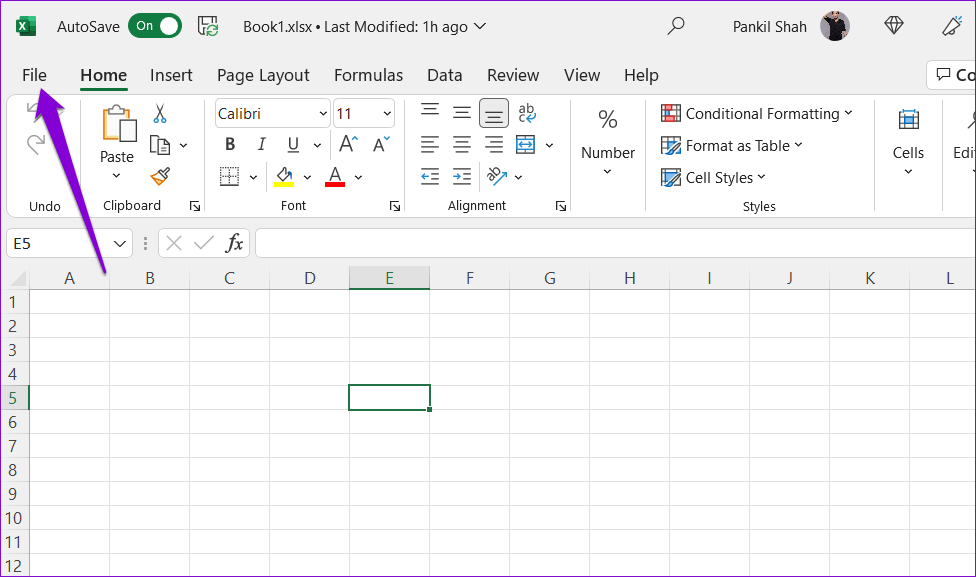
Step 2: Click Options at the bottom left.

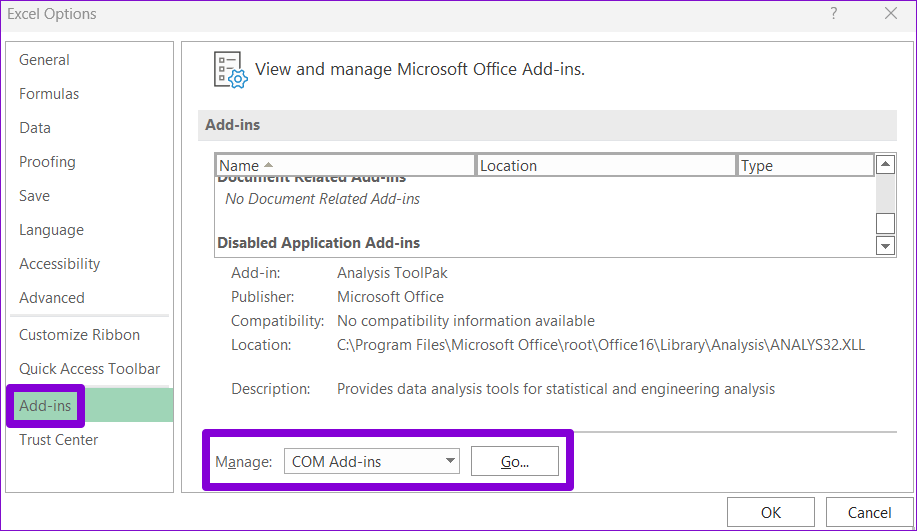
Step 3: In the Excel Options window, switch to the Add-ins tab. Then, select COM Add-ins in the Manage drop-down menu and click the Go button.
Step 4: Clear all the checkboxes and click OK.
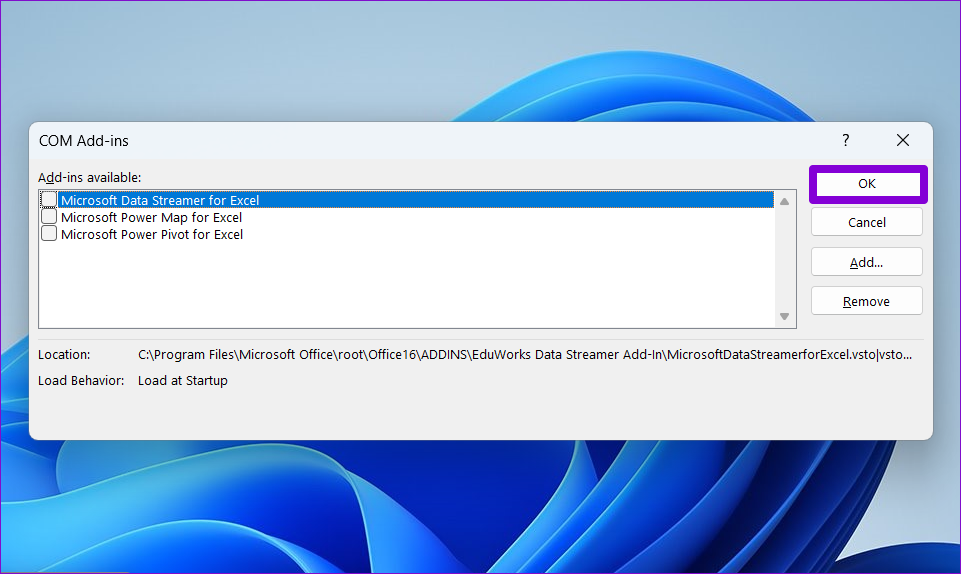
After this, restart Excel and enable your add-ins one by one until the error occurs again. Once you find the faulty add-in, consider removing it.
Fix 2: Repair the Problematic File
If you encounter the “Excel has run into an error” message only while working on a specific spreadsheet, the file may have become corrupted. Here’s how to repair it.
Step 1: In Microsoft Excel, click the File menu at the top left.
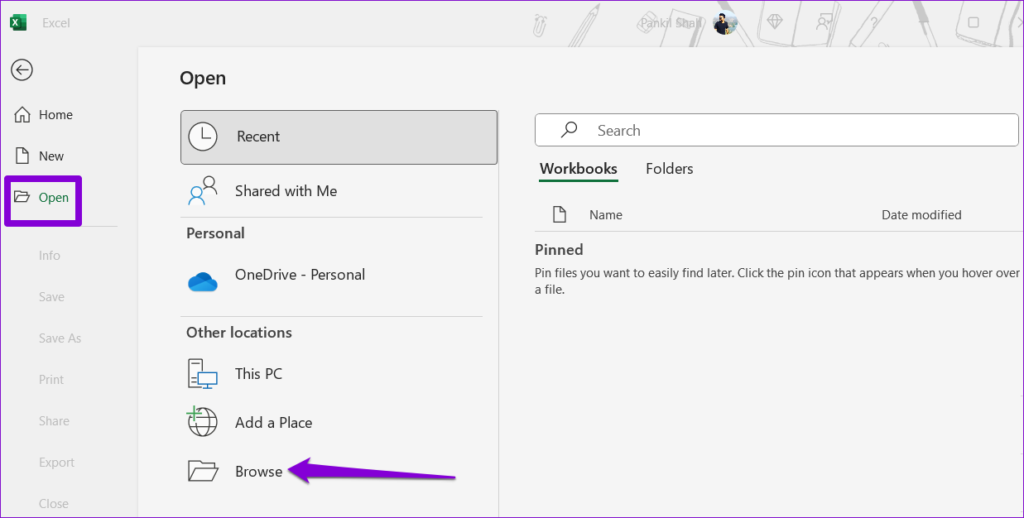
Step 2: Select Open from the sidebar and click the Browse option.
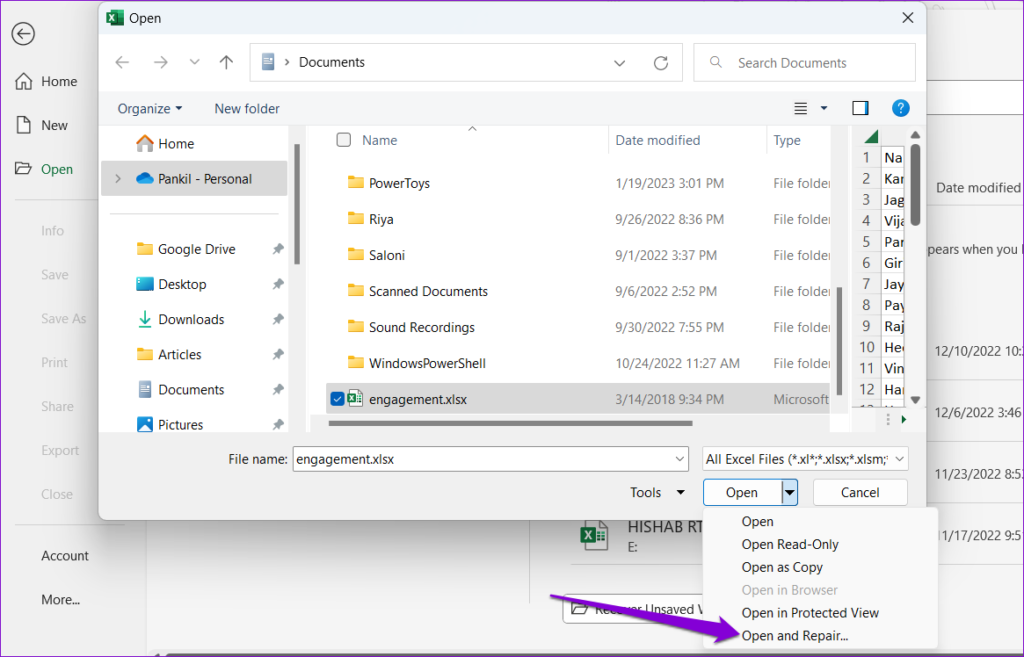
Step 3: Locate and select your Excel file. Click the downward arrow next to Open and select Open and Repair.
Fix 3: Edit Registry Files
Such errors in Excel can also arise if some of the registry files associated with the Office apps are corrupted. In that case, you must delete the problematic entries using the Registry Editor.
Step 1: Click the search icon on the taskbar, type registry editor, and select Run as administrator.

Step 2: In the Registry Editor window, paste the following path in the address bar at the top and press Enter.
HKEY_CURRENT_USER\Software\Microsoft\Office\16.0\Common
Step 3: Within the Common key, right-click on the Experiment key > select Delete.
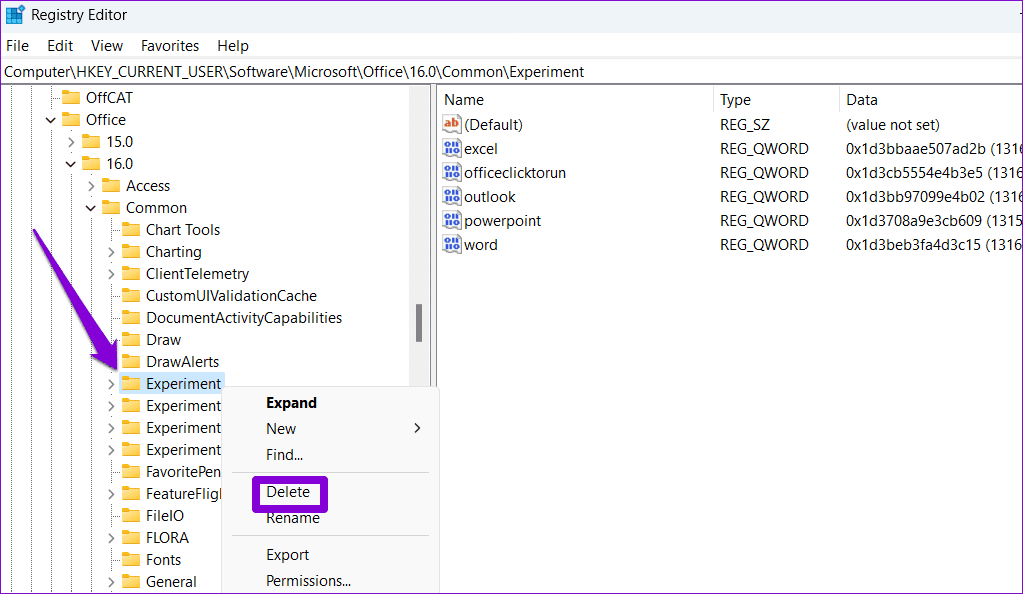
Step 4: Similarly, delete the ExperimentEcs and ExperimentTas keys.

Step 5: Paste the following path in the address bar and press Enter to quickly navigate to the Licensing key.
HKEY_CURRENT_USER\Software\Microsoft\Office\16.0\Common\Licensing\
Step 6: Within the Licensing key, right-click on the CurrentSkuldForApp key and select Delete. Select Yes to confirm.

Restart your PC after this and try using Excel again.
Fix 4: Run the Office Repair Tool
The Office repair tool on Windows can help resolve various issues with Excel. You can try running this tool to see if that fixes the “Excel has run into an error” problem on Windows.
Step 1: Press the Windows key + R to open the Run dialog box. Type appwiz.cpl in the box and press Enter.
Step 2: Locate and select the Microsoft Office suite. Then, click the Change button at the top.
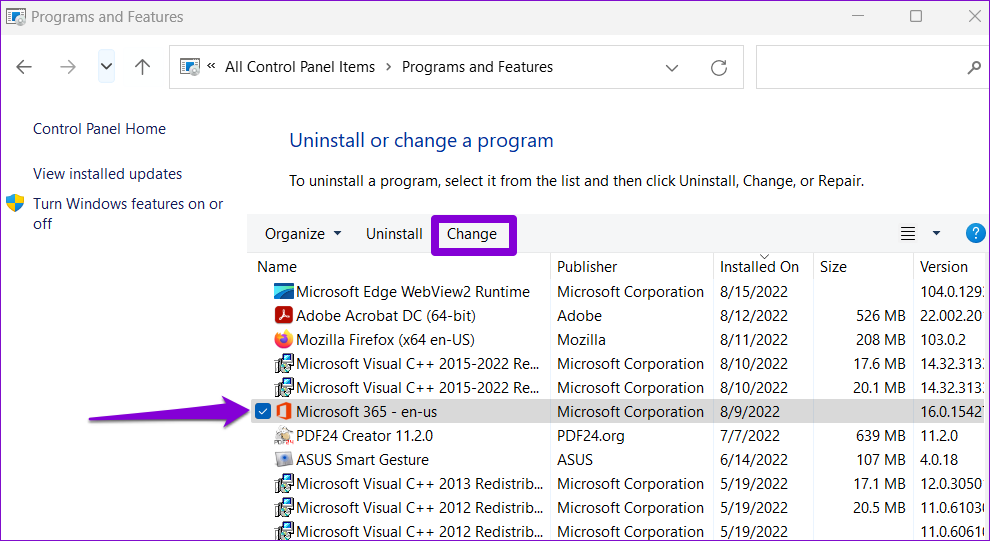
Step 3: Select Online Repair and click Repair.

Was this helpful?
Last updated on 16 August, 2024
Read Next
 Top 7 Fixes for We’ve Run Into an Issue Error in Microsoft Teams on Windows
Microsoft Teams is a popular business collaboration app among Windows users, and for good reason.
Top 7 Fixes for We’ve Run Into an Issue Error in Microsoft Teams on Windows
Microsoft Teams is a popular business collaboration app among Windows users, and for good reason.
 5 Fixes for “DLL Is Not Designed to Run on Windows” Error
Try Basic Fixes Update or reinstall the problematic software: Compatibility issues with your app or program can trigger the "DLL is not designed to run on Windows" error on your
5 Fixes for “DLL Is Not Designed to Run on Windows” Error
Try Basic Fixes Update or reinstall the problematic software: Compatibility issues with your app or program can trigger the "DLL is not designed to run on Windows" error on your
 4 Fixes for “Reference Isn’t Valid” Error in Microsoft Excel for Windows
Try Basic Fixes Close and reopen Excel: Microsoft Excel sometimes gets stuck with the "Reference isn’t valid" error due to temporary issues with one of its app processes.
4 Fixes for “Reference Isn’t Valid” Error in Microsoft Excel for Windows
Try Basic Fixes Close and reopen Excel: Microsoft Excel sometimes gets stuck with the "Reference isn’t valid" error due to temporary issues with one of its app processes.
 5 Fixes for Excel Ran Out of Resources Error on Windows
Fix 1: Use the Error Checking Tool A common reason why you may encounter the "Excel ran out of resources while attempting to calculate" error is if your spreadsheet contains
5 Fixes for Excel Ran Out of Resources Error on Windows
Fix 1: Use the Error Checking Tool A common reason why you may encounter the "Excel ran out of resources while attempting to calculate" error is if your spreadsheet contains
 4 Fixes for “Excel Couldn’t Start Last Time” Error on Windows
Fix 1: Open Excel in Safe Mode Opening Microsoft Excel in safe mode can help you troubleshoot all kinds of errors and issues.
4 Fixes for “Excel Couldn’t Start Last Time” Error on Windows
Fix 1: Open Excel in Safe Mode Opening Microsoft Excel in safe mode can help you troubleshoot all kinds of errors and issues.
 5 Fixes for Microsoft Has Blocked Macros Error in Excel for Windows
Fix 1: Unblock the File Microsoft Excel may block macros for a spreadsheet if you have obtained it from another computer or the internet.
5 Fixes for Microsoft Has Blocked Macros Error in Excel for Windows
Fix 1: Unblock the File Microsoft Excel may block macros for a spreadsheet if you have obtained it from another computer or the internet.
 4 Fixes for “We Found a Problem With Some Content” Error in Microsoft Excel
Fix 1: Repair the Excel File Office apps, such as Excel, have a built-in repair feature to fix common problems with your files.
4 Fixes for “We Found a Problem With Some Content” Error in Microsoft Excel
Fix 1: Repair the Excel File Office apps, such as Excel, have a built-in repair feature to fix common problems with your files.
 4 Ways to Fix “This App Can’t Run on Your PC” Error in Windows 11
https://youtu.be/7WuW8HnSp9Q Try Basic Fixes Launch the app as an administrator: If an app lacks the necessary permissions to work on your computer, it could fail to launch and trigger the
4 Ways to Fix “This App Can’t Run on Your PC” Error in Windows 11
https://youtu.be/7WuW8HnSp9Q Try Basic Fixes Launch the app as an administrator: If an app lacks the necessary permissions to work on your computer, it could fail to launch and trigger the
The article above may contain affiliate links which help support Guiding Tech. The content remains unbiased and authentic and will never affect our editorial integrity.