Try Basic Fixes
- Try joining other servers: If you are getting the “Whoops, unable to accept invite” error when trying to join a particular server, you may have been previously banned by the server owner or admin. To check for this possibility, try to join other servers using their respective invite links or codes and see if the issue persists. If you are banned from a Discord server, there’s not much you can do on your end to resolve the issue.
- Check Discord server status: Server congestion or other related issues can impact Discord’s performance and lead to server invites not working. Discord maintains a server status page that can help you determine whether the problem originates from the server side.
- Use a VPN connection: Discord implements rate limits to protect its servers from excessive requests. If you’ve joined too many servers within a short period, Discord might restrict your ability to join new servers. Several users on a Reddit post reported fixing the “Unable to accept invite” error on Discord with a VPN connection. You can also give this a try.
Fix 1: Ensure Discord Invite Link Isn’t Expired or Revoked
Discord allows users to create server invites with expiration times or a limited number of uses. If a Discord invite is not working, it’s likely that it has expired or the server owner revoked the link.

If you are certain that the Discord invite is valid, ensure that you’ve typed the invite URL or code correctly, as they are case-sensitive. Otherwise, Discord may display the “Invite Invalid” message when you enter the link or code. If the issue persists, you can request the Discord server admin or owner to resend the invite link or code.
Fix 2: Check if You’ve Hit the 100 Server Limit
As a Discord user, you can only join 100 servers at a time, but you can increase that limit to 200 servers with a Discord Nitro subscription. However, once you reach the limit, you won’t be able to join new servers. This can result in the “Unable to accept invite” error on Discord, which can only be fixed by leaving one of the servers you’ve joined.
To leave a Discord server on your desktop, simply right-click on its icon on your left and select Leave Server.

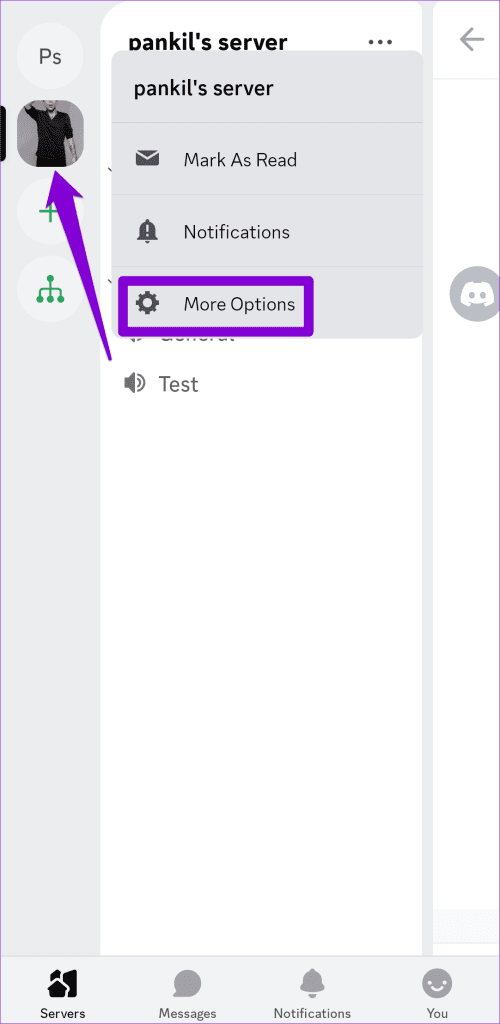
If you’re using Discord on your Android or iPhone, long-press on the server you want to leave and select More Options. Then, scroll down and select the Leave Server option.

Fix 3: Clear Discord Cache
If you still can’t join servers using the invite links, it’s possible that the cache data associated with the Discord app has become corrupted. Try purging the existing Discord app cache to see if that fixes the “Unable to accept invite” error on Discord.
To clear the Discord cache on your Android or iPhone, follow these steps:
Step 1: Open the Discord app on your phone.
Step 2: Tap the profile icon in the bottom right corner. Scroll down to the Dev Only section and tap the Clear Caches option.

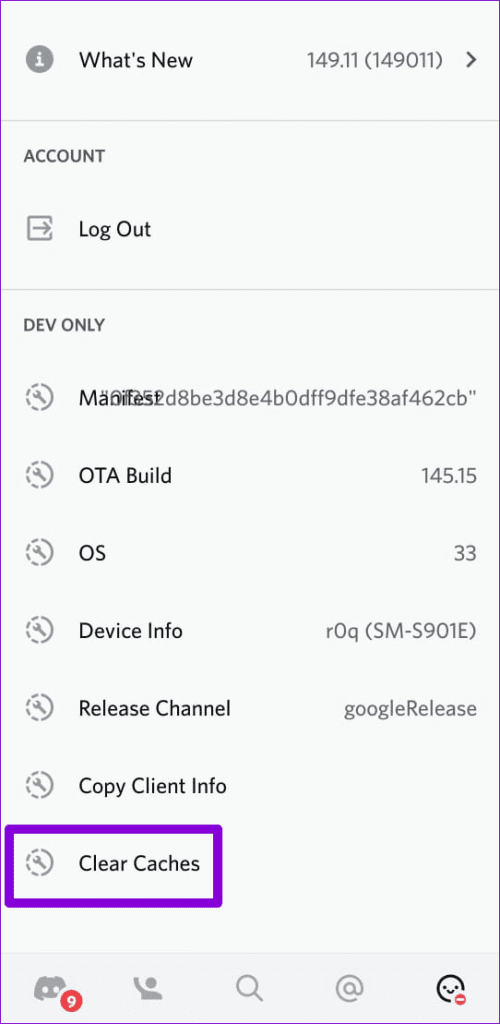
Similarly, you can clear the Discord cache on your Windows or Mac as well. After that, server invites should work as expected.
Was this helpful?
Last updated on 27 August, 2024
Read Next
 How to Fix “Invite Collaborator” Not Showing on Instagram
Basic Fixes Avoid scheduling your post: Instagram can prevent users from scheduling their content if they have added someone as a collaborator.
How to Fix “Invite Collaborator” Not Showing on Instagram
Basic Fixes Avoid scheduling your post: Instagram can prevent users from scheduling their content if they have added someone as a collaborator.
 How to Add Skype Meeting to Outlook Meeting Invite (and Cool Tricks)
There's no denying the fact that Microsoft Outlook and Outlook Web are solid email managers.
How to Add Skype Meeting to Outlook Meeting Invite (and Cool Tricks)
There's no denying the fact that Microsoft Outlook and Outlook Web are solid email managers.
 How to Remove Microsoft Teams Meeting From Outlook Invite
Turn off Team Meetings in Outlook Calendar Outlook Calendar is seamlessly integrated into Outlook.
How to Remove Microsoft Teams Meeting From Outlook Invite
Turn off Team Meetings in Outlook Calendar Outlook Calendar is seamlessly integrated into Outlook.
 How to Add and Invite Someone to WhatsApp Group
Note: The steps are the same for Android and iOS, with some minor level changes in the button or option placement.
How to Add and Invite Someone to WhatsApp Group
Note: The steps are the same for Android and iOS, with some minor level changes in the button or option placement.
 How to Send or Accept a Calendar Invite on iPhone
How to Send a Calendar Invite on iPhone Before you can send or accept invites on your iPhone, you must set up your Calendar.
How to Send or Accept a Calendar Invite on iPhone
How to Send a Calendar Invite on iPhone Before you can send or accept invites on your iPhone, you must set up your Calendar.
 How to Play Discord Games Using Discord Activities
What Are Discord Games?
How to Play Discord Games Using Discord Activities
What Are Discord Games?
 4 Ways to Fix Screen Share Not Working on Discord
Try Basic Fixes Switch to windowed mode: It's important to know that Discord only supports screen sharing for apps and games that are windowed.
4 Ways to Fix Screen Share Not Working on Discord
Try Basic Fixes Switch to windowed mode: It's important to know that Discord only supports screen sharing for apps and games that are windowed.
 5 Ways to Fix Discord Mic Not Working on Android and iPhone
https://youtu.be/24cdhNs1yIU Try Basic Fixes Disconnect any Bluetooth devices: Make sure your phone isn't connected to any Bluetooth devices.
5 Ways to Fix Discord Mic Not Working on Android and iPhone
https://youtu.be/24cdhNs1yIU Try Basic Fixes Disconnect any Bluetooth devices: Make sure your phone isn't connected to any Bluetooth devices.
The article above may contain affiliate links which help support Guiding Tech. The content remains unbiased and authentic and will never affect our editorial integrity.