Basic Fixes
- Disable Chrome extensions: Select the vertical three-dot menu at the top right of Google Chrome, and click Extensions > Manage Extensions. Toggle off installed extensions to disable them. Alternatively, you can remove Chrome extensions.
- Update or reinstall Google Chrome: Download the latest Google Chrome installer from its official website to update or reinstall the Chrome browser.
Fix 1: Enable Cookies in Google Chrome
When you visit a website, its cookies are stored in your browser to keep you signed in for your next visit. If you’ve disabled it, Google Chrome will log you out when you close the browser. Here’s how to enable it:
Step 1: Click the vertical three-dot menu at the top right of Google Chrome and select Settings.

Step 2: Select Privacy and security from the left sidebar and click Third-party cookies.

Step 3: Turn on Allow third-party cookies to enable it.

Fix 2: Clear Cache Manually
Excessive cache accumulation in Google Chrome often leads to its malfunction. Clear it manually to resolve the Chrome keeps logging out issue.
Step 1: Open Google Chrome Settings from the three-dot menu, select Privacy and security from the sidebar, and click Delete browsing data.

Step 2: Mark Cached images and files and click Delete data to clear the cache manually.

Fix 3: Turn on ‘Allow Chrome Sign-In’
If you log into Google services such as Gmail, YouTube, etc. but Chrome doesn’t keep you signed in for the sync services, it might appear that Chrome signed you out of your Google account. Enable the Chrome Sign-in feature to resolve it.
Step 1: Select You and Google from the sidebar under Google Chrome Settings and click Sync and Google services.

Step 2: Enable Allow Chrome sign-in to turn it on.

Fix 4: Disable Deleting Site Data on Exit
If Chrome automatically logs you out and deletes website data when you close the browser, incorrect site settings are the issue. Adjust them in Google Chrome settings to allow saving site data on your device.
Step 1: Open Google Chrome Settings, select Privacy and security from the sidebar, and click Site settings.

Step 2: Select Additional content settings.

Step 3: Click On-device site data.

Step 4: Enable Allow sites to save data on your device.

Fix 5: Re-Link Your Google Account
Besides cache and cookies, account misconfiguration can lead to Chrome logging you out of your Google account. Sign out and re-authenticate your account to restore normalcy.
Step 1: Select You and Google under Chrome Settings and click Sign out to unlink your Google account.

Step 2: Reopen the browser, click Sign in, and type your Google account credentials to sign back in.
Fix 6: Reset Chrome Settings
If nothing works, reset Chrome settings to default, fixing log-out issues caused by changed settings or browser extensions.
Step 1: Open Google Chrome Settings using the vertical three-dot menu, select Reset settings from the left sidebar, and click Restore settings to their original defaults.

Step 2: Click Reset settings to confirm your action.

Was this helpful?
Last updated on 15 July, 2024
Read Next
 4 Ways to Fix Facebook Keeps Logging You Out
Fix 1: Clear Cache and Cookies Cache and cookies data stored by your browser can sometimes cause problems, such as Facebook logging you out randomly.
4 Ways to Fix Facebook Keeps Logging You Out
Fix 1: Clear Cache and Cookies Cache and cookies data stored by your browser can sometimes cause problems, such as Facebook logging you out randomly.
 2 Ways to Fix Discord Keeps Logging Me Out
Basic Fixes: Log out of unknown devices: You should log out from unknown devices and try again.
2 Ways to Fix Discord Keeps Logging Me Out
Basic Fixes: Log out of unknown devices: You should log out from unknown devices and try again.
 5 Things to Try If X (Twitter) Keeps Logging You Out
Try These Things First Disable VPN: If you're using a VPN connection, X may log you out due to unusual or suspicious account activity.
5 Things to Try If X (Twitter) Keeps Logging You Out
Try These Things First Disable VPN: If you're using a VPN connection, X may log you out due to unusual or suspicious account activity.
 3 Fixes for Telegram Keeps Logging Me Out on Mobile and Desktop
Basic Fixes Force quit and relaunch the Telegram app: This will give the app a fresh start on your device.
3 Fixes for Telegram Keeps Logging Me Out on Mobile and Desktop
Basic Fixes Force quit and relaunch the Telegram app: This will give the app a fresh start on your device.
 How to Fix WhatsApp Desktop Keeps Logging Me Out on Windows
Try Basic Fixes Rule out issues with your internet: A slow or patchy internet connection is commonly why WhatsApp Desktop may encounter sync issues and log you out.
How to Fix WhatsApp Desktop Keeps Logging Me Out on Windows
Try Basic Fixes Rule out issues with your internet: A slow or patchy internet connection is commonly why WhatsApp Desktop may encounter sync issues and log you out.
 Why Does Netflix Keep Logging Me Out and 3 Ways to Fix It
Why Netflix Logged You Out Automatically There are a few reasons why Netflix asks for sign-in every time you open the service.
Why Does Netflix Keep Logging Me Out and 3 Ways to Fix It
Why Netflix Logged You Out Automatically There are a few reasons why Netflix asks for sign-in every time you open the service.
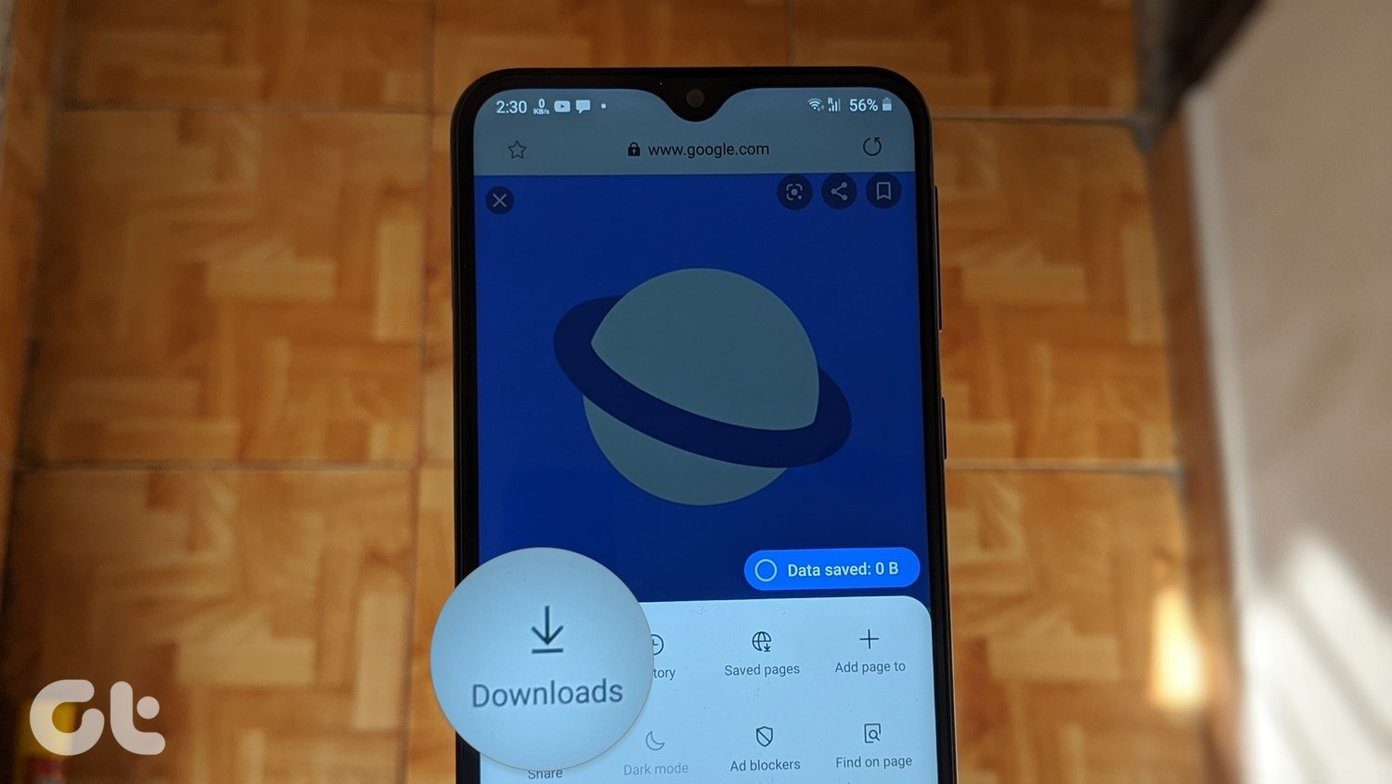 Top 7 Ways to Fix Samsung One UI Home Keeps Stopping Issue
What can be more annoying than the random errors popping up on your Android phone?
Top 7 Ways to Fix Samsung One UI Home Keeps Stopping Issue
What can be more annoying than the random errors popping up on your Android phone?
 5 Ways to Fix Spotify Keeps Crashing Issue on Windows
Basic Fixes Restart Spotify: Open the Task Manager, right-click on Spotify, and select End Task.
5 Ways to Fix Spotify Keeps Crashing Issue on Windows
Basic Fixes Restart Spotify: Open the Task Manager, right-click on Spotify, and select End Task.
The article above may contain affiliate links which help support Guiding Tech. The content remains unbiased and authentic and will never affect our editorial integrity.