Why Do Captions Disappear on Instagram
No, you might not have forgotten to add captions to Instagram, instead it was removed by the social media platform itself. But why though? It might be because of any of the following reasons:
- Using banned or broken hashtags: Hashtags help your Instagram post reach a wider audience, as well as help categorize it accordingly. However, there might be some hashtags that might be broken or blocked by Instagram for violating guidelines. Ensure you don’t have any such hashtags in the caption.
- Exceeded Maximum Characters or Hashtags: Instagram allows up to 2400 characters and 30 hashtags per post. If you exceed that, the caption will disappear when you upload the post.
- Exceeded Mention Limits: You can add up to 20 @mentions on a post. Above that will be considered spamming by Instagram and might remove your caption.
- Guideline violations: Instagram is pretty strict when it comes to maintaining its guidelines and if you violate any of them in your captions you will be removed from Instagram.
Basic Fixes
- Force quit and relaunch Instagram – When you Force Quit an app, it will clear all the temporary files and make space for new ones. Thus, preventing issues like Instagram captions not working.
- Check Instagram Server – If Instagram’s server is down, it can lead to Instagram caption disappearing or any other issues for that matter. Go to Downdetector and check. If others are also complaining about the issue, wait for Instagram to fix it.
- Clear Cache on Android
- Update or reinstall Instagram – If the caption disappearing issue is a widespread error, Instagram will certainly release an update to fix the bug. Therefore, it is best to stay on the latest update.
Fix 1. Skip Caption, Add It Later
If you can’t add a caption at the moment, wait. Post the content without captions as of now and then add later. Remember, this time recheck your caption and follow the guidelines mentioned above.
Step 1: Open Instagram and open the post to which you want to add a caption. Tap the three dots above your post.
Step 2: Tap Edit.
Step 3: Add the caption and tap the ✔️ icon.
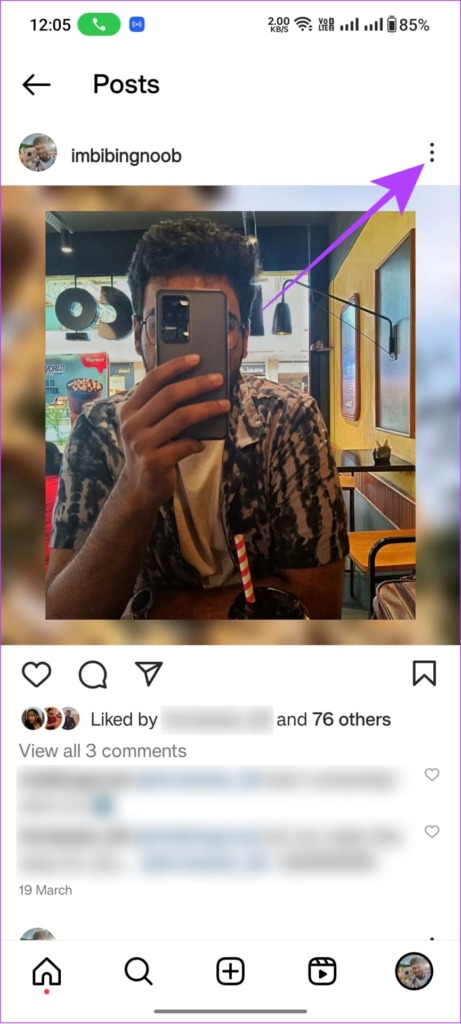


Note: If you are using Instagram on iPhone or web, the last option will be Done or Save for Instagram Lite.
Fix 2. Log Out and Log Back In
When you log out of your Instagram account, it will clear some temporary files related to your account, including the ones causing the error message ‘no captions found’. Hence, when you log back in, Instagram will initiate a new session, resulting in an error-free feed (hopefully).
Step 1: Go to Instagram → tap your profile icon at the bottom. Tap the hamburger menu.
Step 2: Scroll down and tap Log out. Tap Log out again to confirm.


Note: If you logged in with multiple accounts, it will be ‘Log out [username] accounts’.
Now, simply log back in after entering your credentials and check if the caption is showing up on Instagram. If not, move on to the next fix.
Fix 3. Use Meta Business Suite to Share the Posts
Technically, this one’s not a solution; it’s an alternative till the problem isn’t fixed. The benefit of using Meta Creator Studio is that you can schedule the post. However, you’ll need to have either a creator or business account to use the feature.
Step 1: Launch Meta Creator Studio on the browser of your choice. Navigate to the Instagram tab at the top and log in.
Step 2: Next, click ‘Create a post’. Then, select Instagram Feed.

Step 3: Upload the image or video you want to post to Instagram. Add the captions. Then, click the Publish button or the arrow next to it (if want to schedule the post).
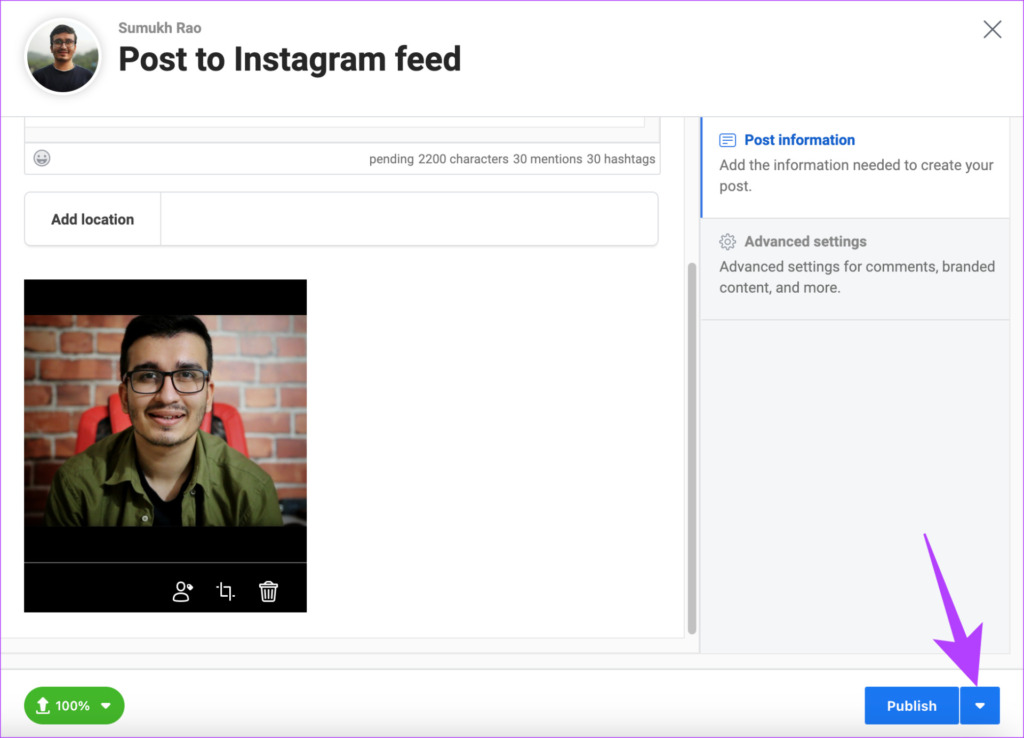
Tip: If you can’t crosspost on Facebook from Instagram or vice-versa, using this method could resolve it.
If the issue persists, you can report it to the Instagram team and wait for them to fix it for you or push an update if it’s a widespread bug. You can check our guide to know how to contact Instagram to report an issue.
Was this helpful?
Last updated on 24 July, 2024
Read Next
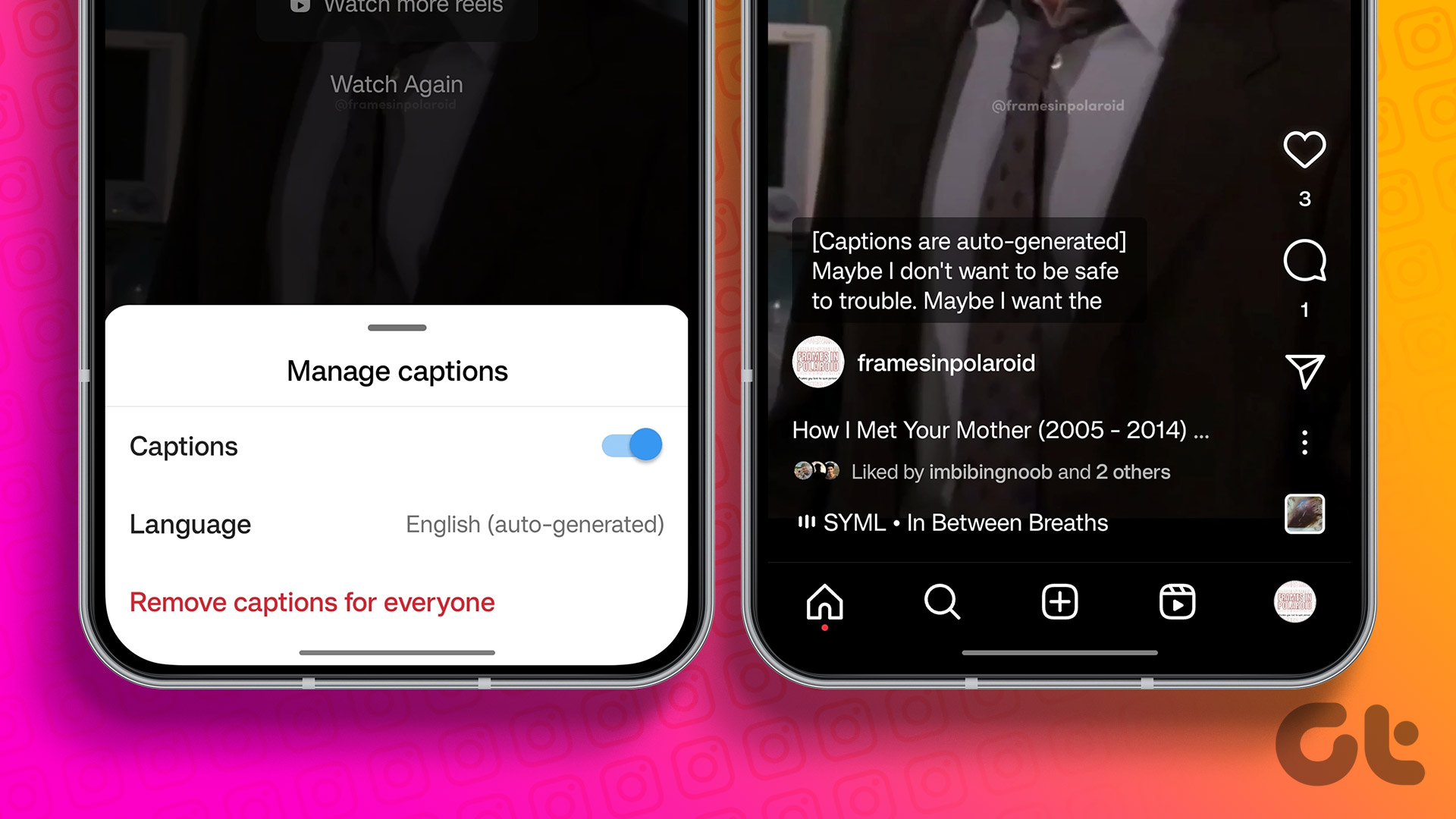 How to Add Captions (Subtitles) to Instagram Reels and Stories
Enable Auto-Generated Captions to any Reels This is similar to YouTube subtitles.
How to Add Captions (Subtitles) to Instagram Reels and Stories
Enable Auto-Generated Captions to any Reels This is similar to YouTube subtitles.
 How to Change Color of Captions on YouTube on Phone and PC
Change YouTube Caption Color on Desktop When watching YouTube videos, you may have noticed that captions usually appear in white with a black outline.
How to Change Color of Captions on YouTube on Phone and PC
Change YouTube Caption Color on Desktop When watching YouTube videos, you may have noticed that captions usually appear in white with a black outline.
 4 Ways to Add Captions to Images in Google Docs
Method 1: Use the Drawing Panel Using the Drawing panel is probably the most effective way of captioning images in Google Docs.
4 Ways to Add Captions to Images in Google Docs
Method 1: Use the Drawing Panel Using the Drawing panel is probably the most effective way of captioning images in Google Docs.
 5 Fixes for Closed Captions Not Working on YouTube
Fix 1: Check Captions Font and Style Settings YouTube provides several options for customizing caption colors, styles, sizes, and more.
5 Fixes for Closed Captions Not Working on YouTube
Fix 1: Check Captions Font and Style Settings YouTube provides several options for customizing caption colors, styles, sizes, and more.
 How to Fix Instagram Highlights Not Loading or Showing
Why Can't I See Highlights on Instagram Internet connection issues - Slow or unstable internet or network connectivity issues can stop Instagram Highlights from loading or showing.
How to Fix Instagram Highlights Not Loading or Showing
Why Can't I See Highlights on Instagram Internet connection issues - Slow or unstable internet or network connectivity issues can stop Instagram Highlights from loading or showing.
 3 Ways to Fix Instagram Comments Not Showing on Android and iPhone
Try Basic Fixes Check Instagram’s server status: Server-side glitches could prevent Instagram from loading properly or display strange errors.
3 Ways to Fix Instagram Comments Not Showing on Android and iPhone
Try Basic Fixes Check Instagram’s server status: Server-side glitches could prevent Instagram from loading properly or display strange errors.
 How to Fix Typing Indicator Not Showing on Instagram
Basic Fixes Force quit and relaunch Instagram: You can force quit and relaunch the app to give it a fresh start, especially if it has been running in the background
How to Fix Typing Indicator Not Showing on Instagram
Basic Fixes Force quit and relaunch Instagram: You can force quit and relaunch the app to give it a fresh start, especially if it has been running in the background
 8 Ways to Fix Add Music to Instagram Post Not Showing
Adding music enhances the vibe of an Instagram post.
8 Ways to Fix Add Music to Instagram Post Not Showing
Adding music enhances the vibe of an Instagram post.
The article above may contain affiliate links which help support Guiding Tech. The content remains unbiased and authentic and will never affect our editorial integrity.