

Try Basic Fixes
- Authenticate login via phone call: Occasionally, Telegram may be unable to deliver an authentication code to your phone for various reasons. In that case, you can ask Telegram to authenticate your login request via phone call. Tap the “Didn’t get the code” option to initiate authentication via phone call.
- Check Telegram server status: There’s a chance that Telegram servers in your region are experiencing problems. To check for this possibility, visit a website like Downdetector and verify Telegram’s server status. If the servers are down, you must wait for Telegram to fix the issue.
- Temporarily disable VPN connection: Although using a VPN connection can enhance your privacy, it can sometimes cause Telegram to flag your login attempts as suspicious. When this happens, Telegram may block login attempts to protect your account. To avoid this, you can temporarily disable your VPN connection and try again.
- Update the app: In addition to new features, app updates typically bring bug fixes and performance improvements that can help you avoid such issues. Head to the Play Store (Android) or App Store (iPhone) to update the Telegram app.
Fix 1: Reset Your Password
When you enable two-factor authentication (2FA) on Telegram, you need to enter your password along with the authentication code to access your account. If the password you enter is misspelled or incorrect, you will run into login errors.
Before you lock your account for entering the wrong password too many times, Telegram lets you reset the account password. Here’s how to do it.
Step 1: Open the Telegram app, enter your phone number on the login screen, and tap the arrow to proceed.
Step 2: Tap the Forgot password option at the bottom and select Continue.


Step 3: Enter the 6-digit code you receive in your recovery email address to continue. Then, type in your new password twice and tap the arrow in the bottom right corner.


Fix 2: Check Date and Time Settings
Incorrect date or time settings on your phone could lead to login issues in apps like Telegram. To avoid such problems, you should configure your Android or iPhone to use the network-provided date and time.
Android
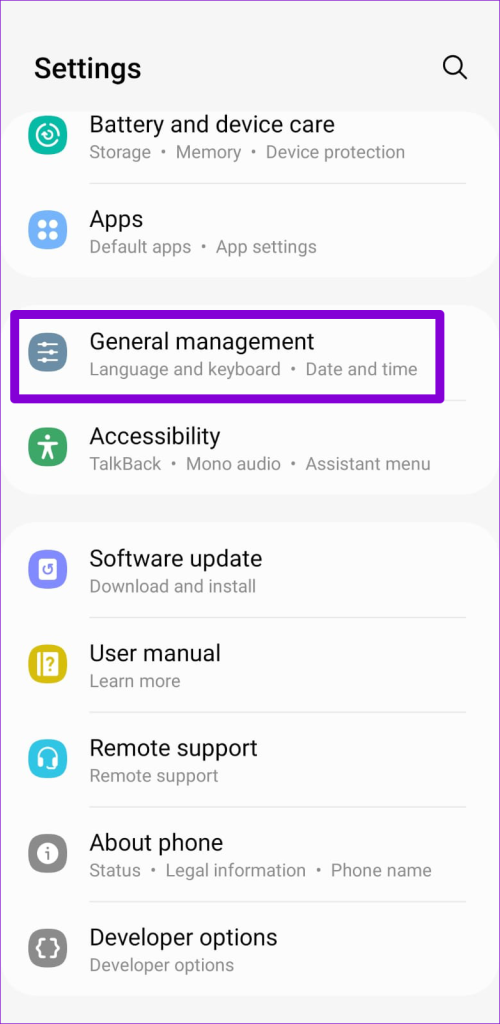
Step 1: Open the Settings app on your phone and tap General management.
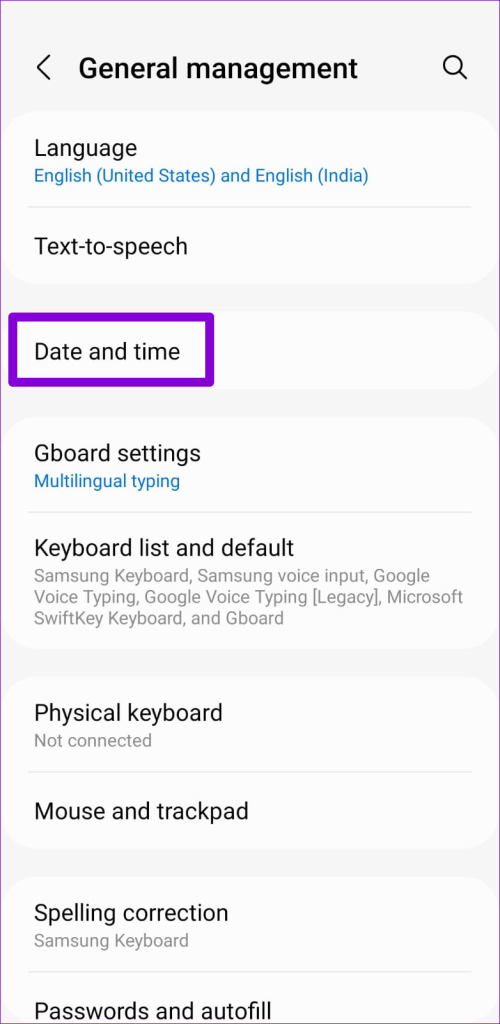
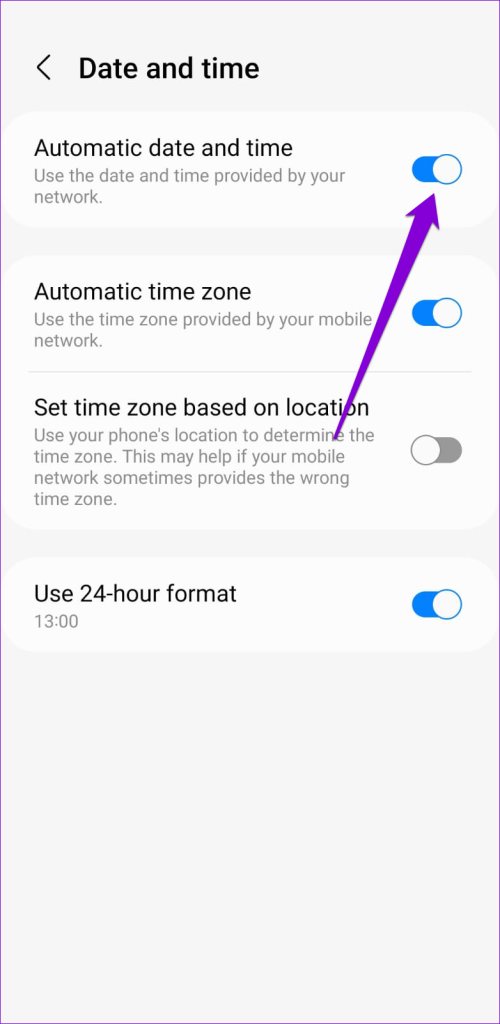
Step 2: Tap on Date and time and enable the toggle next to Automatic date and time.
iPhone
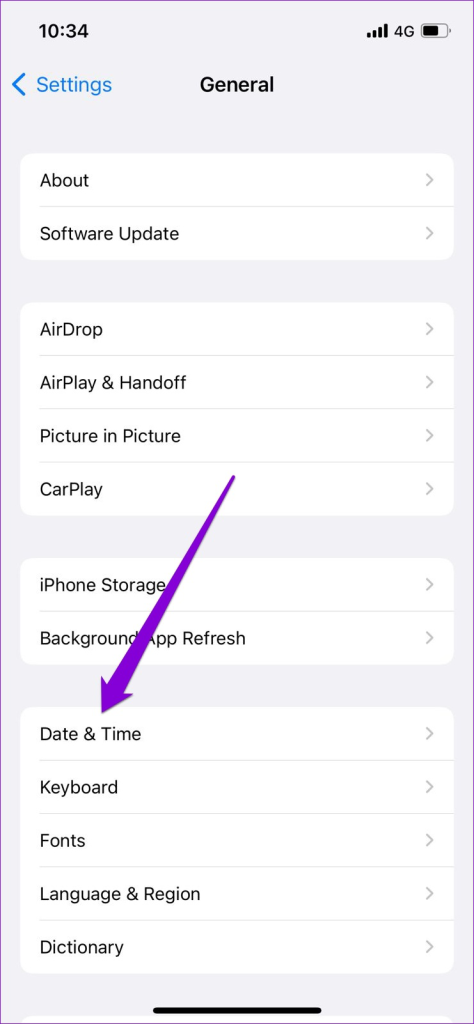
Step 1: Launch the Settings app on your iPhone and tap General.
Step 2: Tap on Date & Time and toggle on the switch next to Set Automatically.


Was this helpful?
Last updated on 30 August, 2024
10 Comments
Leave a Reply
Read Next
 How to Log Out Devices From Telegram Account
Log Out Device From Telegram on Mobile Telegram is available for a wide variety of device platforms.
How to Log Out Devices From Telegram Account
Log Out Device From Telegram on Mobile Telegram is available for a wide variety of device platforms.
 2 Ways to Fix Facebook Messenger Won’t Let Me Log In on Android and iPhone
Try Basic Fixes Update the Messenger app: The Messenger app may not let you sign in if you’re using an outdated version of the app.
2 Ways to Fix Facebook Messenger Won’t Let Me Log In on Android and iPhone
Try Basic Fixes Update the Messenger app: The Messenger app may not let you sign in if you’re using an outdated version of the app.
 3 Ways to Fix Unable to Log In to Instagram on Android and iPhone
Try Basic Fixes Temporarily disable VPN connection: Instagram might flag your login attempts as suspicious if it detects unusual network activity.
3 Ways to Fix Unable to Log In to Instagram on Android and iPhone
Try Basic Fixes Temporarily disable VPN connection: Instagram might flag your login attempts as suspicious if it detects unusual network activity.
 3 Ways to Fix YouTube Won’t Let Me Log In on Android and iPhone
Try Basic Fixes Temporarily disable VPN connection: A Virtual Private Network (VPN) connection may cause issues with the YouTube app's sign-in process, especially if you switch servers frequently.
3 Ways to Fix YouTube Won’t Let Me Log In on Android and iPhone
Try Basic Fixes Temporarily disable VPN connection: A Virtual Private Network (VPN) connection may cause issues with the YouTube app's sign-in process, especially if you switch servers frequently.
 3 Ways to Fix Unable to Log In to Spotify on Android and iPhone
Try Basic Fixes Update the app: The Spotify app on your phone may be outdated or buggy.
3 Ways to Fix Unable to Log In to Spotify on Android and iPhone
Try Basic Fixes Update the app: The Spotify app on your phone may be outdated or buggy.
 3 Ways to Fix Unable to Log in to Snapchat on Android and iPhone
Try Basic Fixes Check Snapchat's server status: It’s not uncommon for popular social media services like Snapchat to experience server outages.
3 Ways to Fix Unable to Log in to Snapchat on Android and iPhone
Try Basic Fixes Check Snapchat's server status: It’s not uncommon for popular social media services like Snapchat to experience server outages.
 How to Log Out of Gmail App on Android, iPhone, and iPad
On Android Unfortunately, there's no way to log your account out of the Gmail app on your Android device.
How to Log Out of Gmail App on Android, iPhone, and iPad
On Android Unfortunately, there's no way to log your account out of the Gmail app on your Android device.
 3 Ways to Fix “Can’t Log Out of Facebook” Issue on Any Device
Why Can’t I Log Out of Facebook on Mobile and Desktop Before we start fixing, here are some reasons that could cause this issue.
3 Ways to Fix “Can’t Log Out of Facebook” Issue on Any Device
Why Can’t I Log Out of Facebook on Mobile and Desktop Before we start fixing, here are some reasons that could cause this issue.
The article above may contain affiliate links which help support Guiding Tech. The content remains unbiased and authentic and will never affect our editorial integrity.

I have delete my telegram and install it it was not logged I have all step to recovery is are not useful please check and ready my account I have urgent inform me suddely please
i cant log in my telegram
I can’t log into tg. I request a code, it doesn’t come
I was hacked in Telegram and I can’t restore access to my account
Hello, I can’t log in, the call doesn’t come and the SMS doesn’t come either, I waited 24 hours and nothing changed, what should I do?
Hello, I can’t log in, the telegram call doesn’t come and the sms doesn’t come either, I waited 24 hours and nothing changed what to do, the telegram technical support wrote does not respond
I have try every method to open this telegram app they did not activate it plssss
Why can’t I log into Telegram?
Telegram did not send a code to log in.
Please unbanned my profile