Fix 1: Install Apple TV App: A Sureshot Way to Fix the Problem
Download the Apple TV app from the Microsoft App Store and sign in with your credentials. Then, you can access the library of shows and movies on Apple TV+ and view them in the highest quality.
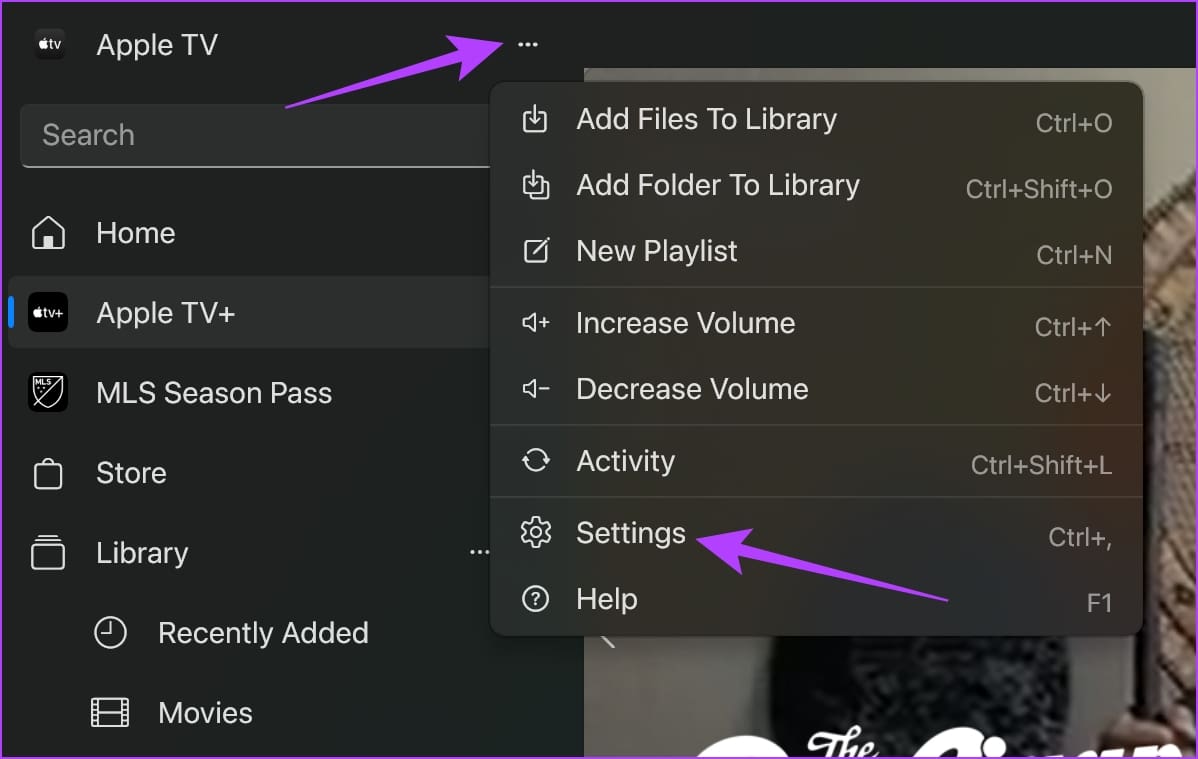
Step 1: Click on the three-dots menu icon and go to Settings.
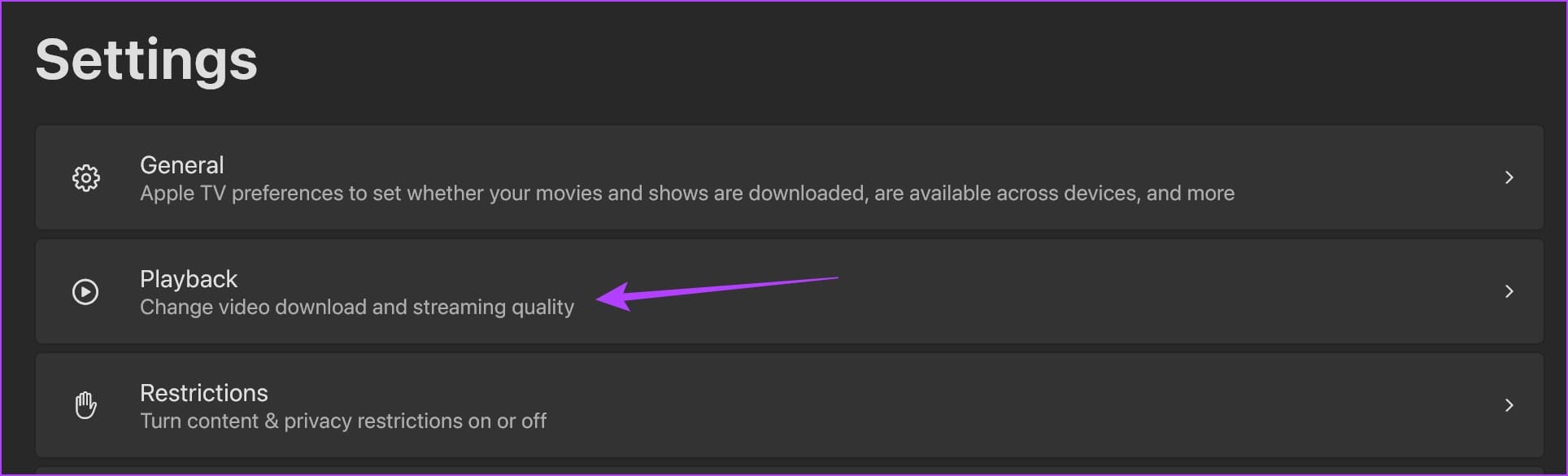
Step 2: Go to Playback and change the streaming quality to the highest.
When we were researching what was causing the issue, one user on Reddit could answer the question. The user contacted the Apple support team, and it turns out that Apple TV+ can only play videos up to 720p resolution on the web browser.
If you want to fix the issue using a web browser, try restarting the browser or refreshing the Apple TV+ tab. If that doesn’t work, follow the below methods.
Fix 2: Sign Out and Sign Into Apple TV+
Signing out and signing back into Apple TV+ helped us solve the issue by starting a fresh session.
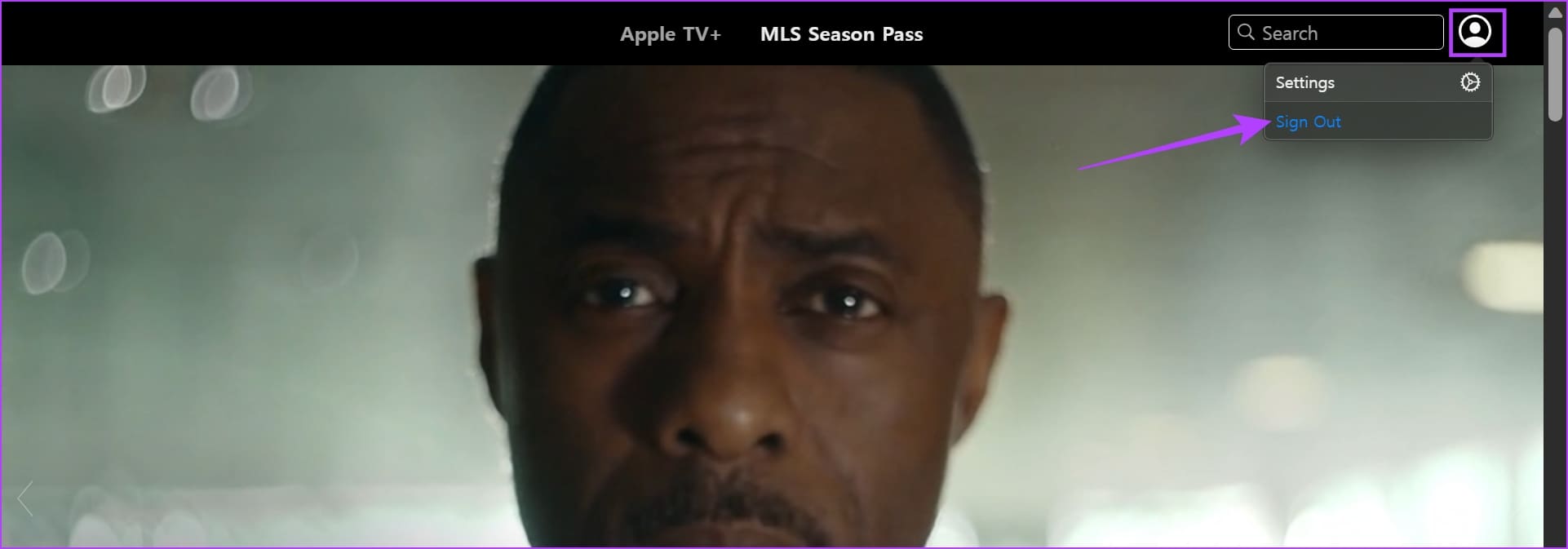
Step 1: In the Apple TV+ screen, tap on the profile icon at the top right corner.
Step 2: Tap on Sign Out.
Step 3: You will be redirected to the login page. Enter your credentials to log in.
Fix 3: Clear Browser Data
Outdated or corrupted cache files can cause media playback issues on your web browser.
On Chrome
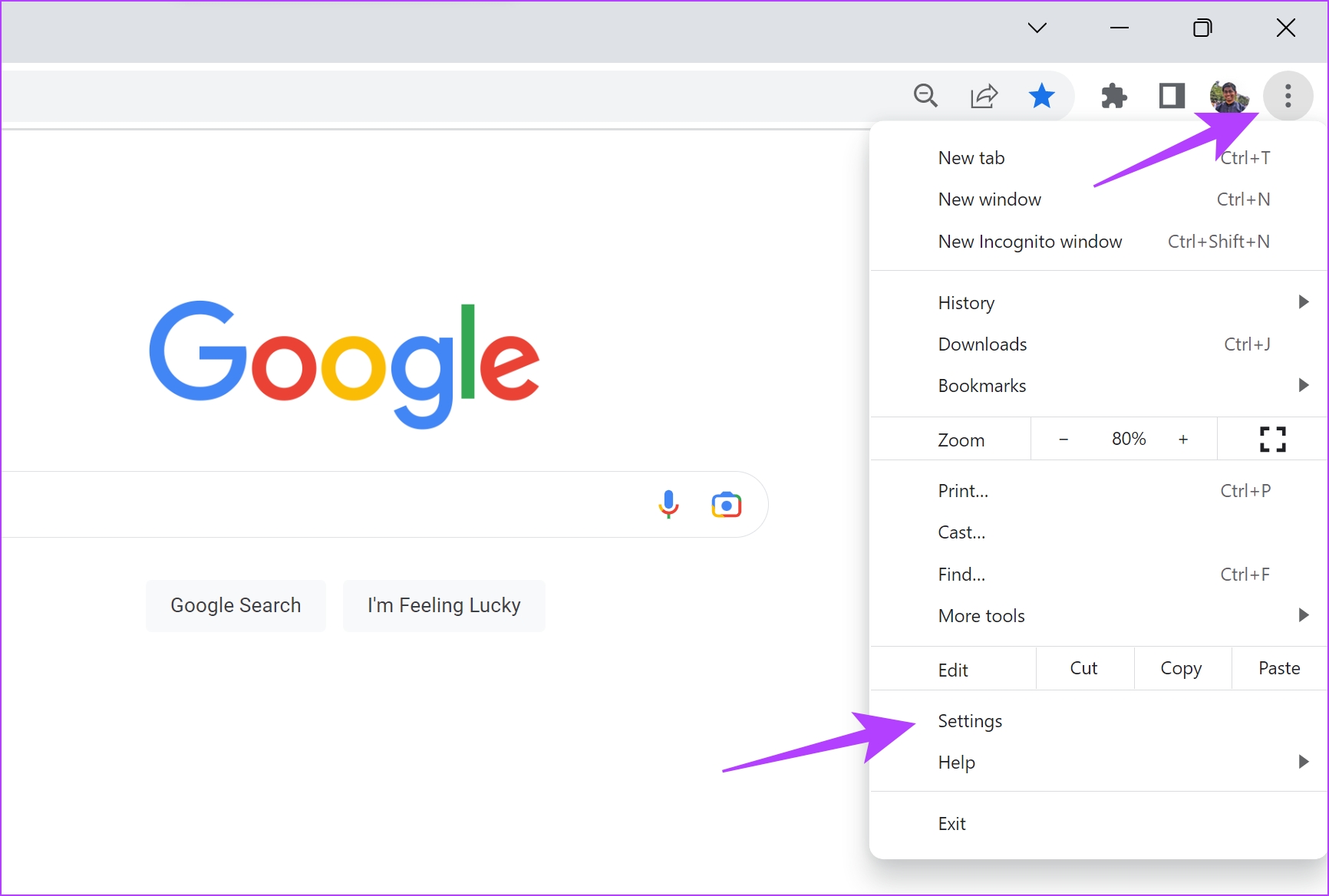
Step 1: Open Chrome > click on the three dots icon in the toolbar > select Settings.
Step 2: Click on Privacy and Security > select Clear browsing data.

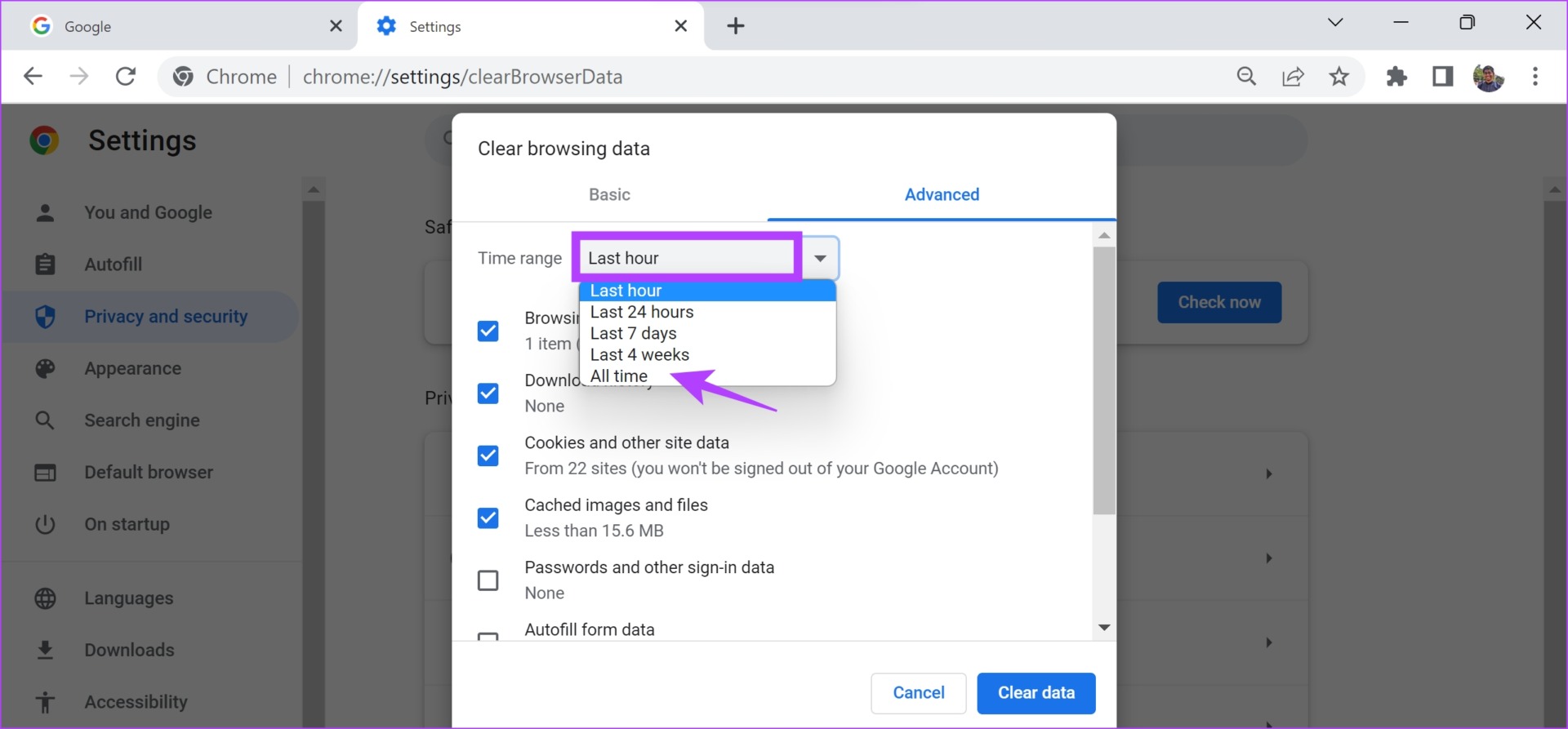
Step 3: Click on the Time Range drop-down menu and select All Time.
This will help you clear the stored data and cache of Chrome from the time you started using it.
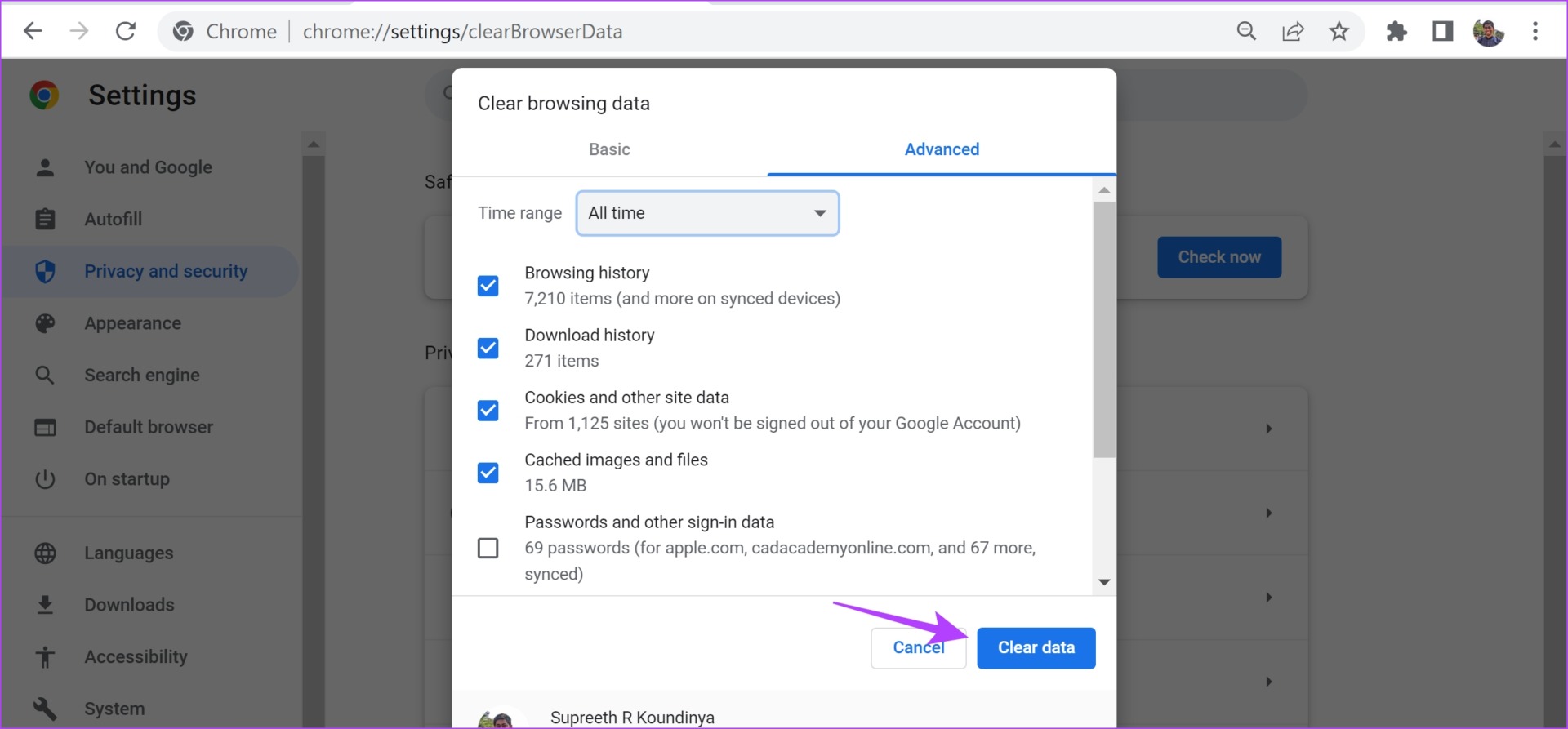
Step 4: You will now see a list of what is being cleared. Select what you want to delete and click on Clear data.
Also Read: What happens when you clear browsing data in Chrome
On Firefox
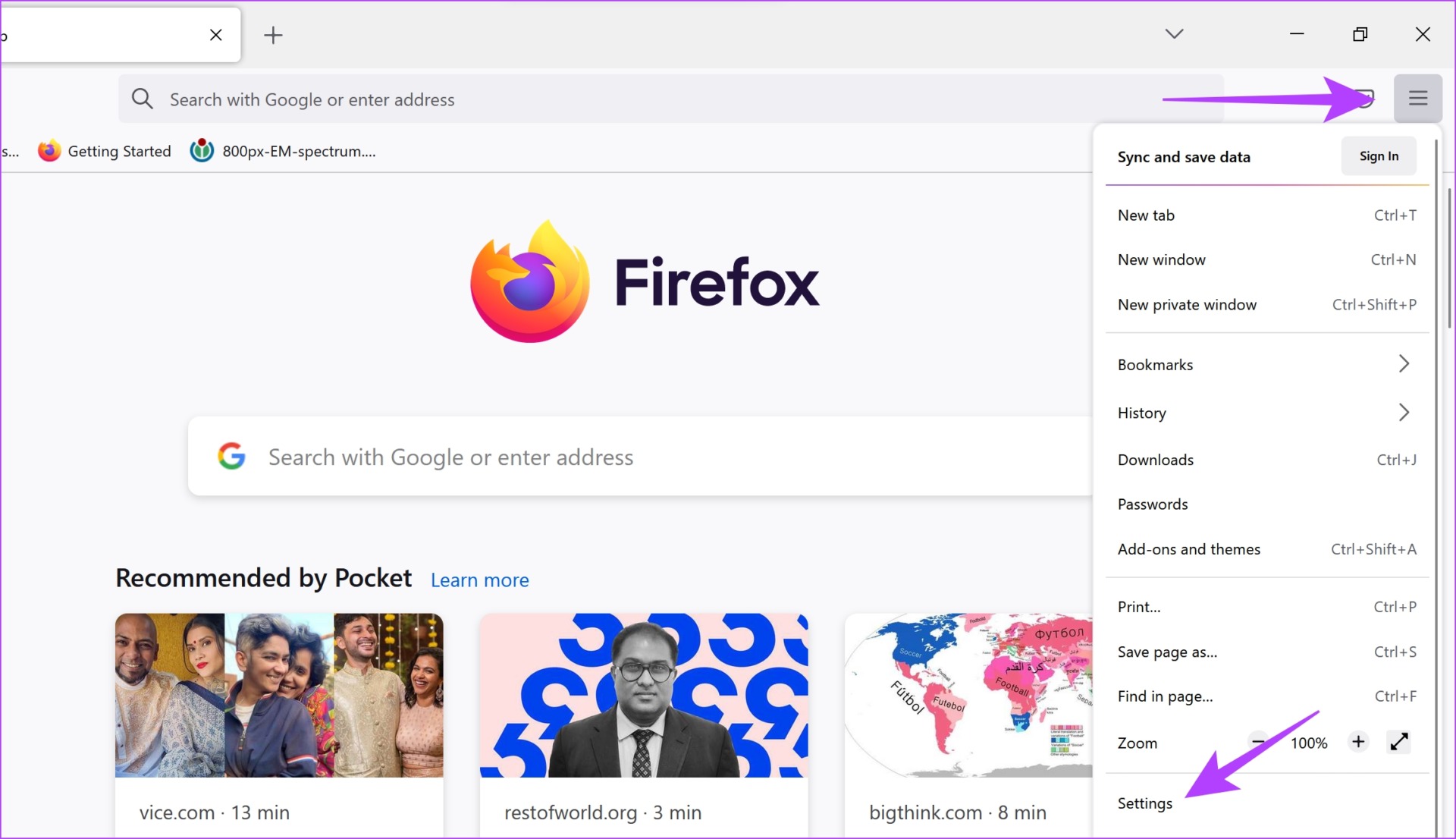
Step 1: Open Firefox, click the hamburger menu, and select Settings.

Step 2: Click on Privacy & Security in the sidebar and click on Clear Data.

Step 3: Lastly, click on Clear.

Fix 4: Disable Hardware Acceleration
While hardware acceleration can offload tasks to the GPU for improved performance, faulty drivers, overheating, and limited resources can cause video playback problems, thereby restricting the quality. Here os how to disable Hardware Acceleration.
On Chrome
Step 1: Open Chrome and tap on the three dots icon in the toolbar. Select Settings.
Step 2: Click on System in the sidebar. Turn off the toggle for Use hardware acceleration when available.

On Firefox
Step 1: Open Firefox and click on the hamburger menu icon. Select Settings.
Step 2: Scroll down to Performance. Uncheck the box for Use recommended performance settings and Use hardware acceleration when available.

Fix 5: Update Display Drivers
An outdated display driver may not play videos of the best quality. Therefore, update your display drivers to check if Apple TV+ works without problems.
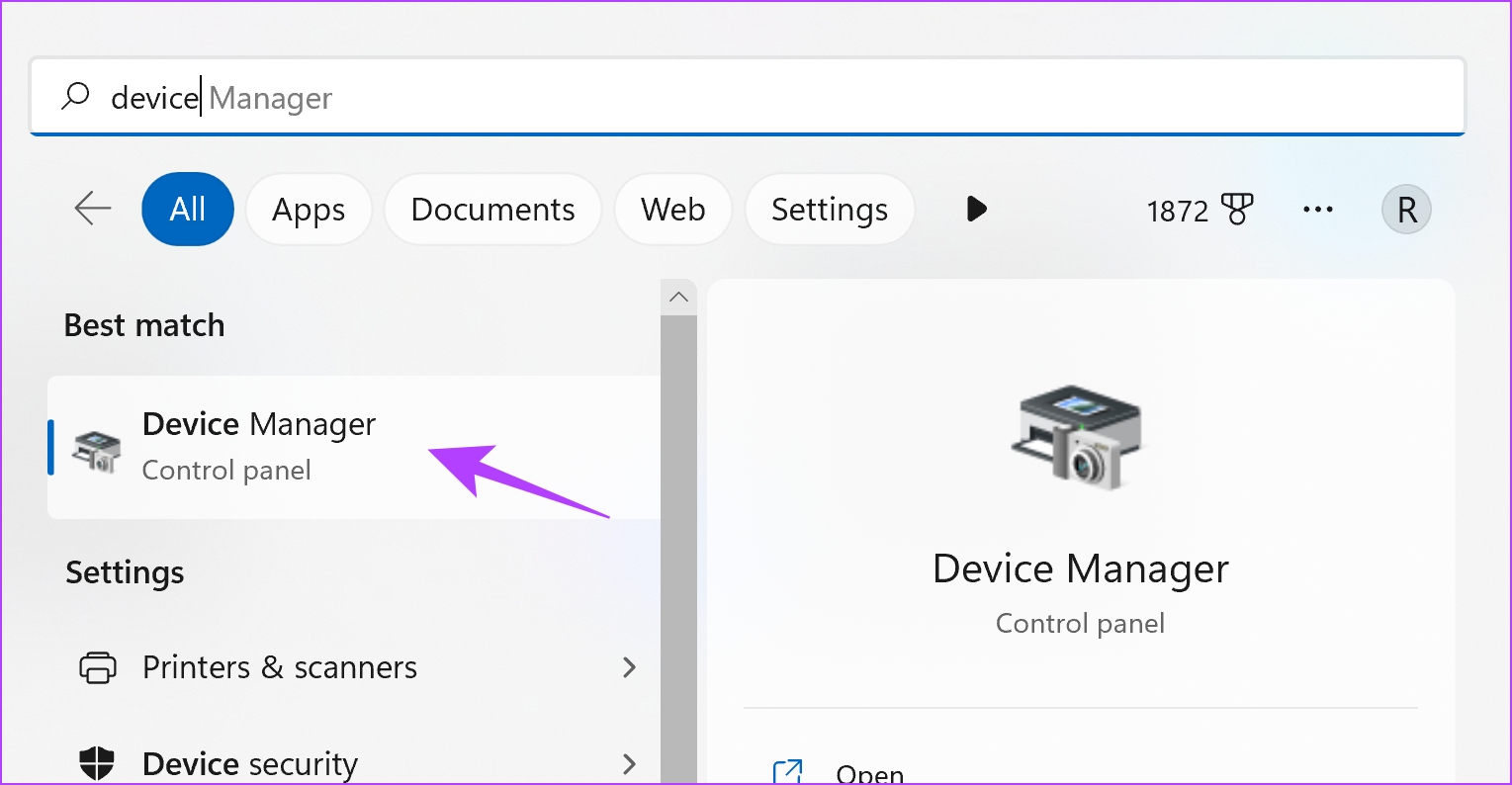
Step 1: Open Device Manager from the Start menu.
Step 2: Click on Display Adapters.

Step 3: Right-click on the display driver and tap on Update driver.

Step 4: Click on Search automatically for drivers. If there are new versions, follow the on-screen instructions to update the drivers.

Was this helpful?
Last updated on 05 July, 2024
Read Next
 5 Ways to Fix Netflix Streaming in Low Quality on Android and iPhone
Common Fixes Check internet speed - I recommend at least 5Mbps to stream Netflix in high definition (HD) and a minimum of 25Mbps for Ultra HD and 4K video quality.
5 Ways to Fix Netflix Streaming in Low Quality on Android and iPhone
Common Fixes Check internet speed - I recommend at least 5Mbps to stream Netflix in high definition (HD) and a minimum of 25Mbps for Ultra HD and 4K video quality.
 4 Ways to Fix Apple Music Low Volume Issue on iPhone
Basic Fixes: Check volume levels on iPhone: If the volume levels are set to low, it might result in an overall low volume when using Apple Music.
4 Ways to Fix Apple Music Low Volume Issue on iPhone
Basic Fixes: Check volume levels on iPhone: If the volume levels are set to low, it might result in an overall low volume when using Apple Music.
 5 Ways to Fix “Your Computer Is Low on Memory” Error on Windows 10 and Windows 11
Try Basic Fixes Close unwanted apps and programs: Start by closing any unwanted apps and programs on your computer, especially the ones consuming a major chunk of your PC’s memory.
5 Ways to Fix “Your Computer Is Low on Memory” Error on Windows 10 and Windows 11
Try Basic Fixes Close unwanted apps and programs: Start by closing any unwanted apps and programs on your computer, especially the ones consuming a major chunk of your PC’s memory.
 5 Ways to Fix Bad Sound Quality on Spotify Mobile App
Basic Fixes Check Your Spotify Plan: Using a free version of Spotify does not offer the best audio quality.
5 Ways to Fix Bad Sound Quality on Spotify Mobile App
Basic Fixes Check Your Spotify Plan: Using a free version of Spotify does not offer the best audio quality.
 4 Ways to Fix YouTube Quality Unavailable on iOS and Android
Basic Fixes Check Internet Connectivity: Ensure your device is connected to a Wi-Fi network or cellular data with good signal strength and an active plan.
4 Ways to Fix YouTube Quality Unavailable on iOS and Android
Basic Fixes Check Internet Connectivity: Ensure your device is connected to a Wi-Fi network or cellular data with good signal strength and an active plan.
 7 Ways to Fix Low Volume on Windows 11
https://youtu.be/1snNqM2ZcwI Try Basic Fixes Check the volume mixer: Right-click the speaker icon on the taskbar and select the Open volume mixer option.
7 Ways to Fix Low Volume on Windows 11
https://youtu.be/1snNqM2ZcwI Try Basic Fixes Check the volume mixer: Right-click the speaker icon on the taskbar and select the Open volume mixer option.
 How to Fix Poor Video Call Quality in WhatsApp for Android and iPhone
Try Basic Fixes Disable battery and data saver mode: Enabling battery and data saver mode can affect WhatsApp's ability to use the internet freely and result in poor video call
How to Fix Poor Video Call Quality in WhatsApp for Android and iPhone
Try Basic Fixes Disable battery and data saver mode: Enabling battery and data saver mode can affect WhatsApp's ability to use the internet freely and result in poor video call
 6 Ways to Get Better Audio Quality on Windows 11
Tip 1: Enable Audio Enhancements Your Windows 11 PC has an audio enhancement feature that automatically improves sound quality.
6 Ways to Get Better Audio Quality on Windows 11
Tip 1: Enable Audio Enhancements Your Windows 11 PC has an audio enhancement feature that automatically improves sound quality.
The article above may contain affiliate links which help support Guiding Tech. The content remains unbiased and authentic and will never affect our editorial integrity.