Basic Fixes
- Check network connectivity: Ensure your cellular plan supports MMS exchange. If you’re using RCS, make sure there’s no problem with network connectivity.
- Restart Messages app: Restart the messages app, and your device to fix any bugs and glitches.
- Use Google Messages app: We recommend installing the latest version of the Google Messages app from the Play Store.
- Check image size: If the image size is too large, it may take a lot of time to deliver. Try compressing the size of the image.
Fix 1: Enable RCS
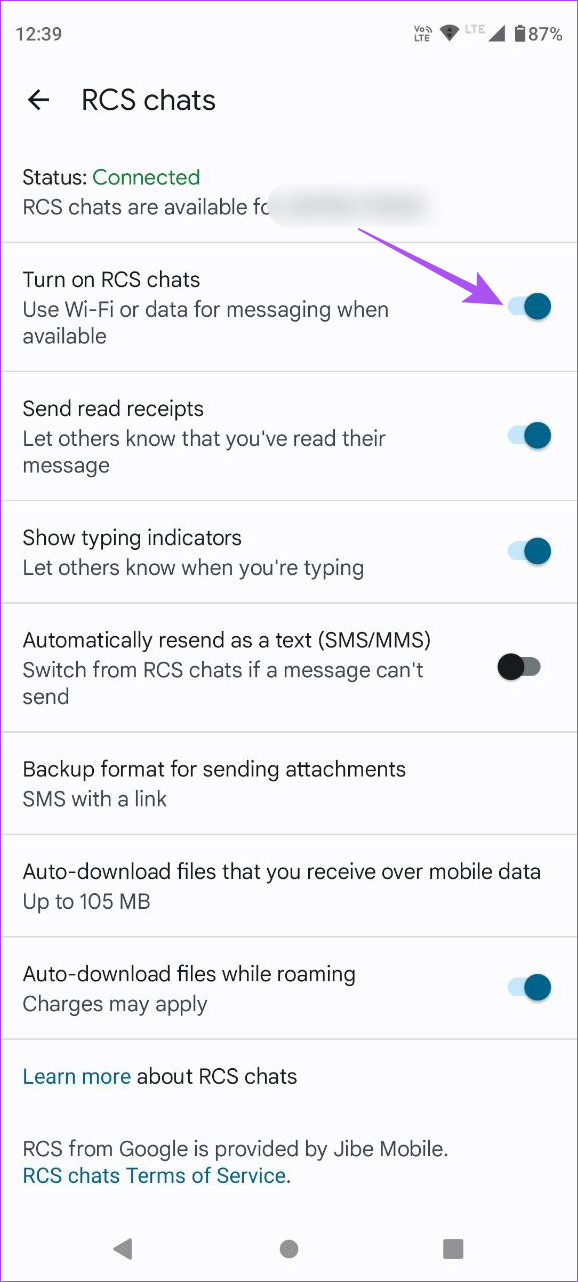
If you’re trying to send an image over the internet using the Messages app – you will need to enable RCS.
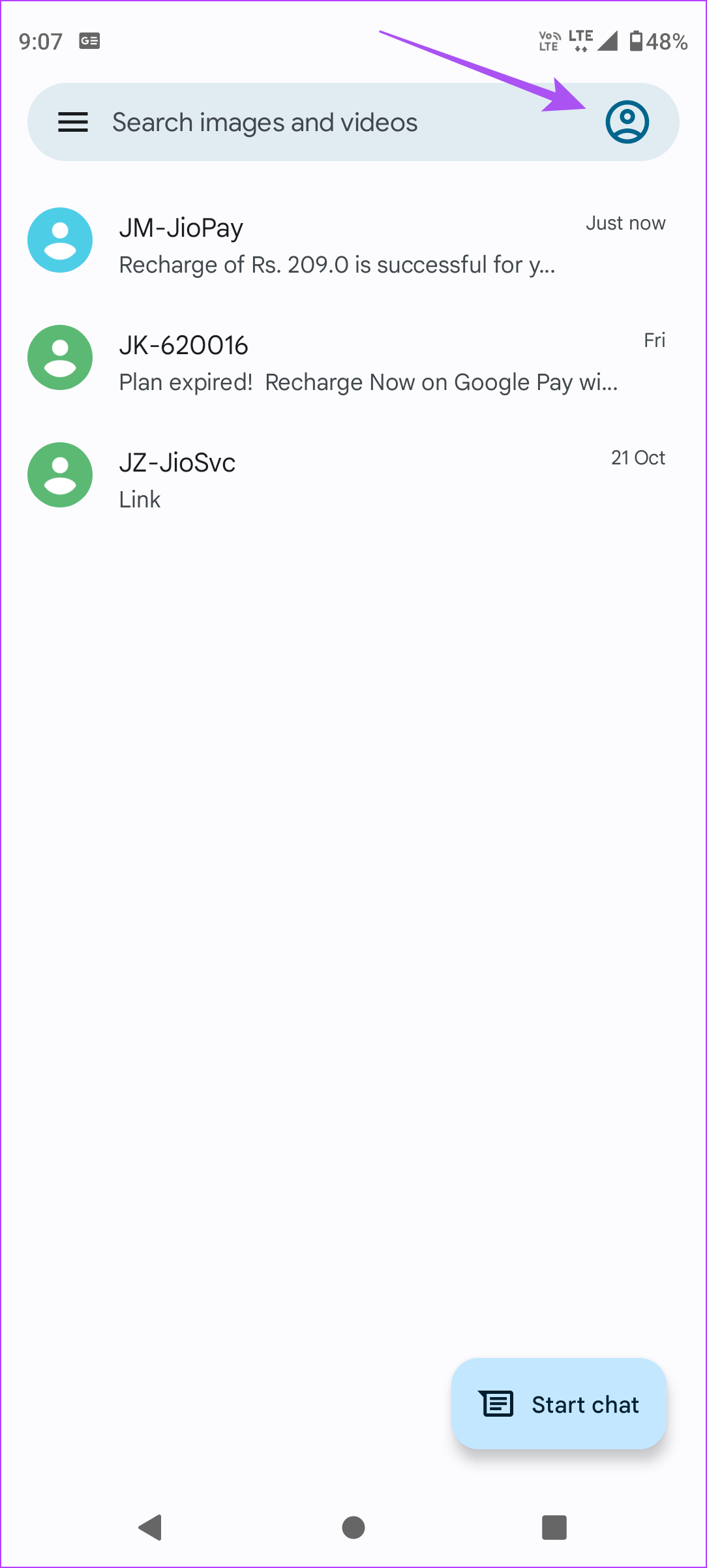
Step 1: Open the Messages, and tap on your profile icon at the top-right corner.
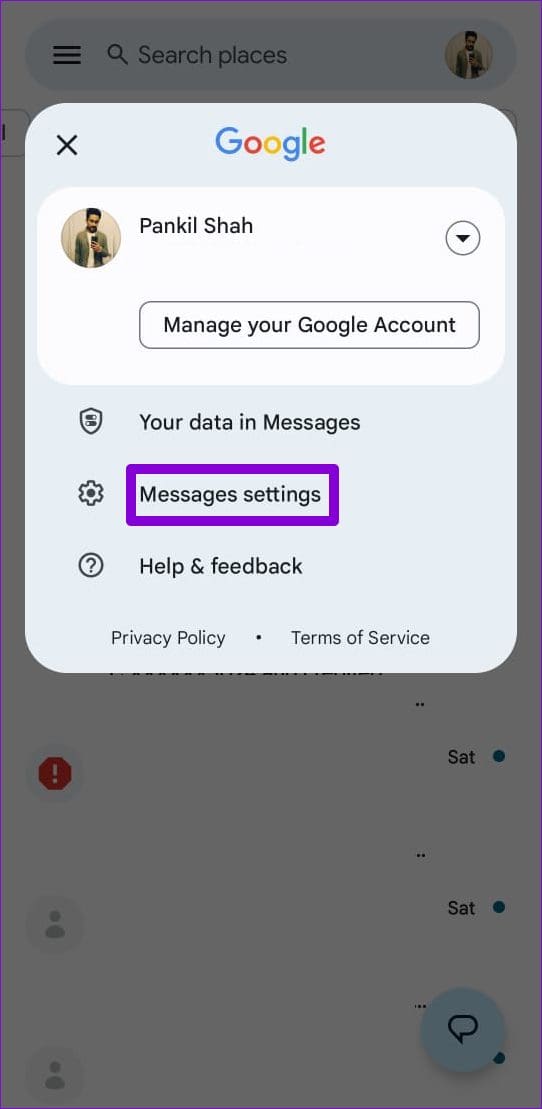
Step 2: Select Messages Settings.
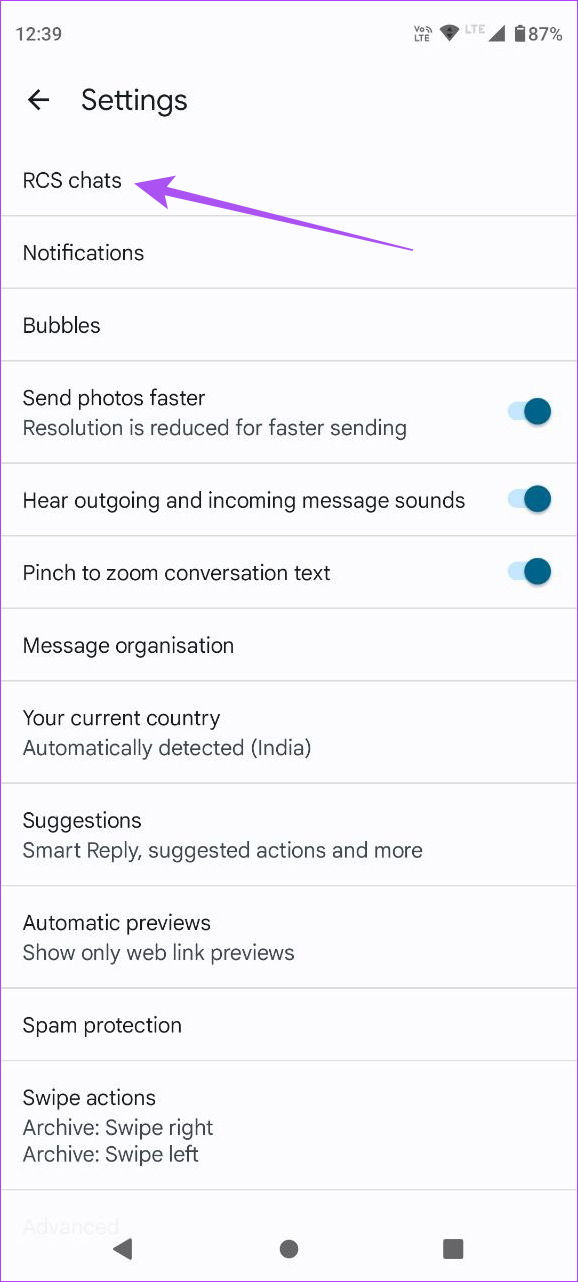
Step 3: Tap on RCS Chats. Turn on the toggle next to Turn on RCS Chats.
Fix 2: Check MMS Settings
If you’re trying to send an image over MMS, ensure it isn’t disabled.
Step 1: Open the Messages app, tap on your profile icon, and select Messages Settings.
Step 2: Select Advanced > MMS Settings, and ensure your service provider supports MMS and you haven’t disabled it.


Fix 3: Allow Unrestricted Data Usage
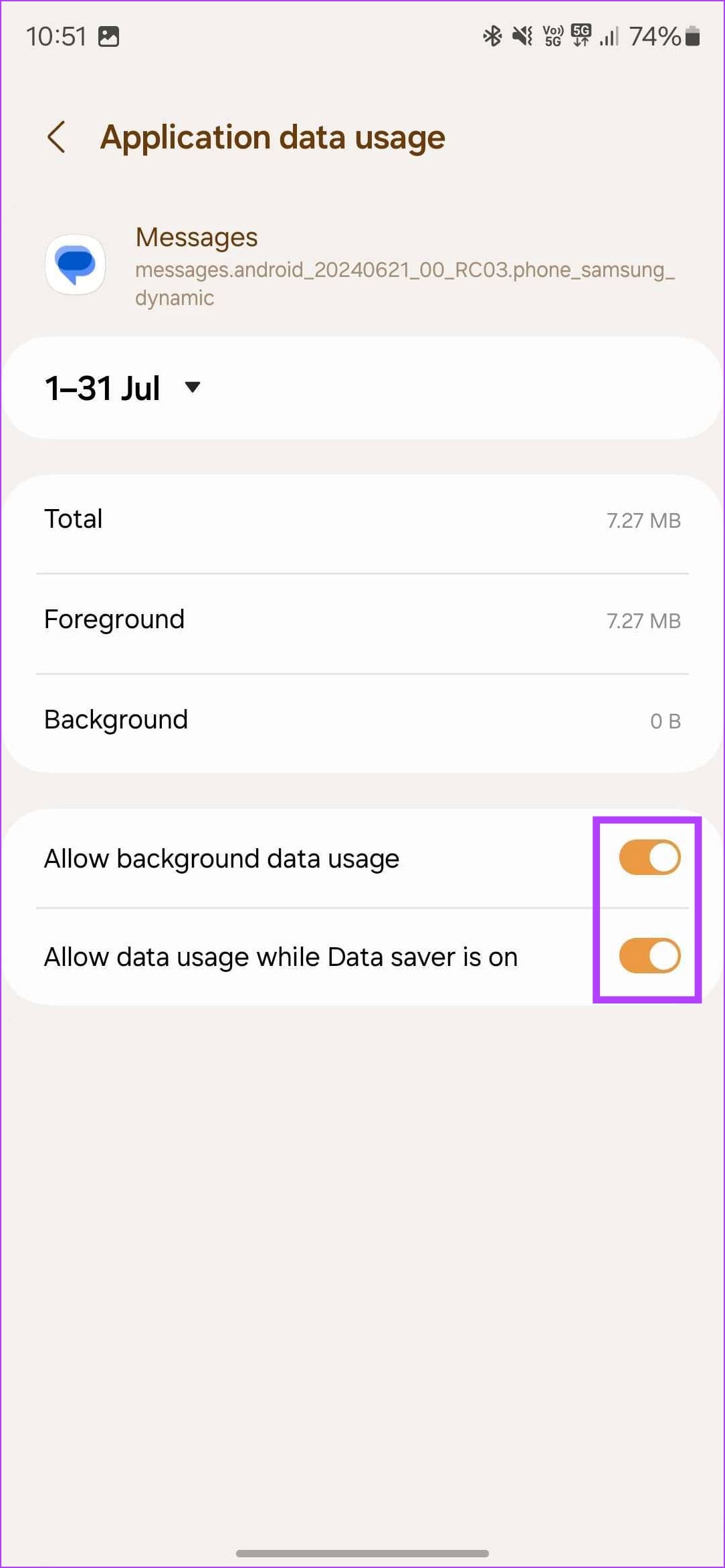
If your Android phone is not sending pictures, there might be some restrictions preventing it from using cellular data, both in the foreground and background.
Tap and hold the Messages app icon, select App Info, and select Mobile Data. Turn on the toggle for Allow background data usage, and Allow data usage while Data Saver is on.

Also Read: How to fix a Messaging app that keeps crashing
Fix 4: Clear App Cache & Data
Cache and junk files present in the Messages app can cause problems.
Tap and hold the Messages app icon, and select App Info. Tap on Storage and Cache and select Clear cache.


Fix 5: Reset Device
When none of the above methods work, factory reset your Android phone. Doing this will fix any misconfiguration causing the problem.
However, this will reset all the preferences and settings on your device and remove any saved Bluetooth devices, Wi-Fi passwords, and so on.
Go to Settings > Back up and reset > Reset Phone and reset all the settings.


Was this helpful?
Last updated on 15 July, 2024
Read Next
 4 Ways to Fix Picture-In-Picture Mode Not Working on Android
Try Basic Fixes Update the problematic app: If the picture-in-picture mode is not working due to a buggy app build, you should be able to fix it by updating the
4 Ways to Fix Picture-In-Picture Mode Not Working on Android
Try Basic Fixes Update the problematic app: If the picture-in-picture mode is not working due to a buggy app build, you should be able to fix it by updating the
 4 Ways to Fix WhatsApp Picture-In-Picture Not Working
Basic Fixes Update WhatsApp: Open the Google Play Store or Apple App Store, search WhatsApp, and tap Update (if available).
4 Ways to Fix WhatsApp Picture-In-Picture Not Working
Basic Fixes Update WhatsApp: Open the Google Play Store or Apple App Store, search WhatsApp, and tap Update (if available).
 3 Ways to Fix Prime Video Picture-in-Picture Not Working on Android and iPhone
Basic Fixes Restart Prime Video: Restart the Prime Video app and your smartphone to eliminate bugs and glitches.
3 Ways to Fix Prime Video Picture-in-Picture Not Working on Android and iPhone
Basic Fixes Restart Prime Video: Restart the Prime Video app and your smartphone to eliminate bugs and glitches.
 3 Fixes for Netflix Picture-In-Picture Mode Not Working on Android
Fix 1: Upgrade Netflix Plan If you are from a country where Netflix offers an ad-supported version, you must upgrade to a premium plan.
4 Ways to Fix the iPhone Picture-in-Picture Not Working
Before you begin, try restarting your iPhone, and update the app you are trying to use picture-in-picture with, to the latest version.
3 Fixes for Netflix Picture-In-Picture Mode Not Working on Android
Fix 1: Upgrade Netflix Plan If you are from a country where Netflix offers an ad-supported version, you must upgrade to a premium plan.
4 Ways to Fix the iPhone Picture-in-Picture Not Working
Before you begin, try restarting your iPhone, and update the app you are trying to use picture-in-picture with, to the latest version.
 3 Ways to Fix Picture-In-Picture Not Working in Facebook Messenger
Common Fixes Restart device - Long-press the physical Power button and tap Reboot to restart Android.
3 Ways to Fix Picture-In-Picture Not Working in Facebook Messenger
Common Fixes Restart device - Long-press the physical Power button and tap Reboot to restart Android.
 5 Ways to Fix Android Messages Keeps Crashing Issue
Basic Fixes: Restart Phone: Start the troubleshooting process by restarting your phone.
5 Ways to Fix Android Messages Keeps Crashing Issue
Basic Fixes: Restart Phone: Start the troubleshooting process by restarting your phone.
 What Is WhatsApp Profile Picture Size and How to Add Any Picture to It
What’s the Best Size for a WhatsApp profile Picture While WhatsApp has opened up to many new features, from sharing HD photos to screen sharing, it remains stringent on its
What Is WhatsApp Profile Picture Size and How to Add Any Picture to It
What’s the Best Size for a WhatsApp profile Picture While WhatsApp has opened up to many new features, from sharing HD photos to screen sharing, it remains stringent on its
The article above may contain affiliate links which help support Guiding Tech. The content remains unbiased and authentic and will never affect our editorial integrity.