

Basic Fixes
- Check your USB cable and port: You need to start by checking the port and USB cable that you are using. You can also refer to our post if Windows 11 is unable to recognize your USB devices.
- Disable battery saver on Android phone: Open Settings > Battery > Battery Saver > Disable Battery Saver.
- Update software version on Android and Windows 11: Install the latest software versions on your devices to get rid of bugs or glitches.
Fix 1: Reinstall Portable Device Drivers
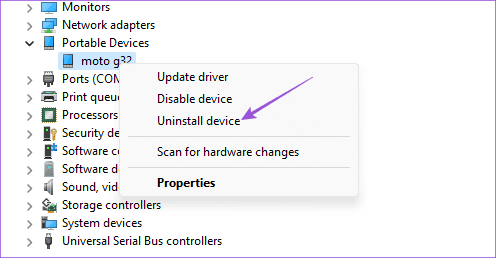
Device drivers help connect your Windows 11 computer with external devices like your Android phone, Wi-Fi dongle, external microphone, etc. These drivers get updated automatically with every Windows update. But if your Android phone is not connecting to your Windows PC, you can try reinstalling the portable device driver. Here’s how.
Open Task Manager > Portable Devices > Right-click on your Android phone model name > Uninstall device > Reconnect your phone.
Fix 2: Enable USB Debugging
USB Debugging on your Android phone lets you access all the data of your device that can be used for various purposes. It includes file transfer, rooting, installing recoveries, and more. You can enable this feature on your Android phone by turning on Developer Options and seeing if it gets detected by your Windows 11 PC.
Step 1: Open Settings > About > Look for Build Number and then tap it 5 times to enable Developer Options.
Step 2: Go back and then select System.
Step 3: Tap on Developer Options and then tap the toggle next to USB Debugging to enable the feature.


Fix 3: Enable File Transfer Over USB
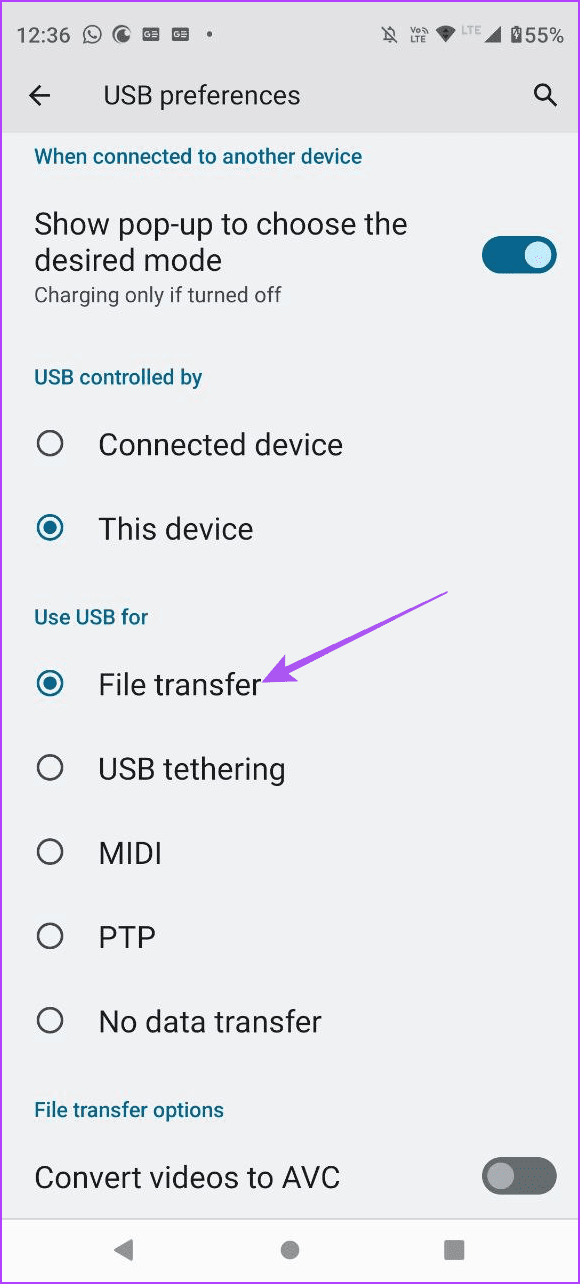
Enable file transfer over USB between your Android phone and Windows 11 PC.
Step 1: Connect your Android phone with your Windows 11 PC.
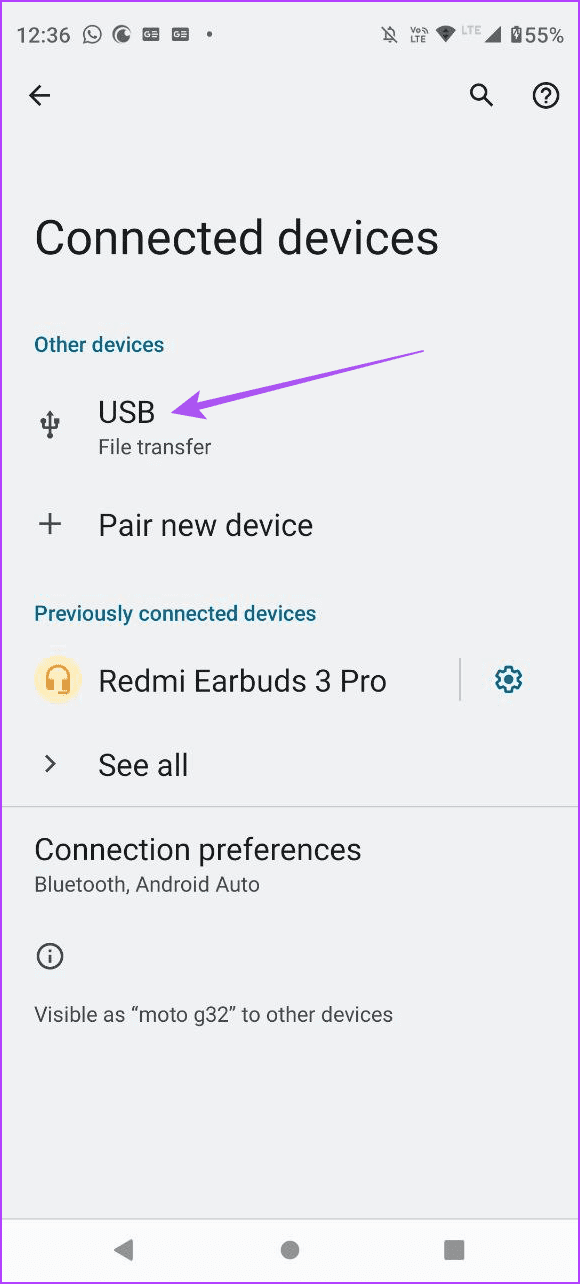
Step 2: Open Settings and then tap on Connected Devices.
Step 3: Select USB and then ensure that File Transfer has been selected as your preference.
Fix 4: Disable Battery Optimization for Phone Link App (Android)
Battery Optimization is enabled by default for all apps on your Android phone. You can disable it for the Microsoft Phone Link app on your Android phone and see if that solves the issue. This solution is applicable if you prefer using the Phone Link app.
Step 1: Long-press the Phone Link app icon and then select App Info.
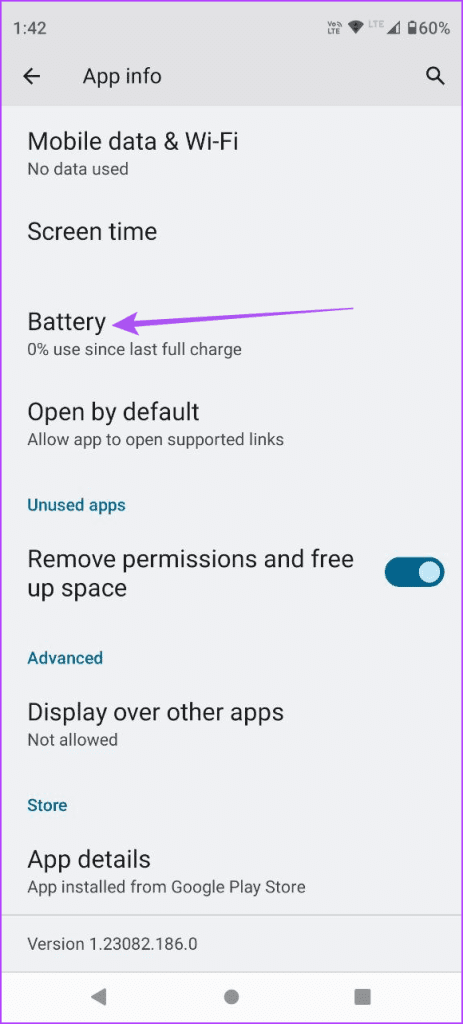
Step 2: Tap on Battery and then select Unrestricted Battery Usage for the app.
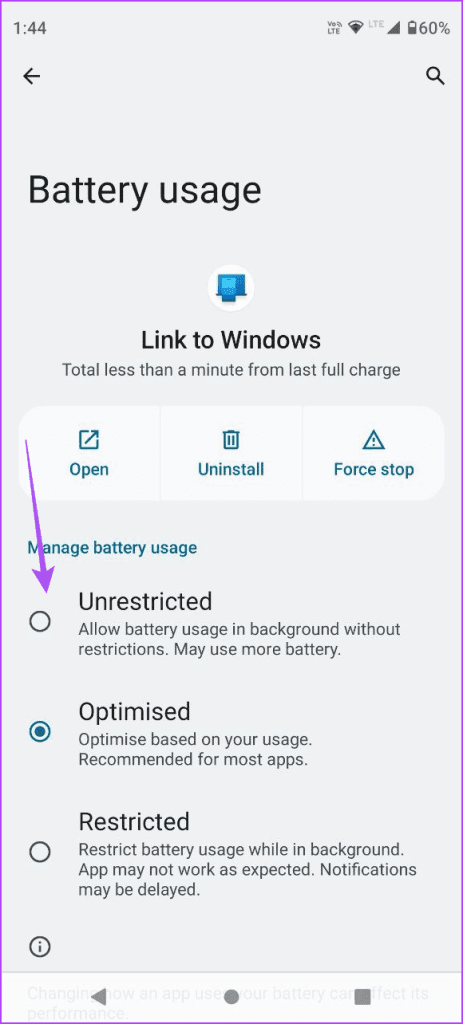
Step 3: Close App Info and try connecting the Phone Link app again.
Fix 5: Repair and Reset the Phone Link App (Windows 11)
You can repair and reset the Phone Link app on your Windows 11 PC to see if that solves the issue. This will give the app a fresh start, where you will have to log in again with your Microsoft account.
Step 1: Click the Start icon on taskbar > Type Phone Link > Click on App Settings.

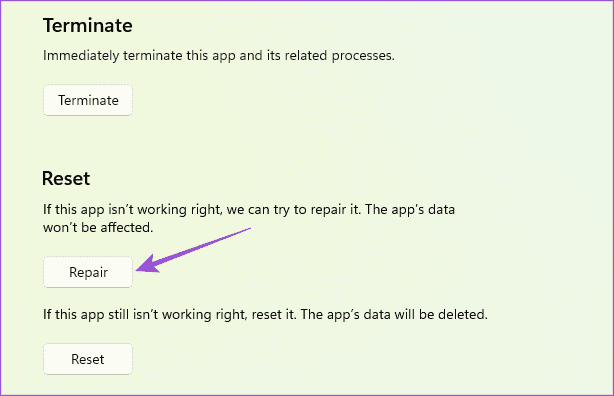
Step 2: Scroll down and then click on Repair. Then, follow the on-screen process.
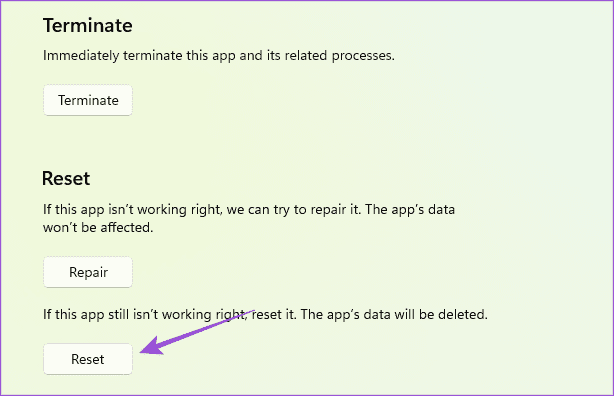
Step 3: Click on Reset and then follow the on-screen process.
Was this helpful?
Last updated on 08 August, 2024
1 Comment
Leave a Reply
Read Next
 5 Fixes for Phone Link App Not Showing Notifications on Windows 11
Basic Fixes: Check Wi-Fi and Bluetooth settings: The Phone Link app uses both Bluetooth and Wi-Fi to help sync your phones with your Windows device. So, ensure your Wi-Fi connection is
5 Fixes for Phone Link App Not Showing Notifications on Windows 11
Basic Fixes: Check Wi-Fi and Bluetooth settings: The Phone Link app uses both Bluetooth and Wi-Fi to help sync your phones with your Windows device. So, ensure your Wi-Fi connection is
 5 Fixes for Windows Security App Showing White Screen on Windows 11
Common Fixes Reboot PC: Press the Windows + X shortcut to open the Power User Menu, select Shut down or sign out, and click Restart.
5 Fixes for Windows Security App Showing White Screen on Windows 11
Common Fixes Reboot PC: Press the Windows + X shortcut to open the Power User Menu, select Shut down or sign out, and click Restart.
 4 Ways to Fix Android Phone Not Showing a Wi-Fi Network Name
Basic Fixes Restart device: Restart your Android device to fix any temporary bugs and glitches.
4 Ways to Fix Android Phone Not Showing a Wi-Fi Network Name
Basic Fixes Restart device: Restart your Android device to fix any temporary bugs and glitches.
 Top 17 Fixes for Gmail Not Showing New Emails on Android
Typically, when you add a Google account to your Android phone and enable sync for Gmail, you should start receiving new emails without any issue.
Top 17 Fixes for Gmail Not Showing New Emails on Android
Typically, when you add a Google account to your Android phone and enable sync for Gmail, you should start receiving new emails without any issue.
 4 Fixes for Speedometer or Speed Limits Not Showing in Google Maps on Android
Common Fixes Check feature availability - Speedometer or Speed limits may be unavailable in your region.
4 Fixes for Speedometer or Speed Limits Not Showing in Google Maps on Android
Common Fixes Check feature availability - Speedometer or Speed limits may be unavailable in your region.
 8 Best Fixes for Google Messages App Not Showing Contact Names on Android
The Google Messages app can help you send text messages and react to them as well.
8 Best Fixes for Google Messages App Not Showing Contact Names on Android
The Google Messages app can help you send text messages and react to them as well.
 4 Fixes for Android Not Showing Contact Names for Incoming Calls
https://youtu.be/42YJeJ_T88c Fix 1: Allow the Phone App to Access Your Contacts Like most apps, the Phone app on your Android also requires permission to access your contact list.
4 Fixes for Android Not Showing Contact Names for Incoming Calls
https://youtu.be/42YJeJ_T88c Fix 1: Allow the Phone App to Access Your Contacts Like most apps, the Phone app on your Android also requires permission to access your contact list.
 3 Fixes for Google Maps Not Showing Traffic on Android and iPhone
Try Basic Fixes Ensure Google Maps is not in offline mode: While offline mode can help you navigate without an internet connection, no traffic data is available in this mode.
3 Fixes for Google Maps Not Showing Traffic on Android and iPhone
Try Basic Fixes Ensure Google Maps is not in offline mode: While offline mode can help you navigate without an internet connection, no traffic data is available in this mode.
The article above may contain affiliate links which help support Guiding Tech. The content remains unbiased and authentic and will never affect our editorial integrity.
Just tell me how to reset my typing buttons on my phone to black letters
and white keys on my android s10e phone. Please.