Basic Fixes
- Eject and re-insert SIM: Eject the SIM card from your phone, and insert it again. This can help you refresh the network connection.
- Move to a different surrounding: You might be trying to place a call in an area with less network coverage, or the problem is localized due to the presence of network jammers
- Restart device: Restart your Android device to fix temporary bugs and glitches.
- Check the caller’s network connection: Sometimes, it may not be the problem with your phone or network. Your Android phone may cut out the call if the other person faces a problem.
- Update device: Update your device to the latest available Android version for a bug-free experience.
Fix 1: Use Wi-Fi Calling
Modern smartphones support Wi-Fi calling. If you have solid Wi-Fi coverage but a spotty cellular network, you can call your contacts over Wi-Fi. Your terminal will make voice calls via your Wi-Fi network instead of using your carrier’s network.
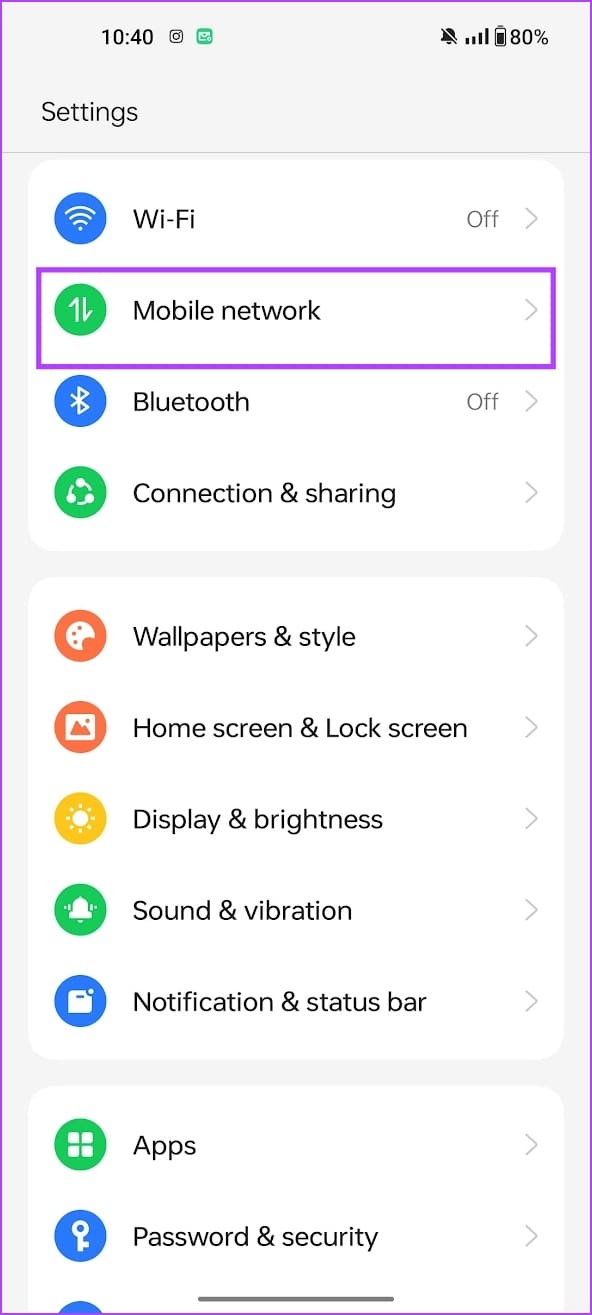
Step 1: Open the Settings app, go to Mobile network > Select the SIM card.
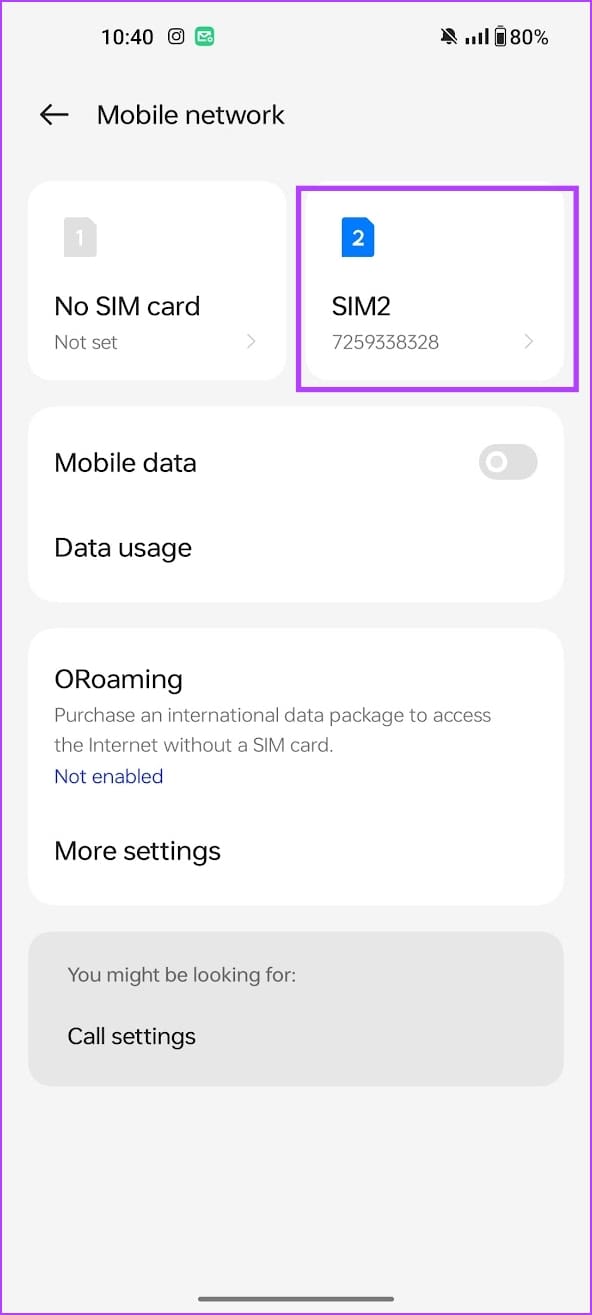
Step 2: Select Wi-Fi calling, and turn it on.


Fix 2: Enable VoLTE
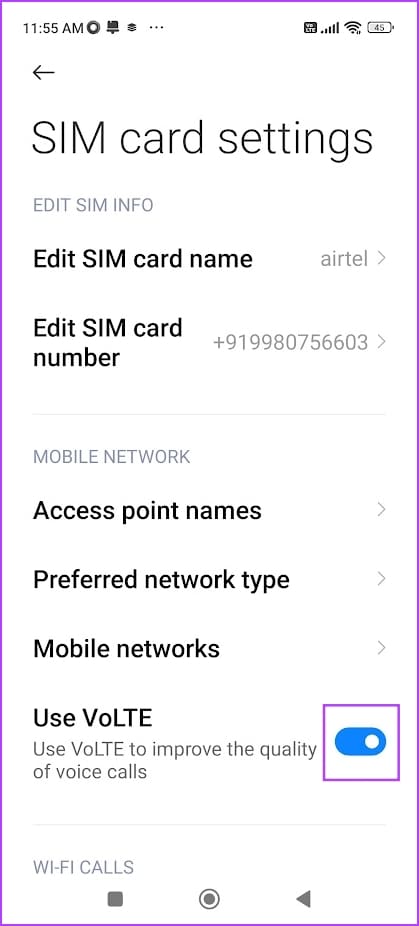
Enabling VoLTE (Voice over LTE) can use cellular data on your device to improve the voice quality.
Open the Settings app, go to Network> Select SIM and enable VoLTE.

Fix 3: Change Preferred Network
Try changing the preferred network on your SIM to improve the network quality.
Open Settings > Network and Internet > SIMs > Preferred network type and select LTE or 3G.


Fix 4: Restart Network Settings
Resetting network settings can help erase any bugs that are affecting phone calls on your Android device. Therefore, doing so can also fix the problem. Here’s how you can do it.
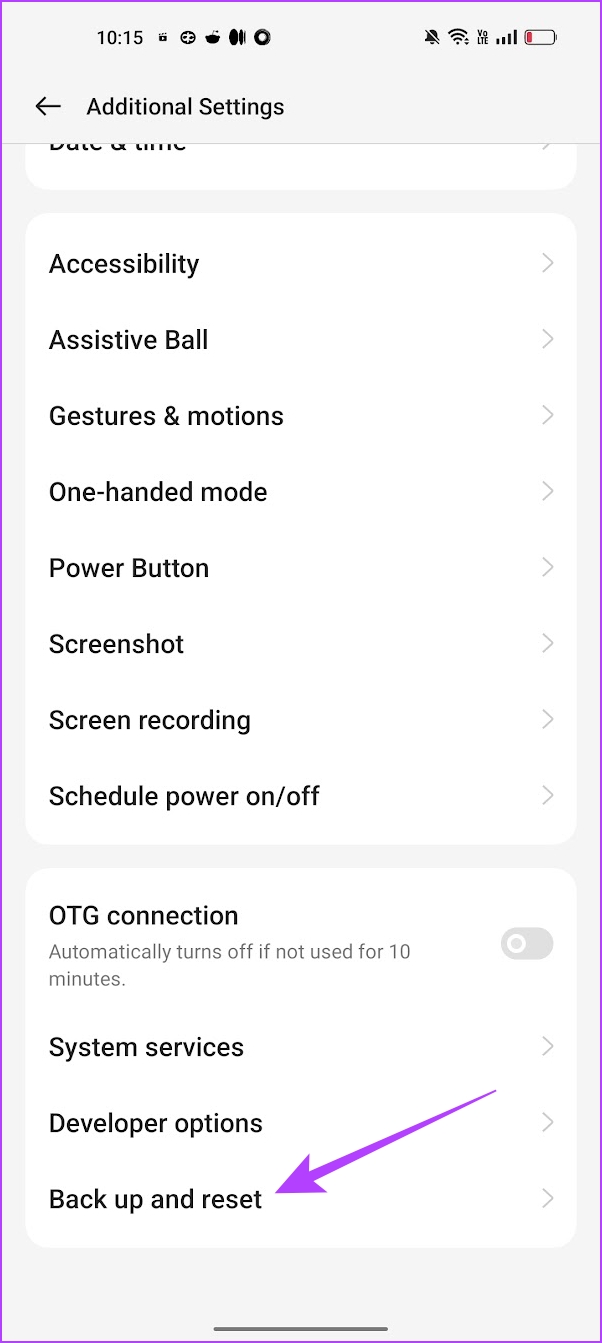
Open the Settings app, go to Back up and Reset > Reset Phone > Reset network settings.


If none of the above methods work, contact your network service provider. They will certainly assist you further regarding any network or SIM card issues.
Was this helpful?
Last updated on 24 July, 2024
Read Next
 Top 7 Ways to Fix Amazon Echo Sound Keeps Cutting Out
Amazon Echo smart speakers come in several price offerings.
Top 7 Ways to Fix Amazon Echo Sound Keeps Cutting Out
Amazon Echo smart speakers come in several price offerings.
 Top 8 Ways to Fix Proximity Sensor Not Working During Calls on Android
There are several components that contribute to the basic functioning of a smartphone.
Top 8 Ways to Fix Proximity Sensor Not Working During Calls on Android
There are several components that contribute to the basic functioning of a smartphone.
 5 Ways to Fix Android Phone Screen Goes Black During a Call
Before you begin, try restarting your Android device and update it to the latest available software version.
5 Ways to Fix Android Phone Screen Goes Black During a Call
Before you begin, try restarting your Android device and update it to the latest available software version.
 How to Fix Echo on iPhone During Voice Calls or FaceTime
We make or receive numerous calls daily.
How to Fix Echo on iPhone During Voice Calls or FaceTime
We make or receive numerous calls daily.
 3 Fixes for iPhone Speaker Not Working During Calls
https://youtu.be/dTAtDgY5NPc Basic Fixes Disable Bluetooth devices: Disconnect Bluetooth devices from your iPhone.
3 Fixes for iPhone Speaker Not Working During Calls
https://youtu.be/dTAtDgY5NPc Basic Fixes Disable Bluetooth devices: Disconnect Bluetooth devices from your iPhone.
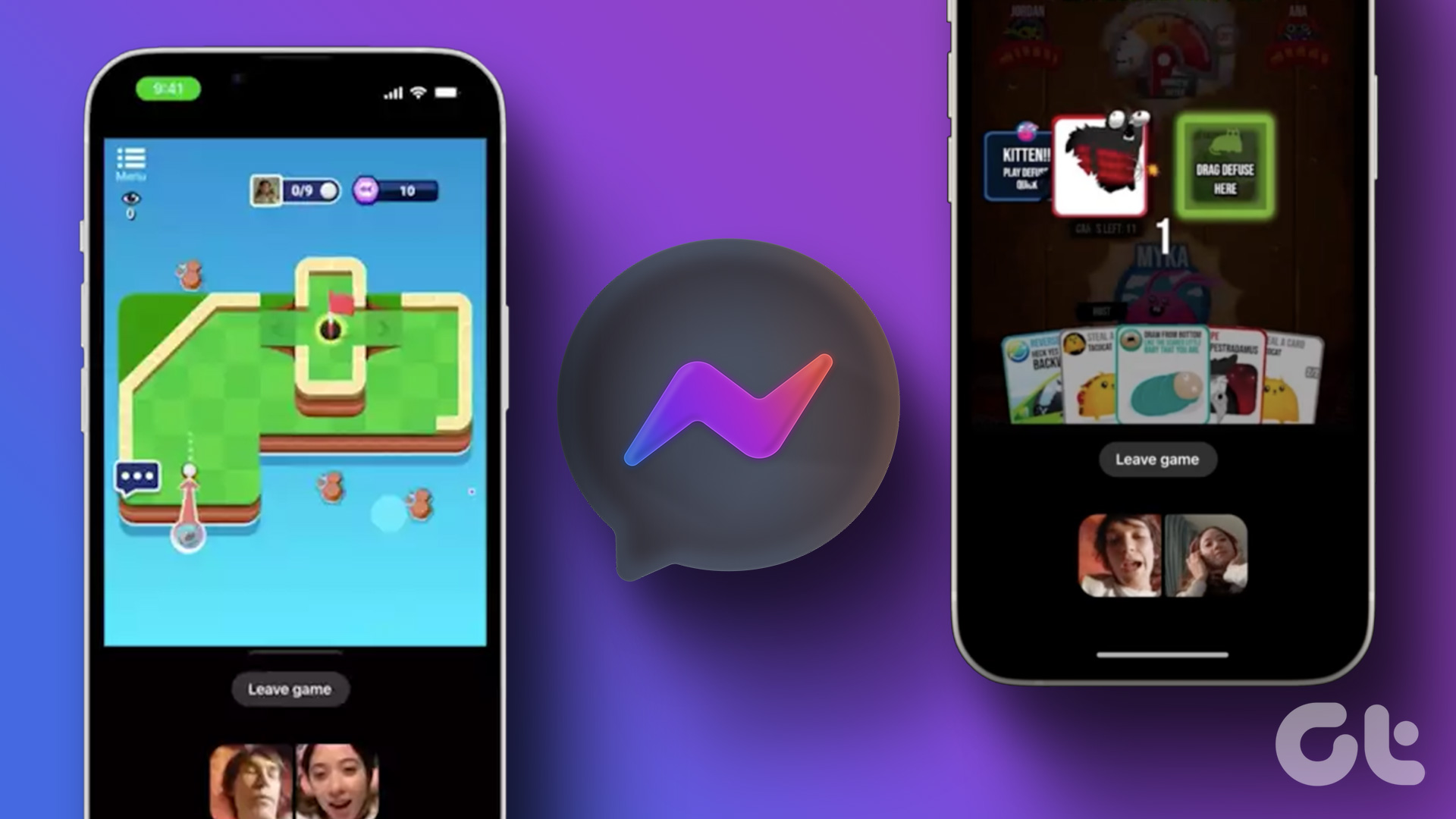 How to Play Games During Messenger Video Calls
 on Android or iPhone All the games available in Messenger are free to play and do not require installation on your Android
How to Play Games During Messenger Video Calls
How to Play Games During Messenger Video Calls on Android or iPhone All the games available in Messenger are free to play and do not require installation on your Android
 How to Use Your Avatar During Video Calls on Instagram and Facebook Messenger
How to Create Your Avatar on Instagram To use your personalized avatar during video calls, you will first need to create your Instagram avatar.
How to Use Your Avatar During Video Calls on Instagram and Facebook Messenger
How to Create Your Avatar on Instagram To use your personalized avatar during video calls, you will first need to create your Instagram avatar.
 How to Fix Samsung Phone Screen Goes Black During Call
Basic Fixes Restart the phone: Sometimes, the screen goes black due to a minor software glitch.
How to Fix Samsung Phone Screen Goes Black During Call
Basic Fixes Restart the phone: Sometimes, the screen goes black due to a minor software glitch.
The article above may contain affiliate links which help support Guiding Tech. The content remains unbiased and authentic and will never affect our editorial integrity.