Common Fixes
- Restart the Fire TV Stick: Select the gear icon at the top right of the Fire OS home screen to expand Settings. Select My Fire TV and tap Restart.
- Check your Amazon Prime subscription: Open the Amazon website in your desired browser and click Accounts & Lists at the top right. Select Your Prime Membership and verify your subscription details.
- Check Amazon Prime Video server status: Use Downdetector to check an active server outage.
- Update the Fire TV Stick: Select the Gear icon to expand the Fire TV Stick settings > tap My Fire TV > select About > Install Update.
Fix 1: Force Stop Prime Video and Reopen
When you manually force-stop the Prime Video app, it automatically fixes most glitches preventing you from opening it on the Fire TV Stick.
Step 1: Tap the Gear icon at the top right of the Fire OS home screen to expand Settings and select Applications.
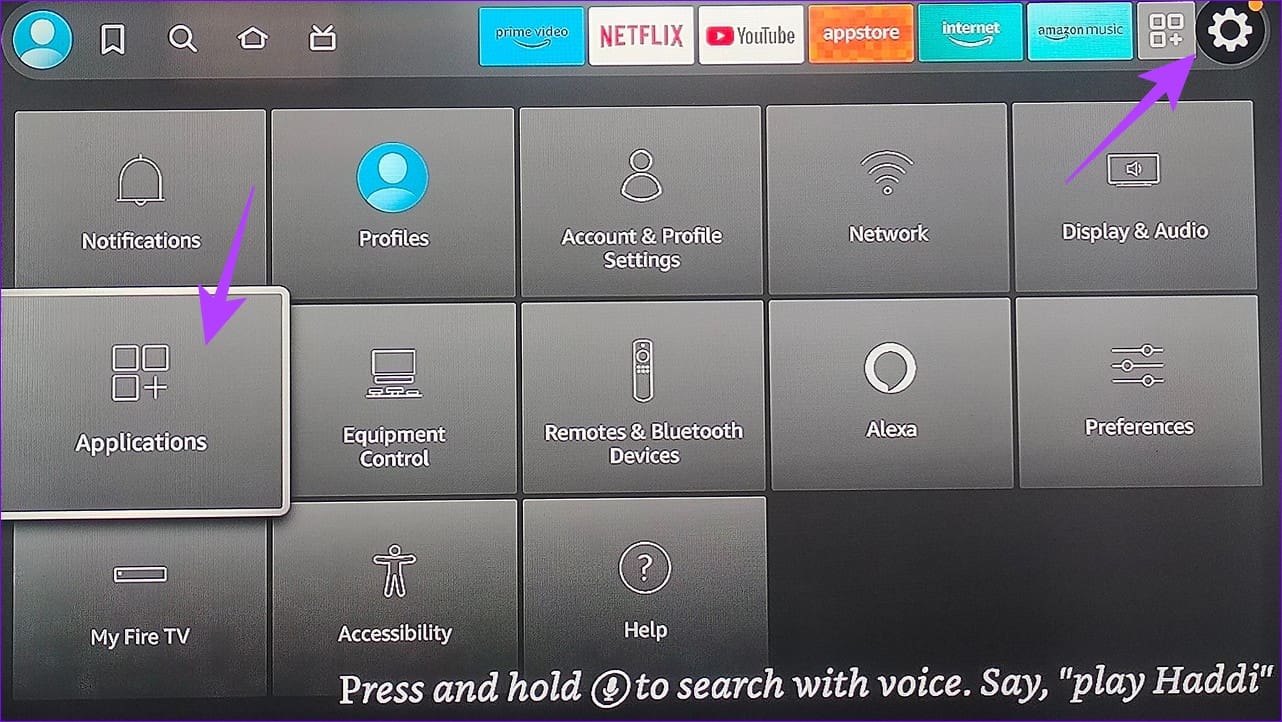
Step 2: Select Manage Installed Applications > pick Prime Video.

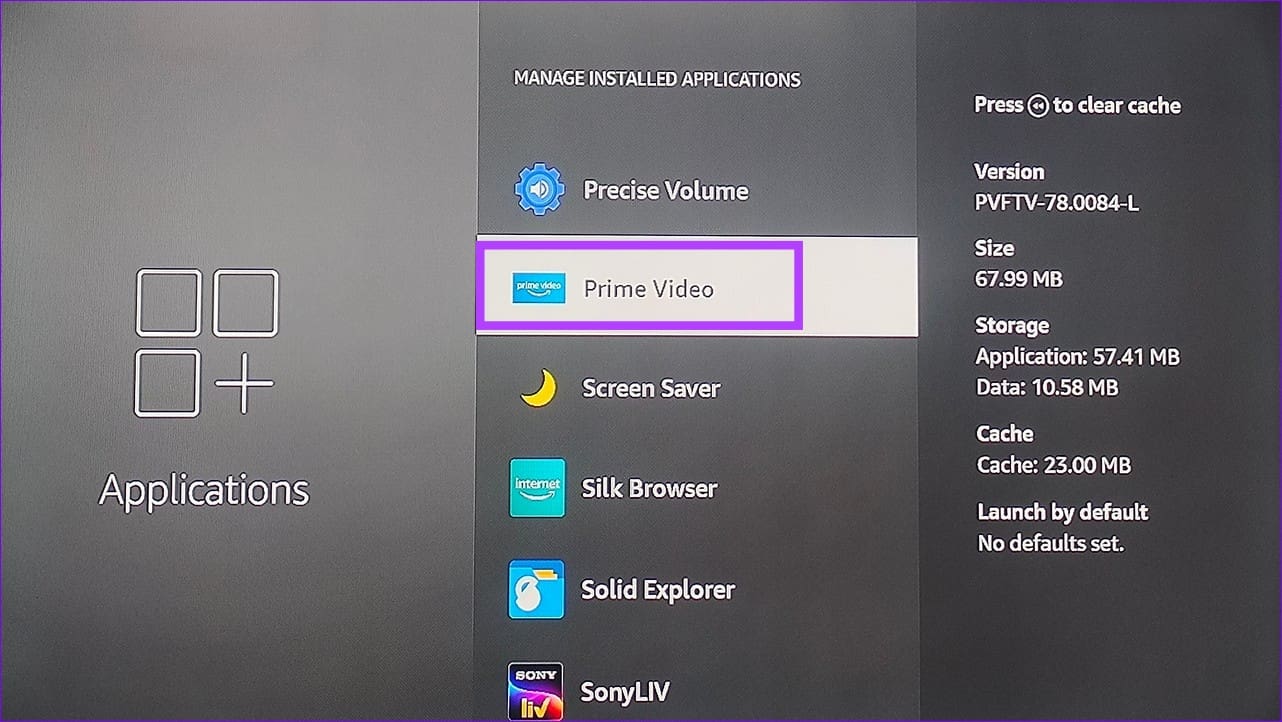
Step 3: Finally, select Force stop.

Fix 2: Clear Prime Video Cache and Data
Corrupt cache files are a common underlying culprit behind Prime Video not working properly on your Fire TV Stick. Clear the cache and Prime Video app data manually to resolve the issue.
Note: Clearing the Prime Video data resets the app and requires account re-authentication upon opening.
Step 1: Open Fire TV Stick settings to locate Prime Video among installed applications (check the steps above).
Step 2: Tap Clear cache to delete the Prime Video cache files manually. If the problem persists, reset the app by selecting Clear data.


Fix 3: Use Cloudflare or Google DNS on Your Fire TV Stick
If nothing works, switch the DNS server on your Fire TV Stick to get an uninterrupted Prime Video app experience. You can point it to Google or Cloudflare to get started.
Step 1: Open your Fire TV Stick settings > select Network.
Step 2: Press the three vertical bar button on your Fire TV Stick remote to forget the connected network. Alternatively, tap a new Wi-Fi network to configure its connection settings.
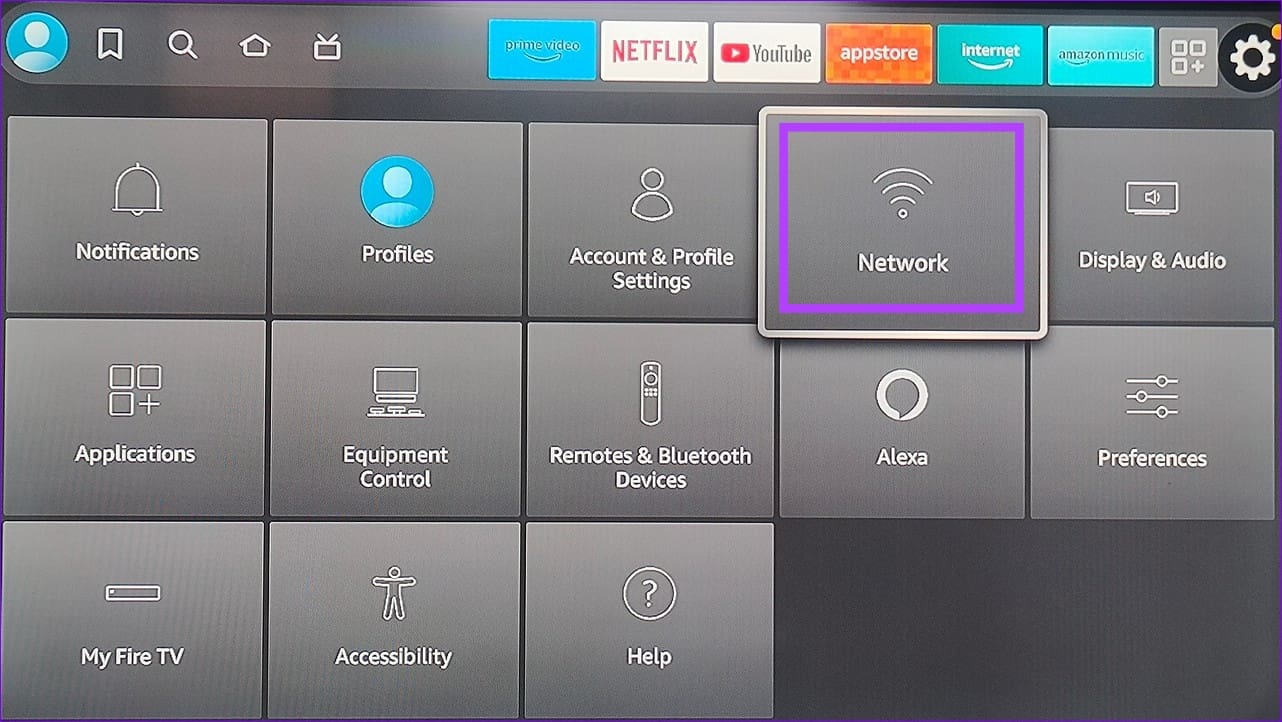

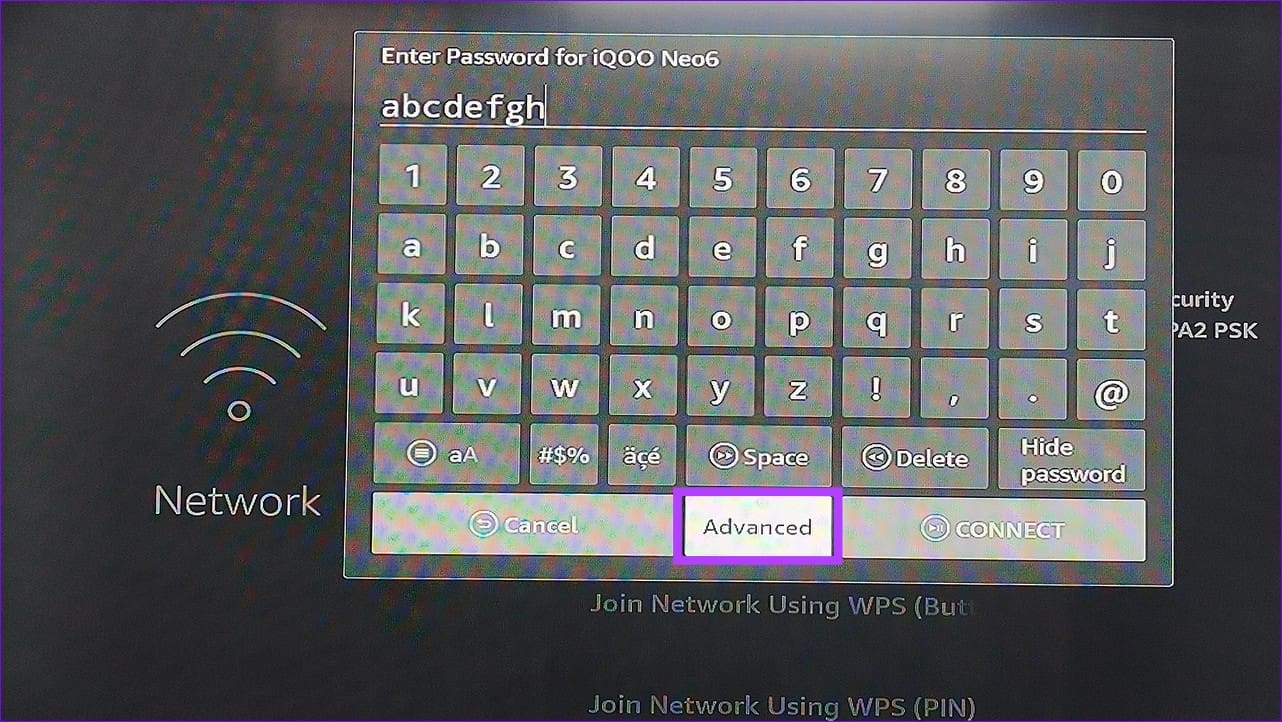
Step 3: Enter the network passcode and select Advanced.
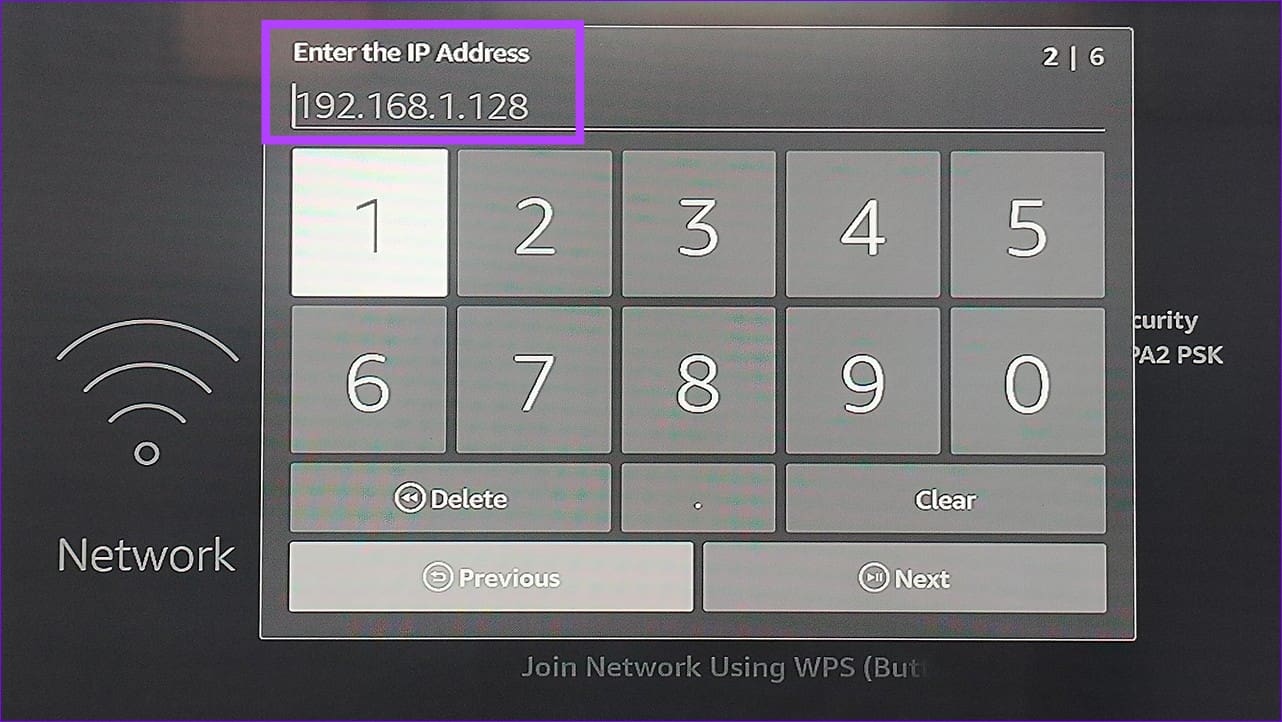
Step 4: Retain the IP address, Getaway, and Network Prefix Length values as shown in their respective input fields.

Step 5: In DNS 1 (primary DNS), enter 8.8.8.8 for Google or 1.1.1.1 for Cloudflare and tap Next.
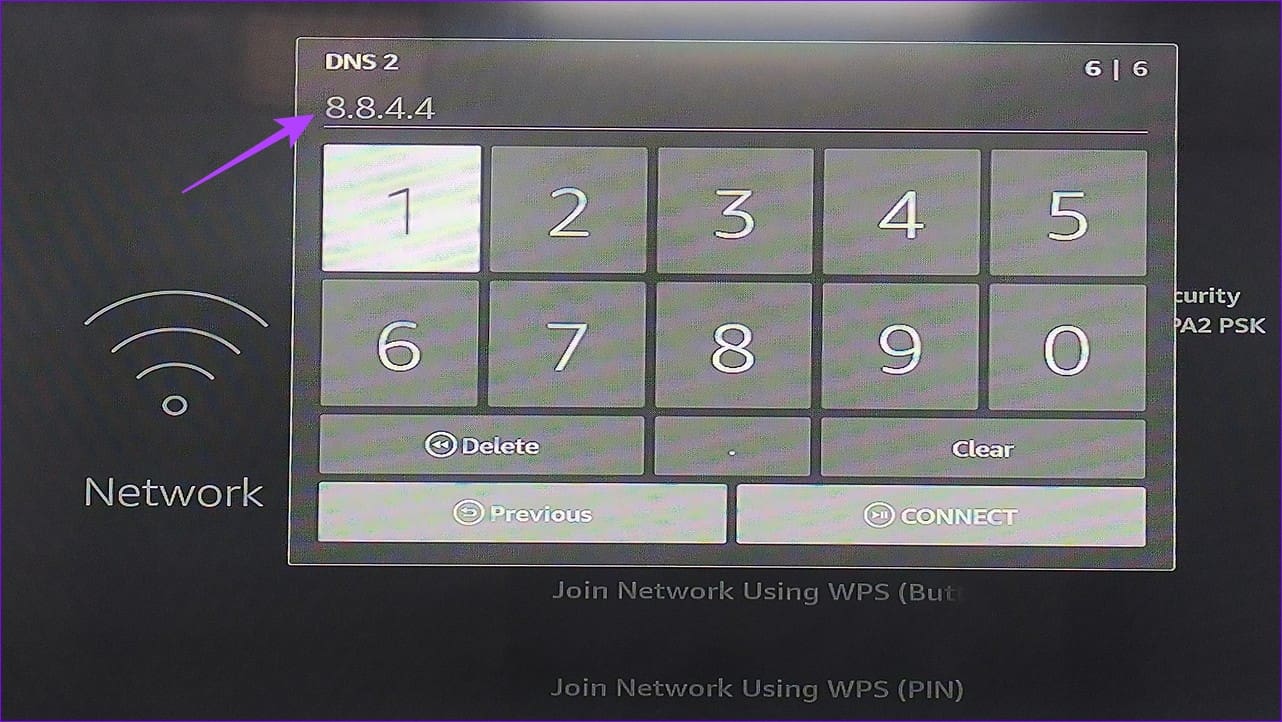
Step 6: In DNS 2 (secondary DNS), enter 8.8.4.4 for Google or 1.0.0.1 for Cloudflare and tap Connect.

Was this helpful?
Last updated on 21 May, 2024
Read Next
 3 Ways to Fix Apple TV App Not Working on Amazon Fire TV Stick
Basic Fixes Force quit and relaunch Apple TV app: This will give the app a fresh start on your Firestick.
3 Ways to Fix Apple TV App Not Working on Amazon Fire TV Stick
Basic Fixes Force quit and relaunch Apple TV app: This will give the app a fresh start on your Firestick.
 3 Ways to Fix Fire TV Stick Mirroring Not Working or Freezing
Screen Mirroring Requirements and Limitations for Fire TV Stick Before starting, let us look at certain conditions that you might need to meet when screen mirroring your device to your
3 Ways to Fix Fire TV Stick Mirroring Not Working or Freezing
Screen Mirroring Requirements and Limitations for Fire TV Stick Before starting, let us look at certain conditions that you might need to meet when screen mirroring your device to your
 3 Ways to Fix Fire TV Stick Remote Volume Not Working
Basic Fixes: Check the remote batteries: Fire TV Stick relies on batteries to work properly.
3 Ways to Fix Fire TV Stick Remote Volume Not Working
Basic Fixes: Check the remote batteries: Fire TV Stick relies on batteries to work properly.
 5 Ways to Fix Amazon Silk Browser Not Working on Fire TV Stick
Basic Fixes Check your network connection: Open Fire OS settings via the Gear icon at the top right.
5 Ways to Fix Amazon Silk Browser Not Working on Fire TV Stick
Basic Fixes Check your network connection: Open Fire OS settings via the Gear icon at the top right.
 3 Ways to Fix YouTube TV Not Working on Amazon Fire TV Stick
Basic Fixes Check the YouTube server status: Visit Downdetector to check an active YouTube TV server outage.
3 Ways to Fix YouTube TV Not Working on Amazon Fire TV Stick
Basic Fixes Check the YouTube server status: Visit Downdetector to check an active YouTube TV server outage.
 5 Ways to Fix Video Unavailable in Amazon Prime Video
Basic Fixes Check network connection: Playing Prime without any problems requires an optimum internet speed.
5 Ways to Fix Video Unavailable in Amazon Prime Video
Basic Fixes Check network connection: Playing Prime without any problems requires an optimum internet speed.
 3 Ways to Fix Amazon Prime Video App Not Working on Mac
Basic Fixes Check internet connection: The speed of the internet connection should be optimal to watch content of the highest quality on Prime Video.
3 Ways to Fix Amazon Prime Video App Not Working on Mac
Basic Fixes Check internet connection: The speed of the internet connection should be optimal to watch content of the highest quality on Prime Video.
 No Sound on Amazon Fire TV Stick YouTube App? Here’s the Fix
Basic Fixes Check if the audio is muted: The Fire TV 4K remote has a dedicated Mute button to disable audio.
No Sound on Amazon Fire TV Stick YouTube App? Here’s the Fix
Basic Fixes Check if the audio is muted: The Fire TV 4K remote has a dedicated Mute button to disable audio.
The article above may contain affiliate links which help support Guiding Tech. The content remains unbiased and authentic and will never affect our editorial integrity.