

Try Basic Fixes
- Check if Steam is down: Just like any other service, Steam is vulnerable to occasional server-side glitches. When this happens, Steam may exhibit abnormal behavior and fail to load. To overrule this possibility, you can visit Downdetector and verify the status of Steam’s servers.
- Connect or disconnect VPN: Several users on Reddit reported fixing the Access Denied error in Steam by using a VPN connection on Windows. You can also give this method a shot. On the other hand, if you are already using a VPN connection, try turning it off. Steam might restrict your access to the store if it identifies your network connection as suspicious.
- Sign out and sign back in: Account-specific issues can block you from accessing Steam and result in similar errors. You can try signing out of the Steam app and signing back in to see if that helps.
Fix 1: Run Steam as an Administrator
A lack of relevant permissions could cause Steam to show the Access Denied error on your Windows computer. First, close the Steam client and open it again as an administrator.
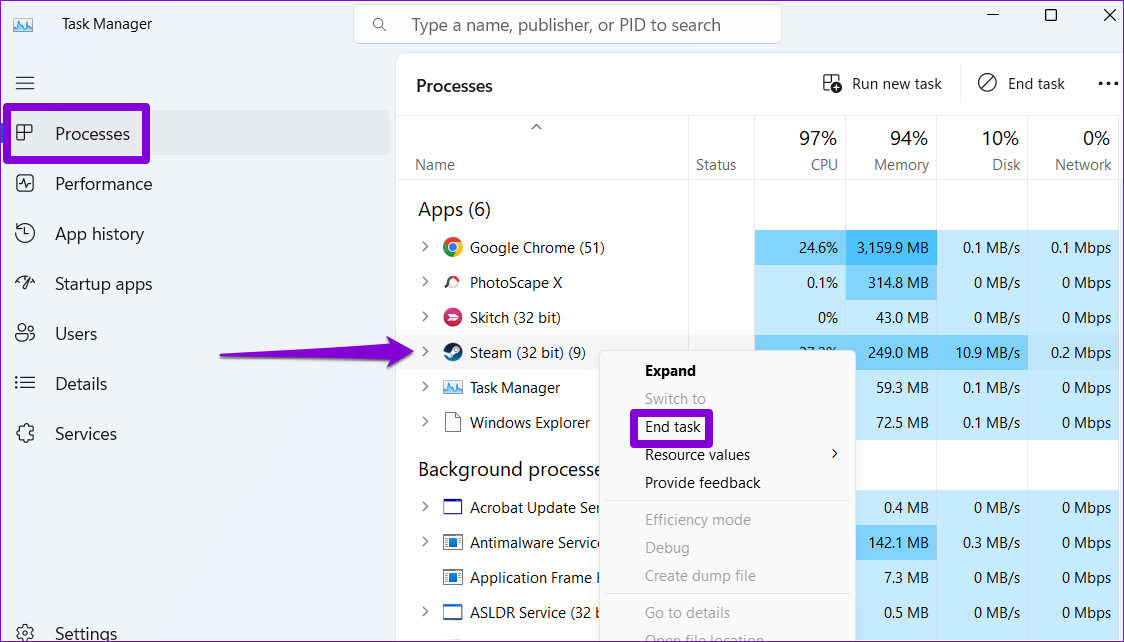
Press the Ctrl + Shift + Esc keyboard shortcut to open the Task Manager. In the Processes tab, right-click on Steam and select the End task option.
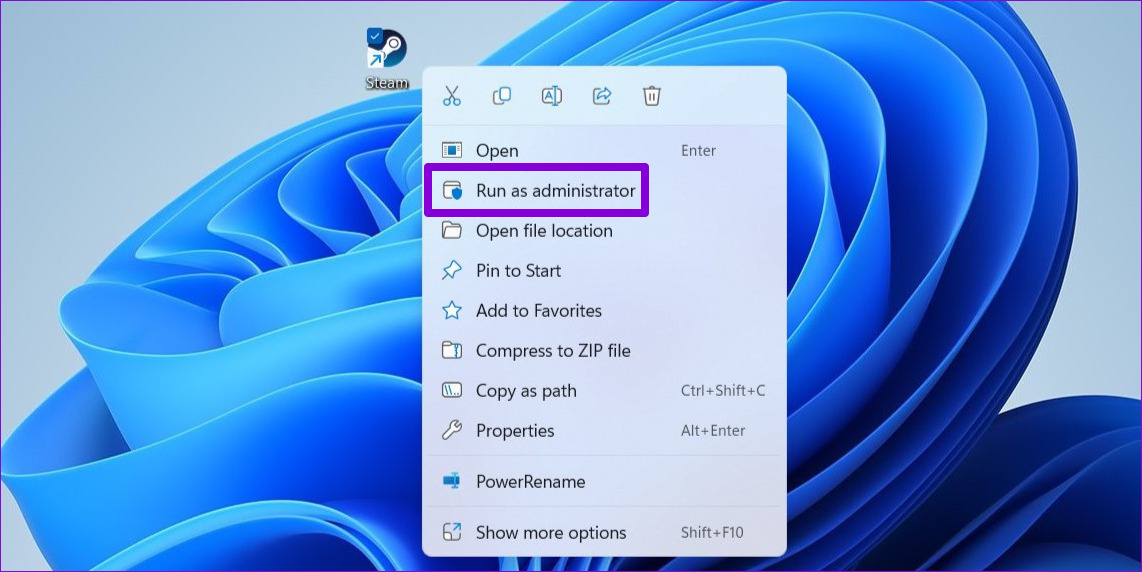
Right-click on the Steam app shortcut and select Run as administrator from the context menu.
Fix 2: Flush DNS Cache
Flushing the DNS (or Domain Name System) cache is another thing you can try when Steam displays the Access Denied error or fails to verify the CAPTCHA. That will help resolve any issues caused by outdated or corrupted DNS data.
To flush the DNS cache on Windows:
Step 1: Right-click on the Start icon and select Terminal (Admin) from the list.

Step 2: Type ipconfig /flushdns in the console and hit Enter.

Restart your PC after this and check if the issue is still there.
Fix 3: Change DNS Server
Problems with the default DNS server offered by your internet service provider can also contribute to the Access Denied error in Steam. To avoid this, try using a different DNS server on Windows by following the steps below.
Step 1: Press the Windows + R keyboard shortcut to open the Run dialog box. In the Open field, type ncpa.cpl, and press Enter.
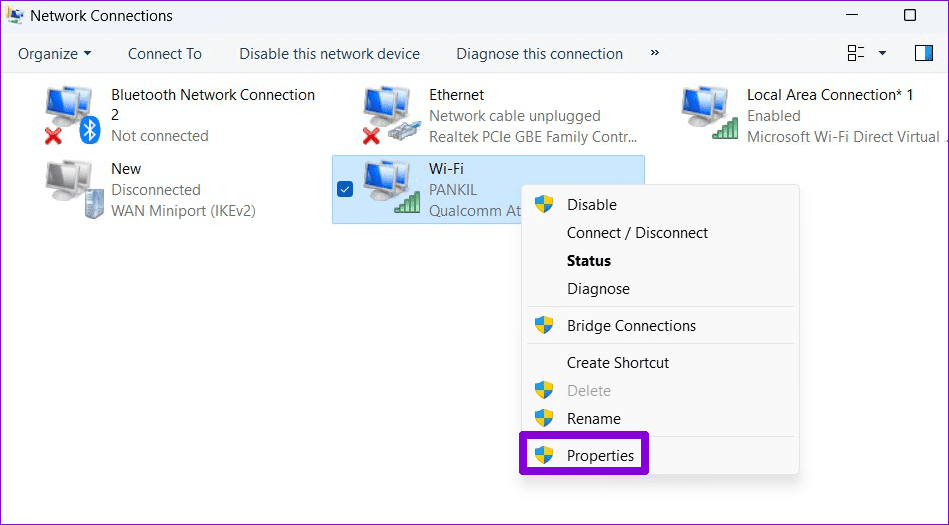
Step 2: In the Network Connections window, right-click on your internet connection and select Properties.
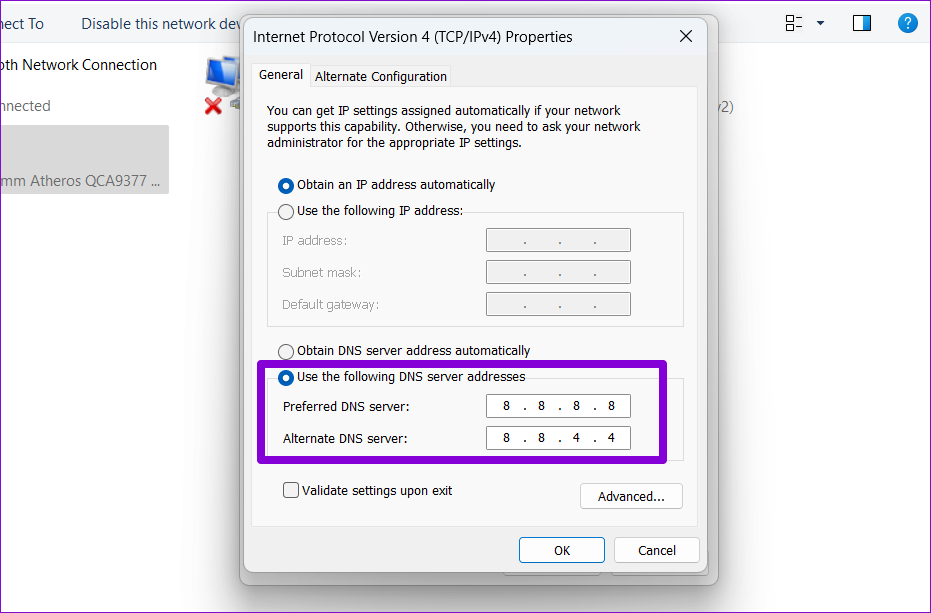
Step 3: Double-click the Internet Protocol Version 4 (TCP/IPv4) option.

Step 4: Select Use the following DNS server addresses option. In the text fields next to the Preferred DNS Server and the Alternate DNS Server, enter 8.8.8.8 and 8.8.4.4, respectively. Then, click OK.
Fix 4: Allow Steam Through the Windows Firewall
Steam may fail to connect to the internet and display unusual errors if the Windows Firewall is blocking it on your PC. To fix this, you need to allow Steam to run through the Windows Firewall.
Step 1: Press the Windows + S keyboard shortcut to access the search menu. Type in allow an app through Windows Firewall and press Enter.

Step 2: Click the Change settings button.

Step 3: Locate Steam on the list and tick the Private and Public checkboxes next to it. Then, click OK.

Was this helpful?
Last updated on 27 July, 2024
Read Next
 6 Ways to Fix “Folder Access Denied” Error on Windows
Basic Fixes Check if the folder is encrypted. The administrator could have password-locked or encrypted the folder, so contact them for assistance.
6 Ways to Fix “Folder Access Denied” Error on Windows
Basic Fixes Check if the folder is encrypted. The administrator could have password-locked or encrypted the folder, so contact them for assistance.
 3 Ways to Fix MIUI Dual Apps Permission Denied Error
Basic Fixes Restart device: Restarting your device can eliminate any bugs causing problems with the Dual Apps feature.
3 Ways to Fix MIUI Dual Apps Permission Denied Error
Basic Fixes Restart device: Restarting your device can eliminate any bugs causing problems with the Dual Apps feature.
 4 Ways to Fix Exception Access Violation Error on Windows 11
Fix 1: Use the Built-in Troubleshooter The Hardware and Device troubleshooter can help you resolve hardware-related issues that trigger the Exception Access Violation error.
4 Ways to Fix Exception Access Violation Error on Windows 11
Fix 1: Use the Built-in Troubleshooter The Hardware and Device troubleshooter can help you resolve hardware-related issues that trigger the Exception Access Violation error.
 6 Ways to Fix the “Missing File Privileges” Error in Steam for Windows
Fix 1: End the igfxEM Module Process The igfxEM process is a component of the Intel Graphic Executable Main Module.
6 Ways to Fix the “Missing File Privileges” Error in Steam for Windows
Fix 1: End the igfxEM Module Process The igfxEM process is a component of the Intel Graphic Executable Main Module.
 3 Ways to Fix Content File Locked Error in Steam for Windows
Try Basic Fixes Run Steam as an administrator: If your Steam library folder lacks the necessary write permissions, you may encounter the 'content file locked' error.
3 Ways to Fix Content File Locked Error in Steam for Windows
Try Basic Fixes Run Steam as an administrator: If your Steam library folder lacks the necessary write permissions, you may encounter the 'content file locked' error.
 Top 5 Ways to Fix ‘Steam Stuck on Verifying Installation’ Error in Windows
Basic Fixes Check Your Internet Connection: As a starting point, it's important to ensure that your internet connection is working.
Top 5 Ways to Fix ‘Steam Stuck on Verifying Installation’ Error in Windows
Basic Fixes Check Your Internet Connection: As a starting point, it's important to ensure that your internet connection is working.
 6 Ways to Fix Not Enough Disk Space Error in Steam on Windows 11
Why Don’t I Have Enough Disk Space While Running Steam?
6 Ways to Fix Not Enough Disk Space Error in Steam on Windows 11
Why Don’t I Have Enough Disk Space While Running Steam?
 6 Ways to Fix Failed to Load Web Page Error in Steam for Windows
Fix 1: Terminate Steam Processes and Reopen the App The "Failed to load web page" error in Steam can occur if one of the app processes is experiencing issues.
6 Ways to Fix Failed to Load Web Page Error in Steam for Windows
Fix 1: Terminate Steam Processes and Reopen the App The "Failed to load web page" error in Steam can occur if one of the app processes is experiencing issues.
The article above may contain affiliate links which help support Guiding Tech. The content remains unbiased and authentic and will never affect our editorial integrity.

