File transfer speeds dropping to zero is a common issue in Windows, and there are several reasons why this happens. Fortunately, there are also several ways to troubleshoot and resolve the problem. This guide will take you through everything, from checking hardware, drive health, and integrity, to looking at advanced system and software optimization tricks you can use.
Connection and Hardware Checks
The simplest issues to check for are those related to hardware and how it connects to your PC. From checking USB ports to updating drivers and changing connection policies, this is the best place to start.
Make Sure You’re Using the Fastest USB Port
If you are using an external hard drive, make sure it’s plugged into a USB 3.0 port on your computer. These are usually blue. If the drive is connected to a slower USB 2.0 port, this might be the problem. USB 3.0 can transfer data at speeds of up to 5 Gbps, whereas the older USB 2.0 format is limited to a maximum of 480 Mbps (over 10 times slower).
Check and Update Drivers
Outdated drivers for storage devices and USB controllers can cause issues. Here’s how to check and update them.
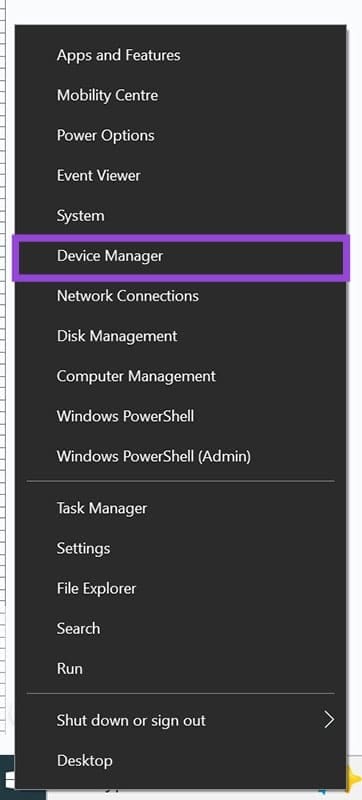
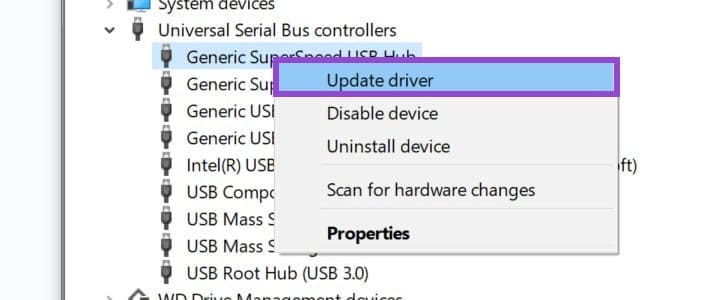
Step 1. Open “Device Manager” by right-clicking on the “Start” button.
Step 2. Expand the “Disk drives” and “Universal Serial Bus controllers” by clicking the arrows.
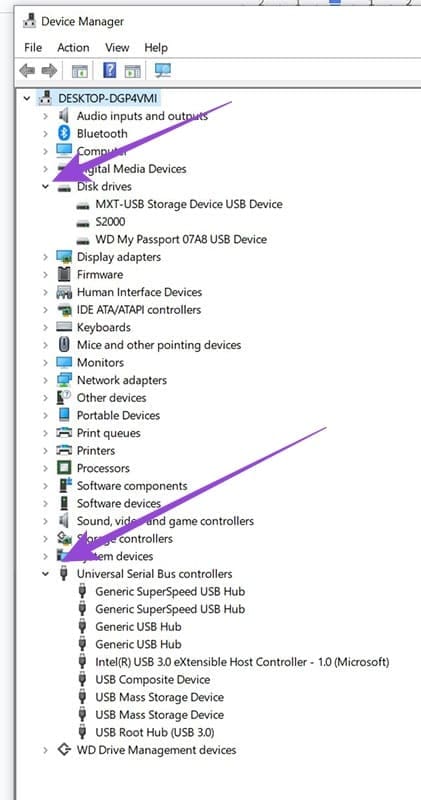
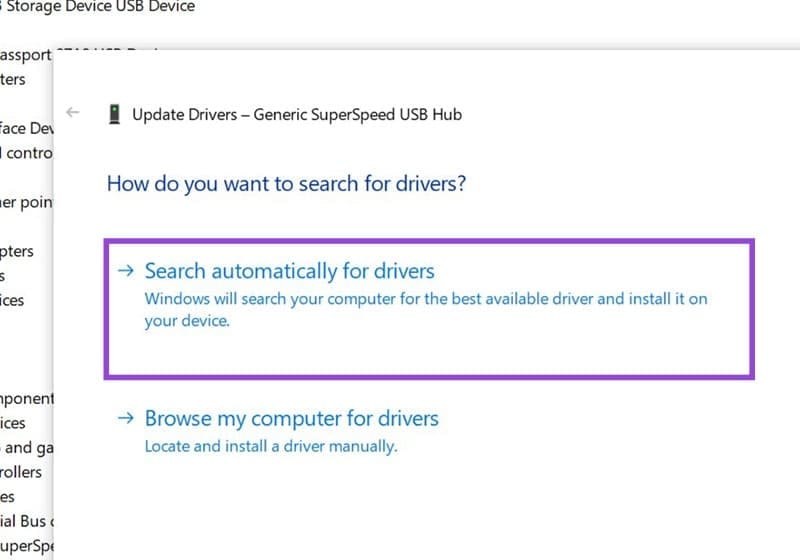
Step 3. Right-click on each line and select “Update driver” and “Search automatically for drivers.”
Change the USB Removal Policy
This can speed things up by enabling write caching. The drawback here, though, is that you will have to ensure the hardware is safely ejected whenever you remove it from the computer.
Step 1. In the Device Manager, expand “Disk drives”, right-click the external drive, and click “Properties.”
Step 2. Navigate to the “Policies” tab and select “Better performance.” Click “OK.”

Check Drive Health and the File System
If your drive is fragmented or damaged in any way, you are likely to have issues with transfer speeds. Likewise, certain file systems are slower than others. If your drive is formatted to the FAT32 system, it will be slower when transferring large files. Both NTFS and exFAT are faster with files of 4GB and above.
Error Checking and Drive Health
Step 1. Open “File Explorer,” right-click the drive and choose “Properties,” then the “Tools” tab. Under “Error checking,” click the “Check” button.
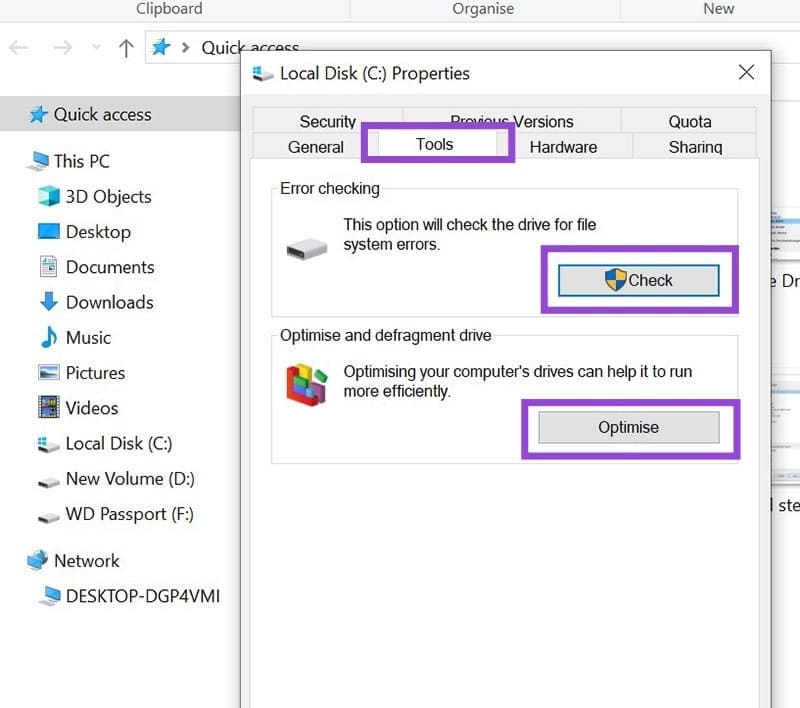
Step 2. Under “Optimize and defragment drive,” click “Optimize” (you can skip this step if the drive is an SSD because Windows manages this type of drive differently).
File System Type
Make sure the drive is formatted to NTFS or exFAT. Open “File Explorer”, locate the drive. Right-click it and look at the “File system” in the “General” tab.

System Optimizations
Closing unnecessary background programs and disabling Remote Differential Compression (RDC) are two things worth doing.
Note: Remote Differential Compression (RDC) is used for synchronizing remote files and can sometimes slow transfers.
Closing Background Programs
Open the Task Manager (you can do this by holding down Ctrl+Shift+Esc). In the “Processes” tab, look for anything heavily using the CPU, Memory, or Disk. Close any apps and processes not currently needed.

Turning Off RDC
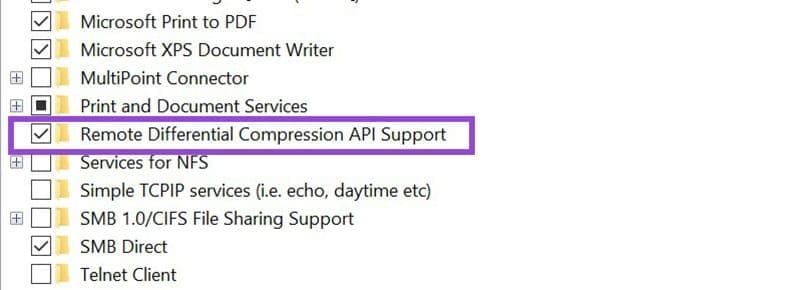
Using the search function, type in “Turn Windows features on or off.” Find “Remote Differential Compression API Support” and uncheck that box. Click “OK” and restart your computer.

Alternative Transfer Method
You can use something called the “Robocopy Command,” which is often more stable and faster for large file transfers. It’s a bit more advanced and requires you to input a copy command in the Command Prompt as follows.
Step 1. Search Windows for “Command Prompt”, right-click, and choose “Run as administrator.”
Step 2. Use a copy command in the format: robocopy “SourcePath” “DestinationPath” /D /E (e.g., robocopy “C: \Users\You\Documents” “D: \Backup” /D /E) where “/E” Copies all subdirectories, and “/Z” is the Restartable mode, meaning the system will resume if the connection is lost.

Was this helpful?
Last updated on 26 October, 2025
Read Next
 How to Speed Up a Slow PowerPoint File — Three Ways
Microsoft PowerPoint is one of the most commonly used presentation tools out there — but it’s not perfect.
How to Speed Up a Slow PowerPoint File — Three Ways
Microsoft PowerPoint is one of the most commonly used presentation tools out there — but it’s not perfect.
 6 Ways to Fix Slow USB File Transfer in Windows 11
Fix 1: Change USB Drive Policy to Better Performance By default, Windows 11 employs the Quick Removal policy for all USB devices.
6 Ways to Fix Slow USB File Transfer in Windows 11
Fix 1: Change USB Drive Policy to Better Performance By default, Windows 11 employs the Quick Removal policy for all USB devices.
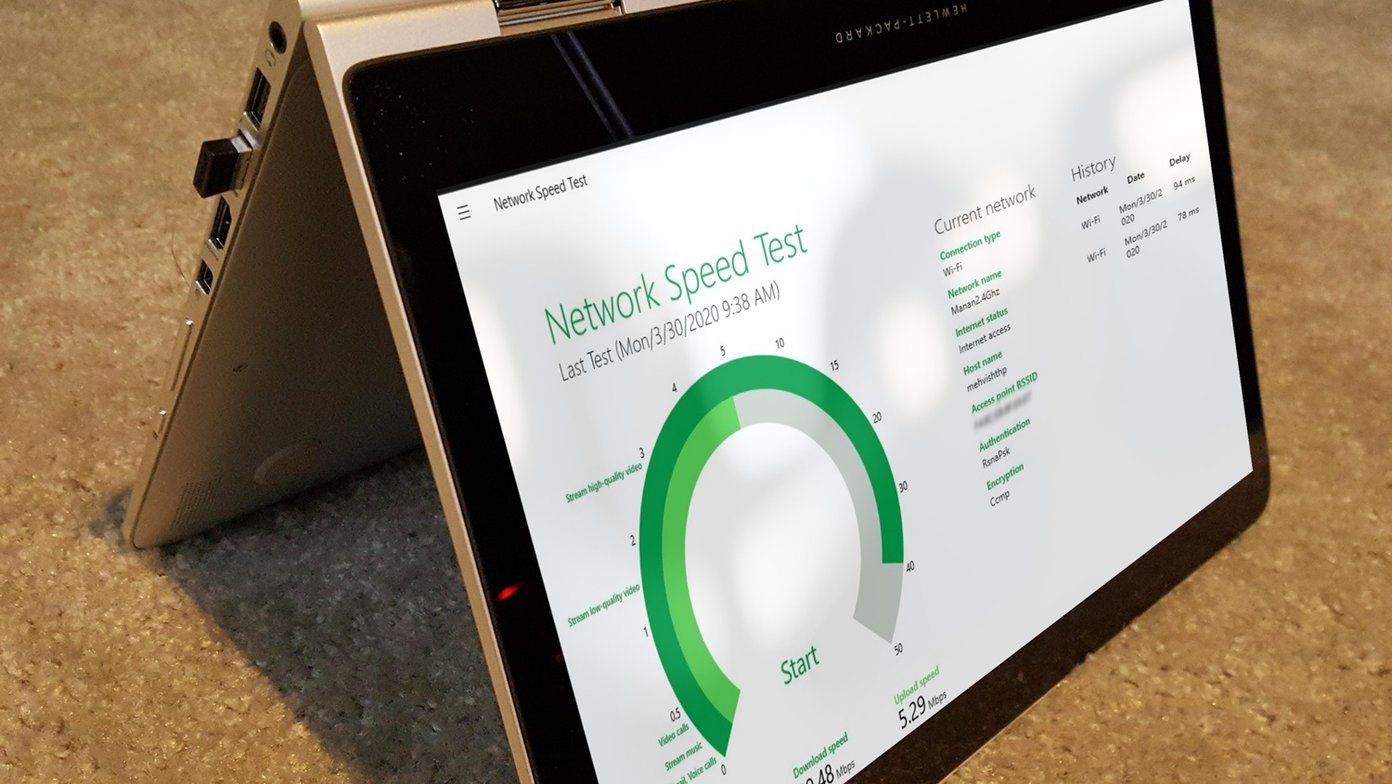 5 Best Internet Speed Meter Apps for Windows 10 PC
Typically, when we want to check our internet speed, we do it using a speed test website.
5 Best Internet Speed Meter Apps for Windows 10 PC
Typically, when we want to check our internet speed, we do it using a speed test website.
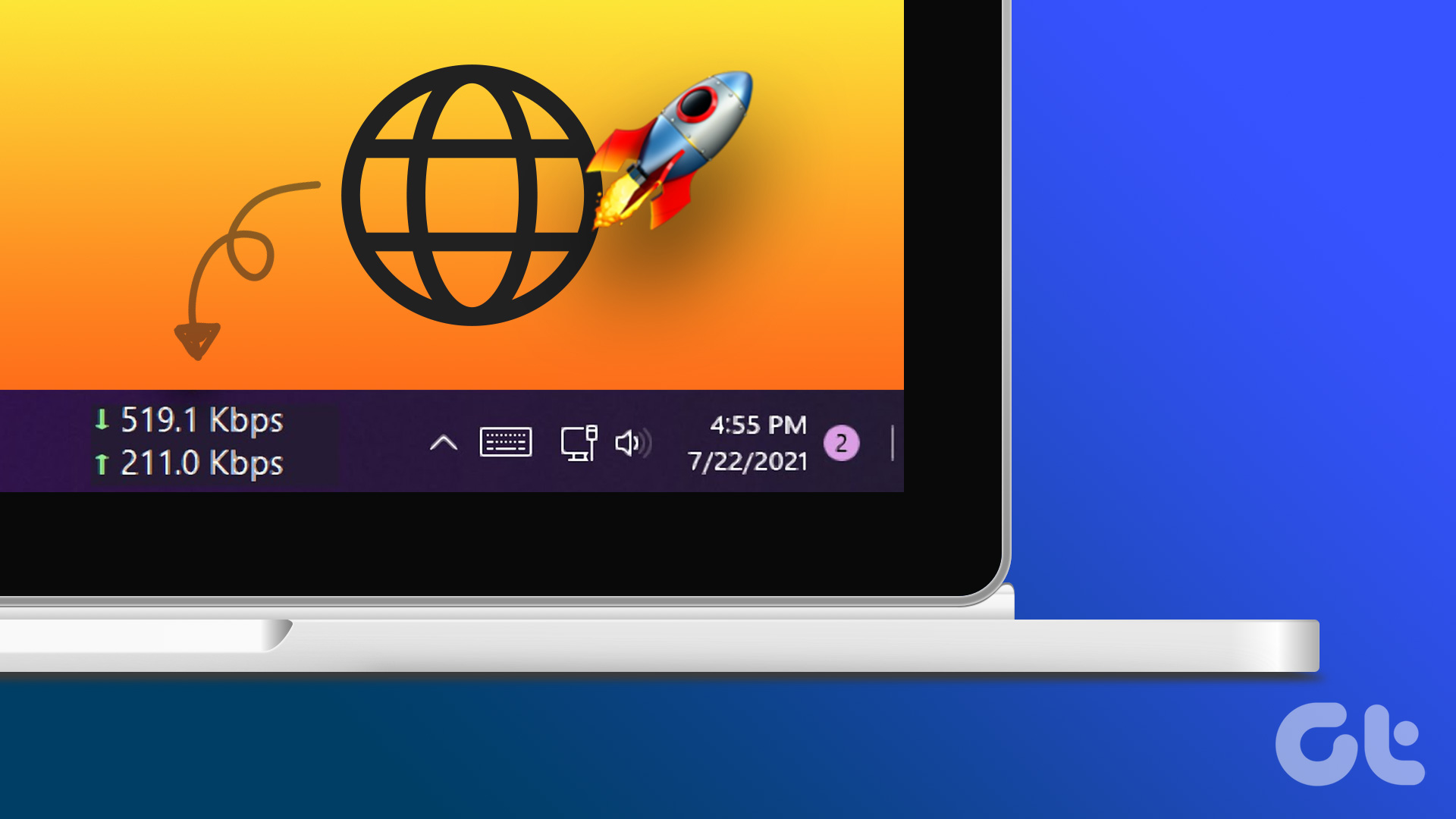 How to Display Internet Speed on Taskbar in Windows
https://youtu.be/m62gwMYvYVk Download Internet Speed Meter for Windows for Real-Time Monitoring To show internet speed in the taskbar on Windows, you will have to download a dedicated app known as NetSpeedMonitor.
How to Display Internet Speed on Taskbar in Windows
https://youtu.be/m62gwMYvYVk Download Internet Speed Meter for Windows for Real-Time Monitoring To show internet speed in the taskbar on Windows, you will have to download a dedicated app known as NetSpeedMonitor.
 How to Speed up Thumbnail Loading in Windows 10
Haven’t we all gone through the experience where you sat down to show your recent vacation pictures to your friends, and just as you click on the folder the thumbnails
How to Speed up Thumbnail Loading in Windows 10
Haven’t we all gone through the experience where you sat down to show your recent vacation pictures to your friends, and just as you click on the folder the thumbnails
 8 Ways to Fix Slow Internet Speed on Windows 11
https://youtu.be/JSqfxm-5XZI Fix 1: Turn Off the Metered Connection Setting your internet connection as metered on Windows can prevent apps from using the internet proficiently, leading to slow internet speeds.
8 Ways to Fix Slow Internet Speed on Windows 11
https://youtu.be/JSqfxm-5XZI Fix 1: Turn Off the Metered Connection Setting your internet connection as metered on Windows can prevent apps from using the internet proficiently, leading to slow internet speeds.
 4 Ways to Fix Slow Download Speed in Microsoft Edge for Windows
Basic Yet Essential Fixes Check internet speed: If your internet speed is slow or bandwidth is less, all downloads will get slow.
4 Ways to Fix Slow Download Speed in Microsoft Edge for Windows
Basic Yet Essential Fixes Check internet speed: If your internet speed is slow or bandwidth is less, all downloads will get slow.
 4 Ways to Fix Slow Download Speed in Epic Games Launcher on Windows 11
https://youtu.be/w8E4d-rCMUQ Basic Fixes: Check the Epic Server Status: Epic Games Launcher also relies on multiple servers to operate, and It’s possible that a server might be out of order or
4 Ways to Fix Slow Download Speed in Epic Games Launcher on Windows 11
https://youtu.be/w8E4d-rCMUQ Basic Fixes: Check the Epic Server Status: Epic Games Launcher also relies on multiple servers to operate, and It’s possible that a server might be out of order or
The article above may contain affiliate links which help support Guiding Tech. The content remains unbiased and authentic and will never affect our editorial integrity.