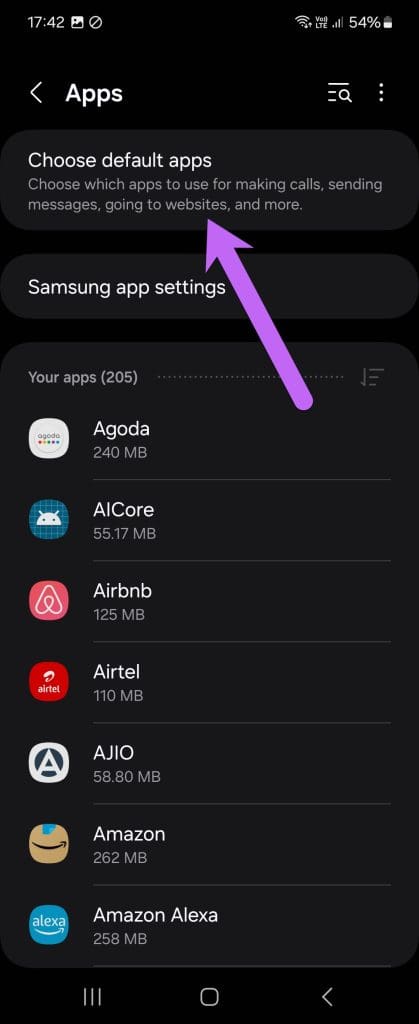
Step 1: Begin by going to Settings and searching for Default Apps. Once in, tap on SMS app option to see all the available apps.
Step 2: Now, select the built-in SMS app from the list.


That will stop Truecaller from being your default SMS service, but you may continue to receive duplicate messages. Truecaller insists that our messages are temporarily stored on their servers to ensure delivery and to process spam, but why take the chance? To turn it off, follow the steps below.
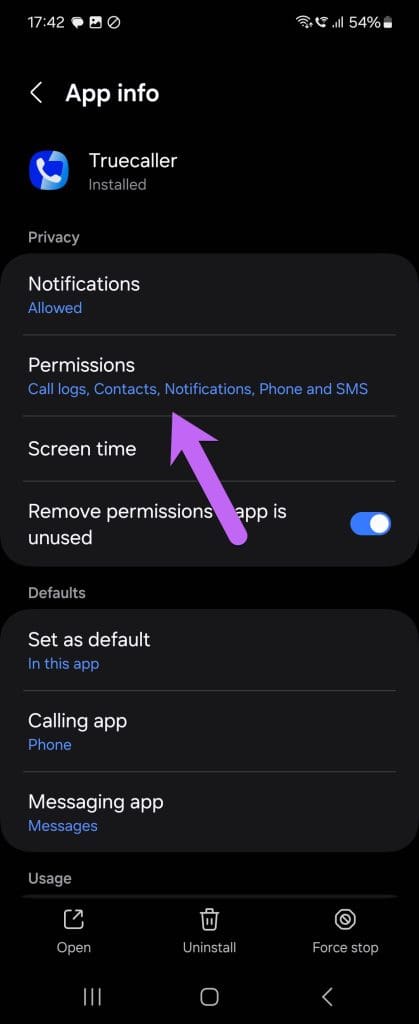
Step 1: On your phone, search for Truecaller and tap on App Info or App Settings. This step may differ from phone to phone.
Step 2: Next, select Permissions > SMS and choose Don’t Toggle for SMS. Told you, it’s quite simple.
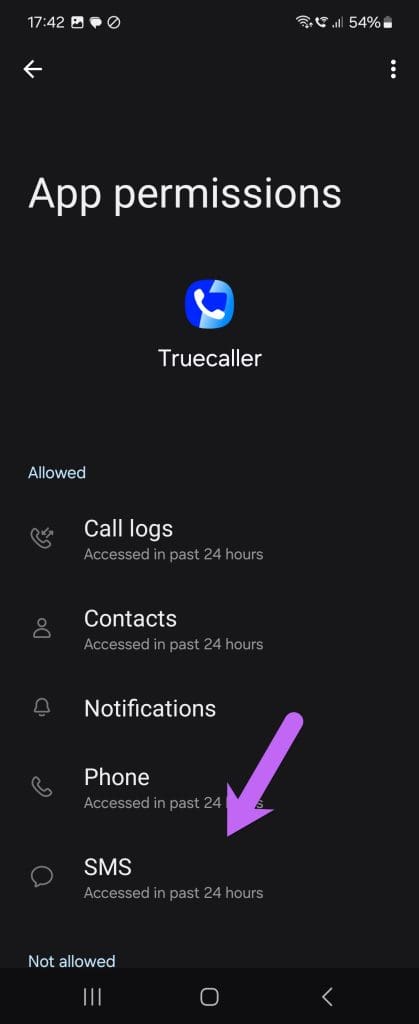

Since you are on the permissions page, you can also check the other permissions. For example, you can turn off the Mic permission if you don’t use voice search.
Bonus Truecaller Tips and Tricks
1. Scan a Photo or Business Card
Truecaller has come a long way from being just a number-identifying service. Over the years, it has introduced many valuable features, including its OCR feature for recognizing phone numbers.
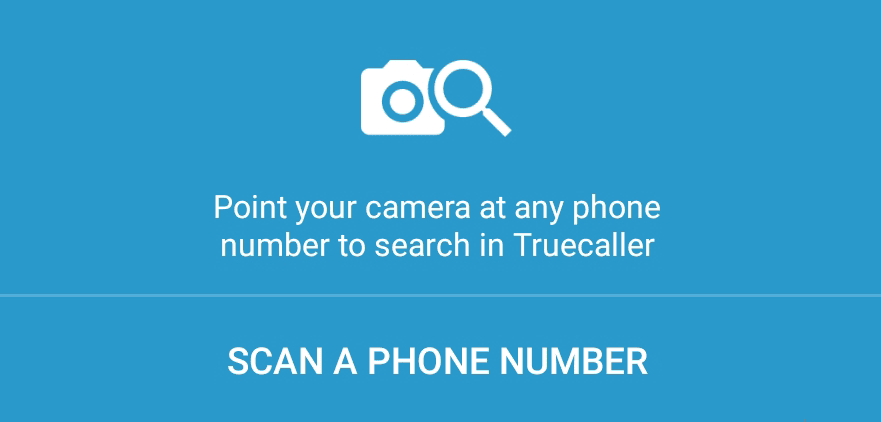
You can scan for a number and then search it directly on the Truecaller database. This handy trick will save you from the hassle of scribbling numbers or hoarding old business cards.
To search for a number, tap on the Search bar and then on the Camera icon. Now, point your camera at the card (or signboard) and the Truecaller app will recognize it at the speed of light. Tap on the number on your screen, and the contact name will show up as it is on their database
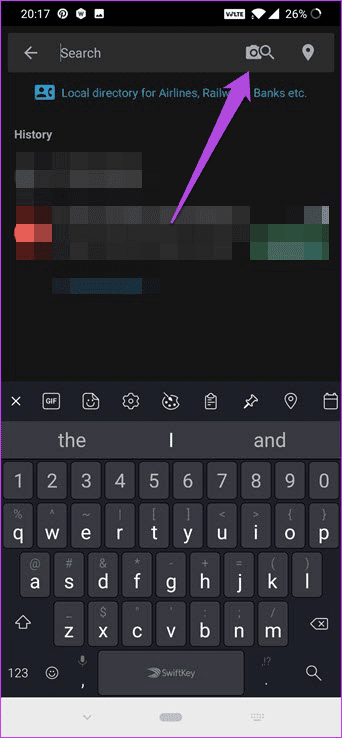
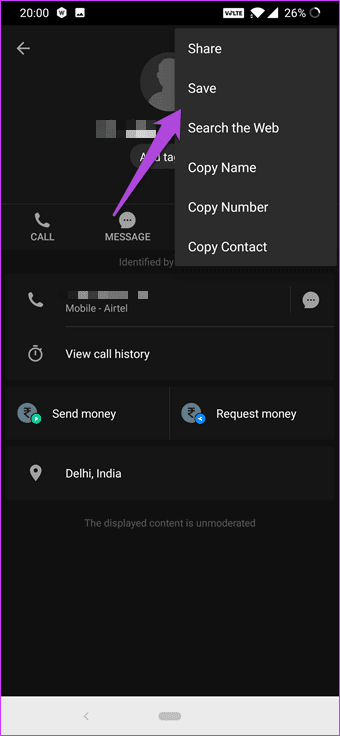
The app’s recognition is fast and quick for typed numbers. However, for handwritten numbers, it’s not as accurate.
2. Enable Speed Dial
Another slightly hidden feature is Speed Dial, and this comes to use if you use Truecaller as your default caller app. The trick here is to assign contacts to different numbers.
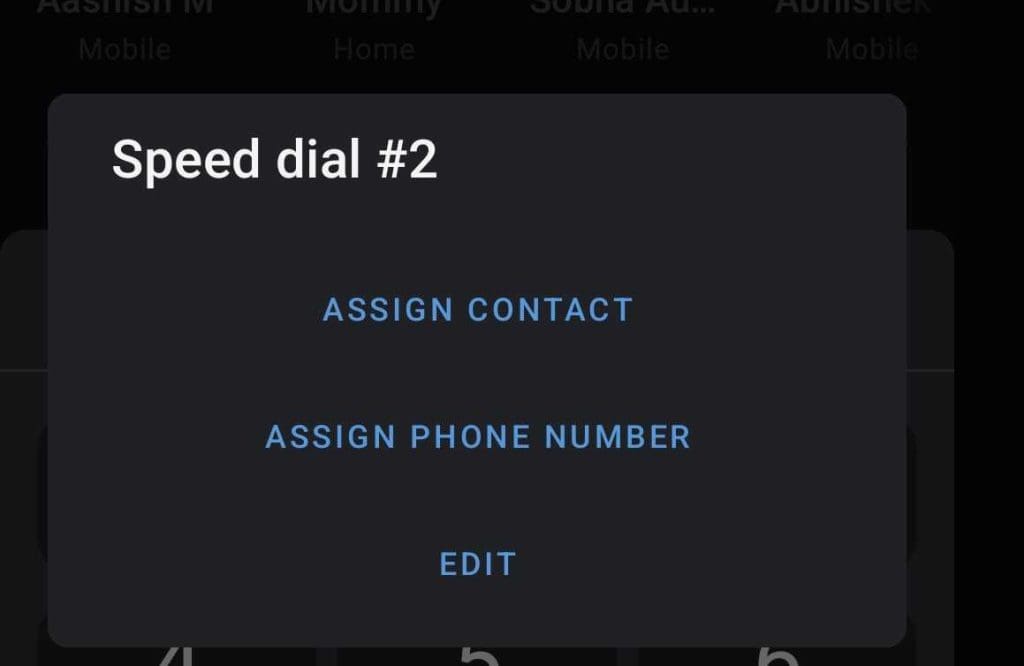
To set Speed Dial, bring up the Keypad and long tap on any one of the numbers (except 1). Tap on Assign Contact and choose a number from your contact list. Simple, see.
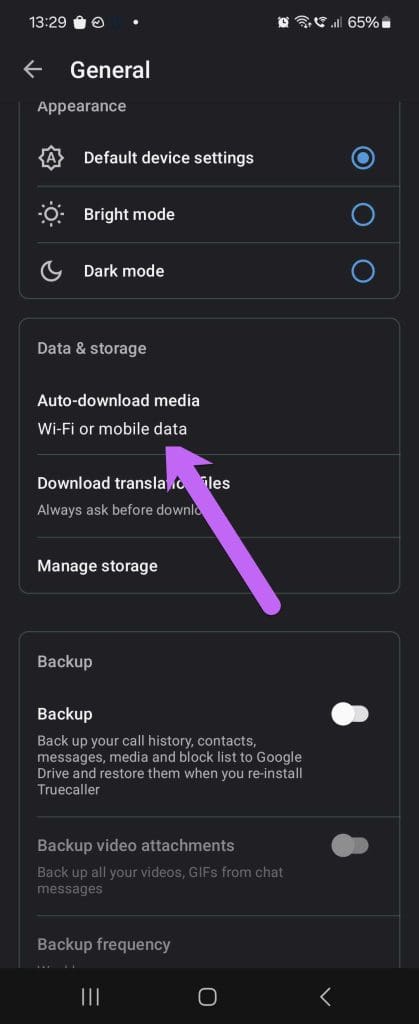
3. Set Auto Download Media to Never
Another slightly annoying default feature is that the app auto-downloads media items to your phone’s Gallery. Thankfully, you can turn it off, which reduces your data usage to some extent and prevents unnecessary media files from getting downloaded.
To do so, head over to Settings > General and set Auto-download media to Never.

Was this helpful?
Last updated on 03 September, 2024
Read Next
 How to Unlist Your Phone Number From Truecaller
Truecaller is a great way to find out who called you from an unknown phone number.
How to Unlist Your Phone Number From Truecaller
Truecaller is a great way to find out who called you from an unknown phone number.
 How to Restrict or Disable Instant Messaging on Tumblr
Restrict or Disable Messaging on Tumblr If you're tired of getting constant message notifications on Tumblr, disabling the Instant Messaging feature becomes reasonable.
How to Restrict or Disable Instant Messaging on Tumblr
Restrict or Disable Messaging on Tumblr If you're tired of getting constant message notifications on Tumblr, disabling the Instant Messaging feature becomes reasonable.
 How to Hide Last Seen on Truecaller
What Is Last Seen on Truecaller and How to Disable It The "Last Seen" Truecaller means the last time a person was active on the Truecaller app.
How to Hide Last Seen on Truecaller
What Is Last Seen on Truecaller and How to Disable It The "Last Seen" Truecaller means the last time a person was active on the Truecaller app.
 5 Ways to Fix Text Messaging Sound Not Working on Android
Basic Fixes Restart device: If there's any bug preventing you from receiving notifications, restarting your device will help.
5 Ways to Fix Text Messaging Sound Not Working on Android
Basic Fixes Restart device: If there's any bug preventing you from receiving notifications, restarting your device will help.
 10 Best Messaging Apps That Work Without a Phone Number
Sharing your phone number on chatting platforms can expose you to unwanted spam, potential security breaches, and even compromise your identity.
10 Best Messaging Apps That Work Without a Phone Number
Sharing your phone number on chatting platforms can expose you to unwanted spam, potential security breaches, and even compromise your identity.
 13 Cool MX Player Tips and Tricks You Must Check Out
When it comes to playing videos on your smartphone, no other player plays it better than the much popular MX Player.
13 Cool MX Player Tips and Tricks You Must Check Out
When it comes to playing videos on your smartphone, no other player plays it better than the much popular MX Player.
 How to Add Conditional Logic to Google Forms (And Cool Tricks)
It's true that the attention span of the new-age millennial is getting shorter by the day.
How to Add Conditional Logic to Google Forms (And Cool Tricks)
It's true that the attention span of the new-age millennial is getting shorter by the day.
 9 Cool Tips and Tricks for Dual Monitor Setups on Windows 10
Not too long ago, having a dual monitor setup was considered to be a huge deal.
9 Cool Tips and Tricks for Dual Monitor Setups on Windows 10
Not too long ago, having a dual monitor setup was considered to be a huge deal.
The article above may contain affiliate links which help support Guiding Tech. The content remains unbiased and authentic and will never affect our editorial integrity.