


By default, the Autoplay functionality in Apple Music kicks in after the final song in an album or playlist. If that bugs you out, however, it’s quite easy to disable Autoplay in Apple Music.
On iPhone and iPad
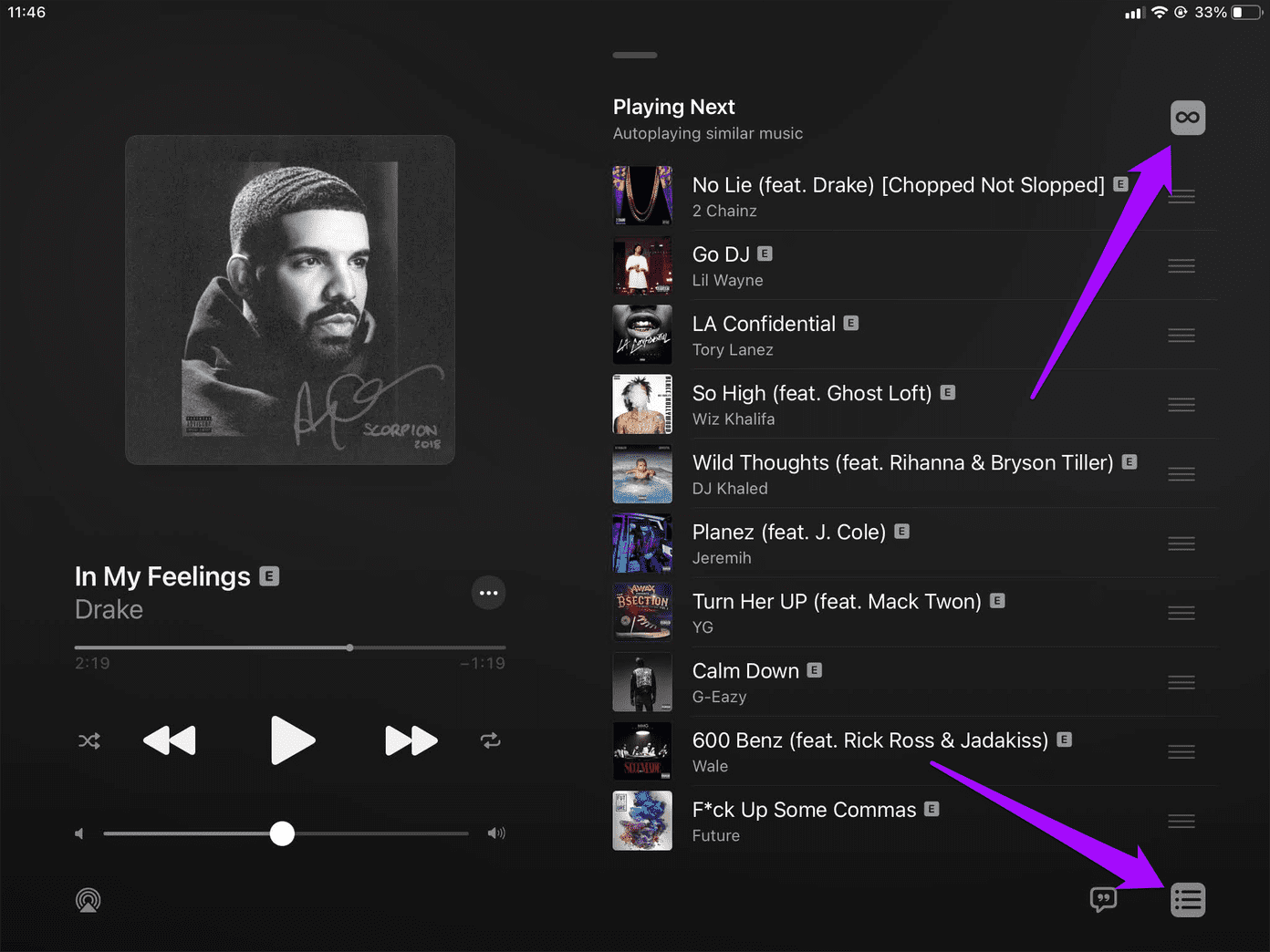
Step 1: On your iPhone, start by bringing up the Now Playing screen—tap the song that’s currently playing to do that.
Step 2: Tap the Up Next icon in the lower-right corner of the screen. Now, tap the Autoplay icon (which looks like an infinite loop) next to Playing Next. That should stop Apple Music from playing tracks automatically.


Step 3: Similarly, on your iPad, just go to the Now Playing screen, switch to the Up Next list, and then tap the Autoplay icon to disable or enable the functionality.
Also See: How to Get Apple Music on Windows PC: 4 Easy Ways
On macOS
Step 1: Inside the Apple Music app, double-click on the song that’s currently playing. Alternatively, you can hover your cursor over it and then click on the Now Playing window icon when it appears.
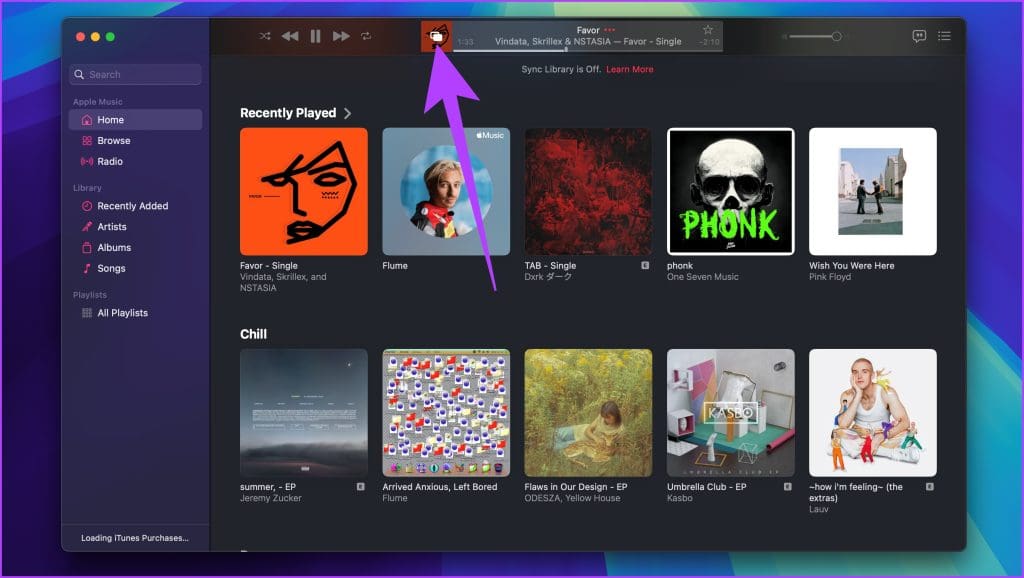
Step 2: This will open the Now Playing window. Here, click on the Autoplay icon in the bottom-right corner.

Step 3: You should now be able to see the ‘Playing Next’ section. Simply click on the Autoplay icon to disable this.
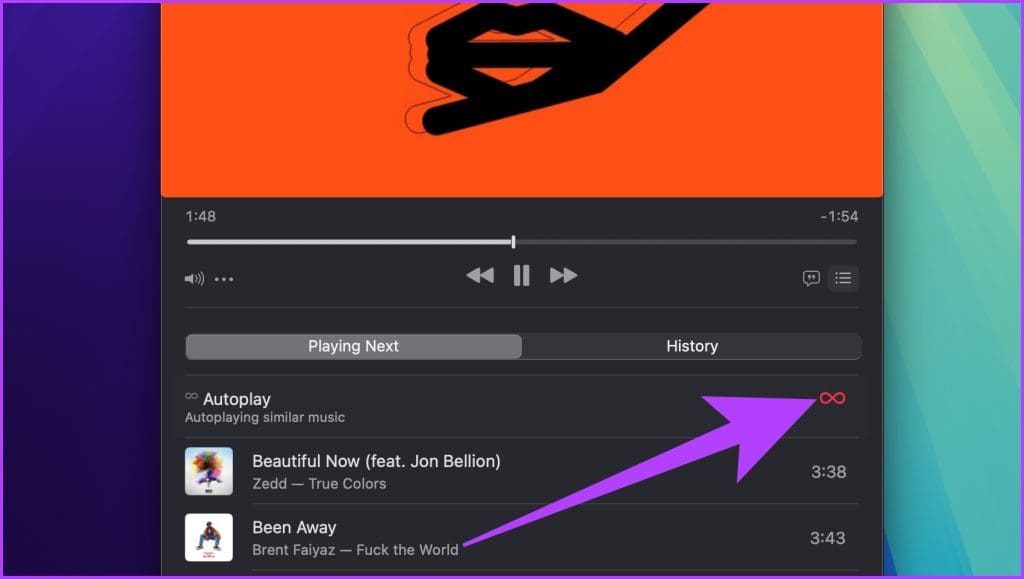
And that’s it. Autoplay should be disabled now. To enable it, click on the Autoplay icon once again.
On Web Player
Step 1: Inside the Apple Web Player, click on the Up Next icon which should be alongside your profile icon.
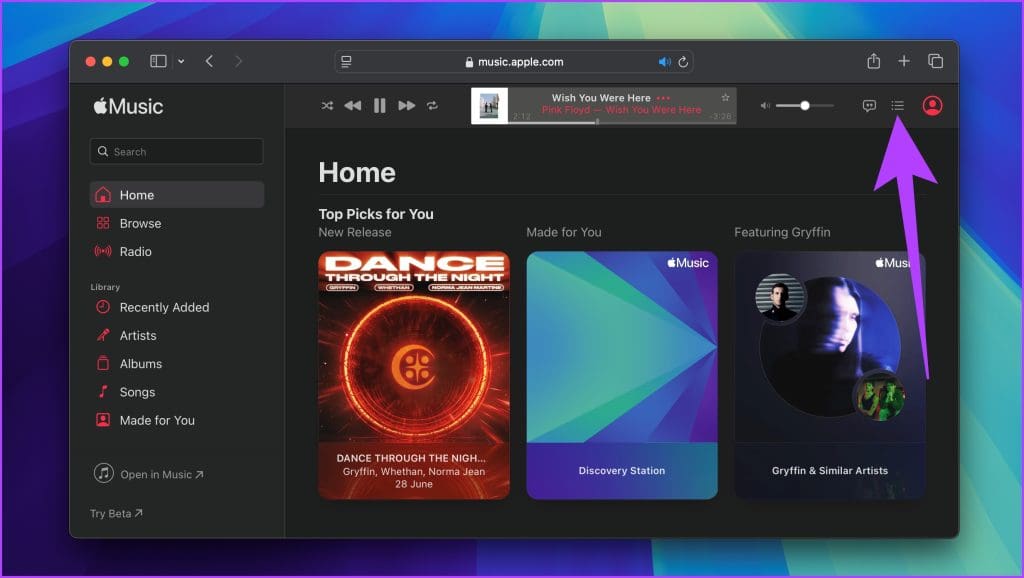
Step 2: Now, click on the Autoplay icon to disable it.
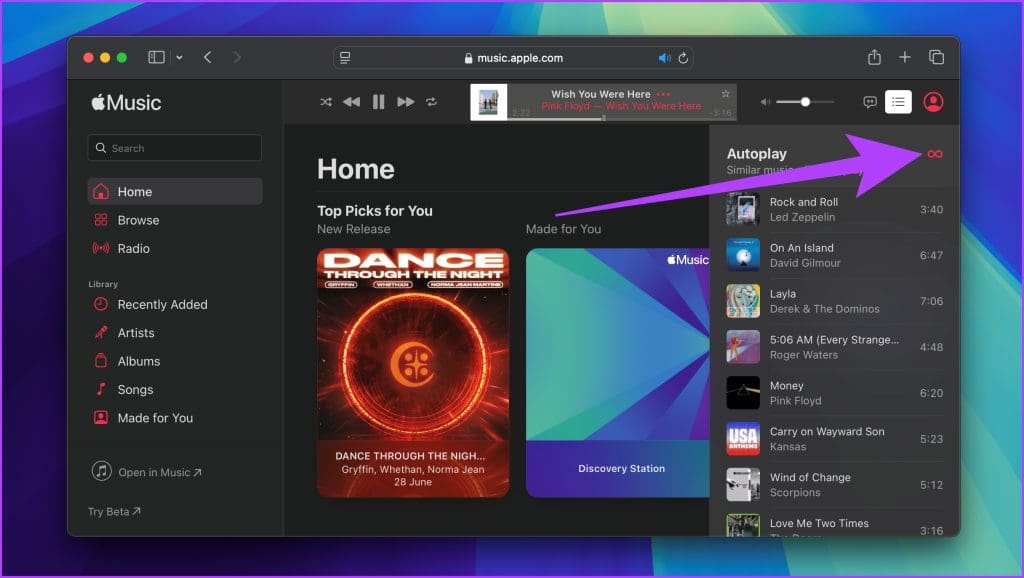
And there you have it. As always, you can click on the Autoplay icon to enable the feature later.
Was this helpful?
Last updated on 28 August, 2024
2 Comments
Leave a Reply
Read Next
 How to Turn Off Autoplay on Twitter
Do you find it annoying when videos start playing automatically on Twitter?
How to Turn Off Autoplay on Twitter
Do you find it annoying when videos start playing automatically on Twitter?
 Top 7 Ways to Fix Siri Not Playing Music from Apple Music
Siri not recognizing your voice and not playing music from Apple Music can lead to an undesirable experience.
Top 7 Ways to Fix Siri Not Playing Music from Apple Music
Siri not recognizing your voice and not playing music from Apple Music can lead to an undesirable experience.
 How to Add Downloaded Music to Apple Music Library
If you download songs on your iPhone and use the Files app to listen to them, you are doing it wrong.
How to Add Downloaded Music to Apple Music Library
If you download songs on your iPhone and use the Files app to listen to them, you are doing it wrong.
 How to Enable or Disable Wrist Detection on Apple Watch
Using an Apple Watch with your iPhone can help you take full advantage of its varied features.
How to Enable or Disable Wrist Detection on Apple Watch
Using an Apple Watch with your iPhone can help you take full advantage of its varied features.
 3 Ways to Transfer Playlists From YouTube Music to Apple Music
There are three services you can use to perform the transfer based on your preferences.
3 Ways to Transfer Playlists From YouTube Music to Apple Music
There are three services you can use to perform the transfer based on your preferences.
 How to Enable or Disable Picture-in-Picture Mode on iPhone and iPad
Enable Automatic Picture-in-Picture Mode on iPhone and iPad If your iPhone or iPad doesn't automatically open videos in Picture-in-Picture mode when quitting to the Home screen, it's likely that your
How to Enable or Disable Picture-in-Picture Mode on iPhone and iPad
Enable Automatic Picture-in-Picture Mode on iPhone and iPad If your iPhone or iPad doesn't automatically open videos in Picture-in-Picture mode when quitting to the Home screen, it's likely that your
 How to Enable or Disable Inline Predictive Text on iPhone, iPad, and Mac
The Autocorrect feature has been there on Apple devices for a long time.
How to Enable or Disable Inline Predictive Text on iPhone, iPad, and Mac
The Autocorrect feature has been there on Apple devices for a long time.
 What Is iPhone Analytics Data and How to Enable or Disable It
What Is Analytics Data on iPhone?
What Is iPhone Analytics Data and How to Enable or Disable It
What Is Analytics Data on iPhone?
The article above may contain affiliate links which help support Guiding Tech. The content remains unbiased and authentic and will never affect our editorial integrity.

Several online solutions seem out of date.
I have an iPhone 14 with iOS17. There is no infinity symbol visible in the Music app. I have an album in my library but have deleted all my playlists. The music still starts on its own. Very annoying. I do not have the infinity symbol for autoplay.
How do I stop this music without deleting my library?
Hi Earle
Thanks for commenting and reaching out.
I’ve checked the above method for both iOS 17 and the iOS 18 Beta, for albums saved in the library too (as you’ve highlighted), and the Infinity symbol should ideally show up.
Since it’s not visible on your device, can you try accessing Apple Music from the web player? In case the issue persists, you can disable AutoPlay as described above, and the changed setting should sync with the Apple Music app on your iPhone too.