Method 1: Change Chat Background
This one is basic and practically available in any messaging app now. You can change the background wallpaper in the Telegram chat and add one from the Gallery app.
Step 1: Open Telegram and go to Settings.
Step 2: Navigate to Appearance > Chat Background and select a relevant wallpaper from the list.

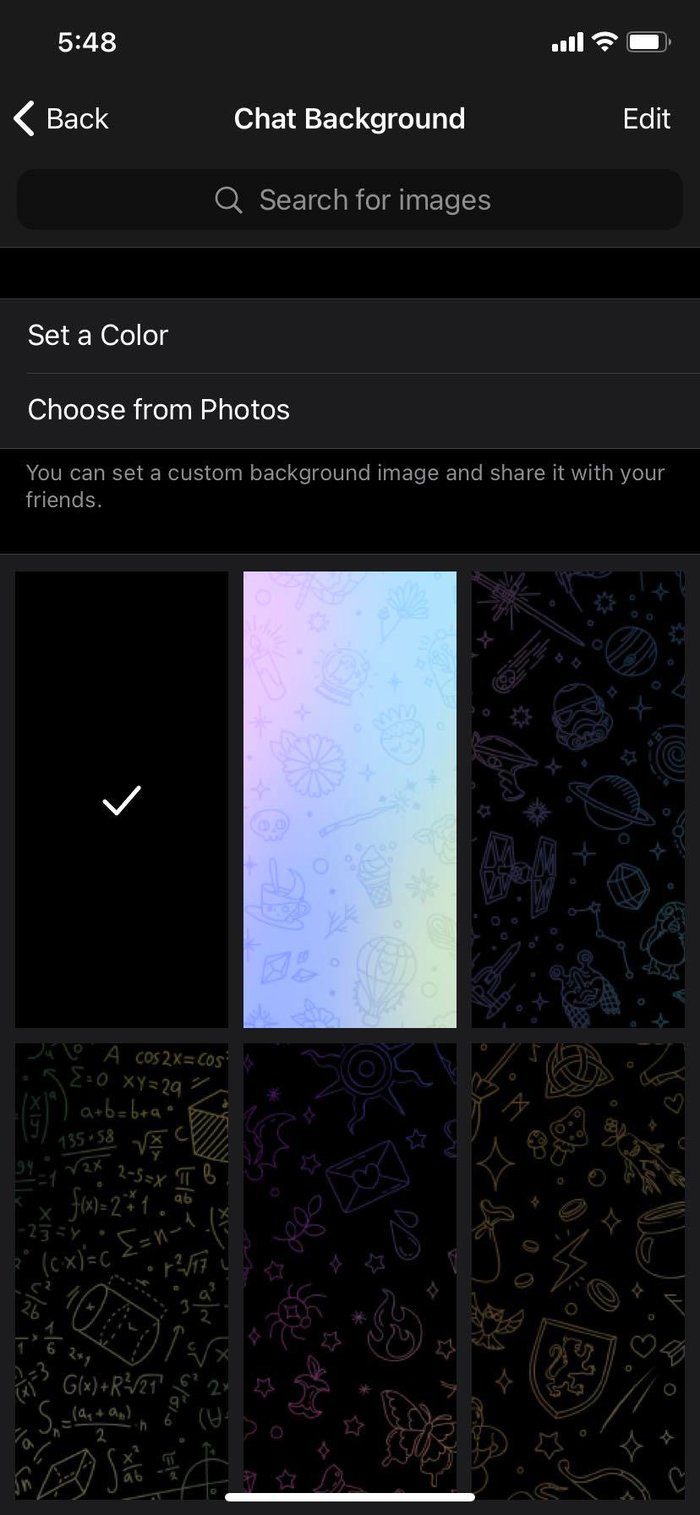
You can even apply wallpaper from the Photos/Gallery app. Tap on Choose from Photos and select an image.
Method 2: Change App Theme
This is another cool feature that lets you change the look and feel of Telegram. By default, the Telegram theme is set to Blue. You can change it to Green, Pink, Red, and more.
On iPhone
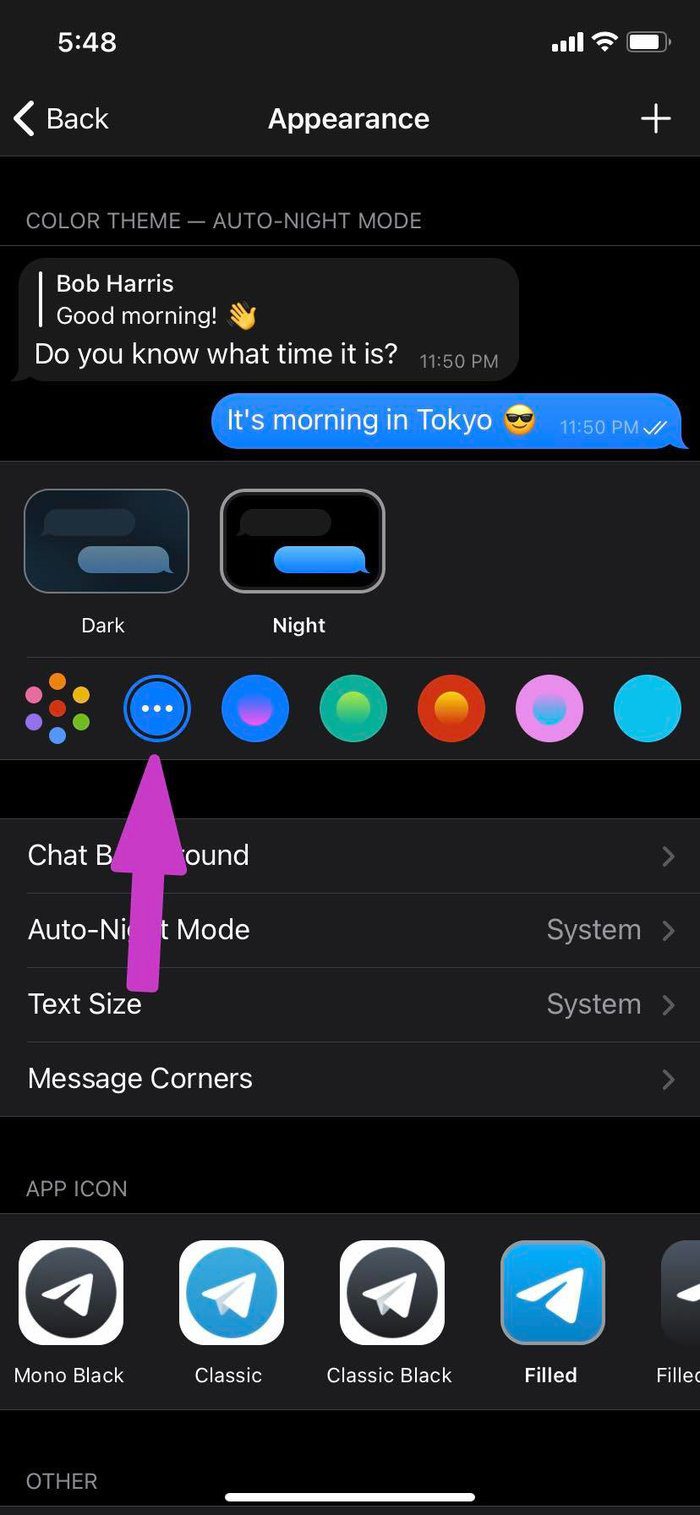
Step 1: Open Telegram and go to Settings > Appearance menu.
Step 2: Select your favorite theme from the Color menu and tap on the three-dot menu for further customization.
Step 3: You can select a specific color for Background, Accent, and Messages.

On Android
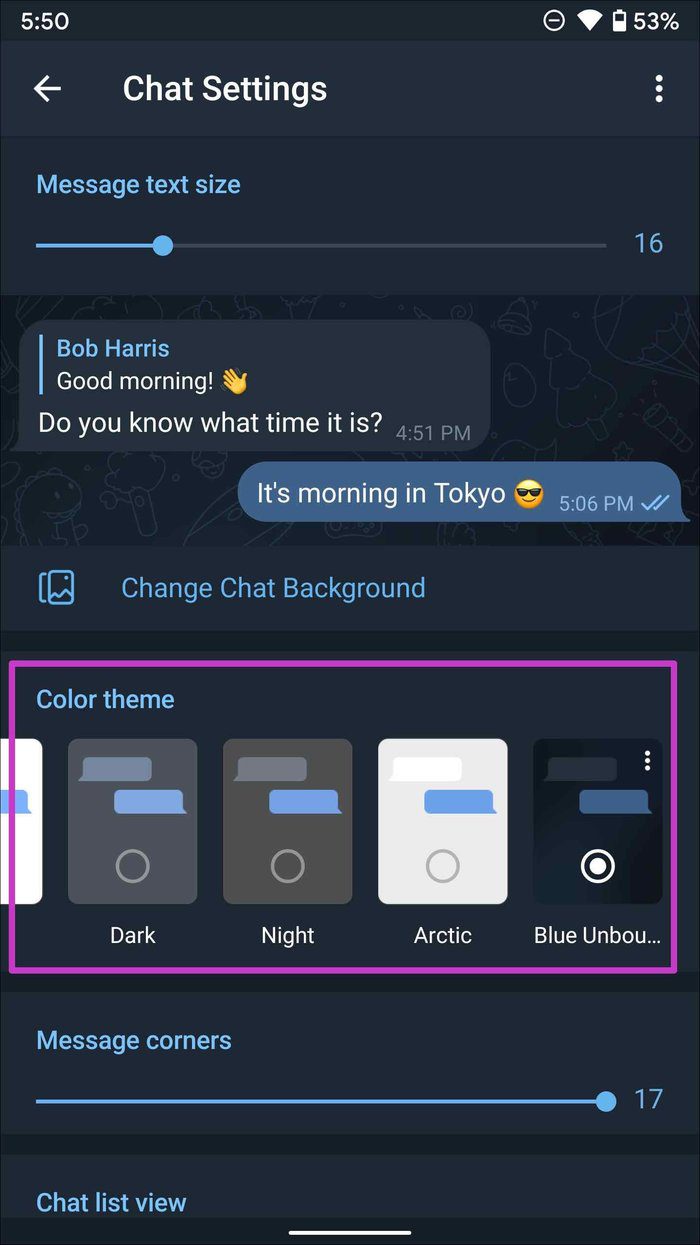
Step 1: From Telegram Settings, open the Chat Settings menu.
Step 2: Select the Color theme and tap on the three-dot menu. Similar to iOS, you can change the Background, Accent, and Message color to your liking.
Fix 3: Change Text Size
If the default text size is too big or small, you can also customize that in Telegram. Here’s how.
On iPhone
Step 1: Go to Telegram Settings > Appearance > Text Size.

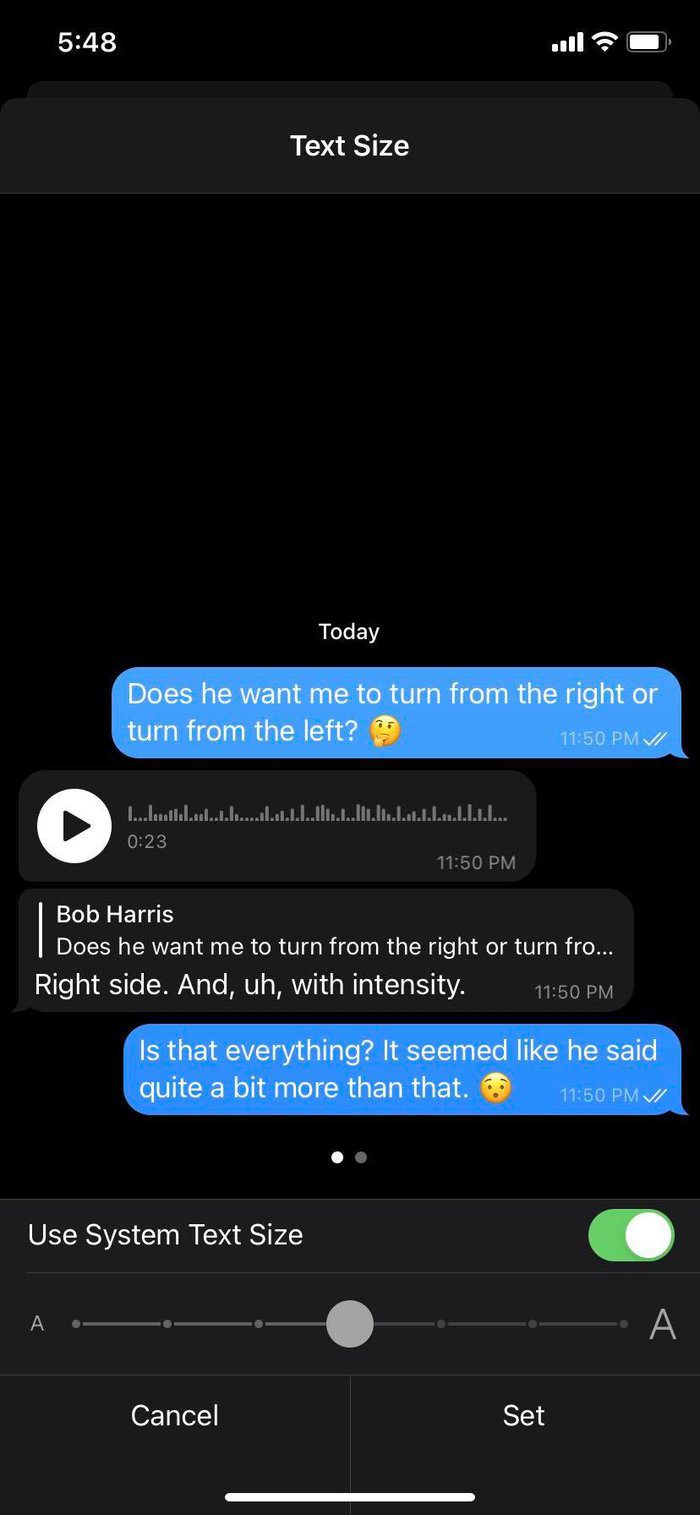
Step 2: By default, Telegram uses system Text size. Increase or decrease it based on your preference. Hit Set and you will be good to go.
On Android
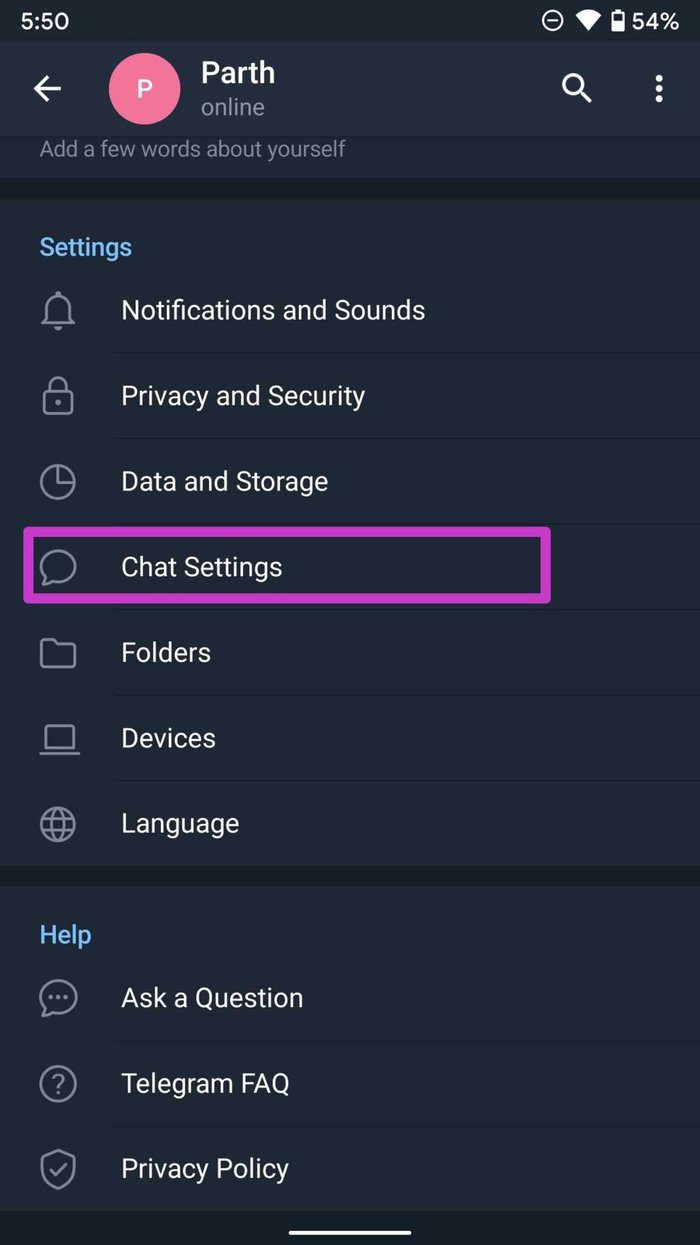
Step 1: Navigate to Telegram Settings > Chat Settings.
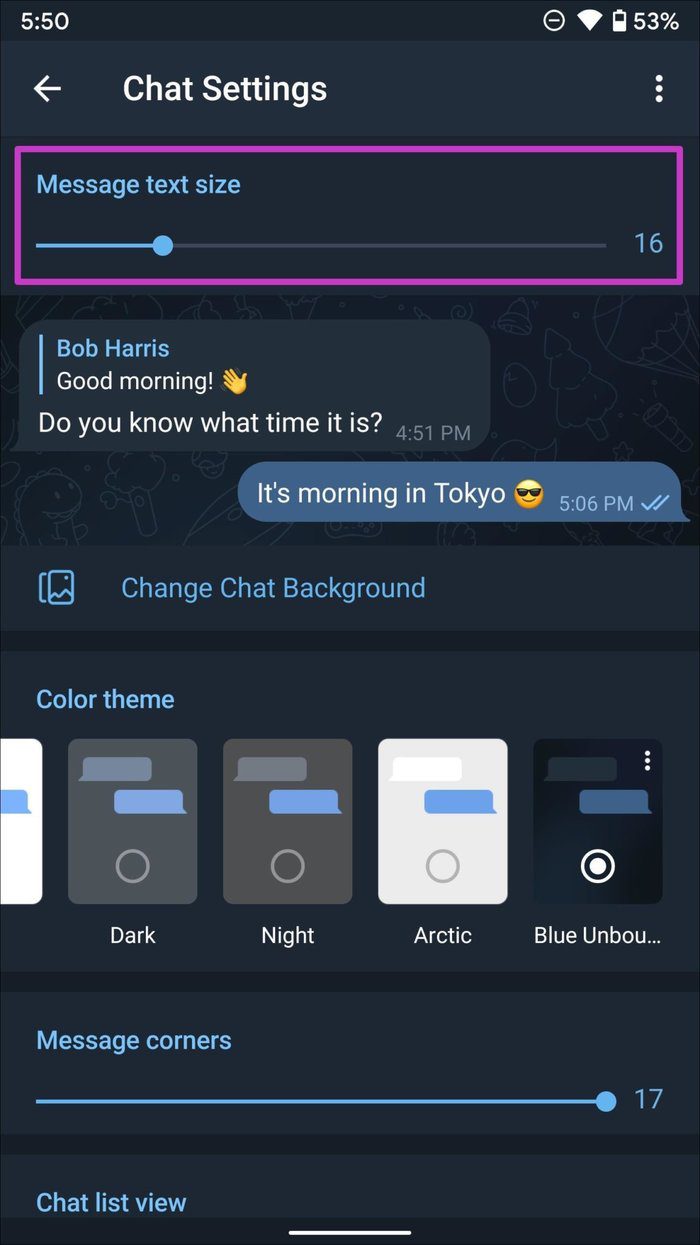
Step 2: Use the slider to increase or decrease the Telegram text size.
Fix 4: Change Message Corners
If you are not fond of messages corners in Telegram, you can reduce the corner radius.
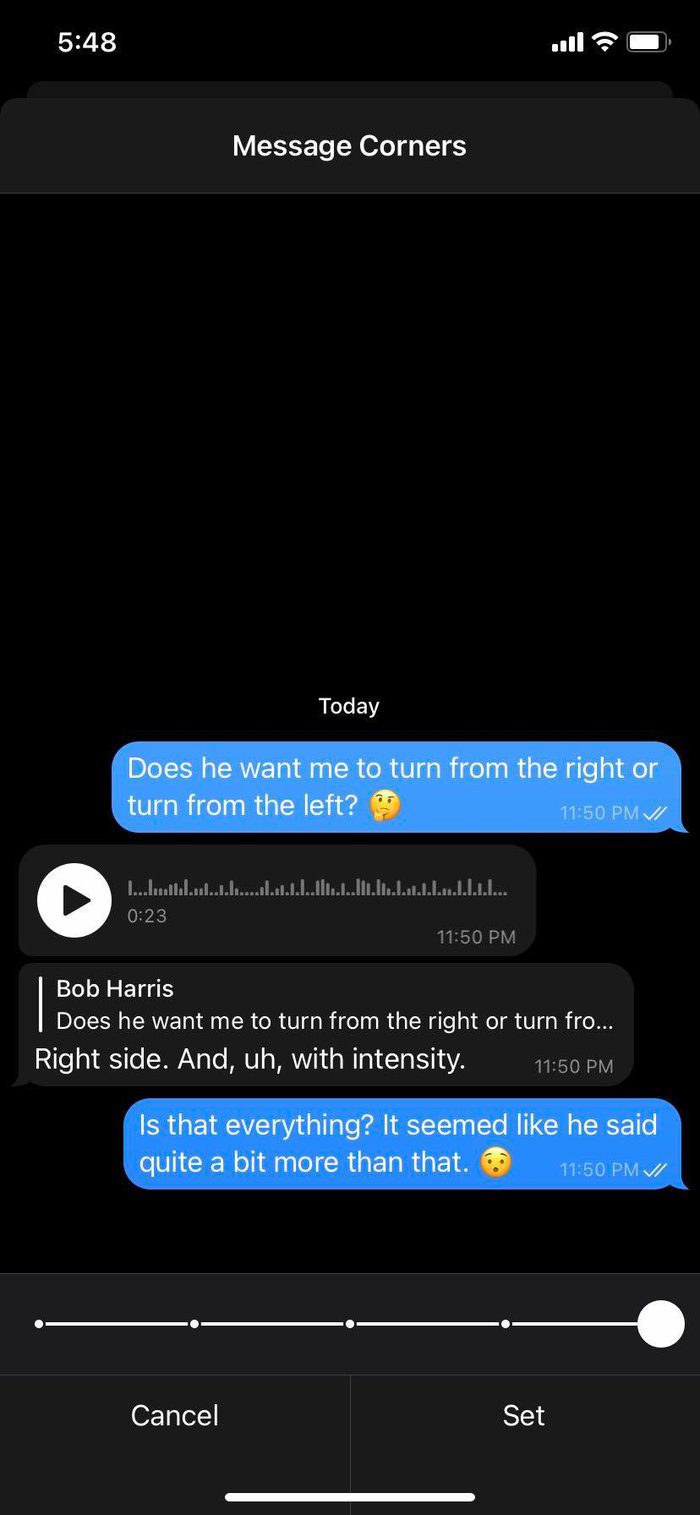
On iPhone
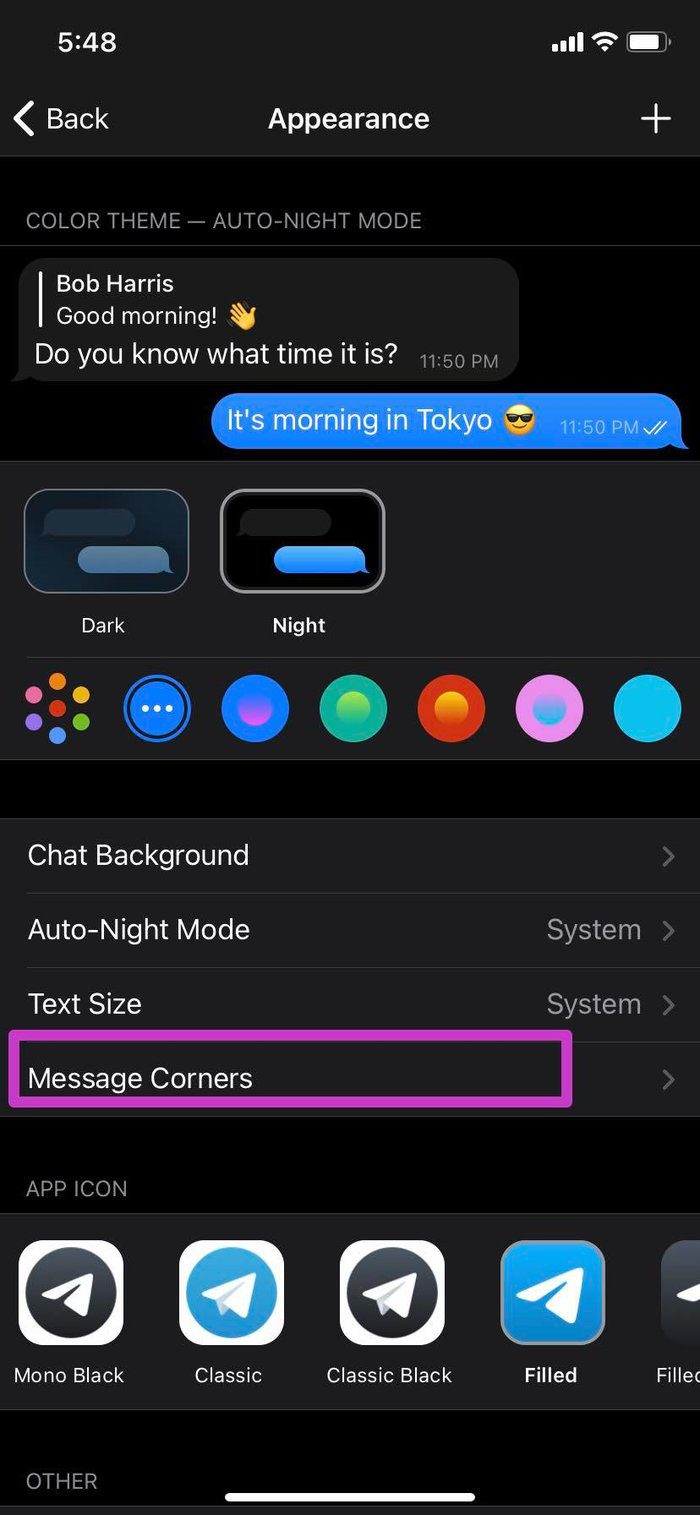
Step 1: Open the Appearance menu in Telegram Settings.
Step 2: Select Message Corners and dial down the corner curve around messages.
On Android
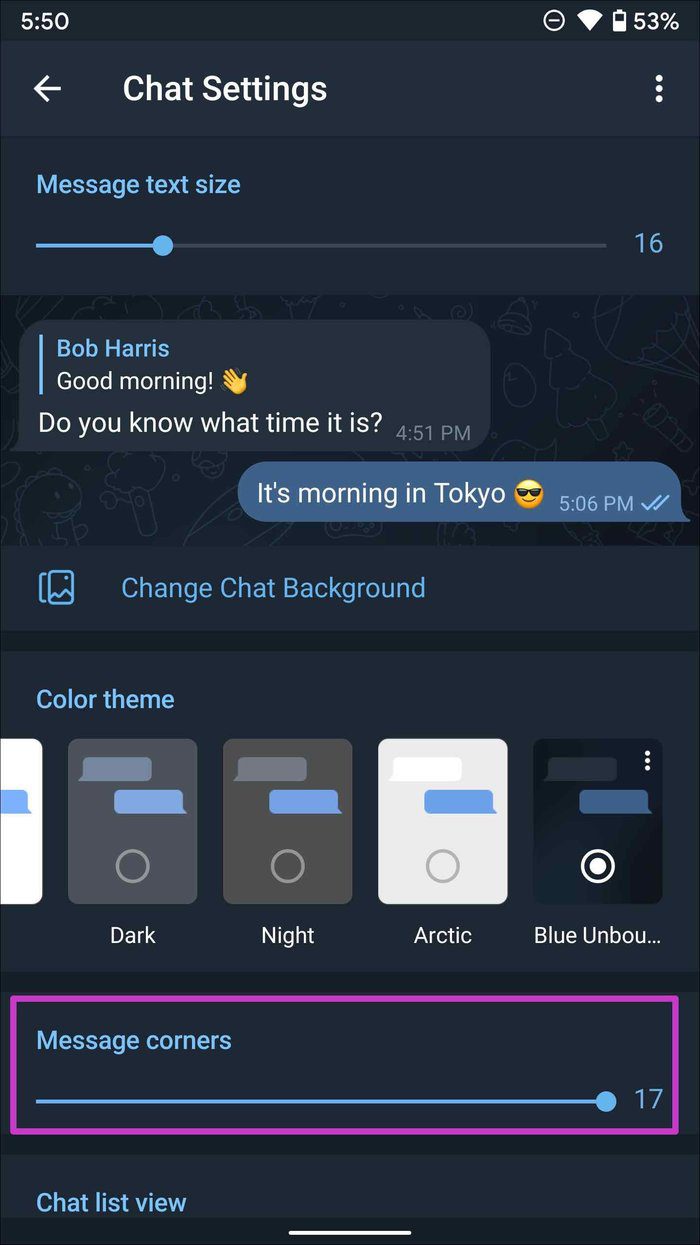
Step 1: Go to Chat Settings in Telegram.
Step 2: Use the slider to change the message’s corner radius. You can check the live preview from the top.
Method 5: Change the Telegram App Icon (If the Feature Is Available)
If the default Telegram app icon feels boring, change it from the Settings menu. You will get some extra options for app icons if you have subscribed to Telegram Premium. This feature is available for both iPhone and Android users.
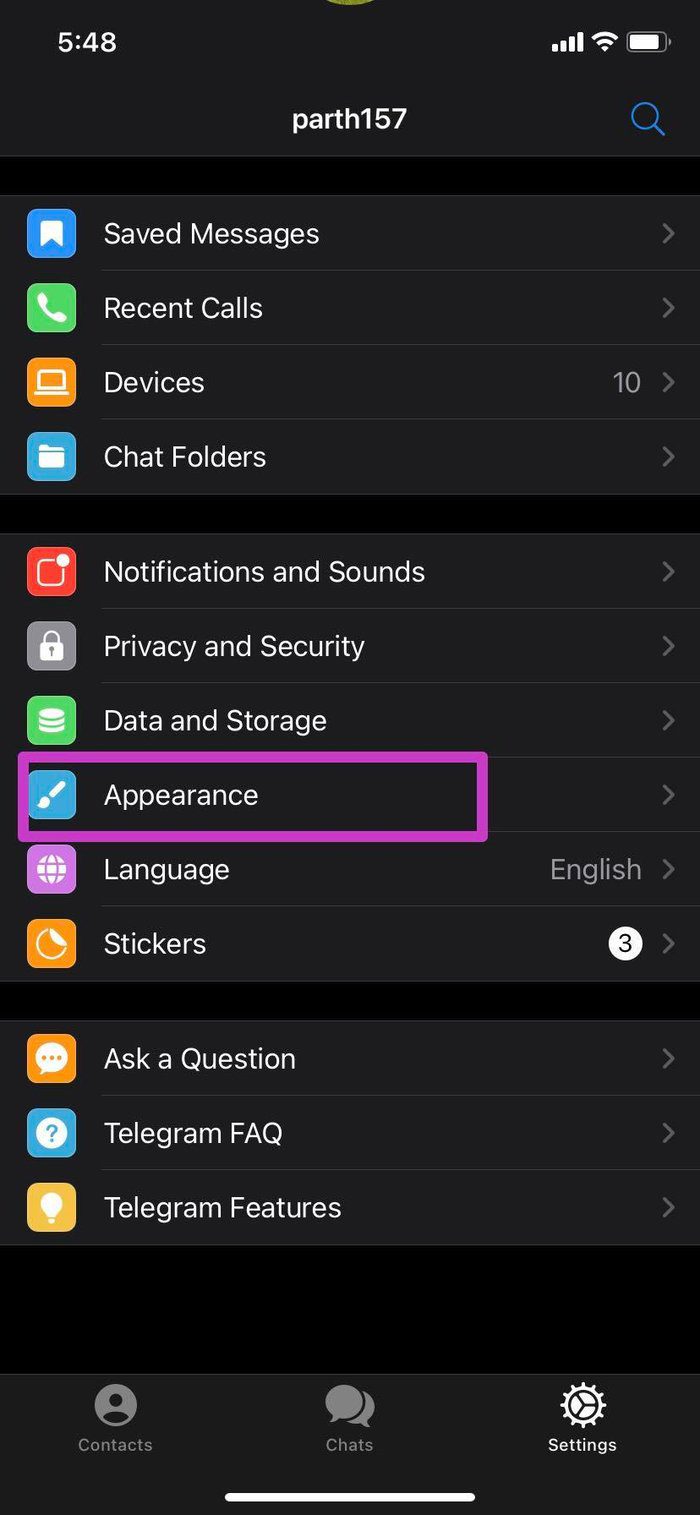
Step 1: Go to Telegram Settings > Appearance/Chat Settings menu.
Step 2: Scroll down and select a relevant app icon for Telegram. We liked the one with a gradient theme.

Method 6: Create Custom Theme
Telegram has nailed personalization. Another great example is the ability to create a custom chat theme on your device. You can refer to our post to learn how to create a custom theme on Telegram.
Was this helpful?
Last updated on 22 August, 2024
Read Next
 6 Chrome Extensions to Customize Google Homepage
1.
6 Chrome Extensions to Customize Google Homepage
1.
 How to Customize Keyboard Shortcuts in Firefox 67
Keyboard shortcuts always come in handy no matter what software you’re using on your system.
How to Customize Keyboard Shortcuts in Firefox 67
Keyboard shortcuts always come in handy no matter what software you’re using on your system.
 How to Add and Customize a Pie Chart in Google Docs
How to Insert Pie Charts in Google Docs There are two methods to add a pie chart in Google Docs.
How to Add and Customize a Pie Chart in Google Docs
How to Insert Pie Charts in Google Docs There are two methods to add a pie chart in Google Docs.
 How to Customize Microsoft Edge Sidebar
How to Enable or Disable Edge Sidebar While Edge's sidebar is useful for accessing several browser functions, it might end up taking up additional space on your page or even
How to Customize Microsoft Edge Sidebar
How to Enable or Disable Edge Sidebar While Edge's sidebar is useful for accessing several browser functions, it might end up taking up additional space on your page or even
 How to Add, Customize and Delete a Text Box in Microsoft Word
Like in Microsoft PowerPoint, you can add a text box to a Microsoft Word document.
How to Add, Customize and Delete a Text Box in Microsoft Word
Like in Microsoft PowerPoint, you can add a text box to a Microsoft Word document.
 How to Make and Customize Text Columns in Google Docs
How to Turn Text Into Columns in Google Docs By default, Google Docs's page setup is Pages.
How to Make and Customize Text Columns in Google Docs
How to Turn Text Into Columns in Google Docs By default, Google Docs's page setup is Pages.
 How to Add and Customize a Trendline on a Chart in Google Sheets
How to Add a Trendlline in Google Sheets The purpose of a trendline is to highlight the patterns in data.
How to Add and Customize a Trendline on a Chart in Google Sheets
How to Add a Trendlline in Google Sheets The purpose of a trendline is to highlight the patterns in data.
 How to Bring Back the Missing “Customize Chrome” Button
Fix 1: Check the Requirements First things first.
How to Bring Back the Missing “Customize Chrome” Button
Fix 1: Check the Requirements First things first.
The article above may contain affiliate links which help support Guiding Tech. The content remains unbiased and authentic and will never affect our editorial integrity.