Windows Defender is an antivirus application that comes built-in to Windows 10 and 11 machines. In most instances, scans will be scheduled regularly as background processes and won’t interrupt your browsing, working, or studying.
Unfortunately, some Windows users have reported that Windows Defender freezes during scan tasks, leaving scans unfinished and, at times, slowing the computer down. Here are three potential fixes to stop Defender from freezing and help you keep your Windows laptop or PC more secure.
Windows Defender Freezes While Scanning: Fix No. 1 – Check Whether the Scan Is Still Running
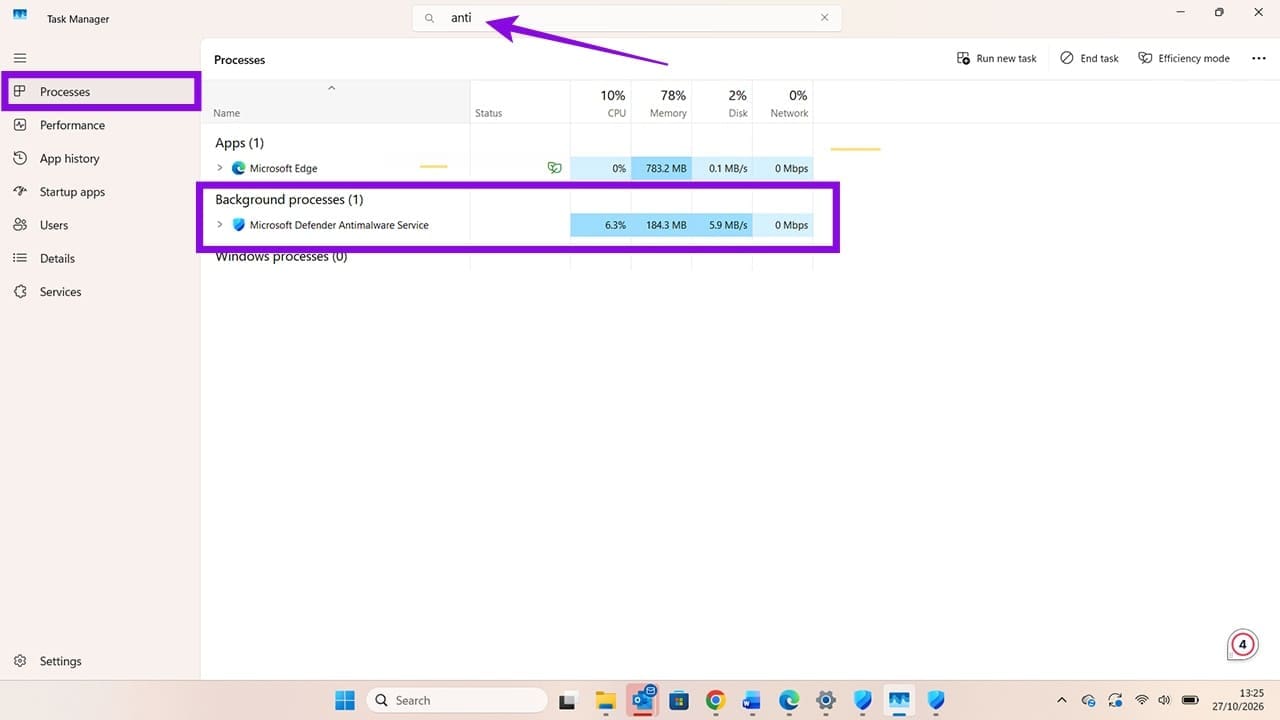
Step 1. It’s easy to mistake a slow scan for a frozen one. Before you restart your computer or try another fix, use the Task Manager to check if the scan is actually running. Open the Task Manager by pressing CTRL + ALT + DEL and choosing the option for Task Manager.
Step 2. Click on “Processes” in the left-hand menu, and search for antimalware. You should see the background process for Microsoft Defender Antimalware Service. Check if it’s using CPU power and if that usage is changing or fixed. It should change every few seconds. If it doesn’t change at all after 15 minutes, the scan may have frozen. However, any change at all in these figures indicates the scan is running, just slowly. This is usually caused by large files or folders. Leave your Windows machine to complete the scan, which may take up to an hour.
Windows Defender Freezes During Scan: Fix No. 2 – Troubleshoot the Windows Defender Service
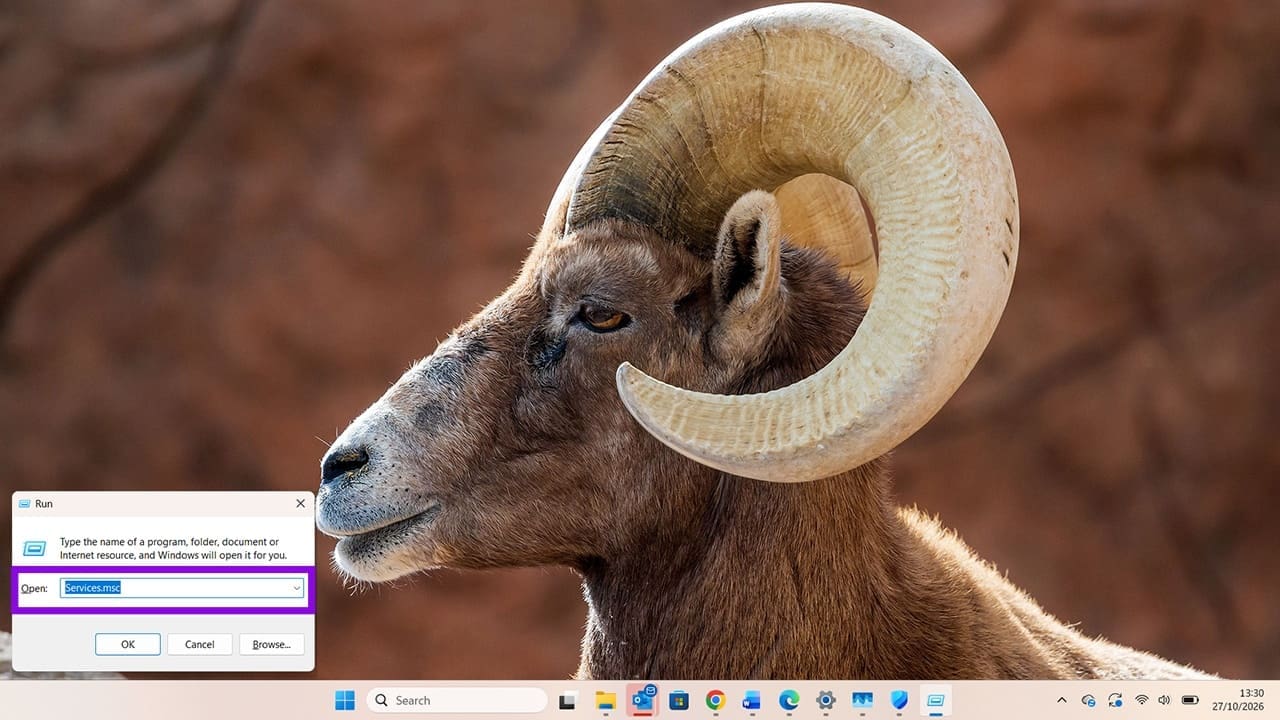
Step 1. Sometimes a scan freezes because the required service isn’t functioning correctly. In most cases, restarting the relevant service fixes this. Open the Run dialog box by pressing WIN + R. Type Services.msc and press “OK.”
Step 2. Scroll until you find Microsoft Defender Antivirus Service. If you have the option to click “Restart,” click on it. Otherwise, you can press “Stop” and then “Start” a minute later.

Step 3. If the options are grayed out or otherwise unavailable, opening PowerShell as an administrator may help you check the service status. Search for PowerShell in the Windows Start menu, then select “Run as Administrator.”

Step 4. Type “Restart-Service -Name WinDefend” and press “Enter.” This will restart the service, and once complete, you should also restart your computer before attempting another scan.

Windows Defender Freezes During Scan: Fix No. 3 – Disable All Other Antivirus/Antimalware Apps
Step 1. One of the most common reasons that Windows Defender freezes while scanning is that it’s conflicting with another antivirus application. Open your system tray, which is the small group of icons at the bottom-right of the screen, with an arrow. Hover over the icon for any other antivirus app/software, and you may find it gives you an instant update on its status.

Step 2. If you identify another real-time antivirus application, open its settings to check whether it is running alongside Microsoft Defender. If you suspect a conflict, follow the software provider’s instructions for resolving it rather than leaving antivirus protection disabled.

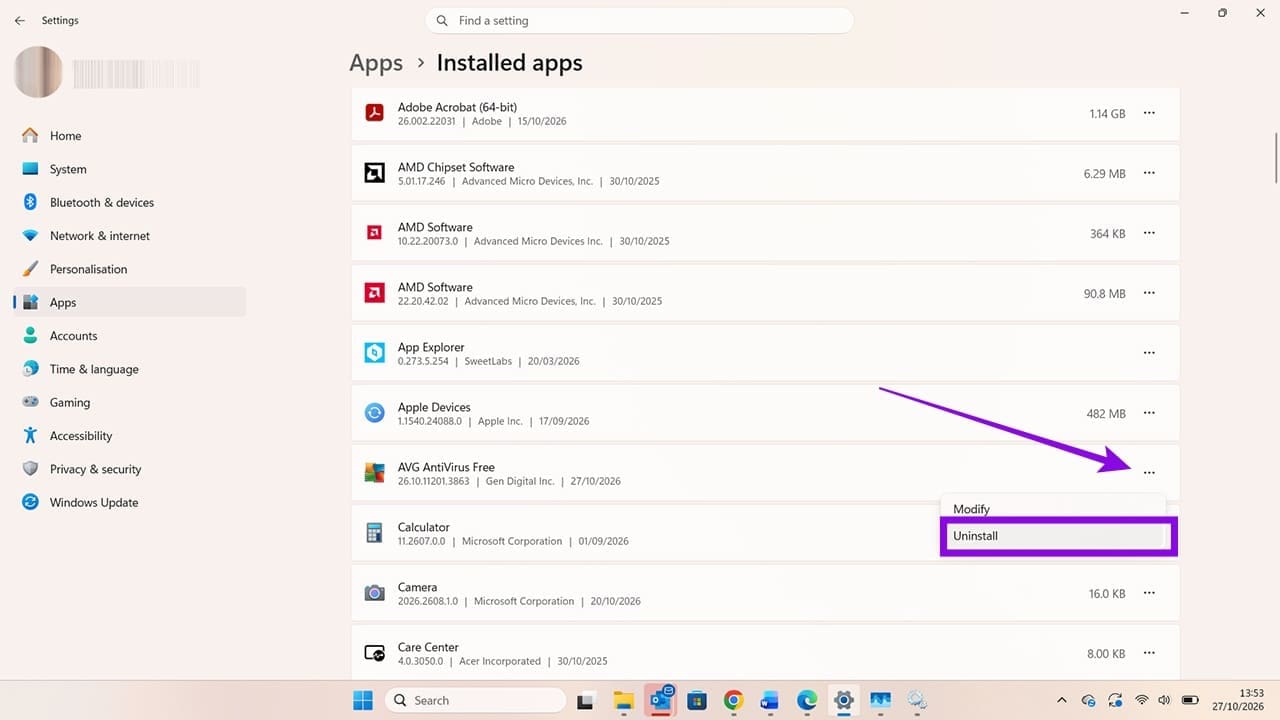
In some cases, you may need to uninstall antivirus software that conflicts with Microsoft Defender. Before doing so, make sure you have a suitable security solution available. In Windows 11, head to Settings > Apps > Installed apps, click the three dots next to the relevant app, and select “Uninstall.”
Was this helpful?
Last updated on 30 October, 2026
Read Next
 2 Quick Ways to Schedule Windows Defender Scan
Windows Defender has become integral to the Windows Security suite of tools.
2 Quick Ways to Schedule Windows Defender Scan
Windows Defender has become integral to the Windows Security suite of tools.
 How to Fix Windows Defender Quick Scan Not Working
Microsoft Defender Antivirus is built into Windows 11 and helps protect against malware, including viruses, ransomware, and spyware.
How to Fix Windows Defender Quick Scan Not Working
Microsoft Defender Antivirus is built into Windows 11 and helps protect against malware, including viruses, ransomware, and spyware.
 Adobe Scan vs Genius Scan: Which Document Scanner App Is Better on iPhone
You can recollect the times you ran around looking for an actual scanner to get a digital copy of a document.
Adobe Scan vs Genius Scan: Which Document Scanner App Is Better on iPhone
You can recollect the times you ran around looking for an actual scanner to get a digital copy of a document.
 HP DeskJet 2600 Printer: How to Scan Documents to Phone and Computer
The HP DeskJet 2600 is an excellent entry-level All-in-One printer.
HP DeskJet 2600 Printer: How to Scan Documents to Phone and Computer
The HP DeskJet 2600 is an excellent entry-level All-in-One printer.
 Wi-Fi Driver Keeps Uninstalling Automatically – 7 Fixes to Try
If your Wi-Fi driver uninstalled itself, you might not be able to see the corresponding adapter in Device Manager or the network icon on your toolbar.
Wi-Fi Driver Keeps Uninstalling Automatically – 7 Fixes to Try
If your Wi-Fi driver uninstalled itself, you might not be able to see the corresponding adapter in Device Manager or the network icon on your toolbar.
 Game Icons Won’t Display on Desktop – Fixes to Try for Steam
If your Steam desktop icons blank, this is usually a graphics-only issue.
Game Icons Won’t Display on Desktop – Fixes to Try for Steam
If your Steam desktop icons blank, this is usually a graphics-only issue.
 Task View Not Opening in Windows 11? Try These Fixes
The Task View not showing Windows 11 users their open apps can be a bit difficult to troubleshoot.
Task View Not Opening in Windows 11? Try These Fixes
The Task View not showing Windows 11 users their open apps can be a bit difficult to troubleshoot.
 Cross Device Experience Host Won’t Install on Windows 11 – 5 Fixes to Try
The Cross Device Experience Host is a Microsoft feature that supports Windows' cross-device and mobile-device connectivity.
Cross Device Experience Host Won’t Install on Windows 11 – 5 Fixes to Try
The Cross Device Experience Host is a Microsoft feature that supports Windows' cross-device and mobile-device connectivity.
The article above may contain affiliate links which help support Guiding Tech. The content remains unbiased and authentic and will never affect our editorial integrity.