The Cross Device Experience Host is a Microsoft feature that supports Windows’ cross-device and mobile-device connectivity. If, however, you can’t even get to that stage – if the Cross Device Experience Host won’t install – then this article will provide five troubleshooters to help you out.
How Is the Experience Host Usually Installed?
In a perfect scenario, installing Cross Device Experience Host involves little more than the flick of a switch. The Host itself is downloaded and installed when users activate “Allow this PC to access your mobile devices” in Settings. It’ll be downloaded and installed from the Microsoft Store. If it isn’t doing that, we’ve got some backup plans.
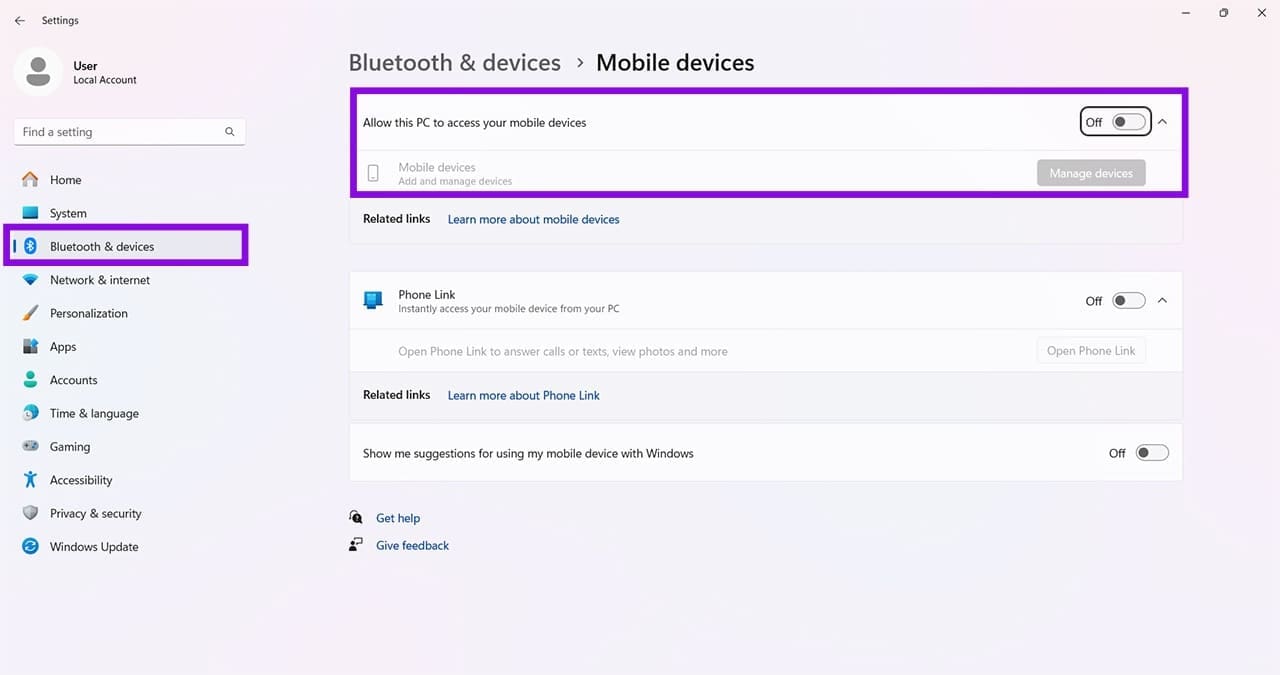
5 Fixes for Cross Device Experience Host Won’t Install
If you’re having trouble installing the Host the conventional way, try the workarounds and fixes below. Before you start, be sure to close all instances of the Experience Host via Task Manager.
Install via Command Prompt
An easy way to install the Host is through the simple interface of Command Prompt. You can force the installation with the right command. Here’s what to do:
Step 1. Open the Run Dialog (Win + R) and type “cmd” before hitting (Ctrl + Shift + Enter) to run as Admin.
Step 2. In Command Prompt, type in: “winget install 9NTXGKQ8P7N0” and hit “Enter.” Windows will retrieve and install the Experience Host.
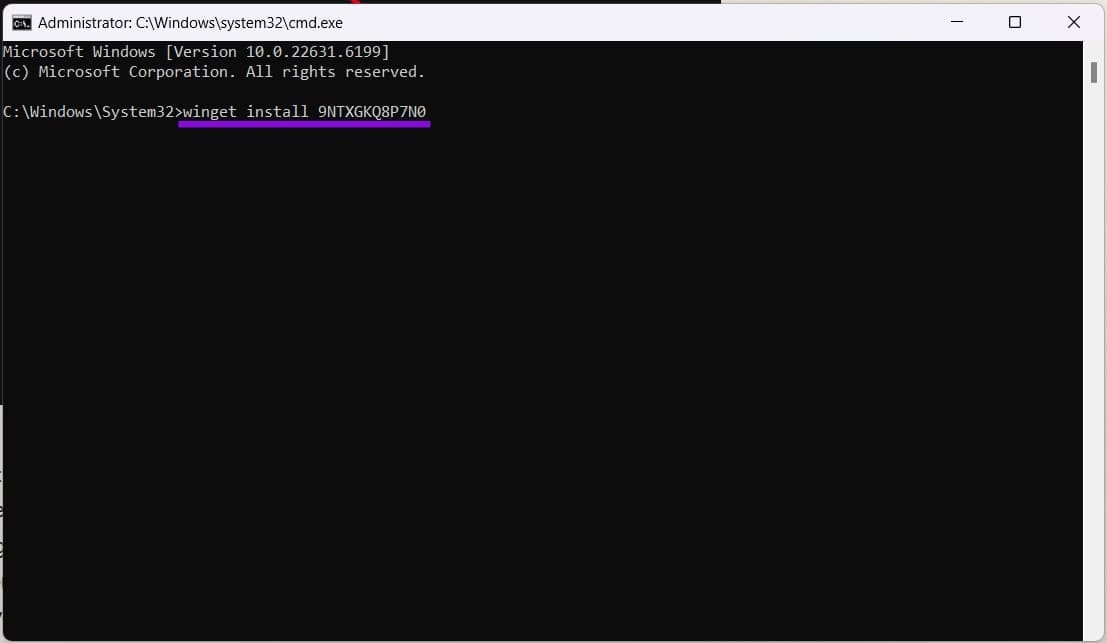
Step 3. Let the app install. When you see a “successfully installed” message, you should be good to go. If the app shows as already installed, or a problem is encountered, then you’ll need another solution.
Clear the Store Cache
The Microsoft Store cache can be corrupted over time and cause problems with updates and installations. A quick resetting of the cache might be the solution you need. Here’s what to do:
Step 1. Open the “Run” dialog (Win + R).
Step 2. Type in “wsreset.exe” and hit “OK.”

Step 3. Microsoft Store will reset, as will its cache. Restart your machine to finalize and try again.
Check the Connected Devices Platform Service
One of the services Experience Host relies on is the Connected Devices Platform Service. If it isn’t enabled, it may not start. Here’s how to check:
Step 1. Open the Run Dialog (Win + R) and type “services.msc” and click “OK.”
Step 2. In Services, scroll down to “Connected Devices Platform Service” and right-click it.
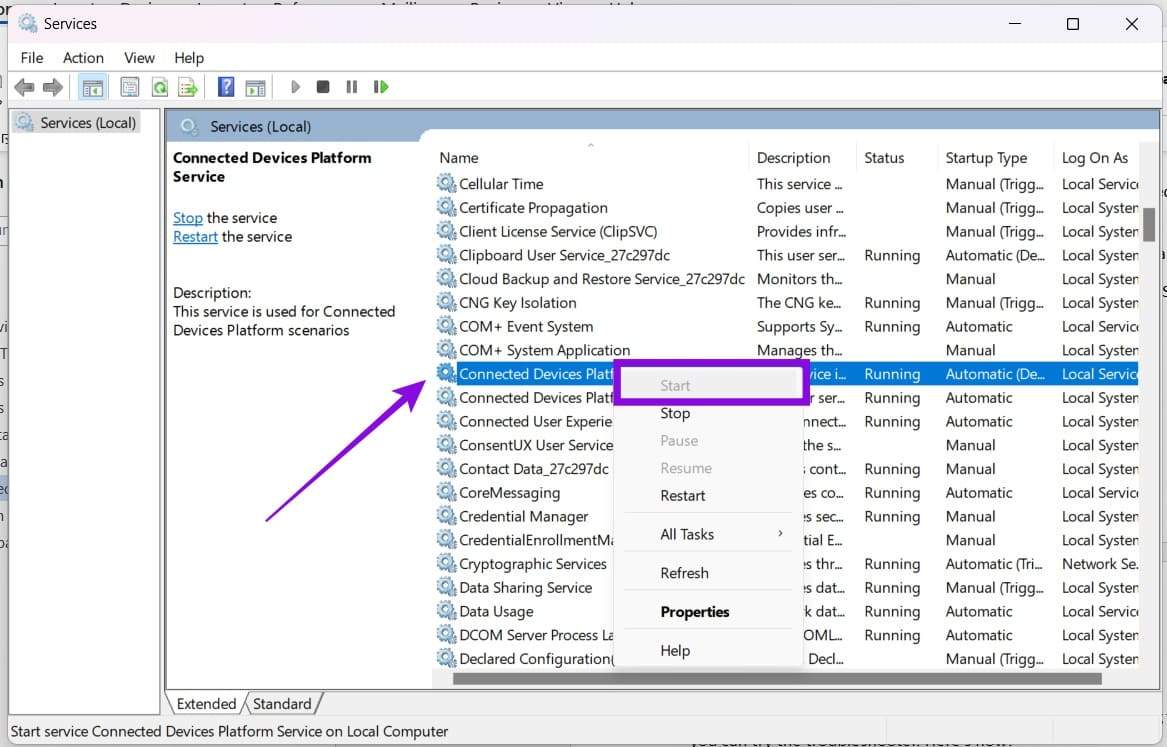
Step 3. If the service isn’t running, select “Start” to do so.
Run the Store Troubleshooter
Windows has troubleshooters for most major features, including the Store. If you suspect it’s to blame, you can try the troubleshooter. Here’s how:
Step 1. Open “Settings” (Win + I) and click “System.”
Step 2. Scroll down to “Troubleshoot” and click it.

Step 3. Click “Other troubleshooters.”
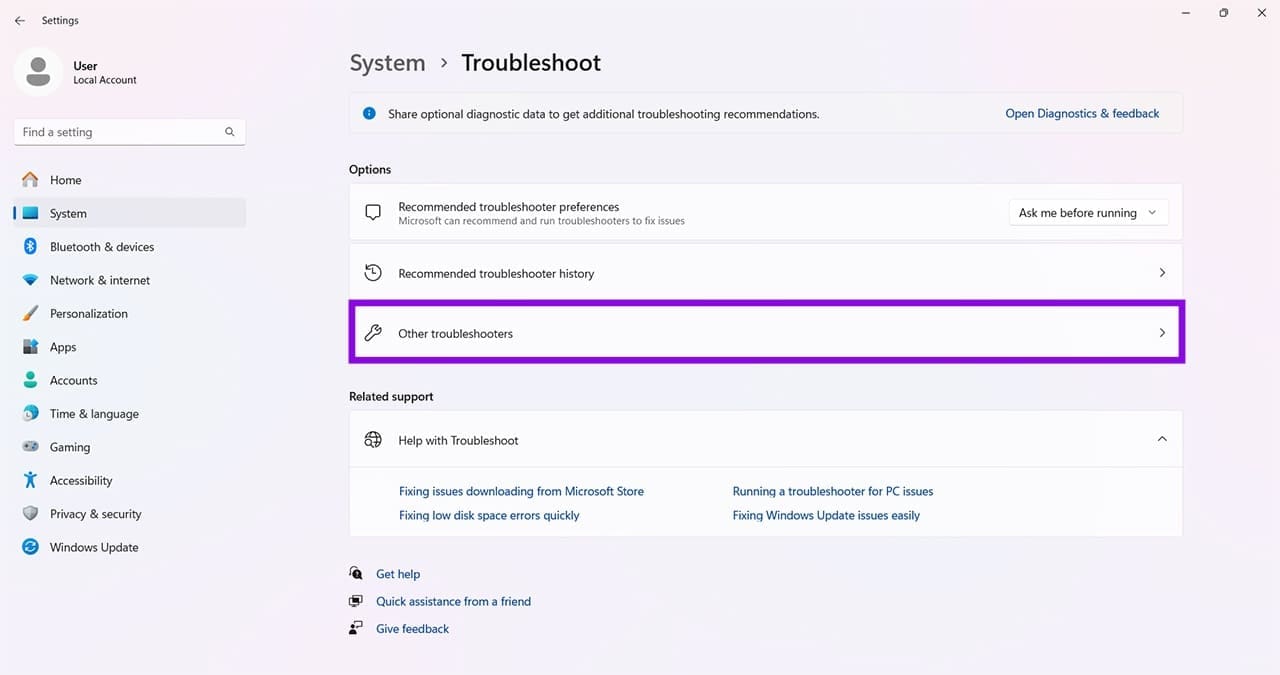
Step 4. Scroll down and click “Run” next to “Windows Store Apps” and let the process run.
Repair and Reset the Host
For many app problems, you have the option to Repair problems or Reset the app entirely. It’s good to try in that order, as Reset will clear all data and start with a clean slate. If the Experience Host is installed but not working correctly, this might help. Here’s what to do:
Step 1. Open “Settings” (Win + I) and click “Apps” in the sidebar.
Step 2. Click “Installed apps.”
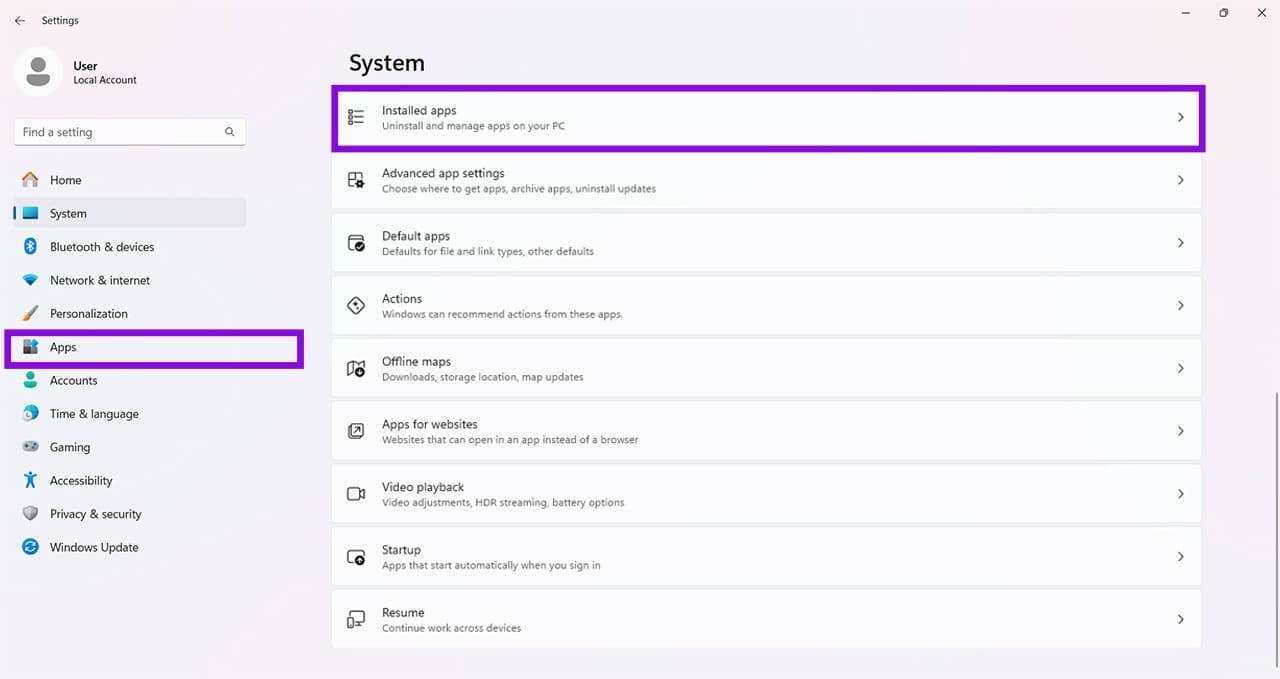
Step 3. Navigate to “Cross Device Experience Host” and click the three dots next to it.
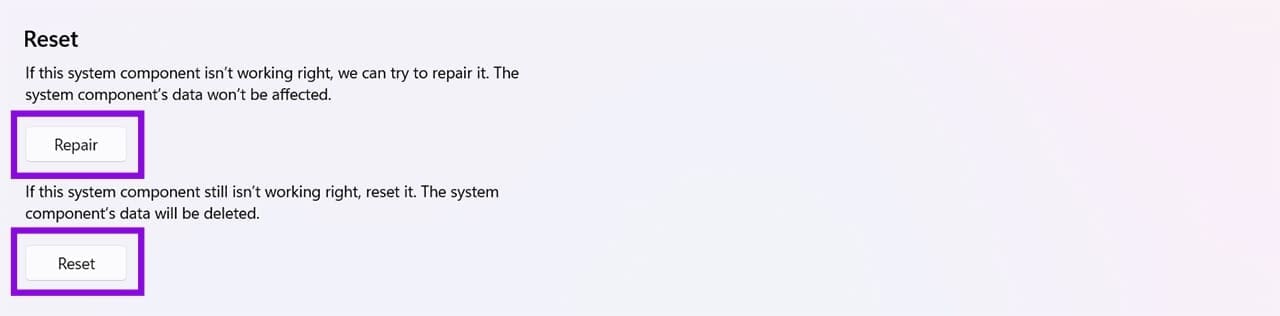
Step 4. Select “Advanced Options.”
Step 5. Click “Repair” and test the feature. If that doesn’t work, return to the same menu and select “Reset.”
Was this helpful?
Last updated on 15 August, 2026
Read Next
 HP Support Assistant Won’t Install? 5 Fixes to Try
Getting an HP Support Assistant install error usually shows a message such as “installation code -2” with no additional (helpful) information.
HP Support Assistant Won’t Install? 5 Fixes to Try
Getting an HP Support Assistant install error usually shows a message such as “installation code -2” with no additional (helpful) information.
 How to Troubleshoot High CPU Use on Windows Cross Device Service
There are a lot of tasks and processes on a Windows 11 PC that constantly seem to be vying for attention and resources, and it’s only natural to want to
How to Troubleshoot High CPU Use on Windows Cross Device Service
There are a lot of tasks and processes on a Windows 11 PC that constantly seem to be vying for attention and resources, and it’s only natural to want to
 Game Icons Won’t Display on Desktop – Fixes to Try for Steam
If your Steam desktop icons blank, this is usually a graphics-only issue.
Game Icons Won’t Display on Desktop – Fixes to Try for Steam
If your Steam desktop icons blank, this is usually a graphics-only issue.
 4 Fixes for Windows 11 Won’t Install on Your PC
We’ve seen many versions of Microsoft’s Windows operating system over the years, from the likes of Windows 95 and 98 through to the more recent releases of Windows 10 and
4 Fixes for Windows 11 Won’t Install on Your PC
We’ve seen many versions of Microsoft’s Windows operating system over the years, from the likes of Windows 95 and 98 through to the more recent releases of Windows 10 and
 Windows 11 25H2 Won’t Install – Common Fixes
Just when it seems you’re over the hurdle of installing Windows 11 24H2, along comes its successor a year later to make your life difficult all over again.
Windows 11 25H2 Won’t Install – Common Fixes
Just when it seems you’re over the hurdle of installing Windows 11 24H2, along comes its successor a year later to make your life difficult all over again.
 How to Download and Install NVIDIA Drivers Without GeForce Experience
Prerequisite 1: Check Which NVIDIA GPU You Have First, you need to check which NVIDIA graphics card you have installed on your system.
How to Download and Install NVIDIA Drivers Without GeForce Experience
Prerequisite 1: Check Which NVIDIA GPU You Have First, you need to check which NVIDIA graphics card you have installed on your system.
 Ways to Host a Website on Azure
Can you host a website on Azure?
Ways to Host a Website on Azure
Can you host a website on Azure?
 How to Prevent Cross-Site Tracking in Safari on iPhone
What Is Cross-Site Tracking on iPhone?
How to Prevent Cross-Site Tracking in Safari on iPhone
What Is Cross-Site Tracking on iPhone?
The article above may contain affiliate links which help support Guiding Tech. The content remains unbiased and authentic and will never affect our editorial integrity.