Clipchamp is a fantastic video editing and movie-making tool that’s user-friendly and simple to use. However, if it isn’t exporting your videos, then it’s missing out on a pretty crucial part of the editing process. Not to worry, these problems are pretty easy to solve. In this article, we’ll be looking at a “Clipchamp Can’t Export Video” fix in a few different areas.
What Causes This Error?
There are a few reasons why you’d get the Clipchamp “We can’t export your video” error. These include:
- A lack of storage space on your machine
- Problems with Clipchamp or your system software
- Hardware acceleration problems
- The media you’re working with has been corrupted
Let’s take a look at a few fixes to try when this happens.
The “Clipchamp Can’t Export Video” Fix When Things Aren’t Going Right
If you’re stuck with an export error message and don’t know what to do, we’ve assembled a few troubleshooting tips below:
Try the Obvious Fixes First
Let’s start simple. Before doing anything else, save your project and restart Clipchamp. If you can, reboot your computer too to discount any erratic behavior caused by memory leaks and the like. It’s also a good idea to ensure that Windows and Clipchamp are fully updated. It’s also crucial to ensure that wherever you’re exporting the video to, online or offline, has enough space to accommodate the file.
Try the Web Version
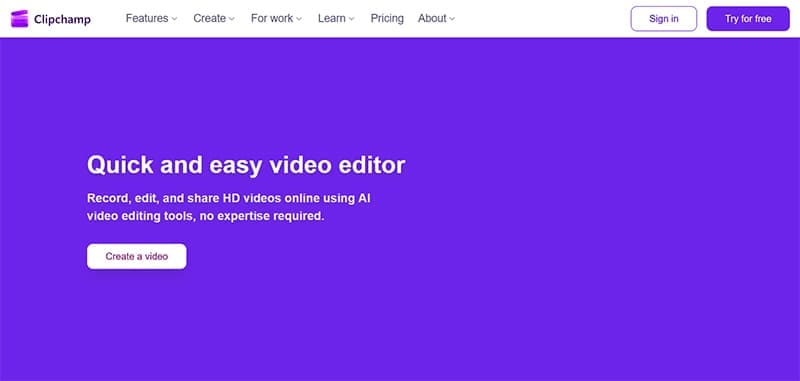
A good way to check if the export error is related to the app itself is to try exporting the project using the online version of Clipchamp. Simply enter your Microsoft Account login details in your browser and try exporting your file. If it works, you know that your desktop app was the problem. If this fails, be sure to check your internet connection before attempting further troubleshooting.
Check Your Media
Sometimes a file that you’ve been working on has been deleted from Clipchamp, often by accident. It’s important to check your video project slowly and ensure there are no gaps in the video or sound files. If there are, be sure to reupload the clips to the app. You can also try using smaller video files if possible.
Disable Hardware Acceleration
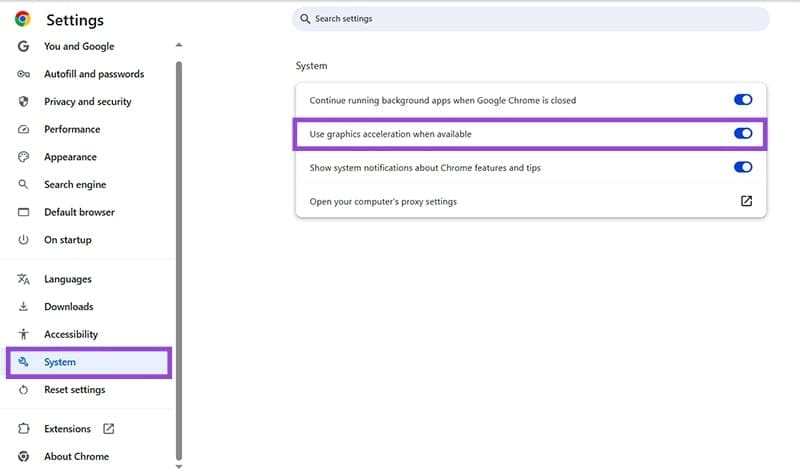
If you’re solely using Clipchamp on a web browser, especially a Chromium one like Chrome and Edge, then the browser’s hardware acceleration could be causing errors in exporting. To disable these:
Step 1. Open up the “More” menu (three dots) in the top-right corner and click “Settings.”
Step 2. Choose “System” on the sidebar and uncheck “Use graphics acceleration when available” in the main window.
To disable in Edge:
Step 1. Open up the “More” menu in the top-right and click “Settings.”
Step 2. Navigate to “System and performance” in the sidebar, and click the “Graphics acceleration” button.
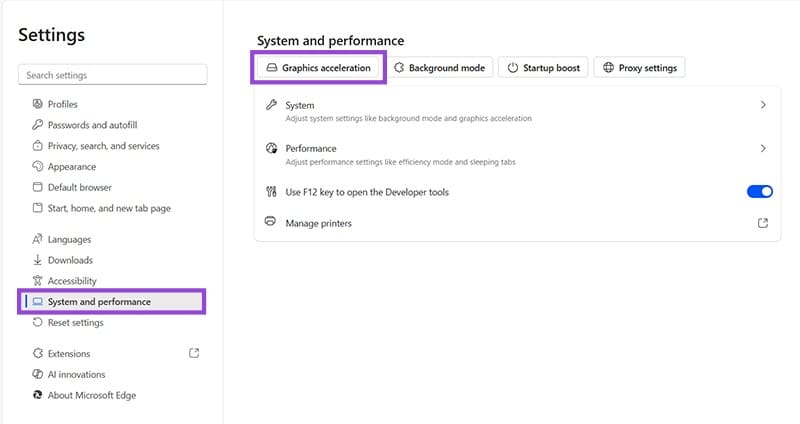
Step 3. Uncheck “Use graphics acceleration when available” and restart the browser.

Clipchamp also comes with its own hardware acceleration you can disable:
Step 1. Click your profile icon and choose “Settings.”
Step 2. Navigate to the “Export” tab in the sidebar.

Step 3. Drag the “Hardware Acceleration” slider to “Off” and reload the tab.
Was this helpful?
Last updated on 18 December, 2025
Read Next
 How to Fix ClipChamp Not Working in Windows 11
Since it’s a built-in app, ClipChamp not working in Windows 11 typically doesn’t get resolved by updating the app or changing app-specific settings.
How to Fix ClipChamp Not Working in Windows 11
Since it’s a built-in app, ClipChamp not working in Windows 11 typically doesn’t get resolved by updating the app or changing app-specific settings.
 How to Export Chrome Passwords to CSV
Are you tired of losing or forgetting your passwords?
How to Export Chrome Passwords to CSV
Are you tired of losing or forgetting your passwords?
 How to Export Lucidchart Diagrams to Microsoft Word and Excel
Method 1: Importing Lucidchart Diagrams as Image Files Step 1: After completing your diagram, click File > Export and select one of the options - PNG, JPEG, or SVG.
How to Export Lucidchart Diagrams to Microsoft Word and Excel
Method 1: Importing Lucidchart Diagrams as Image Files Step 1: After completing your diagram, click File > Export and select one of the options - PNG, JPEG, or SVG.
 How to Export WhatsApp Chat to PDF on Android or iOS
Are you looking for a way to preserve your WhatsApp conversations in a convenient and shareable format?
How to Export WhatsApp Chat to PDF on Android or iOS
Are you looking for a way to preserve your WhatsApp conversations in a convenient and shareable format?
 How to Import or Export Firefox Bookmarks
Browsers are a part and parcel of our lives.
How to Import or Export Firefox Bookmarks
Browsers are a part and parcel of our lives.
 How to View, Export, and Delete Bing Chat History
How to Find Bing Chat History On PC Step 1: Open Bing Chat by clicking the Chat button from the Bing Home screen.
How to View, Export, and Delete Bing Chat History
How to Find Bing Chat History On PC Step 1: Open Bing Chat by clicking the Chat button from the Bing Home screen.
 6 Ways to Export Microsoft Teams Chat History
Microsoft Teams has become integral to modern workplace communication, facilitating information sharing and collaboration.
6 Ways to Export Microsoft Teams Chat History
Microsoft Teams has become integral to modern workplace communication, facilitating information sharing and collaboration.
 3 Ways to Export Text Messages From Android to PDF
Method 1: Using SMS Backup & Restore App This is one of the best apps for taking and restoring the backup of text messages on Android phones.
3 Ways to Export Text Messages From Android to PDF
Method 1: Using SMS Backup & Restore App This is one of the best apps for taking and restoring the backup of text messages on Android phones.
The article above may contain affiliate links which help support Guiding Tech. The content remains unbiased and authentic and will never affect our editorial integrity.