What Happens When You Clear Cache from Snapchat
- Clearing the cache on Snapchat removes temporary files and junk files from the app.
- Removing cache files can free up space occupied by the app, and fix issues with the app.
- None of your memories, photos, backups, and other important data will be deleted.
Method 1: Use Snapchat Settings
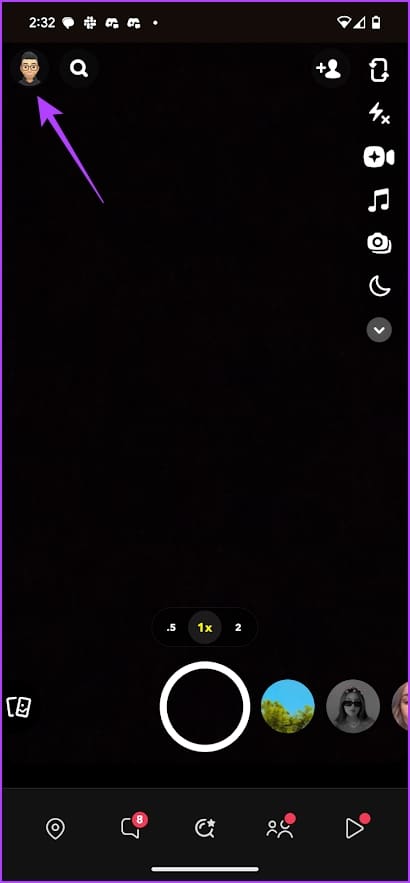
Step 1: Open Snapchat, and tap your profile icon at the top right corner.
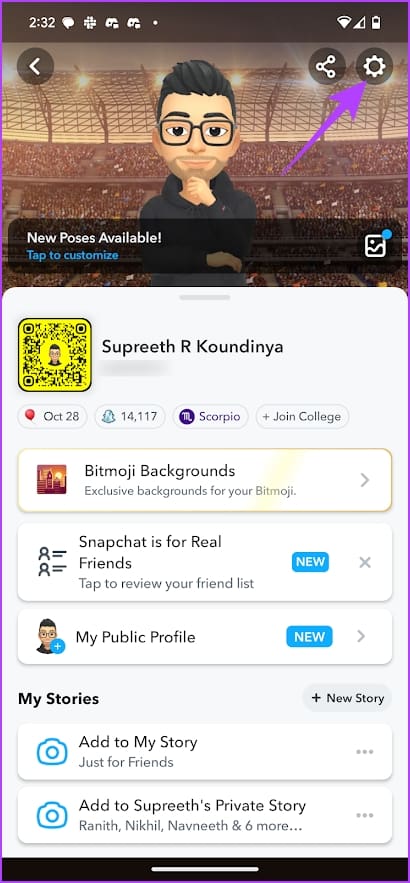
Step 2: Tap the settings gear icon, scroll down, and select Clear Cache. On your iPhone, you need to tap on Clear Data in the settings page, and then tap on Clear Cache.

Method 2: Clear Cache in Android Settings
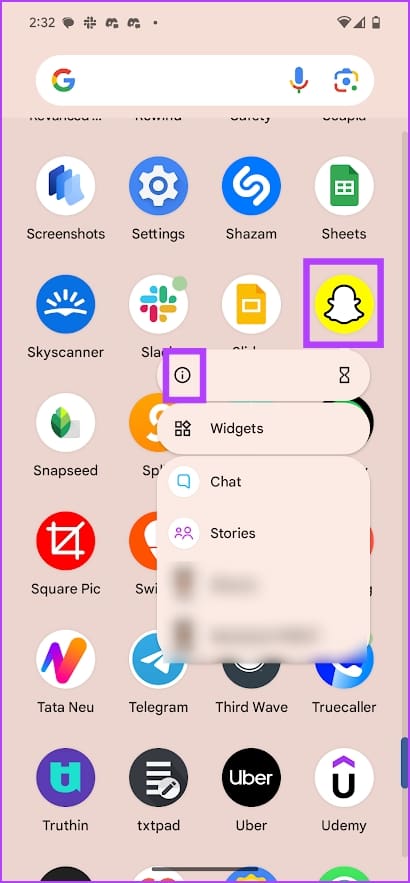
Step 1: On your Android device – tap and hold the Snapchat icon, and select App Info.
Step 2: Tap on Storage & cache > Clear Cache.


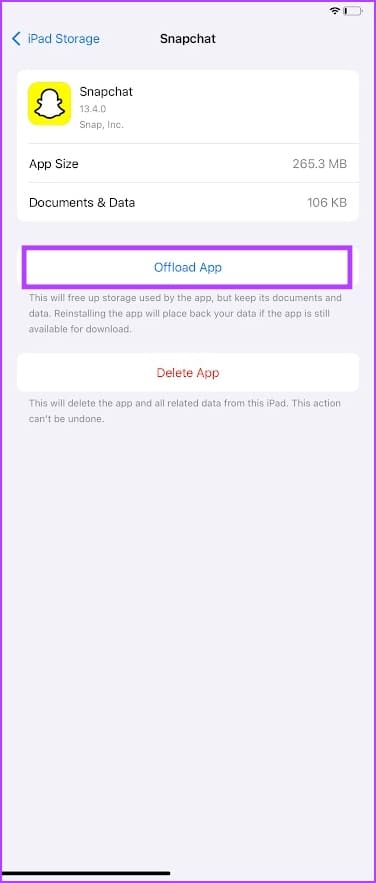
Method 3: Offload the App on the iPhone
Offloading the app on your iPhone removes cache, and other unwanted storage occupied by the app. However, you will have to re-install the app once again.
That said – it doesn’t remove any of your important data, and it isn’t the same as uninstalling an app.
Open Settings > Storage > Snapchat > Offload App, and then tap on Reinstall App.


Was this helpful?
Last updated on 28 August, 2024
Read Next
 How to Clear the Cache in Google Drive and Docs
How to Clear Google Drive Cache If you run into certain Drive problems, you may want to delete the Google Drive cache.
How to Clear the Cache in Google Drive and Docs
How to Clear Google Drive Cache If you run into certain Drive problems, you may want to delete the Google Drive cache.
 How to Clear Cookies and Cache in Chrome for One Site
How to Clear Chrome Cookies and Cache for One Site Only on a Desktop Method 1: Delete Chrome Cache and Cookie From the Website Step 1: Load the site from
How to Clear Cookies and Cache in Chrome for One Site
How to Clear Chrome Cookies and Cache for One Site Only on a Desktop Method 1: Delete Chrome Cache and Cookie From the Website Step 1: Load the site from
 How to Clear Cache on TikTok on Android, iOS, or Web
TikTok has quickly become one of the most popular social media platforms with millions of users worldwide.
How to Clear Cache on TikTok on Android, iOS, or Web
TikTok has quickly become one of the most popular social media platforms with millions of users worldwide.
 What Happens When You Clear Cache on Instagram?
What Does Clearing Instagram Cache Do Here are a few queries regarding clearing the Instagram app cache: Will this delete your Instagram photos and messages?: No, clearing the cache doesn't
What Happens When You Clear Cache on Instagram?
What Does Clearing Instagram Cache Do Here are a few queries regarding clearing the Instagram app cache: Will this delete your Instagram photos and messages?: No, clearing the cache doesn't
 How to Clear Facebook Cache on Android and iPhone
What Does Clearing Facebook Cache Do?
How to Clear Facebook Cache on Android and iPhone
What Does Clearing Facebook Cache Do?
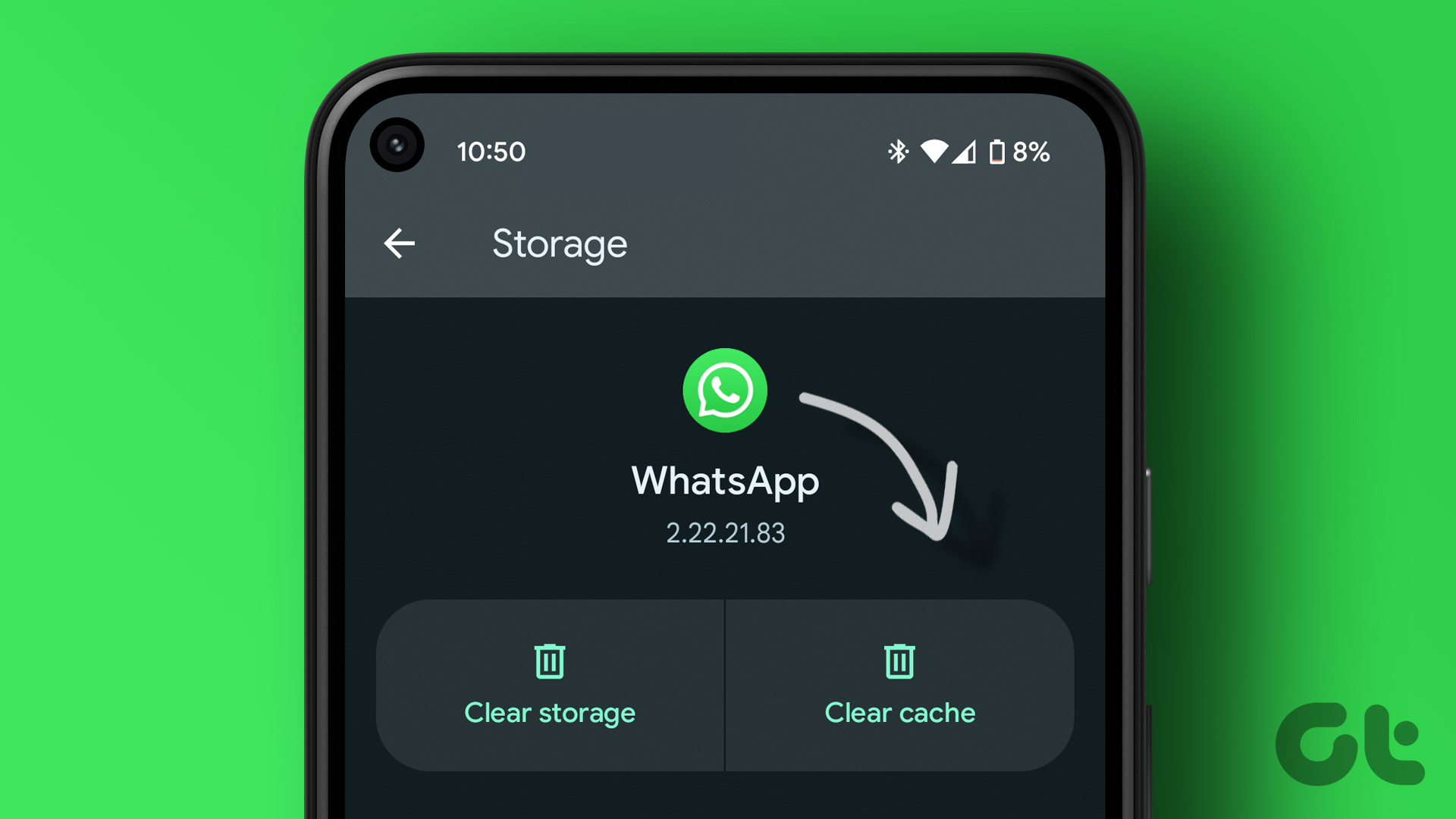 How to Clear WhatsApp Cache on iPhone and Android
Clearing WhatsApp Cache on Android Step 1: Long press the WhatsApp icon and select the ‘i’ (App info) symbol.
How to Clear WhatsApp Cache on iPhone and Android
Clearing WhatsApp Cache on Android Step 1: Long press the WhatsApp icon and select the ‘i’ (App info) symbol.
 How to Clear Cache on Spotify and What Happens When You Do
What Happens When You Clear Cache From Spotify?
How to Clear Cache on Spotify and What Happens When You Do
What Happens When You Clear Cache From Spotify?
 How to Clear Discord Cache on Windows, Mac, iPhone, and Android
Note: We are running a OnePlus 7T (Android 12) and an iPhone 12 (iOS 16.1) for the steps in this article.
How to Clear Discord Cache on Windows, Mac, iPhone, and Android
Note: We are running a OnePlus 7T (Android 12) and an iPhone 12 (iOS 16.1) for the steps in this article.
The article above may contain affiliate links which help support Guiding Tech. The content remains unbiased and authentic and will never affect our editorial integrity.