Method 1: Change the Color of Individual Calendars
On PC
Step 1: Open the Google Calendar website in a browser, hover your mouse over the calendar whose color you want to change, and click the three-dot icon.

Step 2: Select the preferred color from the list. The new color will instantly reflect all the events on that calendar. Similarly, you can change the color of your birthday or holiday calendars.

Tip: Learn how to add birthdays to Google Calendar.
On Android and iPhone
Step 1: Open the Google Calendar app on your Android or iPhone.
Step 2: Tap the three-bar icon and select Settings from the menu.
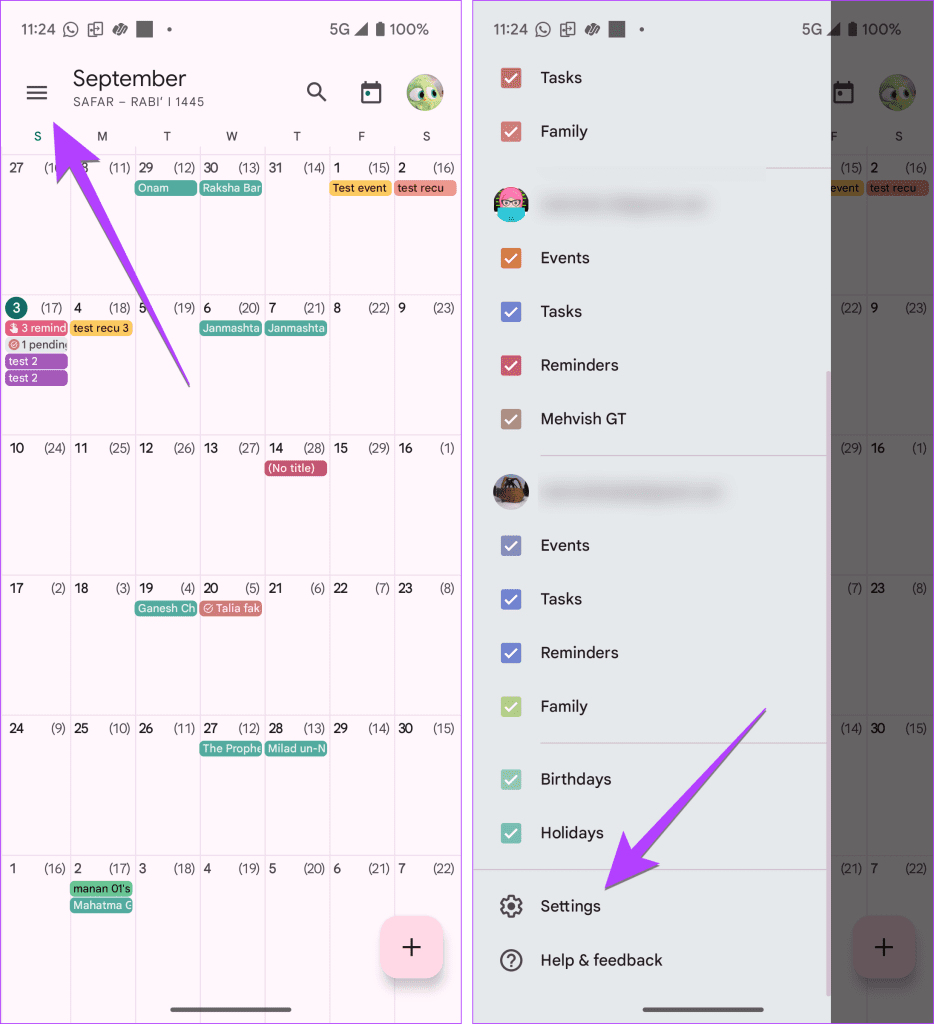
Step 3: Tap on Events or any other calendar type under your email account whose default color of events you want to change.
Step 4: Tap on Color at the top and choose the new color.

Method 2: Change the Color of a Single Event
Google Calendar also allows you to change the color code of individual events in Google Calendar. If you have an important upcoming event and want to make it look different from the other events so that it’s visible, change the color of that particular event.
On PC
Step 1: On the Google Calendar website, right-click the event whose color you want to change and select the color of your choice.
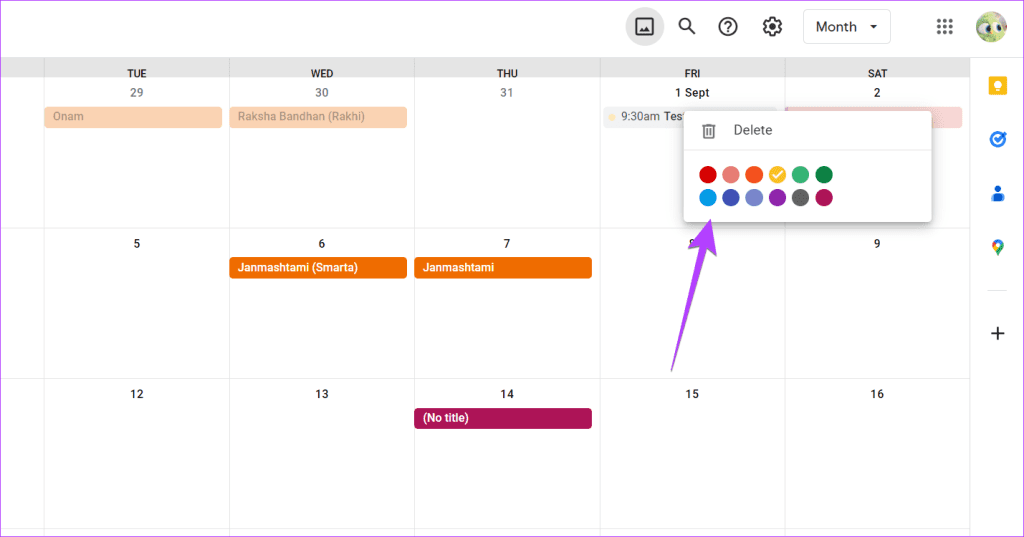
Step 2: If the color list doesn’t appear, click on the event > Pencil (Edit) icon.

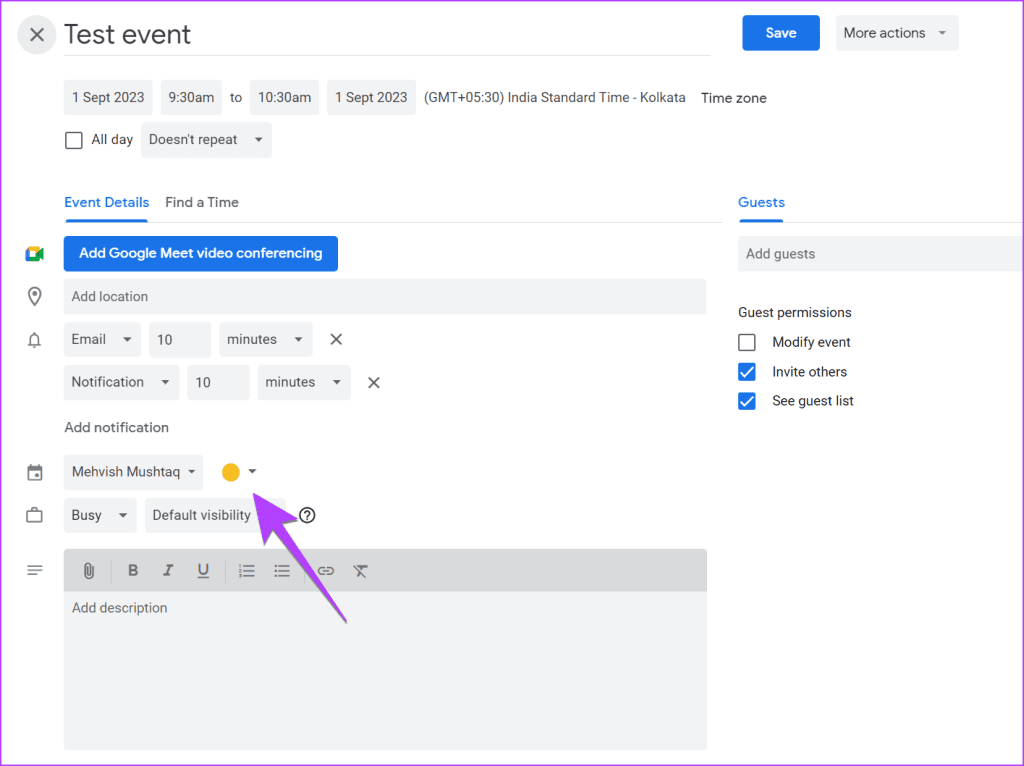
Step 3: Click on the Color drop-down box and change the color.
Note: You cannot change the color of individual events added to calendars, such as holidays.
On Android or iPhone
Step 1: In the Google Calendar app, tap on the event whose color you want to change.
Step 2: Tap the Pencil (Edit) icon at the top.
Step 3: Scroll down and tap on the currently selected color.

Step 4: Select a new event color and tap the Save button.

Method 3: Change Recurring Event Color
On PC
Step 1: Edit the Calendar event for which you want to change the color.

Step 2: Click on the color box and select the new color. Then, click on the Save button.

Step 3: Now, here’s the exciting part. A pop-up will ask whether you want to change the color of this event or all events in the series. Select the appropriate option and click on OK.

On Android or iPhone
Step 1: Get into Edit mode (Pencil icon) for the calendar event if you want to change it.
Step 2: Tap on the current color and choose a new color from the list.
Step 3: Tap Save and choose which events to edit from the Save recurring event pop-up. Select Save.

Pro Tip: Add More Colors to Google Calendar
The default color list in Google Calendar is limited. However, thankfully, you can add more colors to Google Calendar.
Note: This is only possible on the web version of Google Calendar. You cannot add more colors on Google Calendar mobile apps. However, any custom color you set from your PC will also be reflected on your mobile device. Moreover, you can only add custom colors for calendars. You cannot add them to individual events.
Step 1: Go to the Color Picker section of the Google Calendar for which you want to change the color.
Step 2: Click on the (+) icon under the list of colors.

Step 3: In the pop-up window, choose a custom color and enter its Hex code. Finally, click on Save.

FAQs
How Do I Change the Color of My Google Calendar Embed?
Under the calendar menu, click on Settings and Sharing > Integrate calendar. Here, you can customize and select the color you want to use on your Google Calendar Embed.
Why Are Colors Overlapping for My Calendar Events?
It’s not the color but the events that are overlapping. If the colors are different, it will feel like they overlap. You must adjust your event timing to fix it.
Was this helpful?
Last updated on 23 April, 2024
Read Next
 How to Connect Outlook Calendar With Google Calendar: 4 Best Ways
Note: The methods recommended in the article allow two-way syncs in the calendar.
How to Connect Outlook Calendar With Google Calendar: 4 Best Ways
Note: The methods recommended in the article allow two-way syncs in the calendar.
 How to Add Zoom Meetings to Outlook Calendar and Google Calendar
How to Add Zoom Meetings to Google Calendar The easiest way is using the Zoom for Google Workspace Google calendar add-on.
How to Add Zoom Meetings to Outlook Calendar and Google Calendar
How to Add Zoom Meetings to Google Calendar The easiest way is using the Zoom for Google Workspace Google calendar add-on.
 Top 9 Ways to Fix Inverted Colors Issue on Windows 10
Long before there was the dark mode, a feature allowed users to invert colors on their screen.
Top 9 Ways to Fix Inverted Colors Issue on Windows 10
Long before there was the dark mode, a feature allowed users to invert colors on their screen.
 4 Ways to Fix Washed out Colors After Windows 11 Update
Fix 1: Calibrate Display Colors Step 1: Press the Windows key, type calibrate display color, and hit Enter.
4 Ways to Fix Washed out Colors After Windows 11 Update
Fix 1: Calibrate Display Colors Step 1: Press the Windows key, type calibrate display color, and hit Enter.
 9 Ways to Invert Screen or Picture Colors on iPhone
Method 1: Using Classic Invert If everything on your iPhone is showing different colors, follow these steps to turn off inverted colors on your iPhone: Step 1: Open Settings >
9 Ways to Invert Screen or Picture Colors on iPhone
Method 1: Using Classic Invert If everything on your iPhone is showing different colors, follow these steps to turn off inverted colors on your iPhone: Step 1: Open Settings >
 7 Ways to Fix iPhone Screen Colors Messed Up or Distorted Issue
The ability to show vibrant colors and crystal-clear pictures is probably one of the biggest reasons consumers buy the iPhone.
7 Ways to Fix iPhone Screen Colors Messed Up or Distorted Issue
The ability to show vibrant colors and crystal-clear pictures is probably one of the biggest reasons consumers buy the iPhone.
 How to Add and Remove Holidays Calendar in Apple Calendar App
How to Use Holidays Calendar on iPhone The Apple Calendar app offers a built-in regional calendar, displaying the common holidays (occasions and festivals) from that area.
How to Add and Remove Holidays Calendar in Apple Calendar App
How to Use Holidays Calendar on iPhone The Apple Calendar app offers a built-in regional calendar, displaying the common holidays (occasions and festivals) from that area.
 2 Easy Ways to Add Birthdays to Google Calendar
Method 1: Import Birthdays From Google Contacts On Android Step 1: Open the Google Contacts app on your Android phone.
2 Easy Ways to Add Birthdays to Google Calendar
Method 1: Import Birthdays From Google Contacts On Android Step 1: Open the Google Contacts app on your Android phone.
The article above may contain affiliate links which help support Guiding Tech. The content remains unbiased and authentic and will never affect our editorial integrity.