Change YouTube Caption Color on Desktop
When watching YouTube videos, you may have noticed that captions usually appear in white with a black outline. This is the default setting, but you can change the subtitle color to your preference.
To change YouTube captions on your Desktop, follow these steps:
Step 1: Open a YouTube video and click on the gear (Settings) icon.

Step 2: Select Subtitles/CC (1) > Options.

Step 3: Click Font color and choose a color from the palette.

You can also customize the font size, background color, and opacity of the subtitles for better visibility. Once done, you’ll see the captions in your chosen color.
Change YouTube Caption Color on Mobile
If you watch YouTube videos on your mobile device, you can also change the subtitle color. However, the process is different depending on whether you’re using an iPhone or an Android device.
On Android
To change YouTube caption color on Android, follow these steps:
Step 1: Open YouTube and tap on your profile icon.
Step 2: Tap on Settings > Captions. Make sure Show captions is enabled.


Step 3: Select Caption size and style > Text color, then pick a shade from the color palette.


On iPhone
To change YouTube caption color on your iPhone, follow these steps:
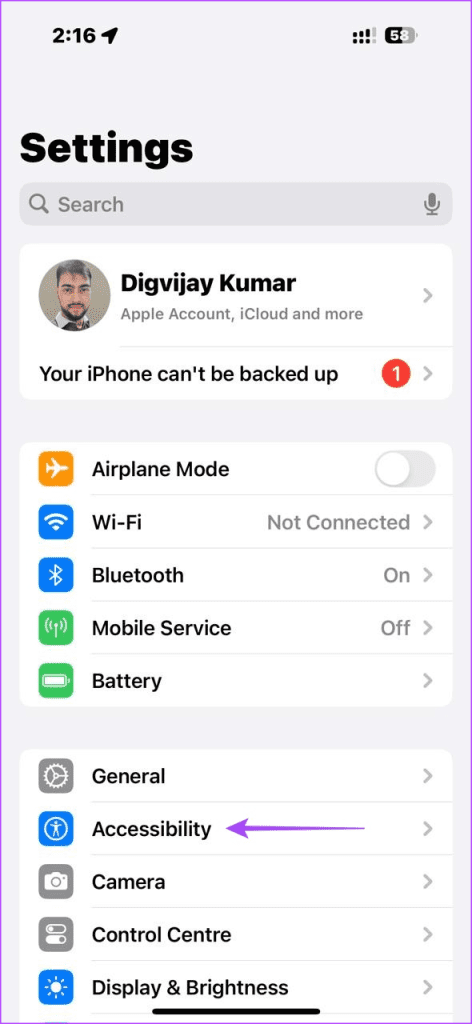
Step 1: Open the Settings menu on your iPhone.
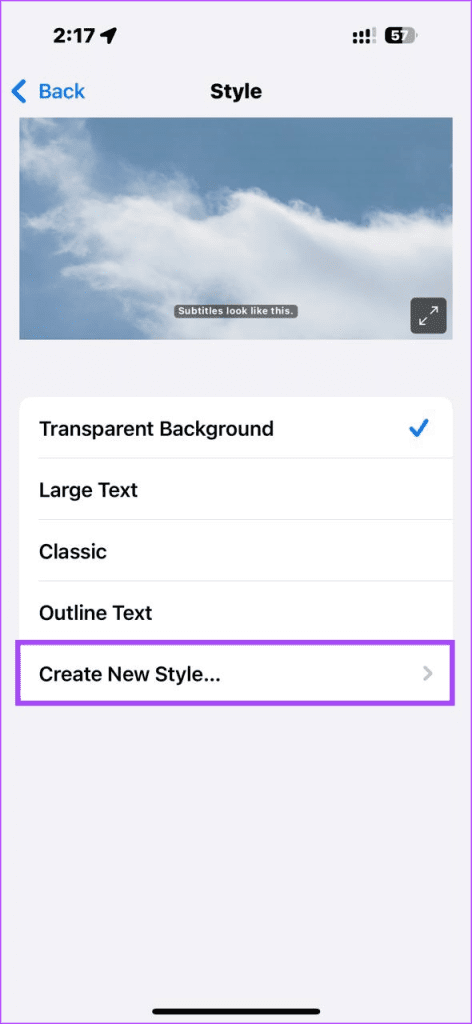
Step 2: Navigate to Accessibility > Subtitles & Captioning > Style.

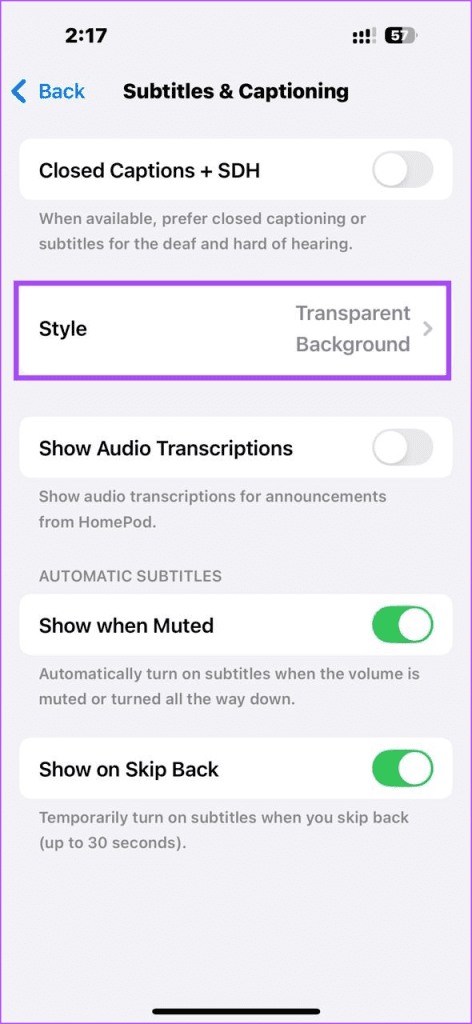
Step 3: Tap on Create New Style and give it a name.
Step 4: Under Text, tap Colour, then pick a color from the palette.

Now, when you watch YouTube videos with captions on your iPhone, they’ll appear in your chosen color.
YouTube Subtitles Still Appearing Grey? Try These Fixes
If you notice grey subtitles on YouTube despite changing color settings, try these tips:
Method 1: Change Font Opacity or Background
You might have accidentally changed the font opacity or background color of your subtitles. To fix this, follow these steps:
Step 1: On your YouTube video, click the gear (Settings) icon.
Step 2: Click on Subtitles/CC (1) > Options.
Step 3: Click on Font opacity and set it to 100%.

You can also adjust the background color here if needed.
Method 2: Reset Subtitle Customization
If changing the font opacity didn’t work, reset your subtitle customization. Here’s how:
Reset Subtitles on Computer
Step 1: Navigate to the same Options menu in your YouTube video.
Step 2: Scroll down and click on Reset.

Reset Subtitles on Android and iOS
For Android users, open YouTube and tap on your profile picture. Then, go to Settings > Captions > Caption size and style > Caption Style, and select Set by app.


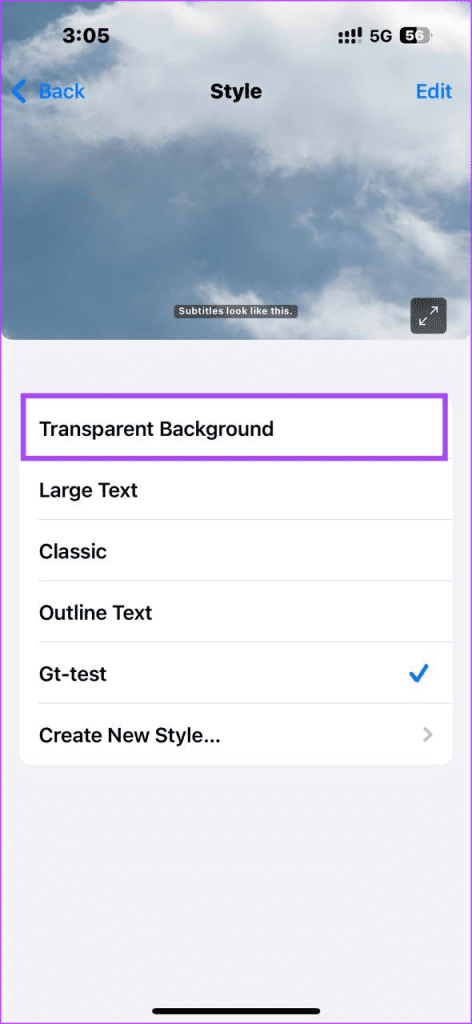
For iOS users, navigate to iPhone Settings > Accessibility > Subtitles & Captioning > Style, then tap Transparent Background.
Was this helpful?
Last updated on 30 July, 2024
Read Next
 5 Fixes for Closed Captions Not Working on YouTube
Fix 1: Check Captions Font and Style Settings YouTube provides several options for customizing caption colors, styles, sizes, and more.
5 Fixes for Closed Captions Not Working on YouTube
Fix 1: Check Captions Font and Style Settings YouTube provides several options for customizing caption colors, styles, sizes, and more.
 4 Ways to Add Captions to Images in Google Docs
Method 1: Use the Drawing Panel Using the Drawing panel is probably the most effective way of captioning images in Google Docs.
4 Ways to Add Captions to Images in Google Docs
Method 1: Use the Drawing Panel Using the Drawing panel is probably the most effective way of captioning images in Google Docs.
 How to Fix Captions Not Showing Up on Instagram App
Why Do Captions Disappear on Instagram No, you might not have forgotten to add captions to Instagram, instead it was removed by the social media platform itself.
How to Fix Captions Not Showing Up on Instagram App
Why Do Captions Disappear on Instagram No, you might not have forgotten to add captions to Instagram, instead it was removed by the social media platform itself.
 How to Add Captions (Subtitles) to Instagram Reels and Stories
Enable Auto-Generated Captions to any Reels This is similar to YouTube subtitles.
How to Add Captions (Subtitles) to Instagram Reels and Stories
Enable Auto-Generated Captions to any Reels This is similar to YouTube subtitles.
 3 Ways to Change Default Background Color in Chrome
Method 1: Use the Customize Chrome Button The easiest way to change the background color in Chrome is to use the Customize Chrome button.
3 Ways to Change Default Background Color in Chrome
Method 1: Use the Customize Chrome Button The easiest way to change the background color in Chrome is to use the Customize Chrome button.
 3 Ways to Change Tab Color in Google Chrome on PC
Method 1: Change Tab Colors With a Chrome Theme When you change Chrome’s theme, the color of its toolbar and the top bar change along with the tabs, the search
3 Ways to Change Tab Color in Google Chrome on PC
Method 1: Change Tab Colors With a Chrome Theme When you change Chrome’s theme, the color of its toolbar and the top bar change along with the tabs, the search
 How to Change Color of PNG Image and Text in GIMP
Many times, we have a single color image such as an icon or a logo whose color needs to be changed.
How to Change Color of PNG Image and Text in GIMP
Many times, we have a single color image such as an icon or a logo whose color needs to be changed.
 How to Change Taskbar Color in Windows 11
Changing the taskbar color is a simple yet effective way to add your touch to the digital canvas.
How to Change Taskbar Color in Windows 11
Changing the taskbar color is a simple yet effective way to add your touch to the digital canvas.
The article above may contain affiliate links which help support Guiding Tech. The content remains unbiased and authentic and will never affect our editorial integrity.