Contact groups give you a quick way to email a few people at once. You might set up a group for colleagues, best friends, or family members. One click, and Microsoft Outlook knows exactly who to send the email to, even if it’s 50 different recipients.
Unfortunately, the function to create these convenient contact groups doesn’t always work. If you can’t create a new contact group in Outlook, make sure you’re following the steps below for success.
How to Create a New Contact Group in Outlook
Step 1. Open Outlook and click on “People” on the left-hand sidebar menu.

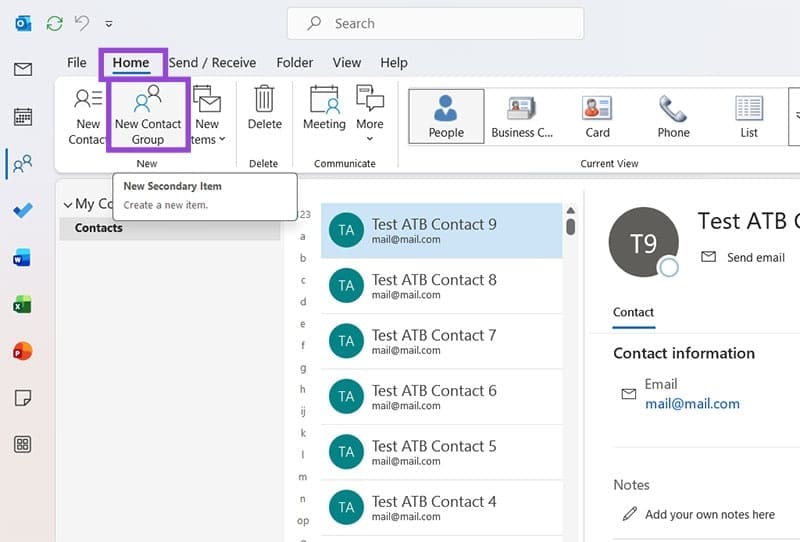
Step 2. Click on “New Contact Group” which should be an available option in the top “Home” menu. Note: If this option isn’t available, go straight to the next section: “Can’t Create a New Contact Group in Outlook Fix #1: Check for Updates.”
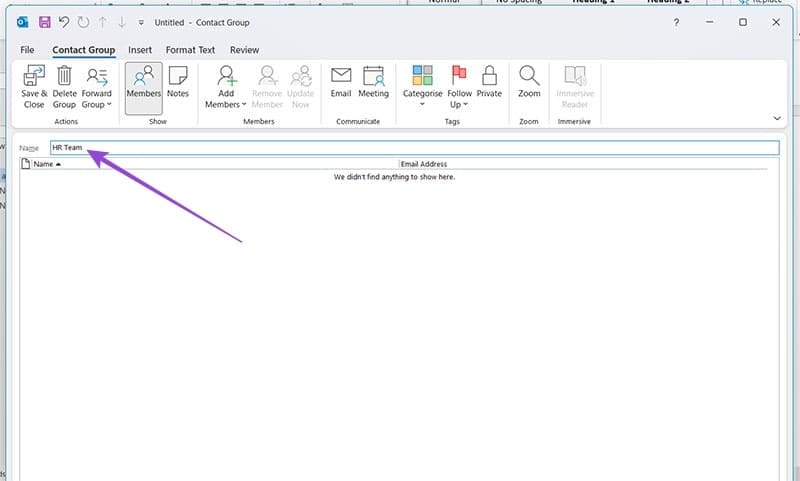
Step 3. Name your contact group to make it easier to find. This group is going to be called “HR Team.” You can type anything you want into the “Name” field.
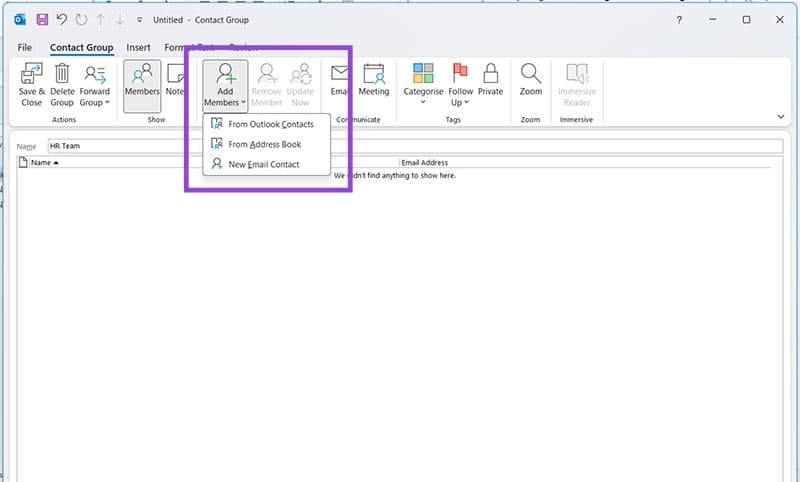
Step 4. Click on “Add Members” and choose whether you want to choose people from your contacts list, address book, or type in an email address manually.
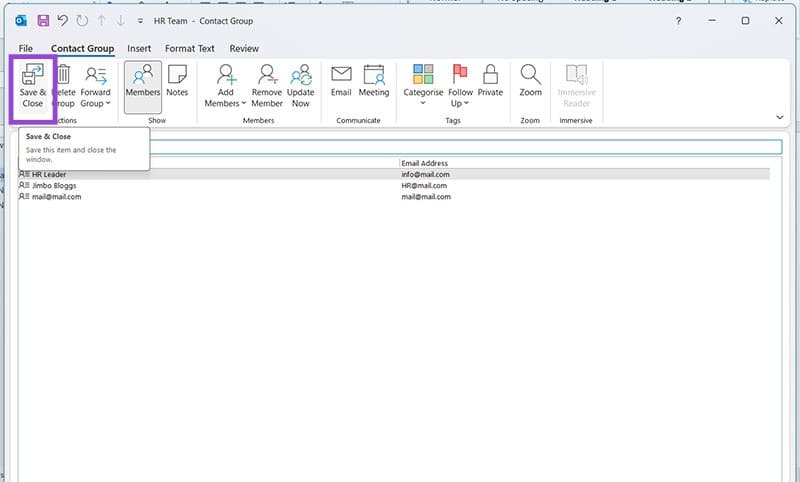
Step 5. Once you’ve added your members, click “Save & Close.”
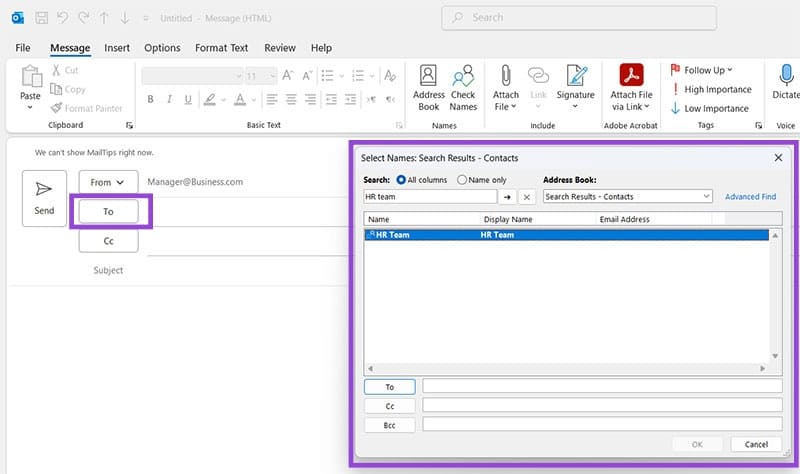
Step 6. Whenever you create a new email and want to include these recipients, you can click “To” and choose this contact group to save time.
Can’t Create a New Contact Group in Outlook Fix #1: Check for Updates
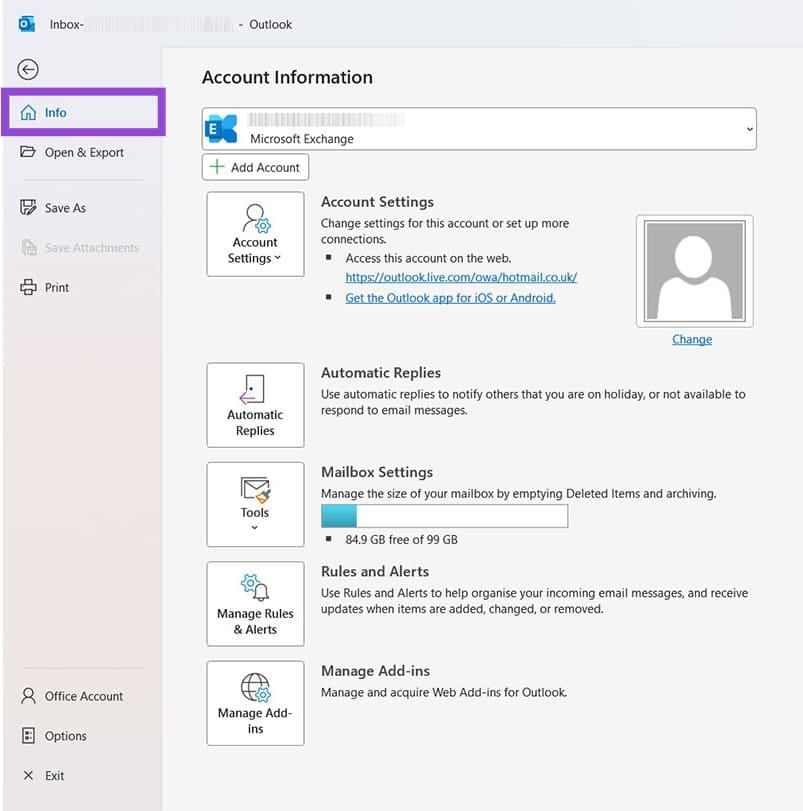
Step 1. If Outlook wouldn’t let you complete the contact group creation process, or the option wasn’t even there, start by checking for updates. Open Outlook and click File to open the Account Information Screen.
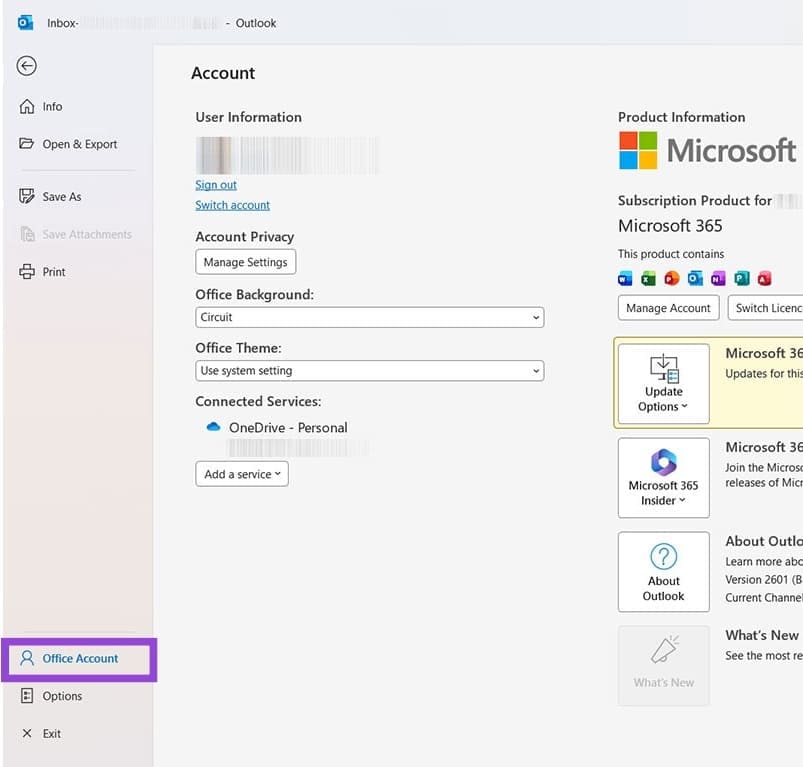
Step 2. Click on Office Account, found on the left and near the bottom.
Step 3. You may see that updates are ready to install. Regardless, click the arrow next to Update Options and choose Update Now. Follow the onscreen prompts until the update is complete, reboot your computer, and try creating a contact group again.

Can’t Create a New Contact Group in Outlook Fix #2: Switch to Classic Outlook
Step 1. Windows has been prompting Outlook users to try the new version of Outlook. Unfortunately, there are still some glitches with the newer version, including some missing features. If you can’t create a new contact group in Outlook, check the top-right corner for a button that says, “New Outlook.” Click here.

Step 2. Despite the slightly misleading label, this button reverts you back to Classic Outlook. Wait a few moments for the process to complete.
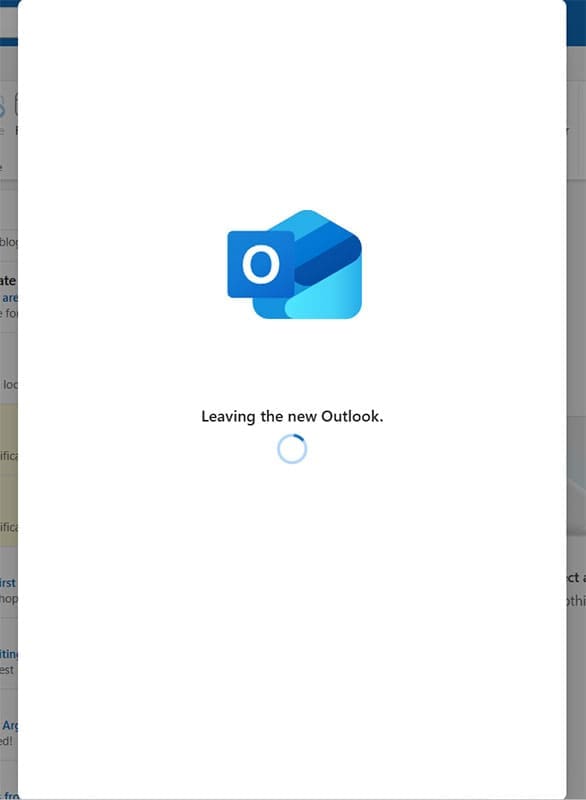
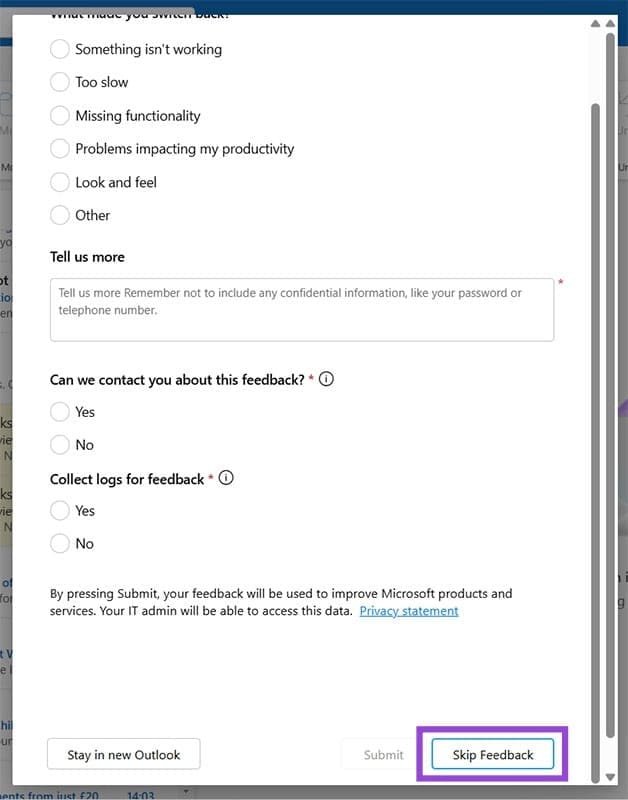
Step 3. You might be prompted to give feedback on your experience with New Outlook. It’s okay to skip this process if you want.
Step 4. Reopen Outlook, and you should have the original, Classic view. Try creating a contact group again, and everything should be working as expected.

Was this helpful?
Last updated on 27 February, 2026
Read Next
 3 Ways to Add a Contact in Microsoft Outlook
Method 1: Add a Contact From a Received Email The easiest way to add someone to your Outlook address book is to open one of their emails and add the
3 Ways to Add a Contact in Microsoft Outlook
Method 1: Add a Contact From a Received Email The easiest way to add someone to your Outlook address book is to open one of their emails and add the
 How to Create WhatsApp Contact Shortcuts on iPhone
If your iPhone supports iOS 17 or newer software versions, you can create WhatsApp contact shortcuts.
How to Create WhatsApp Contact Shortcuts on iPhone
If your iPhone supports iOS 17 or newer software versions, you can create WhatsApp contact shortcuts.
 3 Ways to Create a WhatsApp Group or a Chat With Yourself
Method 1: Create a Group By Removing Another Member You can temporarily create a group with just one member, and remove them later.
3 Ways to Create a WhatsApp Group or a Chat With Yourself
Method 1: Create a Group By Removing Another Member You can temporarily create a group with just one member, and remove them later.
 5 Ways to Fix Outlook Contact List Not Showing Up on Windows
Fix 1: Enable the Auto-Complete Feature in Outlook Options The most common reason Outlook may not suggest contacts while composing a message is if the Auto-Complete feature is disabled.
5 Ways to Fix Outlook Contact List Not Showing Up on Windows
Fix 1: Enable the Auto-Complete Feature in Outlook Options The most common reason Outlook may not suggest contacts while composing a message is if the Auto-Complete feature is disabled.
 Top 3 Ways to Create a Group Text on Samsung Phones
Texting individual contacts is quite easy on any phone.
Top 3 Ways to Create a Group Text on Samsung Phones
Texting individual contacts is quite easy on any phone.
 How to Create and Save a Group of Tabs in Chrome
How to Create and Save Tab Groups in Chrome On Mac If you find that you’ve got too many tabs open while in the middle of a Google Chrome session,
How to Create and Save a Group of Tabs in Chrome
How to Create and Save Tab Groups in Chrome On Mac If you find that you’ve got too many tabs open while in the middle of a Google Chrome session,
 How to Create an Email Group in Mail App on Mac
Create a New Group Using the Contacts App Like Gmail and Outlook, the Mail app on Mac also lets you send group emails.
How to Create an Email Group in Mail App on Mac
Create a New Group Using the Contacts App Like Gmail and Outlook, the Mail app on Mac also lets you send group emails.
 How to Create an Email Group in Mail App on iPhone
Create a New Group Using Contacts App Let's start by creating a new group using the Contacts app on your iPhone to create an email group.
How to Create an Email Group in Mail App on iPhone
Create a New Group Using Contacts App Let's start by creating a new group using the Contacts app on your iPhone to create an email group.
The article above may contain affiliate links which help support Guiding Tech. The content remains unbiased and authentic and will never affect our editorial integrity.