When you’re trying to rename your network adapter, you may encounter an error message like “Cannot rename network adapter; name already exists” or “Cannot rename this connection. A connection with the name you specified already exists.” As the error indicates, Windows is blocking the rename due to a duplicate name conflict.
The issue can be caused by hidden or ghost network adapters from previous configurations. On the surface, it may appear as if the old adapter no longer exists on the machine. But in the background, it can still be registered as a non-present device.
To resolve the issue, you may need to remove the hidden device causing the conflict. Start with Device Manager; if that doesn’t work, more advanced registry troubleshooting may be necessary.
Via Device Manager
First, try to remove the hidden or ghost devices via Device Manager.
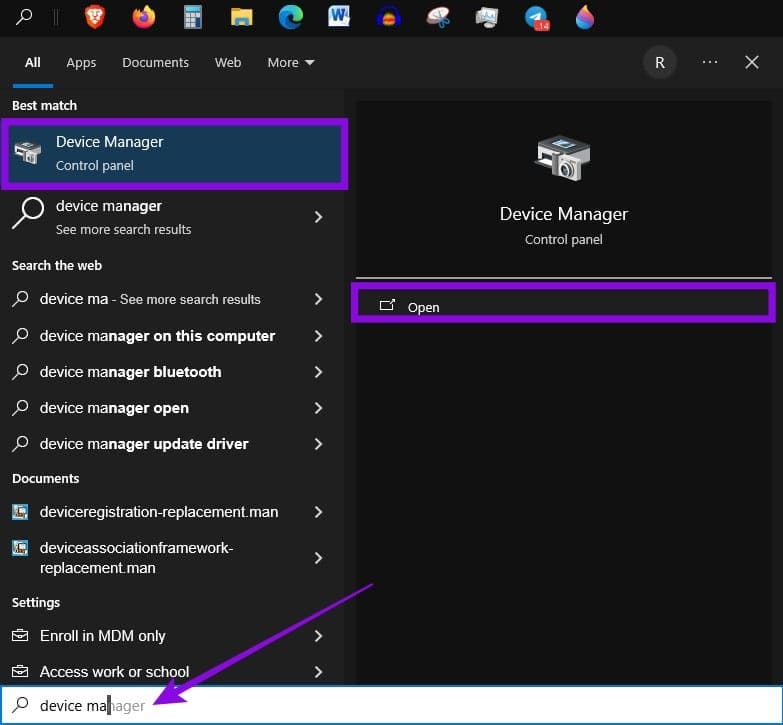
Step 1. Open Device Manager.
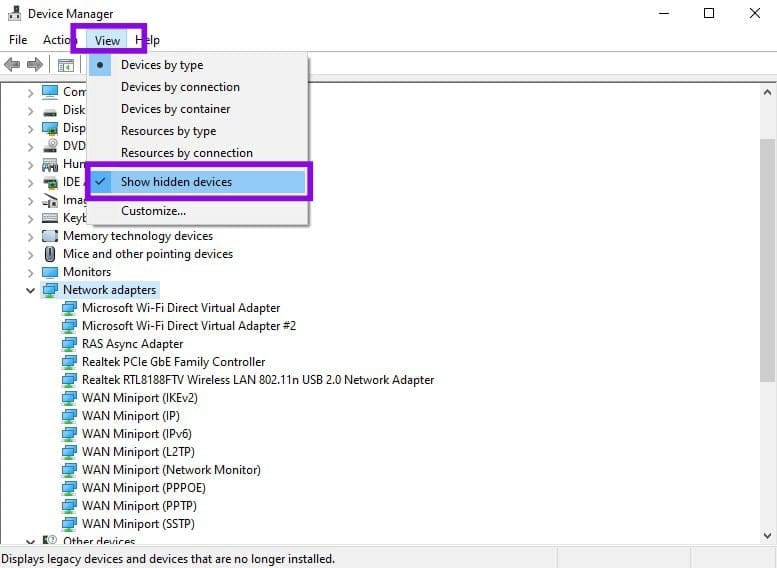
Step 2. Under the View menu, select “Show hidden devices.”
Step 3. Expand the “Network adapters” item.
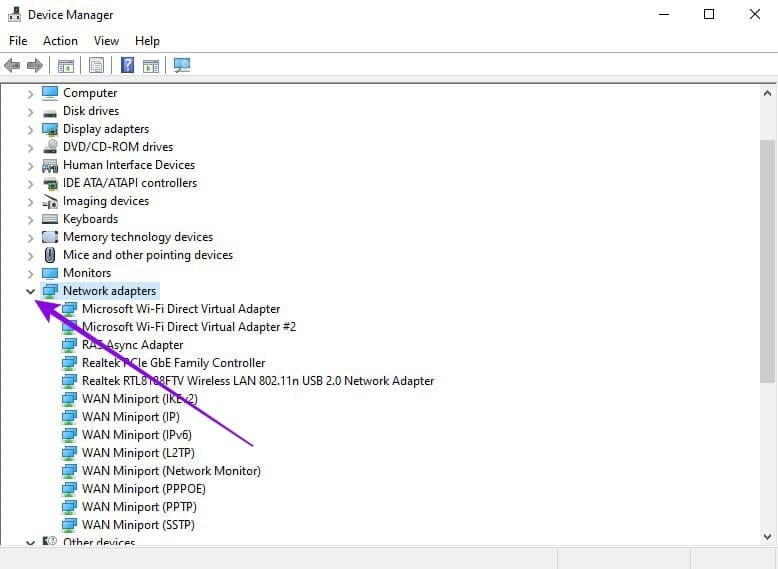
Step 4. If you see a faded/grayed-out adapter corresponding to the old or conflicting connection, right-click it and select “Uninstall device.”
Step 5. Now try to rename the adapter again using Network Connections.
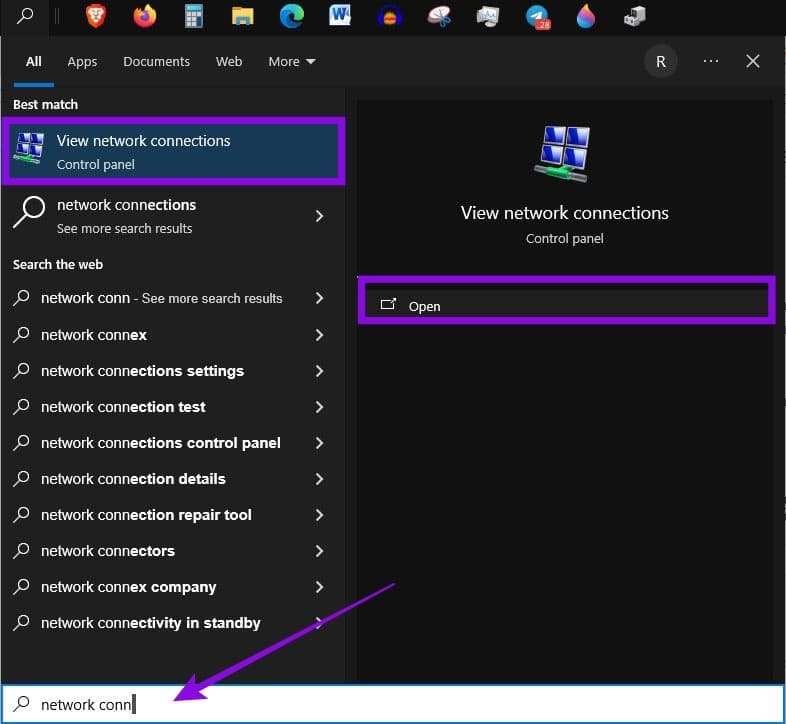
Step 6. Right-click on the adapter you wish to rename and select “Rename.”

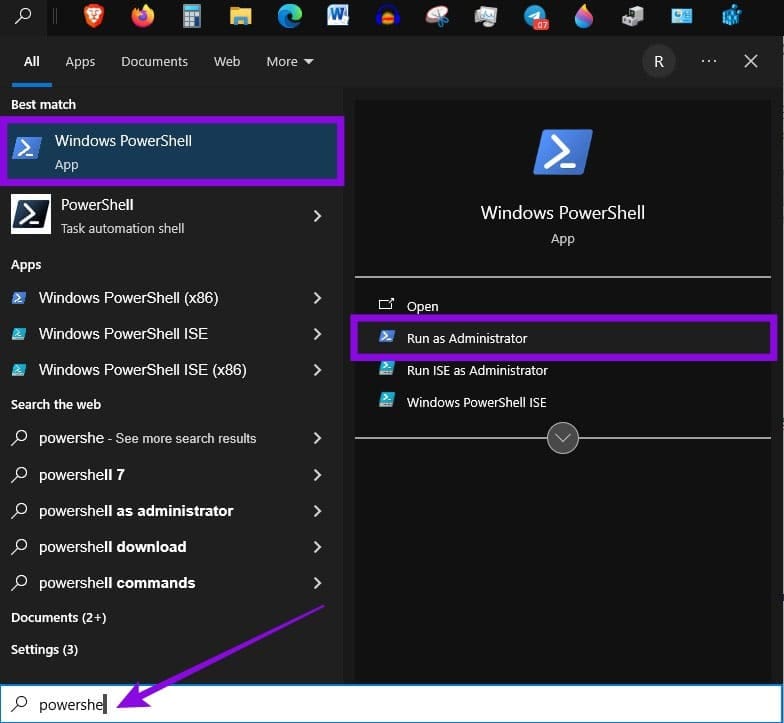
Alternatively, you can rename the adapter using PowerShell.
Step 1. Open PowerShell as an Administrator.
Step 2. In PowerShell, enter Rename-NetAdapter -Name “Oldname” -NewName “Newname”.
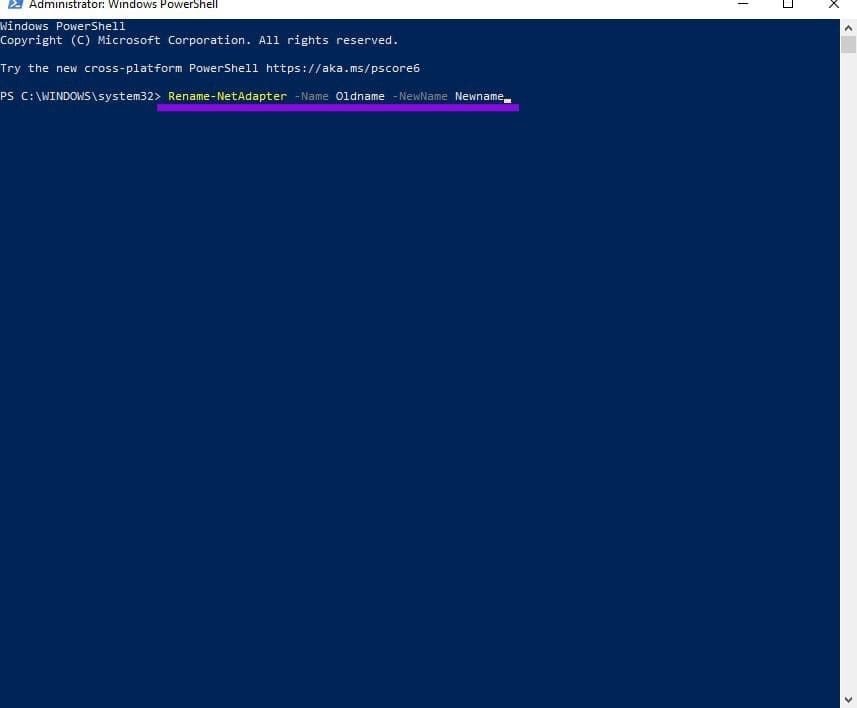
Replace “Oldname” and “Newname” with the actual existing adapter name and the new name you’re trying to apply to it. Make sure you enter the command correctly, including the existing adapter name and the new name you want to use.
Via the Registry
If you still receive the “Cannot rename network adapter; name already exists” error after removing hidden devices, additional network configuration information may still be present in the registry. Deleting the associated registry entries should allow you to rename your adapter as desired.
Removing Subkeys
First, try removing any lingering registry entries for the older device with the conflicting name.
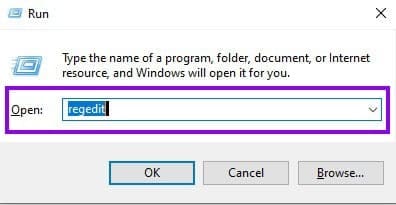
Step 1. Press Windows + R to open the “Run” command.
Step 2. Type “regedit” to open the Registry Editor and click “OK.”
Step 3. Navigate to HKEY_LOCAL_MACHINE\SYSTEM\CurrentControlSet\Control\Network\{4D36E972-E325-11CE-BFC1-08002BE10318}.
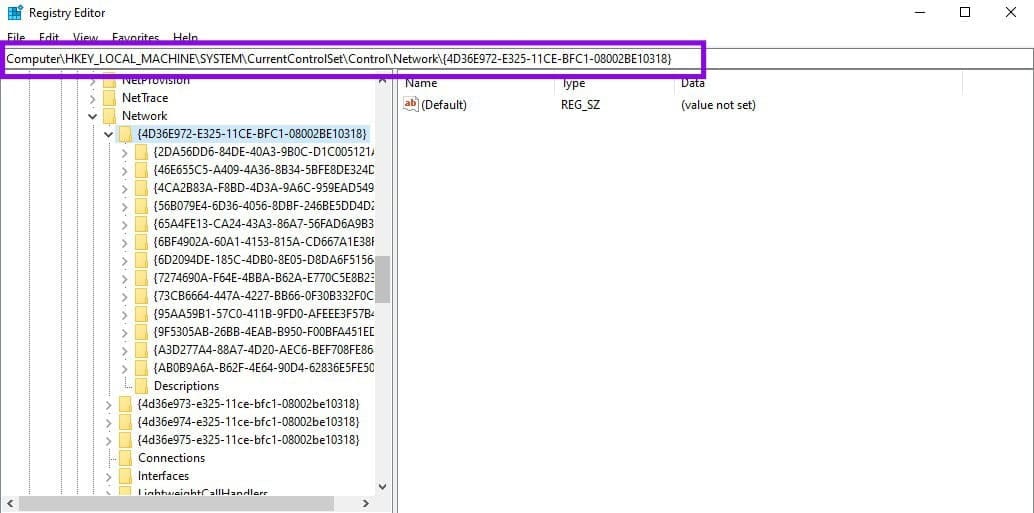
Step 4. If you have identified a registry entry that corresponds to the obsolete adapter, back up the registry first and delete only that specific entry.
Step 5. Restart the computer.
Step 6. Try renaming the adapter using the Network Connections panel again.
Removing the Profile
If the adapter still cannot be renamed after removing the obsolete device, check the associated network profile before making any registry changes.
Step 1. Open Registry Editor again and navigate to: HKEY_LOCAL_MACHINE\SOFTWARE\Microsoft\Windows NT\CurrentVersion\NetworkList\Profiles.
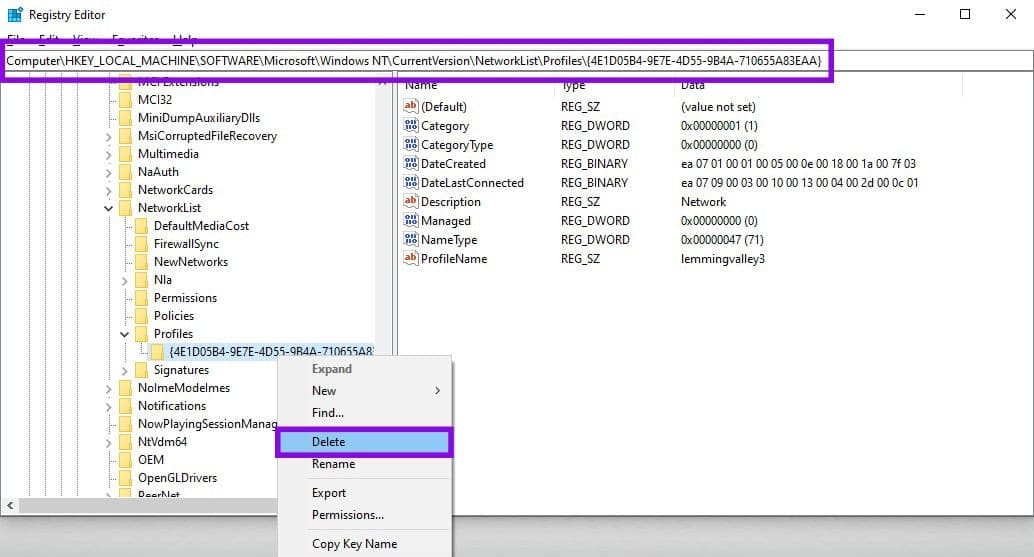
Step 2. Restart your machine and try renaming the adapter again using Network Connections or PowerShell.
Was this helpful?
Last updated on 20 September, 2026
Read Next
 3 Ways to Fix “The Local Device Name Is Already in Use” Error on Windows 11/10
Fix 1: Assign or Change Drive Letter Step 1: Right-click the Windows Start button, locate Disk management, and click to open.
3 Ways to Fix “The Local Device Name Is Already in Use” Error on Windows 11/10
Fix 1: Assign or Change Drive Letter Step 1: Right-click the Windows Start button, locate Disk management, and click to open.
 4 Ways to Fix “Windows Could Not Find a Driver for Your Network Adapter” Error
Fix 1: Enable Network Adapter Windows may fail to communicate with the network adapter if you've previously disabled it.
4 Ways to Fix “Windows Could Not Find a Driver for Your Network Adapter” Error
Fix 1: Enable Network Adapter Windows may fail to communicate with the network adapter if you've previously disabled it.
 How to Fix “Page is Already Linked to Instagram Account” Error
Basic Fixes Remove special characters from the account name: Apparently adding special characters or emojis to your Facebook page or Instagram Business profile name can cause issues such as this
How to Fix “Page is Already Linked to Instagram Account” Error
Basic Fixes Remove special characters from the account name: Apparently adding special characters or emojis to your Facebook page or Instagram Business profile name can cause issues such as this
 How to Disable Network Adapter (Ethernet) in Windows 11
Method 1: Using Settings Step 1: Press the Windows key on your keyboard, type Settings, and press Open.
How to Disable Network Adapter (Ethernet) in Windows 11
Method 1: Using Settings Step 1: Press the Windows key on your keyboard, type Settings, and press Open.
 3 Ways to Check Network Adapter Speed on Windows 11
Method 1: Using the Settings App Besides displaying the network adapter speed, the Settings app also provides information about other connection aspects, such as the network band, MAC address, and
3 Ways to Check Network Adapter Speed on Windows 11
Method 1: Using the Settings App Besides displaying the network adapter speed, the Settings app also provides information about other connection aspects, such as the network band, MAC address, and
 5 Ways to Fix Intel Wi-Fi 6 AX201 Adapter Driver or Hardware Issues
Fix 1: Update or Reinstall Driver The software drivers for the Intel Wi-Fi 6 AX201 on your Windows PC may be outdated and are due for an update.
5 Ways to Fix Intel Wi-Fi 6 AX201 Adapter Driver or Hardware Issues
Fix 1: Update or Reinstall Driver The software drivers for the Intel Wi-Fi 6 AX201 on your Windows PC may be outdated and are due for an update.
 4 Ways to Fix Unable to Rename Folders on Windows 11
Try Basic Fixes Make sure the folder is not in use: You may have difficulty renaming a folder on your PC if it is already open in another program.
4 Ways to Fix Unable to Rename Folders on Windows 11
Try Basic Fixes Make sure the folder is not in use: You may have difficulty renaming a folder on your PC if it is already open in another program.
 How to Rename or Delete SoftwareDistribution and Catroot2 Folders
What Happens When You Reset SoftwareDistribution and Catroot2 Folders Catroot2 folder contains catalog files (.cat) that are cryptographic hashes and digital signatures for system files.
How to Rename or Delete SoftwareDistribution and Catroot2 Folders
What Happens When You Reset SoftwareDistribution and Catroot2 Folders Catroot2 folder contains catalog files (.cat) that are cryptographic hashes and digital signatures for system files.
The article above may contain affiliate links which help support Guiding Tech. The content remains unbiased and authentic and will never affect our editorial integrity.