


1. Google Chrome (Android)
Google Chrome is one of the fastest, and the most feature-rich browsers for Android. If you are using Google Chrome as the default browser on your Android device, then always enabling the desktop mode for websites is quite easy, since it has a built-in method to do so. However, the iOS version of the app misses out on the feature.
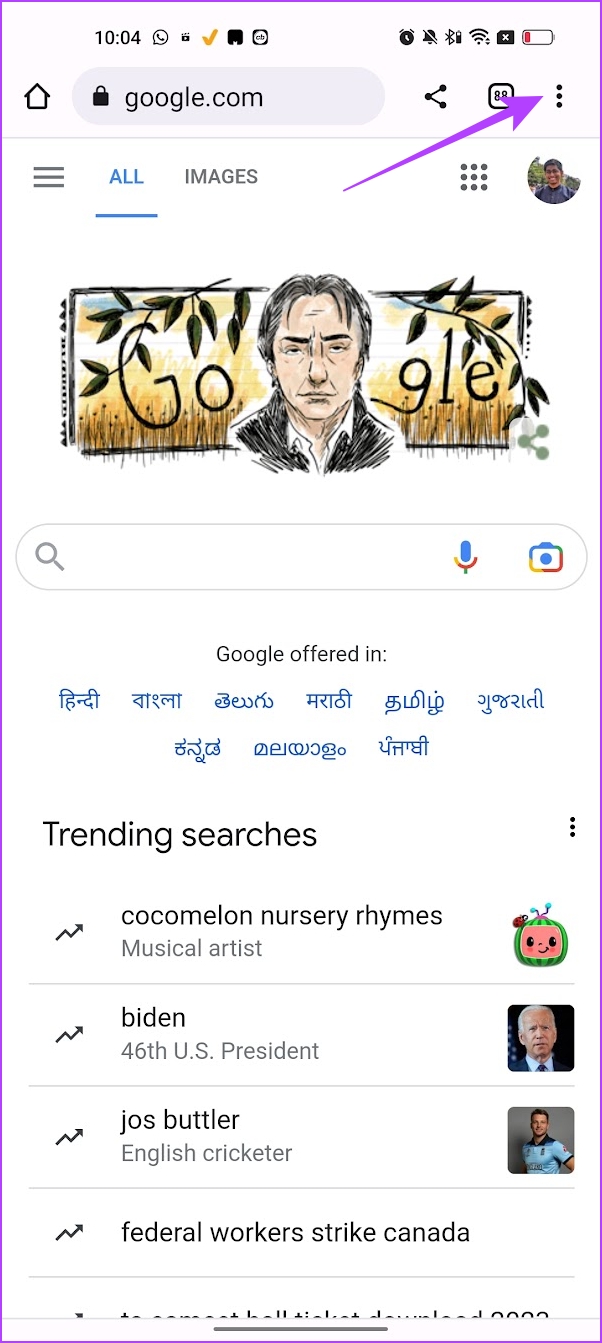
Step 1: Tap on the three-dot menu icon.
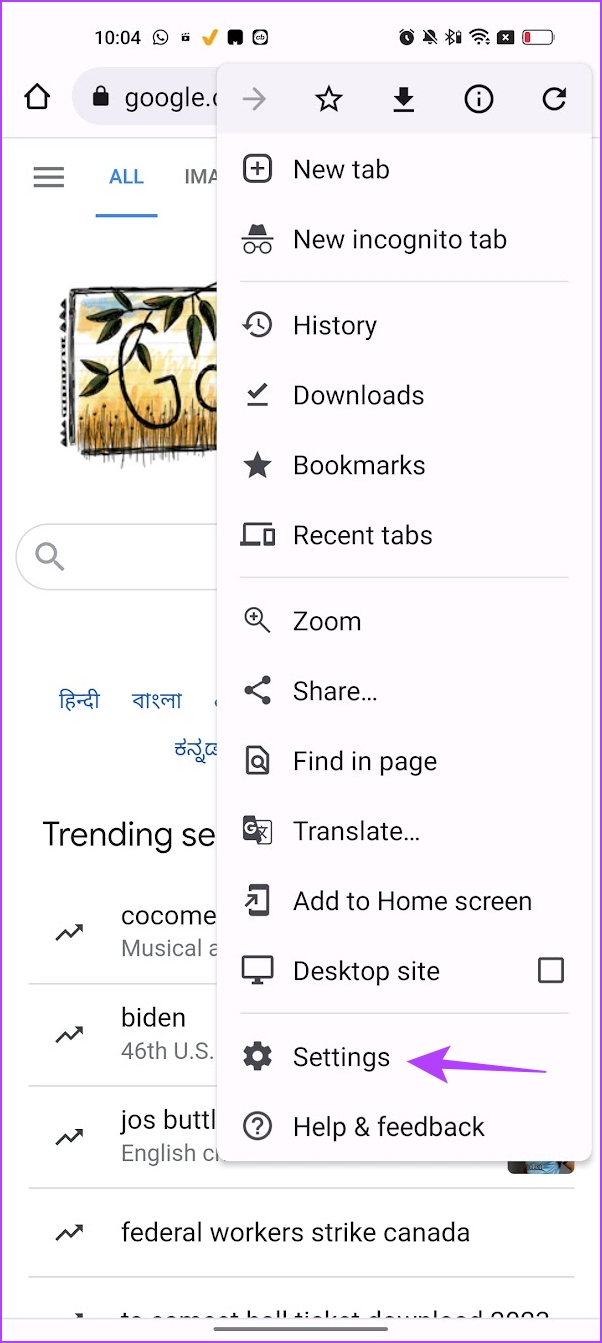
Step 2: Tap on Settings.
Step 3: Scroll down to find Site Settings and tap on it.
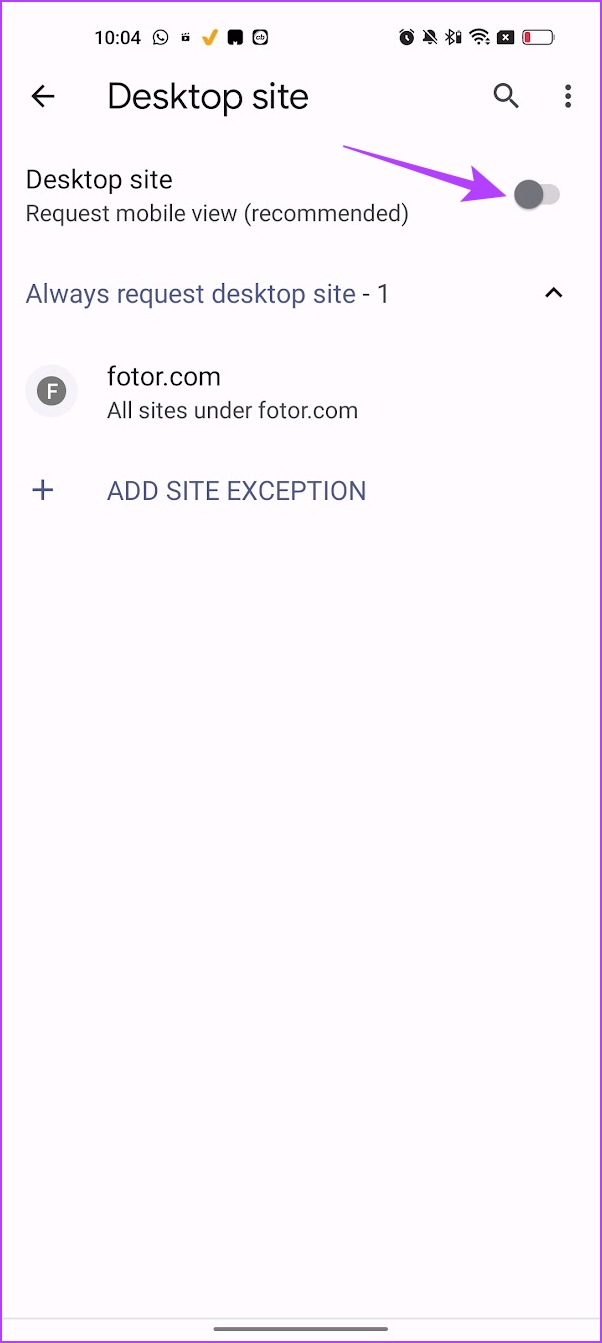
Step 4: Tap on Desktop View.
Step 5: Turn on the toggle for it. Further, you also get an option to make exceptions for a few sites.


You can use the link below to download Google Chrome for free on your Android devices. However, the chances are that it is installed by default on your Android phone.
2. Puffin Cloud Browser (Android and iOS)
Puffin Browser is a superb mobile browser that not only excels at loading desktop sites automatically but also provides an insanely useful feature when it comes to navigating them. But first, you need to configure the browser to work in desktop mode.
Step 1: Open the Puffin browser.
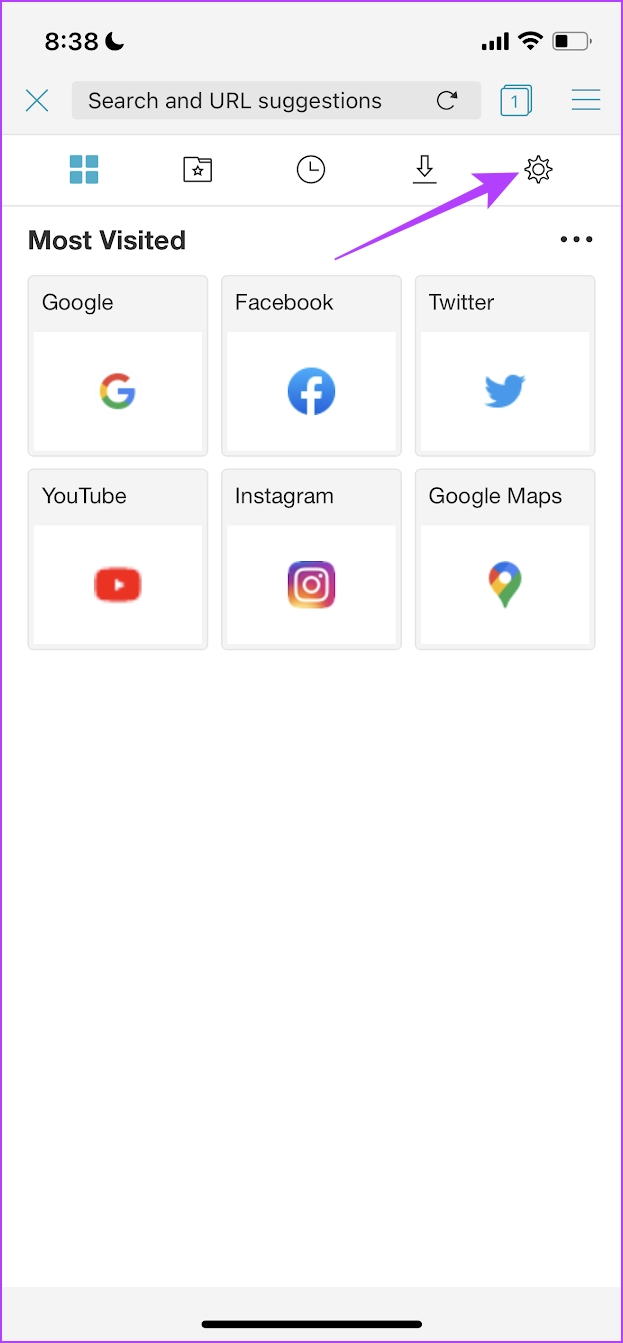
Step 2: Tap on Settings > Web page preference, and check the option for Desktop.
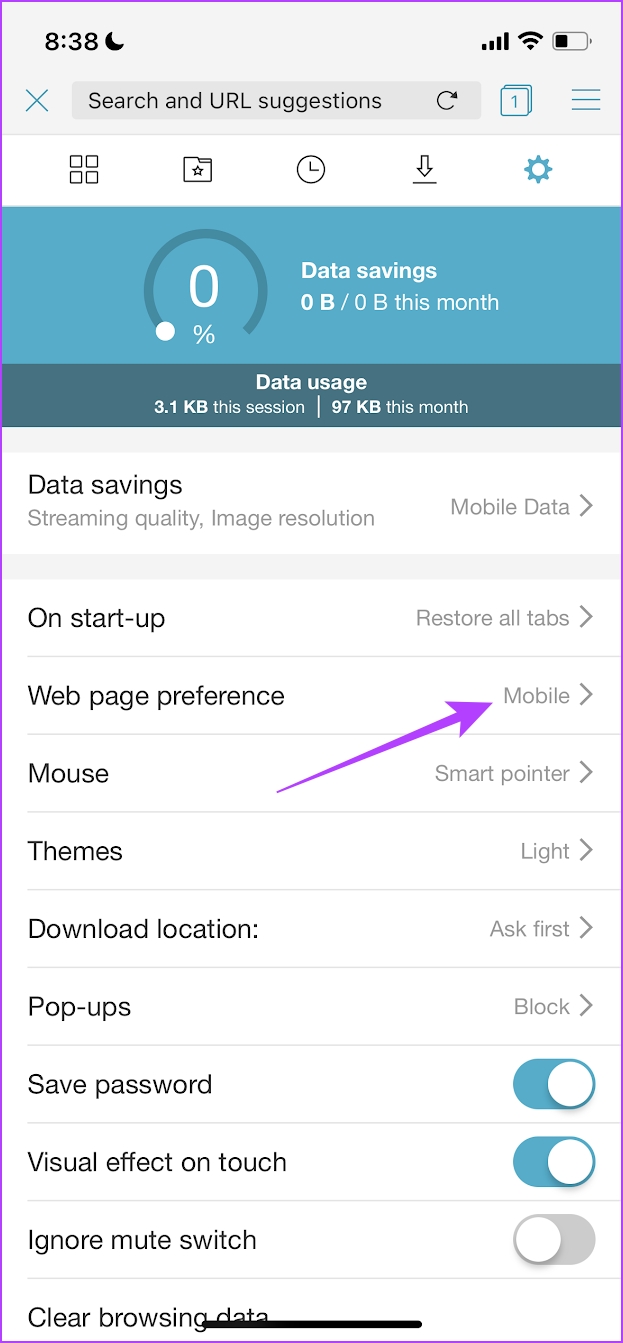
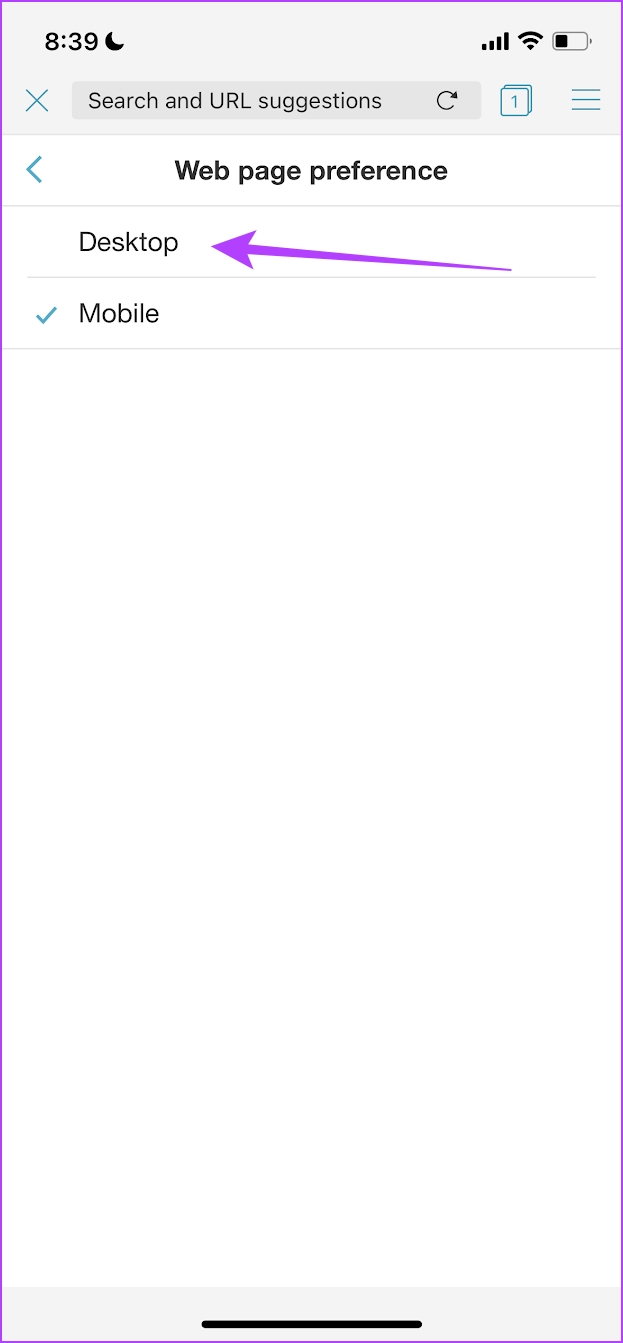
You can download Puffin Cloud Browser for free on both Android and iOS devices using the links below.
3. Dolphin Browser (Android and iOS)
If you aren’t impressed with the Puffin, then consider Dolphin Browser as another fantastic alternative to loading desktop sites by default. Like the Puffin browser, you can use it to always open desktop sites on both iPhone and Android apps.
Open the browser, and tap on the dolphin icon. Tap on Desktop Mode.
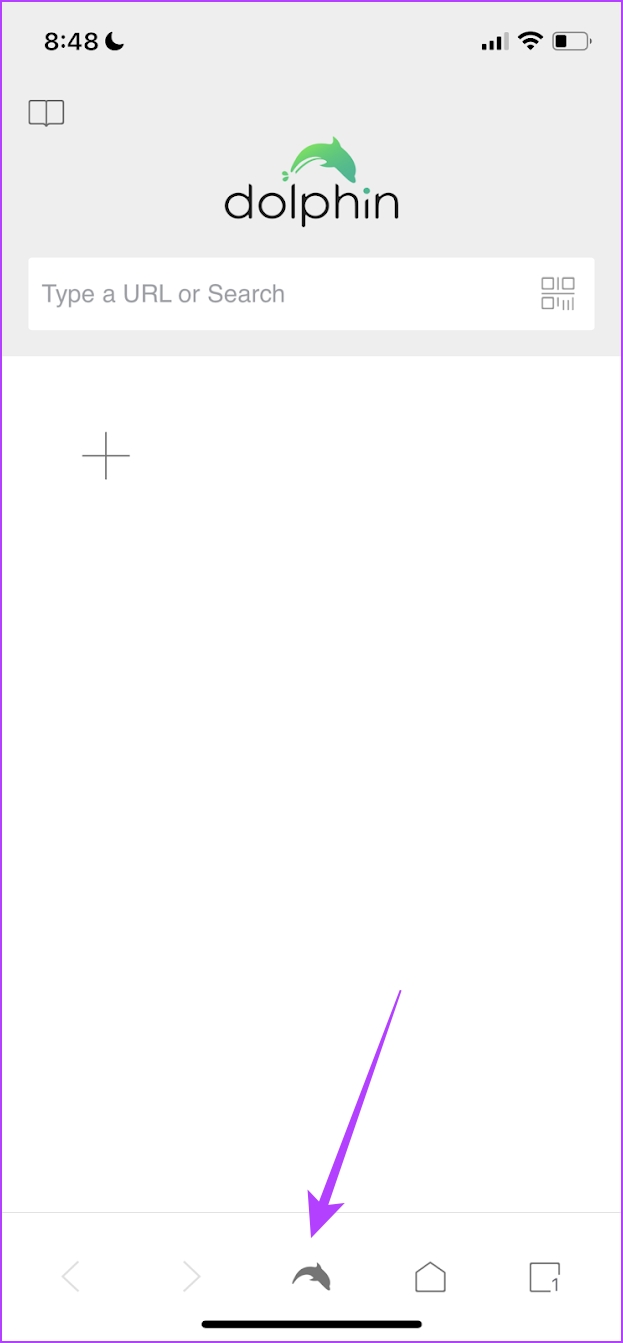

You can download Dolphin Browser for free on both Android and iOS devices using the links below.
4. Brave Browser (Android)
Based on the Chromium open source project, the Brave Browser is quite popular among people looking for alternatives to Chrome. Not surprising since it supports a plethora of useful features ranging from customizable search engines to ad blocking and tracking protection.
Luckily, it also lets you force sites to load in desktop mode by default. Unfortunately, the iPhone version of the app
Step 1: Tap on the three-dot menu icon.
Step 2: Tap on Settings. Scroll down to find Site Settings and tap on it.
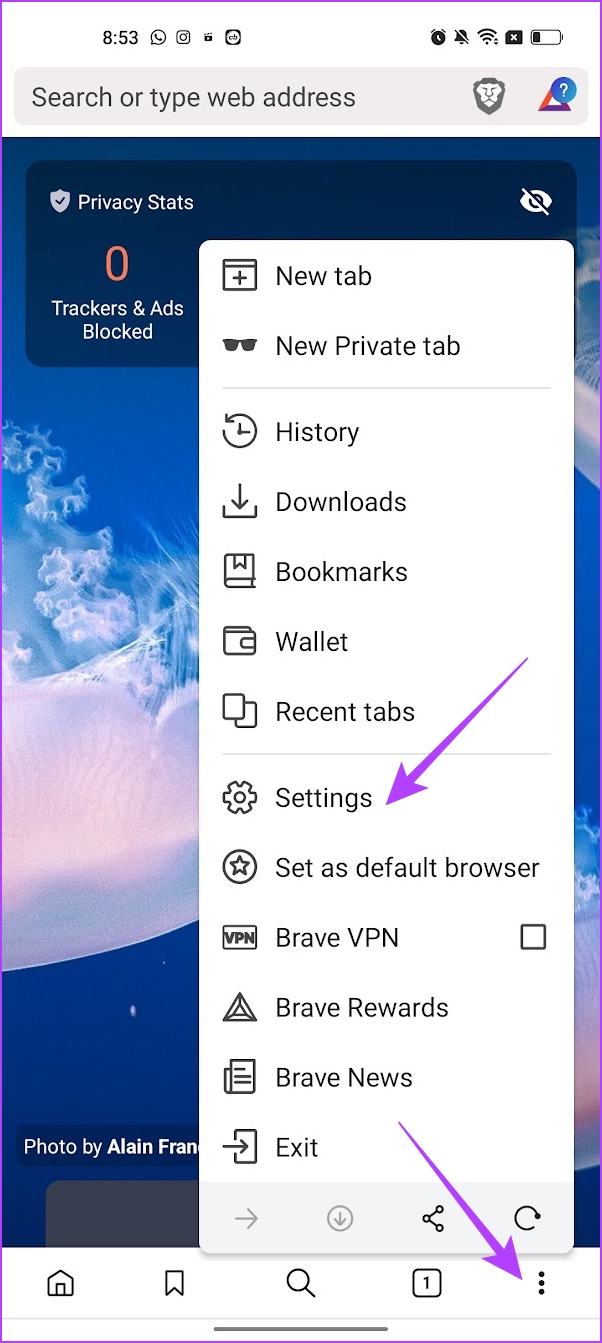
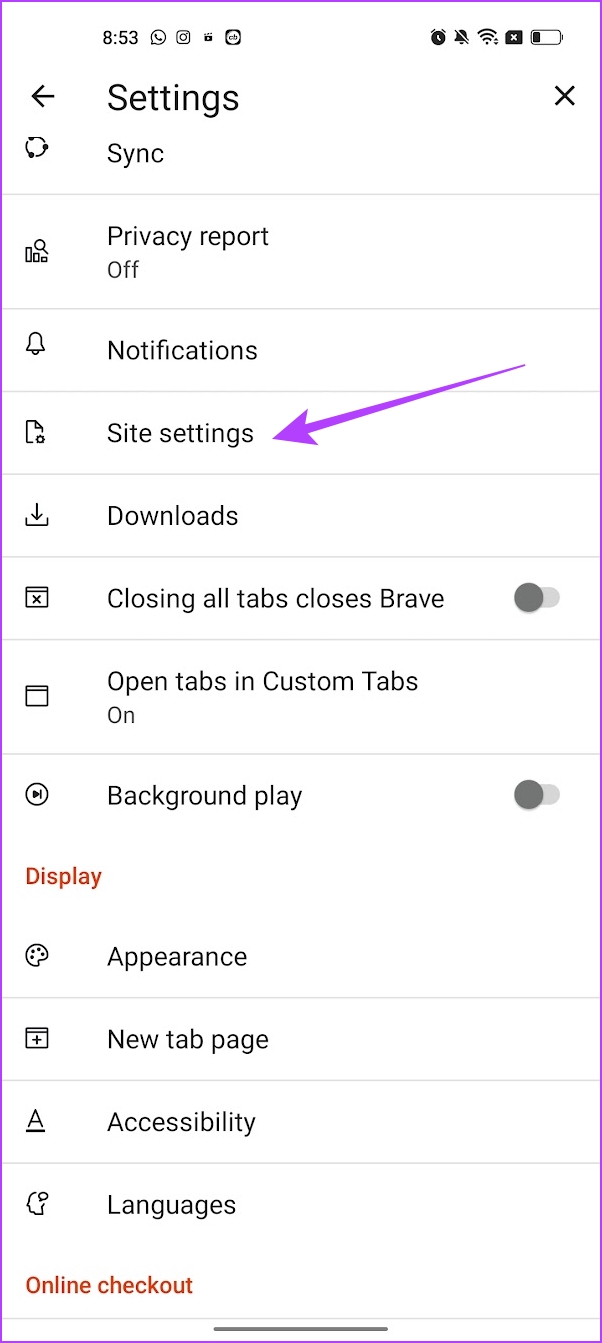
Step 4: Tap on Desktop View.
Step 5: Turn on the toggle for it. Further, you also get an option to make exceptions for a few sites.
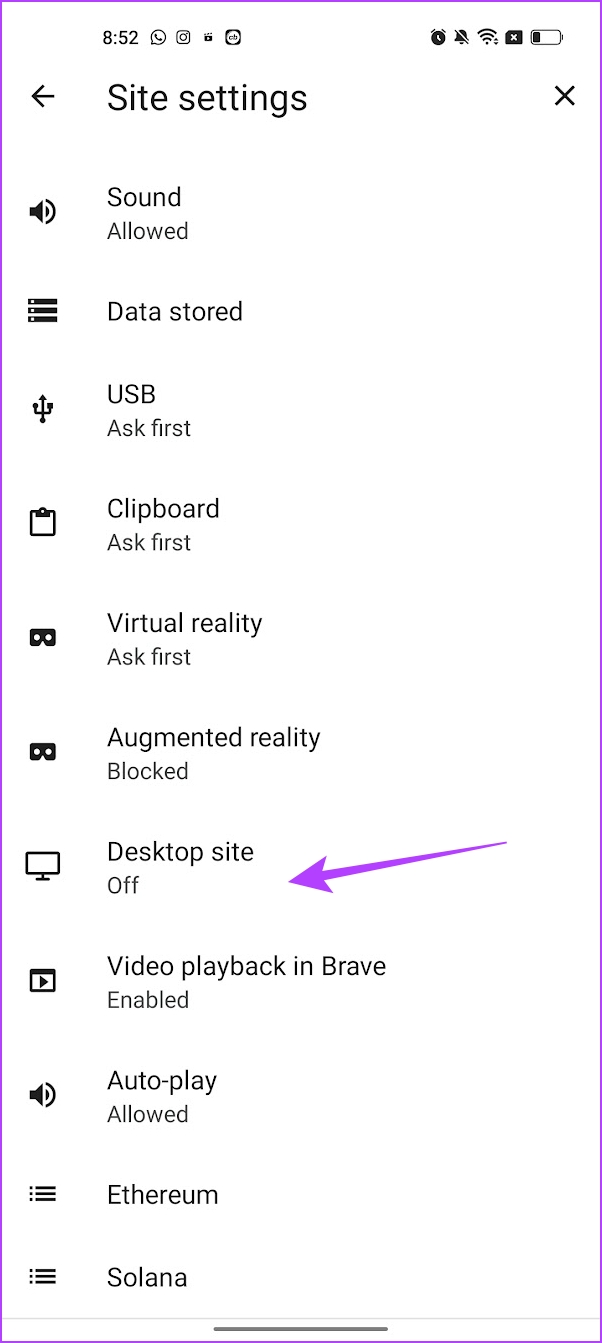
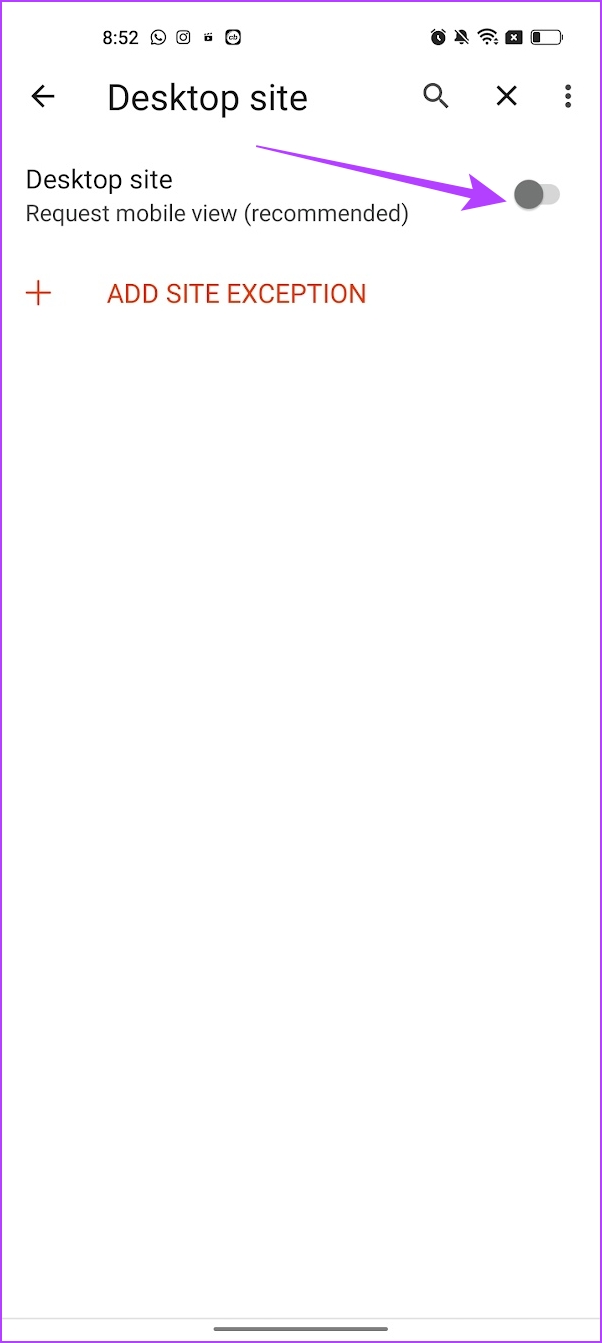
You can download Brave Browser on your Android phone using the link below.
Also Read: 5 privacy-focused browsers for iPhone and iPad.
5. Desktop Browser (iOS)
Desktop Browser is an iOS-only app that allows you to always open desktop sites. It is a lightweight browser that only focuses on offering desktop mode for websites. However, it does have a few advertisements that may interfere with your usage.

You can download Desktop Browser on your iOS device using the link below.
Also Read: How to enable dark mode in Microsoft Edge on desktop and mobile.
Was this helpful?
Last updated on 06 August, 2024
Read Next
 How to Update Opera Browsers on Desktop and Mobile
Method 1: Update Opera Browser on iPhone Updating the Opera browsers on your iPhone is straightforward.
How to Update Opera Browsers on Desktop and Mobile
Method 1: Update Opera Browser on iPhone Updating the Opera browsers on your iPhone is straightforward.
 3 Best Ways to Open Sites in Mobile Mode in Safari for iPadOS
Safari is a vastly improved web browser on iPads running iPadOS.
3 Best Ways to Open Sites in Mobile Mode in Safari for iPadOS
Safari is a vastly improved web browser on iPads running iPadOS.
 6 Best Browsers With Built-in VPN for Android
Why Should You Need a Browser With VPN VPN (Virtual Private Network) serves multiple purposes apart from the fact that it unlocks content locked away in your geolocation.
6 Best Browsers With Built-in VPN for Android
Why Should You Need a Browser With VPN VPN (Virtual Private Network) serves multiple purposes apart from the fact that it unlocks content locked away in your geolocation.
 Play YouTube Videos (and From Other Sites) in KMPlayer
What’s your first choice of media player?
Play YouTube Videos (and From Other Sites) in KMPlayer
What’s your first choice of media player?
 How to Remove Top Sites and News Feed in Microsoft Edge
How to Remove Top Sites and News Feed Step 1: When you open a new tab, click on the Settings icon at the top right.
How to Remove Top Sites and News Feed in Microsoft Edge
How to Remove Top Sites and News Feed Step 1: When you open a new tab, click on the Settings icon at the top right.
 6 Sites to Test Typing Speed and Improve Accuracy
1.
6 Sites to Test Typing Speed and Improve Accuracy
1.
 4 Cool Sites to Watch YouTube Videos Without YouTube
1.
4 Cool Sites to Watch YouTube Videos Without YouTube
1.
 6 Ways to Fix YouTube Lagging on Chrome, Firefox, and Other Browsers
https://youtu.be/YyRuUvT3-ho Basic Fixes Use a reliable Wi-Fi network: It goes without saying that you need a fast and reliable network connection to play YouTube videos.
6 Ways to Fix YouTube Lagging on Chrome, Firefox, and Other Browsers
https://youtu.be/YyRuUvT3-ho Basic Fixes Use a reliable Wi-Fi network: It goes without saying that you need a fast and reliable network connection to play YouTube videos.
The article above may contain affiliate links which help support Guiding Tech. The content remains unbiased and authentic and will never affect our editorial integrity.

