Method 1: Block Unknown Numbers From Calling You
You can block calls from unidentified callers on Android. An active spam call filter can prevent suspended spam calls from disturbing you.
On Pixel Devices
Step 1: Launch the Phone app on Android. Tap the three vertical dots menu at the top-right corner and select Settings.


Step 2: Tap Caller ID and spam, and enable Filter spam calls toggle.
Step 3: Go back and open Blocked numbers, and enable the Unknown toggle.


On Samsung Galaxy Devices
Here’s how you can do it on Samsung devices.
Step 1: Launch the Phone app on your Samsung Galaxy phone. Tap the three vertical dots menu and go to Settings.
Step 2: Enable the Caller ID and spam protection toggle.
Step 3: Open the Blocked Numbers menu and toggle on the Block unknown/private numbers toggle.


On iPhone
There is no way to block spam and unknown callers on iPhones directly. However, iOS offers an option to silence unknown callers.
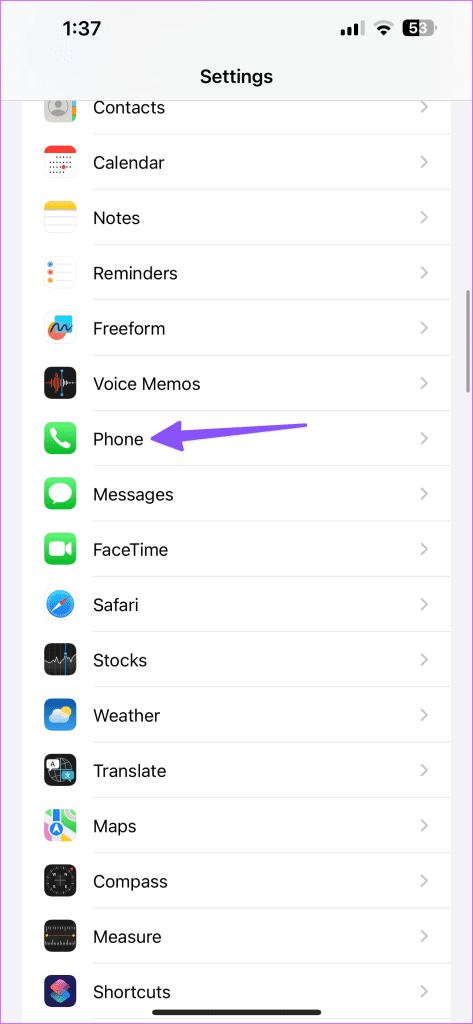
Open the Settings app, go to Phone > Silence Unknown Callers > Enable the toggle for the same.


Method 2: Enable Do Not Disturb
You can set your phone’s DND profile to allow calls from contacts only.
On Pixel Devices
Step 1: Open Settings > Notifications > Do Not Disturb.


Step 2: Tap People. Select Calls, and tap the radio button beside Contacts.


Return to the Do Not Disturb menu and enable the option. Your Android will only notify you about alerts about important people and apps.
On Samsung Galaxy Devices
Samsung Galaxy phone users can go through the steps below to enable DND and only let people in the contacts list reach you via calls.
Step 1: Launch Settings, select Notifications, and tap Do not disturb.


Step 2: Select Calls, messages, and conversations under Exceptions. Tap Calls, and select Contacts only.


If you receive calls during an active Do Not Disturb mode, check our dedicated guide to fix the problem.
On iPhone
Open Settings > Focus > Do Not Disturb > People. Tap Allow Calls From and select Contacts.


Method 3: Use Third-Party Apps
If you want to dial up spam filters on your phone, use third-party apps. There is no shortage of these apps on the Play Store and the App Store, and among them, Truecaller is one of the most robust apps to get the job done. Let’s check it in action.
On Android
Step 1: Download and open Truecaller on Android, tap the three vertical dots menu at the top-right corner and open Settings.
Step 2: Select Block and enable the Block numbers not in the phonebook toggle.


Truecaller on iPhone
Step 1: Download and install Truecaller on iPhone.
Step 2: Open the Truecaller app and give it the necessary permissions.
Step 3: Close the Truecaller app and open the Settings app. Scroll to Phone, and select Call Blocking & Identification. Enable Truecaller filters.


Also Read: How to hide last seen on Truecaller
Was this helpful?
Last updated on 24 July, 2024
Read Next
 How to Block All Websites Except Approved Ones on Windows
Method 1: Block All Websites Except Approved Ones Using Control Panel The fastest way to block all websites except approved ones is through Internet Options in the Control Panel.
How to Block All Websites Except Approved Ones on Windows
Method 1: Block All Websites Except Approved Ones Using Control Panel The fastest way to block all websites except approved ones is through Internet Options in the Control Panel.
 Google Contacts vs Samsung Contacts: Which App Is Best for Saving and Managing Contacts
Apart from phones running Stock Android, all other Android phones have their own set of basic apps.
Google Contacts vs Samsung Contacts: Which App Is Best for Saving and Managing Contacts
Apart from phones running Stock Android, all other Android phones have their own set of basic apps.
 iCloud Contacts vs Google Contacts: Where Should You Save Contacts on Your iPhone
When you are using an Android phone, one prefers using Google Contacts to store and manage contacts.
iCloud Contacts vs Google Contacts: Where Should You Save Contacts on Your iPhone
When you are using an Android phone, one prefers using Google Contacts to store and manage contacts.
 How to Hide Instagram Story From Everyone Except One Person
https://www.youtube.com/embed/SgnBlWR97EY Method 1: Use the Close Friends List You can hide your story from all except one by using the close friends list.
How to Hide Instagram Story From Everyone Except One Person
https://www.youtube.com/embed/SgnBlWR97EY Method 1: Use the Close Friends List You can hide your story from all except one by using the close friends list.
 ASUS ROG Ally Review: All Sorts of Power Except One
There's no denying the fact that the Nintendo Switch paved the way for modern handled gaming consoles.
ASUS ROG Ally Review: All Sorts of Power Except One
There's no denying the fact that the Nintendo Switch paved the way for modern handled gaming consoles.
 How to Use Google Contacts Instead of Samsung Contacts
Samsung Galaxy phones carry a lot of pre-loaded apps, and some of them you'll rarely use.
How to Use Google Contacts Instead of Samsung Contacts
Samsung Galaxy phones carry a lot of pre-loaded apps, and some of them you'll rarely use.
 Top 4 Ways to Fix Google Duo Not Showing Contacts on Android and iPhone
Primarily, Google Duo lets you make video calls and send video messages to people on your contact list.
Top 4 Ways to Fix Google Duo Not Showing Contacts on Android and iPhone
Primarily, Google Duo lets you make video calls and send video messages to people on your contact list.
 How to Fix Android Phone Stuck on “Emergency Calls Only” Issue
Why Does Your Android Phone Say “Emergency Calls Only”?
How to Fix Android Phone Stuck on “Emergency Calls Only” Issue
Why Does Your Android Phone Say “Emergency Calls Only”?
The article above may contain affiliate links which help support Guiding Tech. The content remains unbiased and authentic and will never affect our editorial integrity.