


Basic Troubleshoot
- Remove connected devices – To ensure that the culprit isn’t a connected device, say a Bluetooth mouse or keyboard, remove all devices and try again. If you feel it’s a Bluetooth connectivity issue, follow the linked guide to resolve it.
- Restart Mac – Since your cursor is stuck, it will be difficult to get to the reboot menu. Hence, the best way out is to force reboot using the power button.
- Quit background apps – An unresponsive or problematic app can cause the mouse cursor to be stuck on the Mac. Press the Command + Q keys on your keyboard or use the Force Quit menu to close all background apps.
- Connect external mouse – Your Mac’s trackpad may have a hardware defect. The best way to confirm this is by connecting an external mouse. If your mouse cursor works with the external mouse, visit an Apple-authorized service center.
Fix 1. Clean Your Trackpad
If you use a trackpad and your mouse cursor keeps misbehaving, try cleaning your trackpad. Sometimes, the dirt accumulated on your Mac’s trackpad may hinder the cursor’s movement.

Cleaning is simple. Use a microfibre cloth to wipe off any visible dirt. If you’re feeling extra, use a brush to dig the edges of your Mac to deep clean the trackpad.
Fix 2. Change Trackpad Settings From Preferences
A particular setting in macOS disables the trackpad when connecting an external mouse. This setting may have been enabled, causing the cursor to freeze when using the trackpad. Here’s how to identify this issue and disable it.
Step 1: Click on the Apple logo at the top left and select System Settings.

Step 2: Now, navigate to the Accessibility settings.
Step 3: Scroll to the Motor section and select Pointer Control.
Step 4: Toggle off Ignore built-in trackpad when mouse or wireless trackpad is present.

This should unlock your trackpad’s cursor frozen on your Mac.
Fix 3: Delete Trackpad Plist Files
Corrupt trackpad .plist files can be why the mouse cursor is stuck on your Mac. You should delete such files and try again.
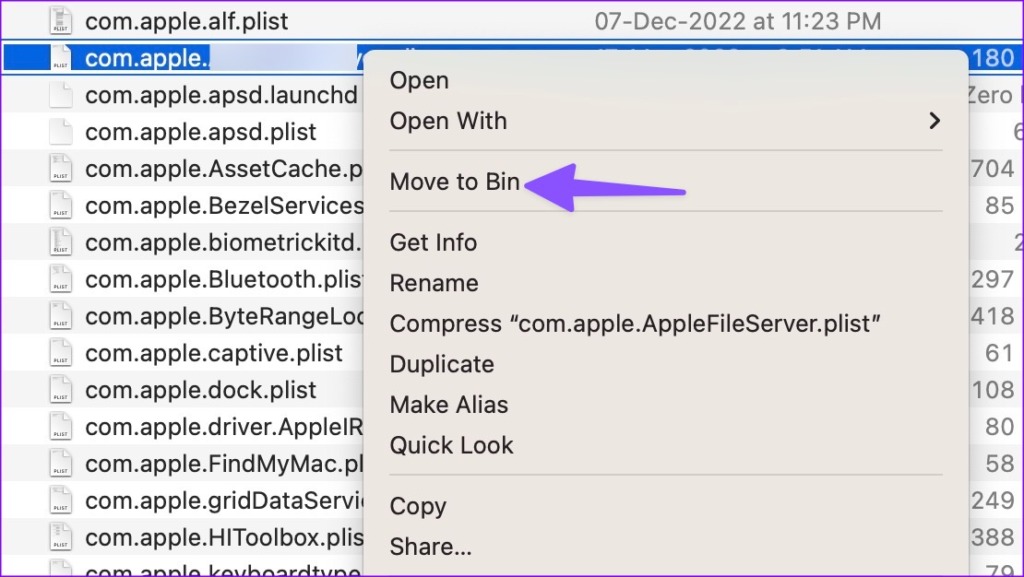
Step 1: Open Finder on Mac > press Command + Shift + G keyboard shortcut.
Step 2: Type /Library/Preferences/ and hit Return.

Step 3: Find the following files,
- com.apple.preference.trackpad.plist.
- com.apple.AppleMultitouchTrackpad.plist.
Step 4: Right-click on those files and select Move to Bin. Once done, reboot your Mac and check your mouse’s moments. Hopefully, the issue will be resolved.
Fix 4. Reset the PRAM on Your Mac
Note: This feature works only on Intel-based MacBooks and not the latest M-series models.
The PRAM (Parameter RAM) stores essential data about your Mac, like the default values of the startup disk, virtual memory, and even some hardware components. Resetting the PRAM can help bring your touchpad back to life if none of the above solutions worked.
Step 1: Click on the Apple icon > select Shut Down from the options.
Step 2: Press and hold the Option + Command + P + R keyboard shortcut for 20 seconds and release them once you hear the startup sound.
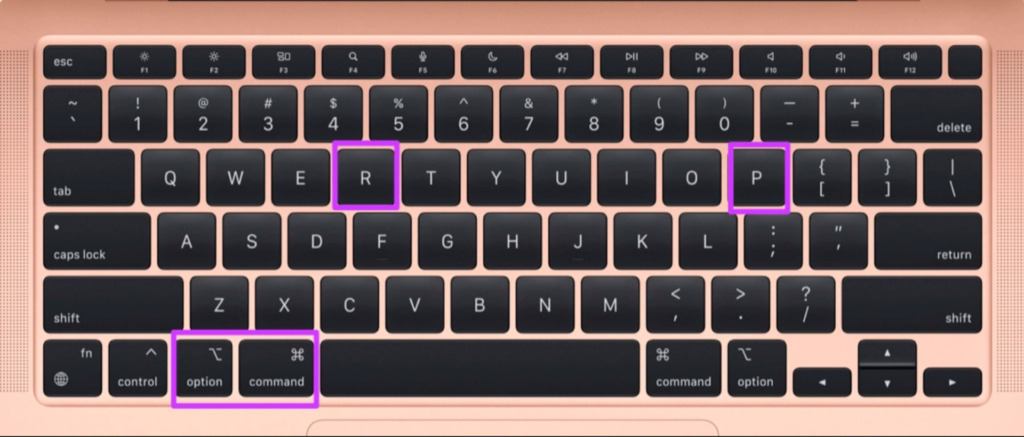
Note: If you have a MacBook with a T2 security chip, release the keys after the Apple logo shows up.
After you reset PRAM, check if the trackpad works as expected.
Fix 5: Start Apple Diagnostics
If you doubt it’s a hardware-related problem, confirm so by running the Apple Diagnostics test.
Step 1: Restart your Mac.
Step 2: Press the Command + D keyboard shortcut. Follow the on-screen instructions to complete the test.

For MacBooks with the Intel CPU, restart the Mac and keep pressing the D key. Release the key once you see a progress bar or language option.
If the test result indicates an issue with the Mac’s hardware, contact Apple Support for assistance.
Was this helpful?
Last updated on 10 July, 2024
2 Comments
Leave a Reply
Read Next
 Top 8 Ways to Fix Mouse Cursor Lagging on Mac
A Mac is generally known for its friendly UI and smooth performance.
Top 8 Ways to Fix Mouse Cursor Lagging on Mac
A Mac is generally known for its friendly UI and smooth performance.
 6 Ways to Fix Mouse Cursor Moving on Its Own in Windows
Basic Fixes Change old mouse pads: If a portion of your mousepad has faded and lost the coarseness needed to hold the mouse in place, it can make your mouse
6 Ways to Fix Mouse Cursor Moving on Its Own in Windows
Basic Fixes Change old mouse pads: If a portion of your mousepad has faded and lost the coarseness needed to hold the mouse in place, it can make your mouse
 5 Ways to Fix Mouse Cursor Not Showing on Windows 11
https://youtu.be/99YOYxqJPQ0 Fix 1: Clean the Trackpad or the Bottom Surface of the Mouse Sometimes, the dirt accumulated on your laptop’s trackpad may hinder the cursor’s movement.
5 Ways to Fix Mouse Cursor Not Showing on Windows 11
https://youtu.be/99YOYxqJPQ0 Fix 1: Clean the Trackpad or the Bottom Surface of the Mouse Sometimes, the dirt accumulated on your laptop’s trackpad may hinder the cursor’s movement.
 How to Customize the Mouse Cursor on Windows 11
How to Change the Color and Size of the Mouse Cursor There are a few default cursor options in Windows 11 if you want to change the way the mouse
How to Customize the Mouse Cursor on Windows 11
How to Change the Color and Size of the Mouse Cursor There are a few default cursor options in Windows 11 if you want to change the way the mouse
 5 Ways to Fix Computer Boots to Blinking Cursor Error
What happens when you boot your computer?
5 Ways to Fix Computer Boots to Blinking Cursor Error
What happens when you boot your computer?
 Top 3 Touch Mouse Alternatives to Apple’s Magic Mouse
The Magic Mouse is useful for plenty of people, but some can get annoyed by its poor ergonomics.
Top 3 Touch Mouse Alternatives to Apple’s Magic Mouse
The Magic Mouse is useful for plenty of people, but some can get annoyed by its poor ergonomics.
 3 Fixes for Roblox Cursor Going Off Screen on Windows
Fix 1: Repair or Reset Roblox First, you should use the app repair feature on Windows to fix Roblox.
3 Fixes for Roblox Cursor Going Off Screen on Windows
Fix 1: Repair or Reset Roblox First, you should use the app repair feature on Windows to fix Roblox.
 8 Fixes When the Text Cursor Turns White on Windows 11
Basic Fixes: Uninstall recent Windows updates: If the cursor problem starts after an update, rolling back the update will fix it.
8 Fixes When the Text Cursor Turns White on Windows 11
Basic Fixes: Uninstall recent Windows updates: If the cursor problem starts after an update, rolling back the update will fix it.
The article above may contain affiliate links which help support Guiding Tech. The content remains unbiased and authentic and will never affect our editorial integrity.


In case this can help someone… My MAC mouse was frozen in the top left corner of my screen. I googled ALL help to resolve this problem but nothing worked. Then someone pointed out that the ON/OFF switch on my mouse was on the OFF position. I did not even know this switch existed. It is located on the back of the mouse, top right, next to the circle space where the lens is.
Reason of over looked Curser problems with it having a mind of its ow, IS.
Turn your blue tooth off and see if it settles. if it does. it means you have USB track pads in your aria that me be linked to your blue tooth . on your own PC or something els. You may have cloned your drive and it still is linked to other tack pads.
If you have other track pads in you home. Turn them off or turn your blue tooth off.