Basic Troubleshooting
- Change the screensaver – Sometimes, your currently selected Screensaver might need fixing. So, change the current screensaver and revert if the problem is solved.
- Disconnect the external mouse – The mouse pointer needs to remain stationary for the screensaver to activate. So, disconnect the external mouse to avoid accidental movements.
- Update macOS – Some bugs or glitches in the current version may cause issues with the Screensaver on your Mac. So, update the software to resolve the screensaver not working on Mac.
Fix 1. Check Lock Screen Settings
The Screensaver on Mac activates after a certain time of inactivity. If the Screensaver is still not working on your Mac, we suggest checking the Lock Screen settings by following these steps.
Step 1: Tap the Apple logo from the menu bar > select System Settings
Step 2: Scroll down and click on Lock Screen from the left menu.
Step 3: Click the dropdown next to Start Screen Saver When Inactive to check the time.
We suggest setting the Screensaver time to 5 minutes. Additionally, check the time for Require Password After Screen Saver Begins or Display Is Turned Off.

Once you have selected the time, close the window. Leave the Mac idle for the said time and let the screensaver do its task.
Fix 2. Check Apps Preventing Mac From Sleep
None of the apps on your Mac should run in the background for Sleep Mode and, in turn, the screensaver to activate. So, check which apps prevent your Mac from entering Sleep Mode.
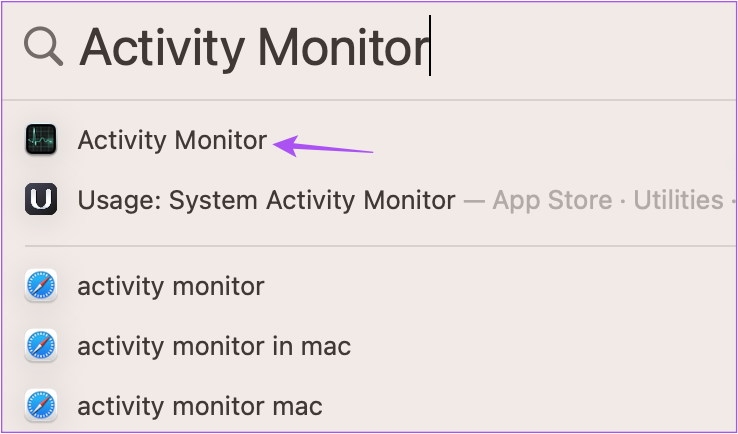
Step 1: Press Command + Spacebar to open Spotlight Search. Type Activity Monitor and press Return.
Step 2: Click the Energy tab from the top. Here, you’ll see all the apps consuming your Mac’s battery.

Step 3: Under Preventing Sleep, check which app shows Yes next to its name.

Step 4: Select the app. Click the Stop icon from the top bar.
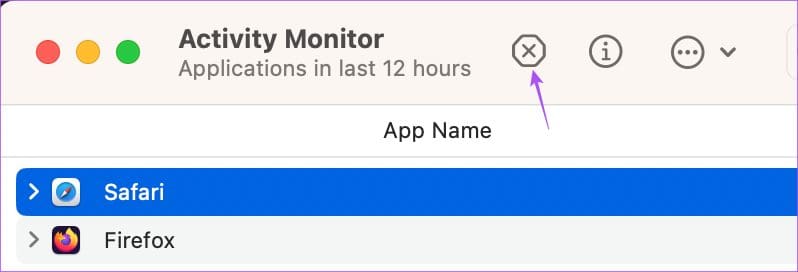
Step 5: Click on Force Quit to stop the app from running in the background.

Repeat the steps for all apps preventing your Mac from entering Sleep Mode. After that, close the window and check if the problem is solved.
Note: You can also read our post if your Mac display is not working after waking from sleep.
Fix 3. Disable Low Power Mode
It is possible that Mac’s low power setting is interfering with the screensaver setting. To fix it, disable Low Power Mode temporarily and see if the screensaver starts working again.
To do so, choose Apple Menu → System Settings → Battery → select the dropdown next to Low Power Mode and select Never.
Now, keep your Mac idle to invoke the screensaver. Hopefully, the issue is resolved.
Was this helpful?
Last updated on 16 July, 2024
Read Next
 How to Set and Customize Screensaver on Mac
One of the best ways to improve your experience is by customizing your device with screensavers when using your Mac.
How to Set and Customize Screensaver on Mac
One of the best ways to improve your experience is by customizing your device with screensavers when using your Mac.
 4 Fixes for Screensaver Not Working on Windows 11
Basic Fixes Check Screensaver settings: You should check the wait time selected for your screensaver.
4 Fixes for Screensaver Not Working on Windows 11
Basic Fixes Check Screensaver settings: You should check the wait time selected for your screensaver.
 4 Ways to Fix Copy and Paste Not Working on Mac
Fix 1: Force Quit the Pasteboard Server Pboard is the short form for Pasteboard Server.
4 Ways to Fix Copy and Paste Not Working on Mac
Fix 1: Force Quit the Pasteboard Server Pboard is the short form for Pasteboard Server.
 Top 4 Ways to Fix Microsoft Teams Notifications Not Working on Mac
Basic Fixes Check Microsoft Teams Status: If Microsoft suffers from an outage, you might want to confirm the issue via Downdetector.
Top 4 Ways to Fix Microsoft Teams Notifications Not Working on Mac
Basic Fixes Check Microsoft Teams Status: If Microsoft suffers from an outage, you might want to confirm the issue via Downdetector.
 Top 9 Ways to Fix iMessage Not Working on Mac
iMessage works flawlessly on iPhone, but may be not the same for Messages app on Mac.
Top 9 Ways to Fix iMessage Not Working on Mac
iMessage works flawlessly on iPhone, but may be not the same for Messages app on Mac.
 4 Ways to Fix Apple TV App Not Working on Mac
Basic Fixes Check if the trial period has exceeded: Apple provides a free trial period of 3 months when you purchase a new device.
4 Ways to Fix Apple TV App Not Working on Mac
Basic Fixes Check if the trial period has exceeded: Apple provides a free trial period of 3 months when you purchase a new device.
 4 Ways to Fix Keyboard Backlight Not Working on Mac
Let's look at the solutions to fix the keyboard backlight not working on Mac.
4 Ways to Fix Keyboard Backlight Not Working on Mac
Let's look at the solutions to fix the keyboard backlight not working on Mac.
 3 Ways to Fix Trackpad Gestures Not Working on Mac
Basic Fixes Disconnect External Mouse: This is to ensure there aren't any hardware conflicts Update to the Latest Version: Updating your machine to the latest macOS version can also fix
3 Ways to Fix Trackpad Gestures Not Working on Mac
Basic Fixes Disconnect External Mouse: This is to ensure there aren't any hardware conflicts Update to the Latest Version: Updating your machine to the latest macOS version can also fix
The article above may contain affiliate links which help support Guiding Tech. The content remains unbiased and authentic and will never affect our editorial integrity.