


Common Fixes
- Check if TV audio is mute – Press the Mute button on your TV remote to unmute the sound.
- Disable the Surround Sound mode – Open Android TV Settings, navigate to Sound > Sound Mode > disable the Surround Sound option. (Steps may differ on different TV models).
- Update the YouTube app – Open Google Play Store > search the YouTube app > tap Update.
- Update Android TV OS – Tap the Settings (gear icon) > select Device Preferences > tap About > System Update.
Fix 1: Disconnect Bluetooth Devices
If Bluetooth headphones or speakers are connected to your Android TV, YouTube audio will route to them instead of coming from your Android TV speaker. Disconnecting the Bluetooth device should resolve the issue.
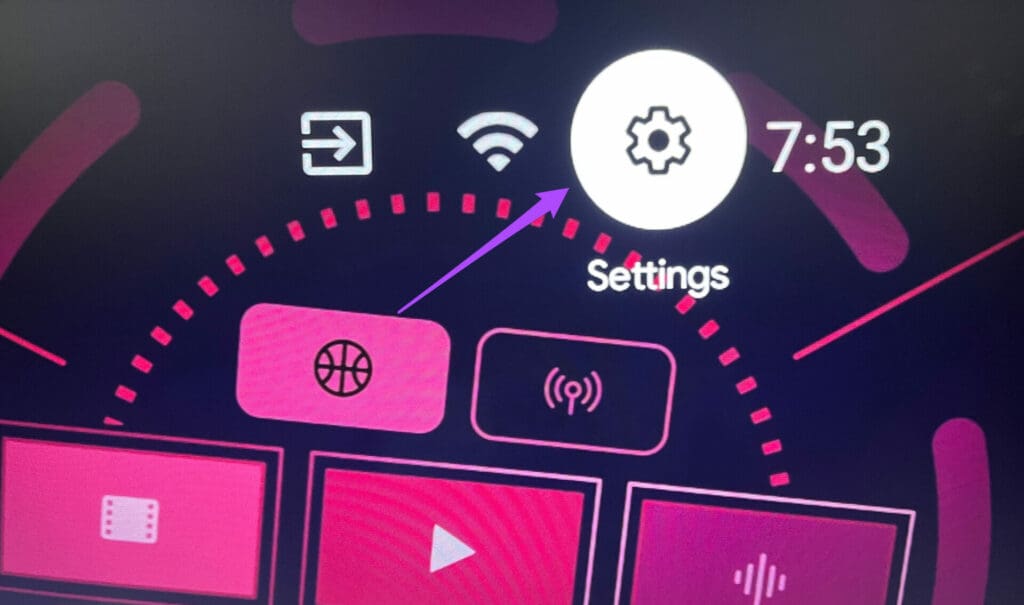
Step 1: Select Settings (gear icon) at the top right corner.
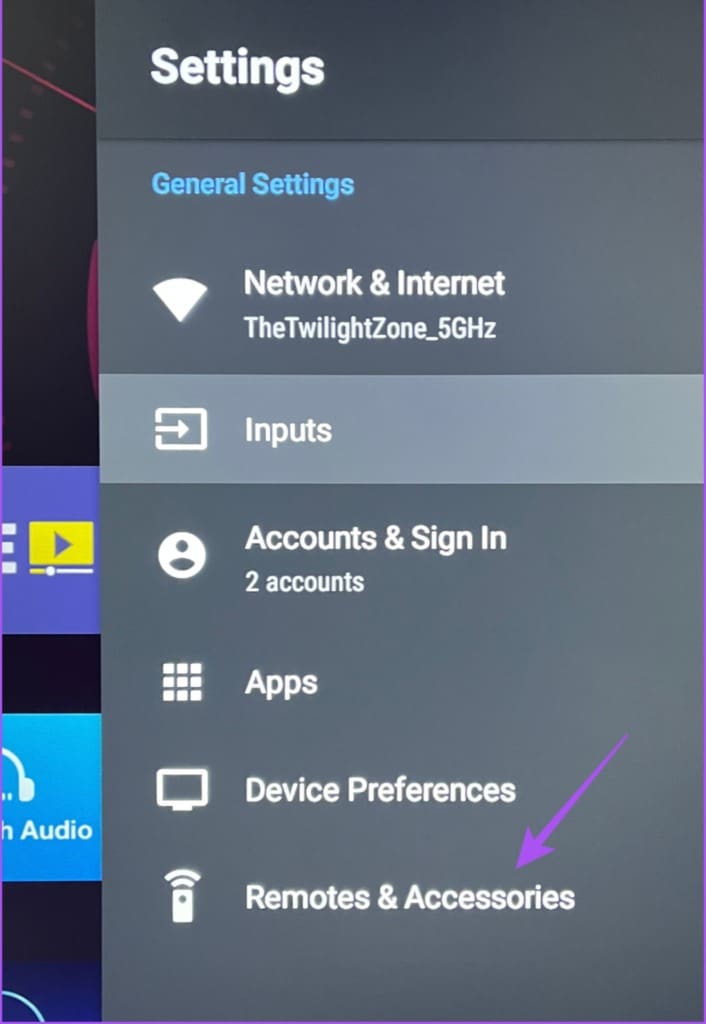
Step 2: Hit Remotes & Accessories to view the list of paired devices.
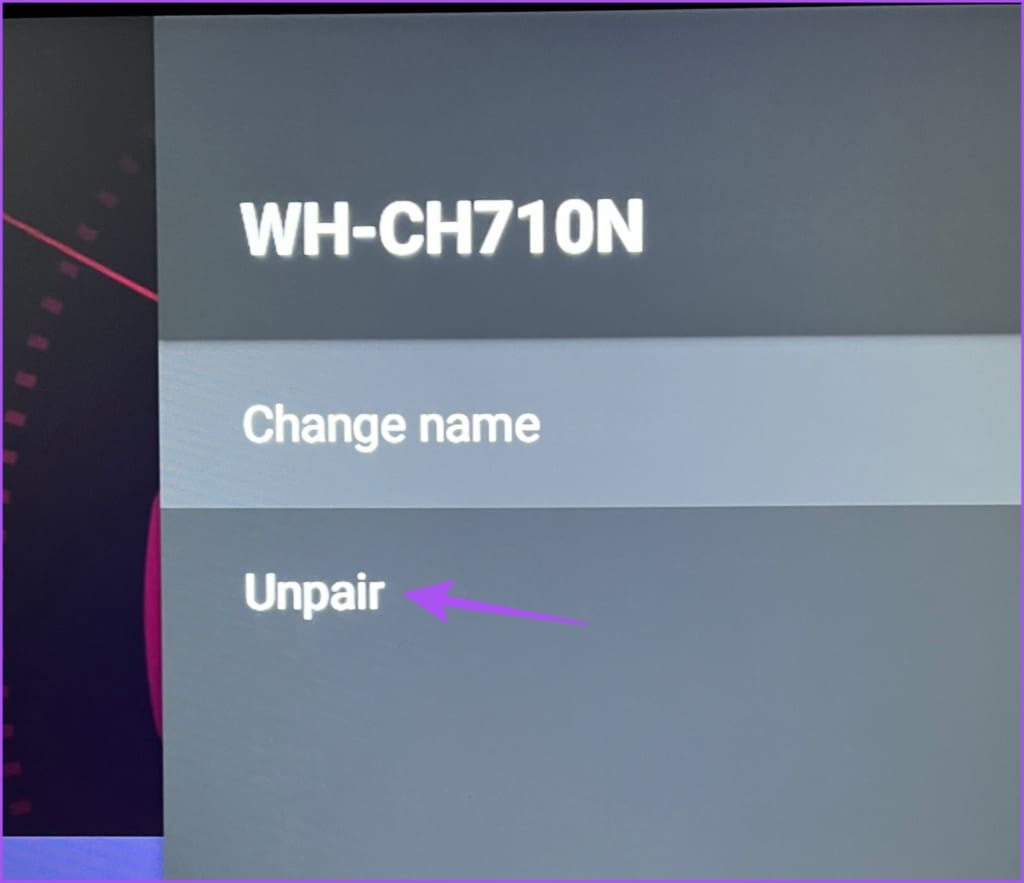
Step 3: Select the connected Bluetooth accessory and tap Unpair.
Fix 2: Disable and Re-Enable TV Speaker
If your Android TV speaker remains inactive after disabling the connected Bluetooth device, disable and re-enable the speaker manually in the TV settings using your remote.
Step 1: Press the Menu button on your TV remote to open Android TV settings.
Step 2: Select More from the list > Sound.
Step 3: Locate the Speaker and disable its toggle, followed by re-enabling it.


Fix 3: Change Volume Mode Settings
The YouTube app offers additional volume mode settings on certain Android TV models to control the sound. If available, disable the Leveling feature to resolve the no sound issue in YouTube.
Step 1: Load a video on YouTube and press the (*) button on your TV remote.
Step 2: Scroll to Volume Mode and toggle off Leveling.
Fix 4: Force Stop and Re-Launch YouTube App
Force closing and re-launching YouTube refreshes the app. Thus, fixing its existing sound issues on Android TV.
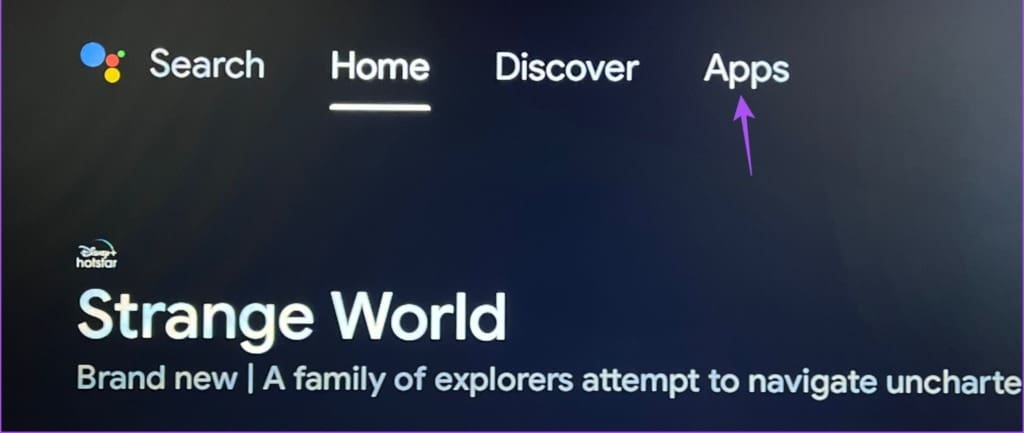
Step 1: Go to Apps on your Android TV home screen.
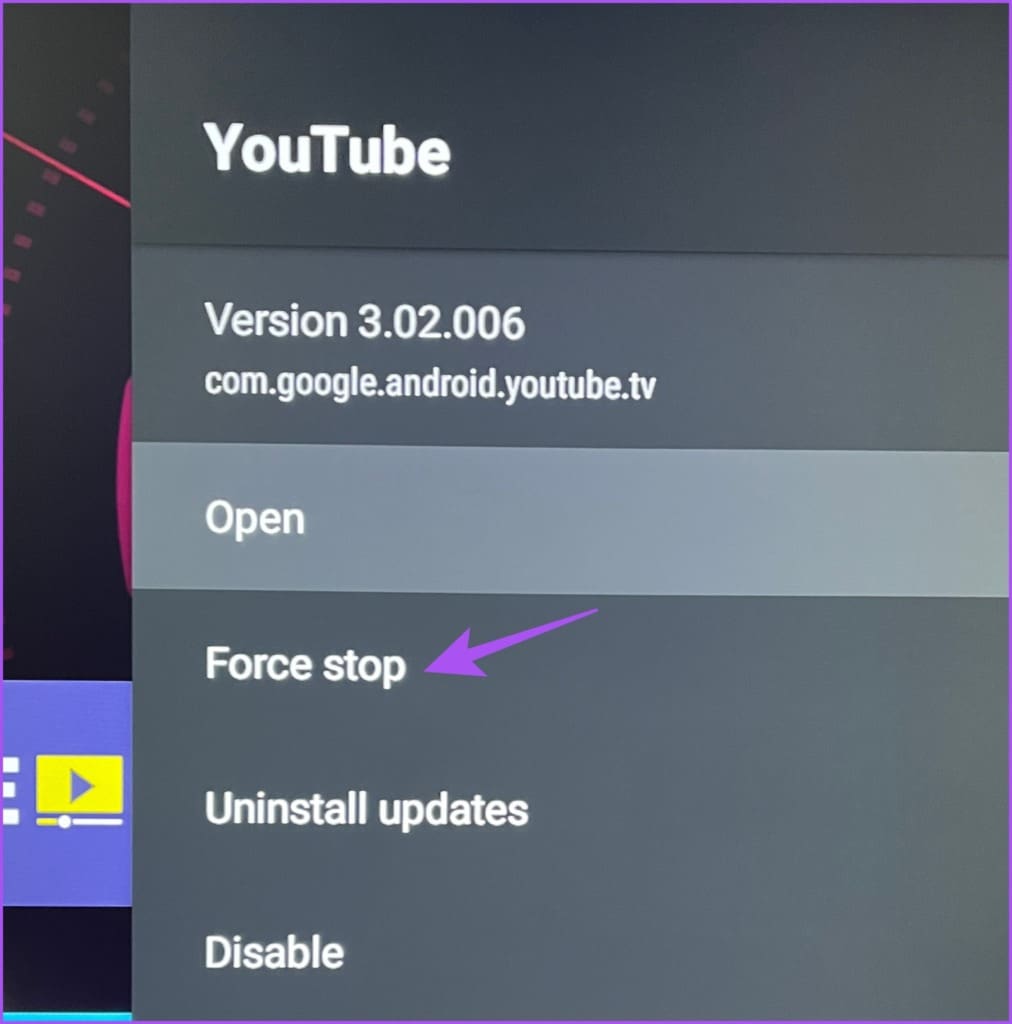
Step 2: Long-tap the YouTube app icon to open Info > select Force stop. Now, reopen YouTube.
Fix 5: Clear the YouTube App Cache
Lastly, you can clear the app cache manually to fix YouTube not working on Android TV.
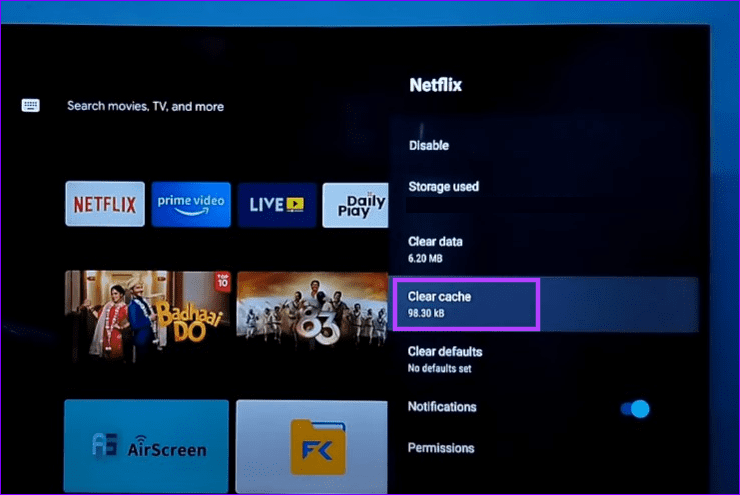
Step 1: Tap the gear icon at the top right corner and select Apps under TV settings.
Step 2: Locate YouTube in the list of installed apps > select Clear cache.

Was this helpful?
Last updated on 02 May, 2024
1 Comment
Leave a Reply
Read Next
 No Sound on Amazon Fire TV Stick YouTube App? Here’s the Fix
Basic Fixes Check if the audio is muted: The Fire TV 4K remote has a dedicated Mute button to disable audio.
No Sound on Amazon Fire TV Stick YouTube App? Here’s the Fix
Basic Fixes Check if the audio is muted: The Fire TV 4K remote has a dedicated Mute button to disable audio.
 4 Fixes for No Sound in YouTube App on Apple TV
Basic Fixes Check Bluetooth devices: Disconnect any Bluetooth device to which the audio from YouTube might be transmitting.
4 Fixes for No Sound in YouTube App on Apple TV
Basic Fixes Check Bluetooth devices: Disconnect any Bluetooth device to which the audio from YouTube might be transmitting.
 3 Ways to Fix Sound Not Working on YouTube
Basic Fixes Check the volume level and unmute the tab: Ensure you haven't accidentally muted your phone or computer's volume.
3 Ways to Fix Sound Not Working on YouTube
Basic Fixes Check the volume level and unmute the tab: Ensure you haven't accidentally muted your phone or computer's volume.
 5 Ways to Fix Android TV Sound Not Working
Fix 1: Change Android TV Volume Starting with the basics, you can try changing the volume levels of your Android TV.
5 Ways to Fix Android TV Sound Not Working
Fix 1: Change Android TV Volume Starting with the basics, you can try changing the volume levels of your Android TV.
 4 Ways to Fix No Sound on Reddit Videos in App and Browser
For Windows and Mac Fix 1: Mute and Unmute Videos Open a video on Reddit that plays no sound and hover your mouse at the bottom right of the post.
4 Ways to Fix No Sound on Reddit Videos in App and Browser
For Windows and Mac Fix 1: Mute and Unmute Videos Open a video on Reddit that plays no sound and hover your mouse at the bottom right of the post.
 5 Ways to Fix Bad Sound Quality on Spotify Mobile App
Basic Fixes Check Your Spotify Plan: Using a free version of Spotify does not offer the best audio quality.
5 Ways to Fix Bad Sound Quality on Spotify Mobile App
Basic Fixes Check Your Spotify Plan: Using a free version of Spotify does not offer the best audio quality.
 5 Ways to Fix Sound Recorder App Not Working on Windows 11
Common Fixes Reboot Windows: Press the Windows key, click the Power button at the bottom right of the Windows search menu, and select Restart.
5 Ways to Fix Sound Recorder App Not Working on Windows 11
Common Fixes Reboot Windows: Press the Windows key, click the Power button at the bottom right of the Windows search menu, and select Restart.
 3 Ways to Fix Snapchat Sound Not Working on App
Basic Fixes: Double-check if the Snap or Story has sound: We recommend checking if the Snap or Story you’re viewing has sound.
3 Ways to Fix Snapchat Sound Not Working on App
Basic Fixes: Double-check if the Snap or Story has sound: We recommend checking if the Snap or Story you’re viewing has sound.
The article above may contain affiliate links which help support Guiding Tech. The content remains unbiased and authentic and will never affect our editorial integrity.

Brilliant – fixed it by unpairing the remote