Preliminary Checks
- Check the video or try playing another/older video: Is the video a GIF? Does it originally have sound? Play another video or voice note to check whether the issue is with the media or WhatsApp web.
- Unmute browser tab: Check if you can see a Muted Audio logo on the right side of the tab. If yes, unmute the tab to restore WhatsApp Web’s audio.
- Check your computer’s volume and audio output: Ensure you haven’t muted the computer or Bluetooth device/external speaker.
- Restart the browser: A simple restart should reset a bug or setting issue. So, close the browser, open it, and test the WhatsApp Web voice issue.
How to Fix No Audio in WhatsApp Web
Fix 1. Check Browser Privacy Settings
Every web browser gives you access to Privacy and Security settings to control various site permissions. One of them is Autoplay, which takes care of playing audio while accessing media on WhatsApp Web. Here’s how to check and configure that setting to resolve the problem.
For Chrome
Note: Steps remain the same for Google Chrome on Mac and Windows.
Step 1: Open WhatsApp Web and sign in to your account.
Step 2: Click the Lock icon from the left side of the address bar > select Site Settings.

Step 3: Scroll down and click the drop-down menu next to Sound.

Step 4: Click Allow. Next, close the Site Settings tab and check if the problem is solved.
For Safari
Step 1: Open WhatsApp web and log in to your WhatsApp account.
Step 2: Click Safari from the Menu Bar > select Settings for web.whatsapp.com.
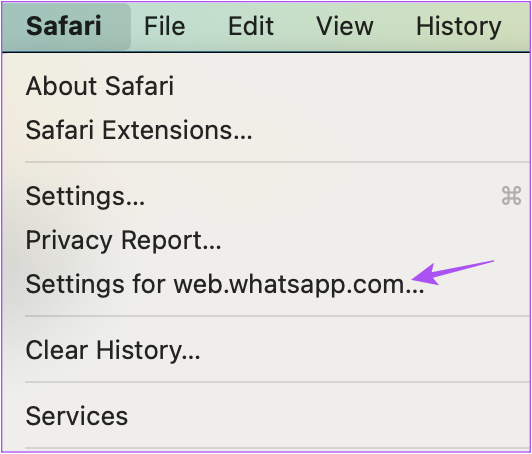
Step 3: In the pop-up window, click the drop-down menu next to Auto-Play > select Allow All Auto-Play.

Step 4: Click anywhere on the webpage to close the menu and check if the problem is solved.
Fix 2: Log Out and Log in to WhatsApp Again
This is just like how you would force quit and relaunch an app on your phone to give it a fresh start. The steps to log out of WhatsApp Web are the same for Mac and Windows users.
Step 1: On your WhatsApp Web page, click the three dots icon from the top-left menu.
Step 2: Click on Log Out.
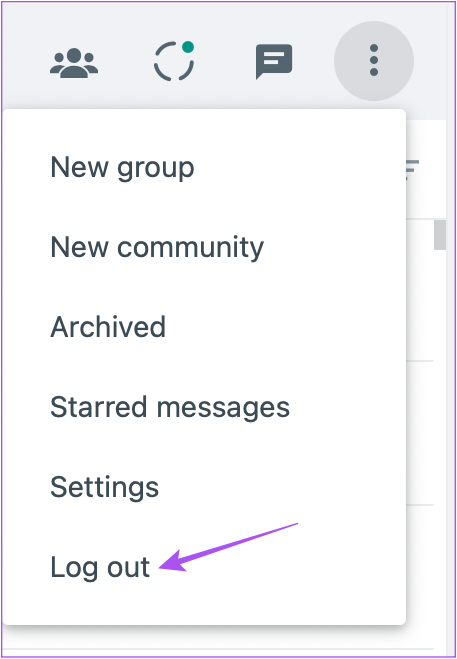
Once down, scan the QR Code again to log in and check if the problem is solved.
Fix 3. Turn off Do Not Disturb Mode or Focus Mode
Focus mode on Mac or Do Not Disturb mode on Windows are used to prevent notifications from disturbing you. While this mode doesn’t usually affect web browser tabs, it might cause a no audio issue in WhatsApp Web due to a bug or settings error.
On Mac – Click the Focus icon from the menu bar > click the active focus to disable it.

On Windows – Select the date and clock icon in the Windows taskbar > click the bell icon to turn off DND.

Fix 4. Open WhatsApp Web in Incognito or Private Tab
If you use extensions to smooth your browser experience, the extensions might be hindering WhatsApp’s audio output. To test the theory, open WhatsApp web in Incognito mode (Chrome) or Private tab (Safari).
If WhatsApp audio works now, try disabling the extensions one by one to see which one might be causing the issue.
Fix 5: Clear the Browser Cache
No audio in WhatsApp Web could be caused by corrupted caches. If nothing else has worked, clearing the browser cache might do the trick.
For Chrome
Step 1: Open Chrome > click the three-dot icon at the top-right corner.
Step 2: Select Clear Browsing Data.
Step 3: Here, check the box for Cookies and other site data and Cached images and files > click Clear data to erase.

For Safari
Step 1: Open Safari > click Safari from the menu bar > select Settings.
Step 2: Go to the Privacy tab > click Manage Website Data.

Step 3: Search for WhatsApp.
Step 4: Select WhatsApp cookies > click Remove or Remove all.

Was this helpful?
Last updated on 03 June, 2024
Read Next
 How to Save WhatsApp Audio on iPhone, Android, and Web
How to Save Voice Message From WhatsApp on Android All the WhatsApp data is stored in your device's internal storage, which can be accessed using the File Manager.
How to Save WhatsApp Audio on iPhone, Android, and Web
How to Save Voice Message From WhatsApp on Android All the WhatsApp data is stored in your device's internal storage, which can be accessed using the File Manager.
 How to Add New Contacts via WhatsApp Web
Use InTouch App to Add New Contacts Using WhatsApp Web InTouchApp is a contacts manager app that lets you add contacts directly via WhatsApp Web.
How to Add New Contacts via WhatsApp Web
Use InTouch App to Add New Contacts Using WhatsApp Web InTouchApp is a contacts manager app that lets you add contacts directly via WhatsApp Web.
 3 Ways to Fix WhatsApp Web Not Downloading Files
https://youtu.be/M9HiNzXcH_A Preliminary Fixes Restart Browser and PC: Sometimes, temporary glitches in the browser or PC can prevent WhatsApp Web from functioning correctly.
3 Ways to Fix WhatsApp Web Not Downloading Files
https://youtu.be/M9HiNzXcH_A Preliminary Fixes Restart Browser and PC: Sometimes, temporary glitches in the browser or PC can prevent WhatsApp Web from functioning correctly.
 4 Ways to Fix Whatsapp Web Not Syncing
https://www.youtube.com/watch?v=CRFmSi-xAEw Fix 1: Remove the Linked Device and Add It Again Step 1: Open WhatsApp on your smartphone and go to the Settings page.
4 Ways to Fix Whatsapp Web Not Syncing
https://www.youtube.com/watch?v=CRFmSi-xAEw Fix 1: Remove the Linked Device and Add It Again Step 1: Open WhatsApp on your smartphone and go to the Settings page.
 2 Ways to Fix if You Cannot Send Files on WhatsApp Web
Basic Fixes Check internet speeds: We suggest connecting to a 5GHz Wi-Fi network.
2 Ways to Fix if You Cannot Send Files on WhatsApp Web
Basic Fixes Check internet speeds: We suggest connecting to a 5GHz Wi-Fi network.
 WhatsApp Web vs WhatsApp Desktop App: Which Should You Use
Currently ranked as the world's most popular instant messaging app, WhatsApp needs no introduction.
WhatsApp Web vs WhatsApp Desktop App: Which Should You Use
Currently ranked as the world's most popular instant messaging app, WhatsApp needs no introduction.
 How to Change WhatsApp Audio Speed on Mobile and Desktop
Change Playback Speed for Audio Messages on WhatsApp WhatsApp allows you to change the playback speed of audio messages in three levels : 1x – 1x means WhatsApp will play
How to Change WhatsApp Audio Speed on Mobile and Desktop
Change Playback Speed for Audio Messages on WhatsApp WhatsApp allows you to change the playback speed of audio messages in three levels : 1x – 1x means WhatsApp will play
 How to Secure WhatsApp Web With Password
WhatsApp has become an integral part of our daily interactions.
How to Secure WhatsApp Web With Password
WhatsApp has become an integral part of our daily interactions.
The article above may contain affiliate links which help support Guiding Tech. The content remains unbiased and authentic and will never affect our editorial integrity.