Basic Fixes
- Enable Dynamic Appearance: Open Settings > Appearance > Select Auto to make your Mac wallpapers dynamic.
- Update macOS: Open Settings > General > Software Update.
Fix 1: Download Dynamic Wallpaper
Your Mac gives you nine different Dynamic Wallpapers. If you have selected a Dynamic Wallpaper, but it is not working in Dark Mode, you’ll need to check if you did download the Dynamic Wallpaper on your Mac.
Step 1: Open Settings > Wallpaper and then choose your Dynamic Wallpaper.
Step 2: Click the Download icon in your selected wallpaper.
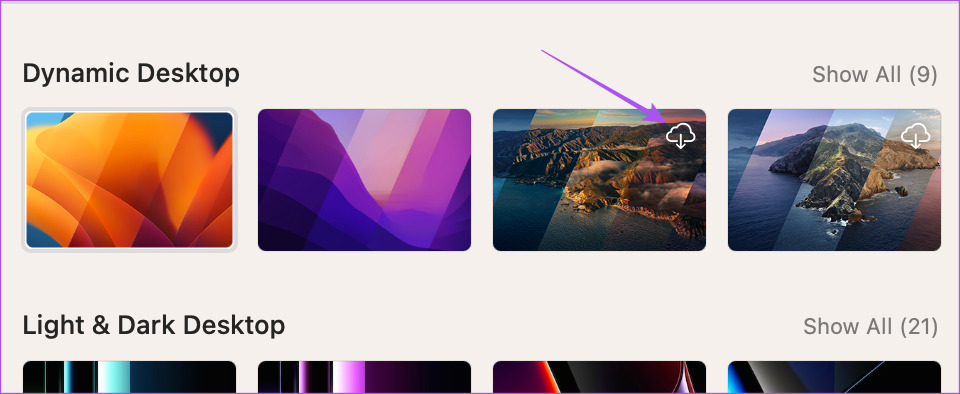
After downloading the wallpaper, close the window and check if the problem is solved.
Fix 2: Check Your Date and Time Settings
The Dynamic Desktop feature on your MacBook or iMac will work depending on the Date and Time settings. So the solution that we recommend is checking the Date and Time settings on your Mac.
Step 1: Open Settings > General > Date and Time.
Step 2: Click the toggle next to Set date and time automatically.
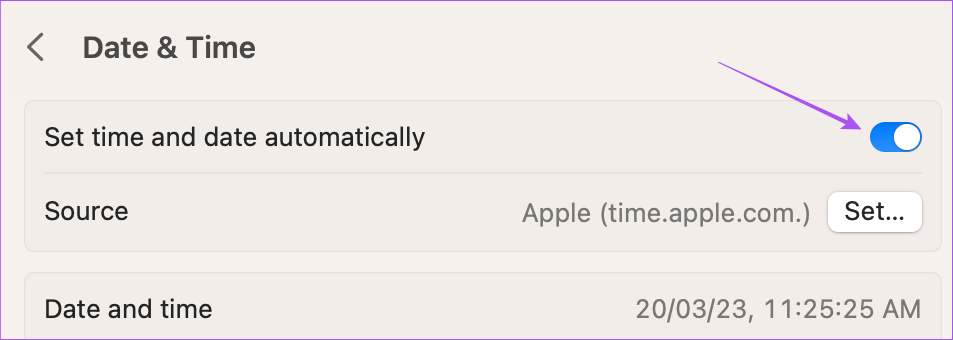
Step 3: Return tot he previous section to select Language and Region.

Step 4: Ensure that the correct region is selected for the Date and Time to be set correctly.
Fix 3: Enable Location Based Suggestions
After you select the Region, Date, and Time, you’ll need to check if Location Based Suggestions are enabled on your Mac. As the name suggests, this feature will trigger the Dynamic Wallpaper when your Mac switches to Dark Mode based on your location.
Step 1: Open Settings > Privacy and Security.
Step 2: Scroll down to the bottom and then click on Details next to System Services.
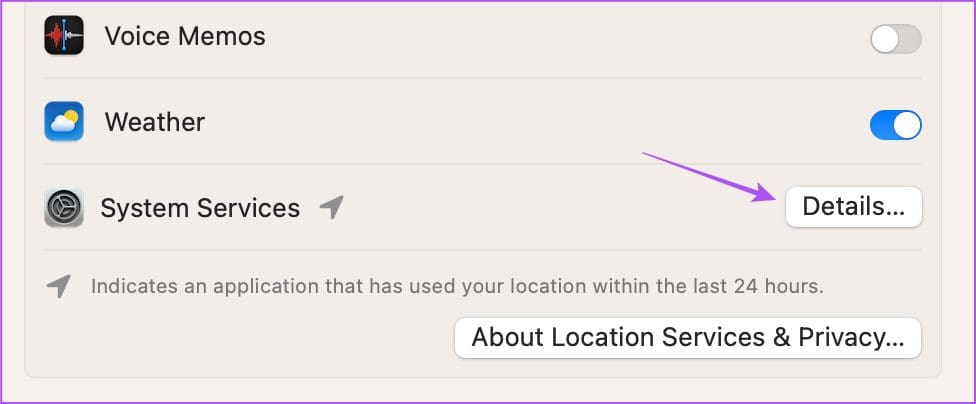
Step 3: Click the toggle next to Location Based Suggestion to enable it.

Step 4: Click on Done at the bottom right side to confirm.
Fix 4: Use Safe Mode
If you still face the same issue, we suggest booting your Mac to Safe Mode. You’ll need to use this advanced solution only if other solutions don’t work. Safe Mode will prevent third-party app interference and only allow system apps to boot on your Mac.
For Macs With M-Series Chip
Step 1: Shut down your Mac.
Step 2: After your Mac shuts down, press and hold the Power Button till you see the two startup options – Macintosh HD and Options.
Step 3: Select Macintosh HD while holding the Shift key and then select Continue in Safe Mode.

For Macs with Intel Chip
Step 1: Restart your Mac.
Step 2: Press and hold the Shift key when your Mac restarts. Release the Shift key when you see the login window.
Step 3: Sign in and then check if the problem is solved.
Tip: You can read our post if Screensaver is not working on your Mac.
Was this helpful?
Last updated on 08 July, 2024
Read Next
 4 Ways to Fix Dynamic Lock Not Working on Windows 11
Basic Fixes Re-pair your Bluetooth device: Press the Windows + I shortcut to open the Settings app, select Bluetooth & devices from the left sidebar, and click Devices.
4 Ways to Fix Dynamic Lock Not Working on Windows 11
Basic Fixes Re-pair your Bluetooth device: Press the Windows + I shortcut to open the Settings app, select Bluetooth & devices from the left sidebar, and click Devices.
 How to Disable Lock Screen Stories and Dynamic Wallpapers on Samsung Phones
How to Disable Lock Screen Stories Lock Screen Stories automatically changes wallpapers on your Samsung device.
How to Disable Lock Screen Stories and Dynamic Wallpapers on Samsung Phones
How to Disable Lock Screen Stories Lock Screen Stories automatically changes wallpapers on your Samsung device.
 25 Cool Dynamic Island Wallpapers (4K) for Your iPhone
Want to enhance the look of your iPhone?
25 Cool Dynamic Island Wallpapers (4K) for Your iPhone
Want to enhance the look of your iPhone?
 How to Turn off Dynamic Lock Screen (Or Glance) on Android
1.
How to Turn off Dynamic Lock Screen (Or Glance) on Android
1.
 Mac Wallpaper Keeps Changing? 2 Easy Fixes
Basic Fixes Restart Device: Your Mac's wallpaper changing constantly might be just a simple software glitch.
Mac Wallpaper Keeps Changing? 2 Easy Fixes
Basic Fixes Restart Device: Your Mac's wallpaper changing constantly might be just a simple software glitch.
 How to Make Wallpaper Change Automatically on Mac
https://youtu.be/KvVbuNZCPwY How to Create a Wallpaper Folder on Your Mac You'll need to create a local folder containing all the images you want to set as wallpaper on Mac.
How to Make Wallpaper Change Automatically on Mac
https://youtu.be/KvVbuNZCPwY How to Create a Wallpaper Folder on Your Mac You'll need to create a local folder containing all the images you want to set as wallpaper on Mac.
 4 Fixes if Windows 11 Wallpaper Keeps Going Black
Basic Fixes Manually change your wallpaper: You can manually change your wallpaper instead of choosing it to change automatically.
4 Fixes if Windows 11 Wallpaper Keeps Going Black
Basic Fixes Manually change your wallpaper: You can manually change your wallpaper instead of choosing it to change automatically.
 4 Ways to Fix Depth Effect Wallpaper Not Working on iPhone
Which iPhone Models Support the Depth Effect Feature The depth effect feature is only available on iPhones with an A12 Bionic chip or later.
4 Ways to Fix Depth Effect Wallpaper Not Working on iPhone
Which iPhone Models Support the Depth Effect Feature The depth effect feature is only available on iPhones with an A12 Bionic chip or later.
The article above may contain affiliate links which help support Guiding Tech. The content remains unbiased and authentic and will never affect our editorial integrity.